
Push Data to Equipment History from CSV Files
How to Push Data to Ability History from CSV file sources?
The data from file sources (Example: .CSV, .TXT, .JSON) can be pushed to Ability History database by creating a simple application using Vtrinlib API.
This section explains how a sample application can be created and used for this purpose.
A .NET core-based Vtrin sample application "Ability History Data Upload" is used to push data available in .CSV file to Equipment properties.
Data Push can be performed with GraphDataIterator method and the timeseries data should be in valid date-time format with valid values.
public void WriteValuesToHistoryWithGraphDataIterator(string instanceName, string property, List<Object> dateTimes, List<object> values)
        {
            var param = cGraphFetchParameters.CreateRawFetch(driver.Classes["EquipmentHistory"],
                driver.MinTimeInUTC,
                driver.MaxTimeInUTC,
                int.MaxValue - 1,
                "Path = ? AND Property = ? AND History = ?",
                instanceName,
                property,
                "StreamHistory");
            var iterator1 = driver.GetGraphDataIterator(param);
            int i = 0;
            foreach(var dateTime in dateTimes)
            {
                DateTime formattedDateTime = GetDateTime(dateTime.ToString());
                iterator1.Write(formattedDateTime, values[i], cValueStatus.OK);
                i++;
            }
            iterator1.Close();
            iterator1.Dispose();
        }

        public DateTime GetDateTime(string unformattedDateString)
        {
            string formatString = "MM/dd/yyyy h:mm:ss:fffffff";
            if (DateTime.TryParseExact(unformattedString, formatString, null, System.Globalization.DateTimeStyles.None, out DateTime dateTime))
            {
                // DateTime conversion successful
            }
            else
            {
                // DateTime conversion failed
                Console.WriteLine("Failed to convert string to DateTime.");
            }
            return dateTime;
        }
The below method takes the input parameters as : Equipment Instance name, Equipment Property Name, List of Object with Date Time in string format and List of Object with values.
public void WriteValuesToHistoryWithGraphDataIterator(string instanceName, string property, List<Object> dateTimes, List<object> values);Here we are using Graph Data Iterator to write values to Equipment History table for the specified instance.
Parse the date-time object to the correct format to accept the time in Nano second format. Please refer to line 25 in GetDateTime(string unformattedDateString) method. Specifying the valid date-time format is going to insert the values into the history. If the Date-Time format is invalid then iterator1.Write() method is going to throw the error.
Ability History Data Push Sample Application
Created a sample .NET core based application using VtrinLib.dll to push data to Ability History. The application has a configuration file and below parameters needs to be set in the AbilityHistoryDataUpload.exe.config' file.
Sample Application
Click here for the sample application.
ConnectionString - RTDB machine connection string - user can run this tool even from any windows machine with .net core installed but make sure that RTDB is accessible over the Network.
Username - username
Password - password
DataLocationPath - The path to the .csv file where the equipment properties data is available
TimeStampColumns - This is the index of the Date Time column - Keep it as it is. The .CSV file should be in a specific format ex: First column should always be a Date Time column and the subsequent columns shoud be the Equipment Properties
ValueColumns - Value columns index - This configuration property specifies the index of the actual value columns. Values always starts from index with 1 - Keep it as it is.
Separator - .CSV file separator
HasHeader - Set this to True always - Make sure that .CSV file always have a header
BatchSize - Batch Size specifies the number of records to be inserted per batch. Ex: If we have 2 Million records and wanted to write into the history, please divide into smaller batches for better performance i.e. 2 Million records can be batched into 200,000 or 500,000 per batch. Based on the batch size, the tool will take care of writing values to history.
In the folder structure, we have another .json configuration file named: EquipmentStructure.json which contains the Equipment Structure into which the data can be inserted.
Ex:
{
"EquipmentStructure": [
{
"EquipmentName": "MGC_BEARING",
"Instances": [ "BEARING_1","BEARING_2" ][ "BEARING_1","BEARING_2" ],
"Properties": [ "SIGNAL", "NOISE", "WHITE_NOISE","Power" ][ "SIGNAL", "NOISE", "WHITE_NOISE","Power" ]
}
]
}
EquipmentName: Equipment Model name - Don't include Path_ before the model name, it's simply Equipment Model display name
Instances: Provide the List of instance names into which the data needs to be written, if you have multiple equipment instance names, please provide
all the names in the array.
Properties: Provide the list of all equipment properties into which we wanted to write values. The equipment properties names should match with the
column headers in the .CSV file.
Also, we need to make sure that the required Equipment model is already created in the system.
To run the tool, please change all the configurations as mentioned above and run the AbilityHistoryDataUpload.exe file.
We could see the console logs when the tool is being executed.
The folder has an example data file, ExampleDataFile.csv for reference.
Please find the below table for the sample CSV file format.
| date-time | SIGNAL | NOISE | WHITE_NOISE | Power |
| 02/16/2023 5:12:02:9237803 | 5 | 0.28 | 0.098 | 0.3 |
| 02/16/2023 5:12:02:9242623 | 11.05 | -0.05 | 0.0175 | 0.5 |
| 02/16/2023 5:12:02:9242696 | 12.96 | 0.03 | 0.0105 | 0.3 |
| 02/16/2023 5:12:02:9242705 | 9.25 | -0.34 | 0.119 | 0.3 |
| 02/16/2023 5:12:02:9242716 | 3.08 | -0.53 | 0.1855 | 0.5 |
| 02/16/2023 5:12:02:9242734 | -1.99 | 0.09 | 0.0315 | 0.3 |
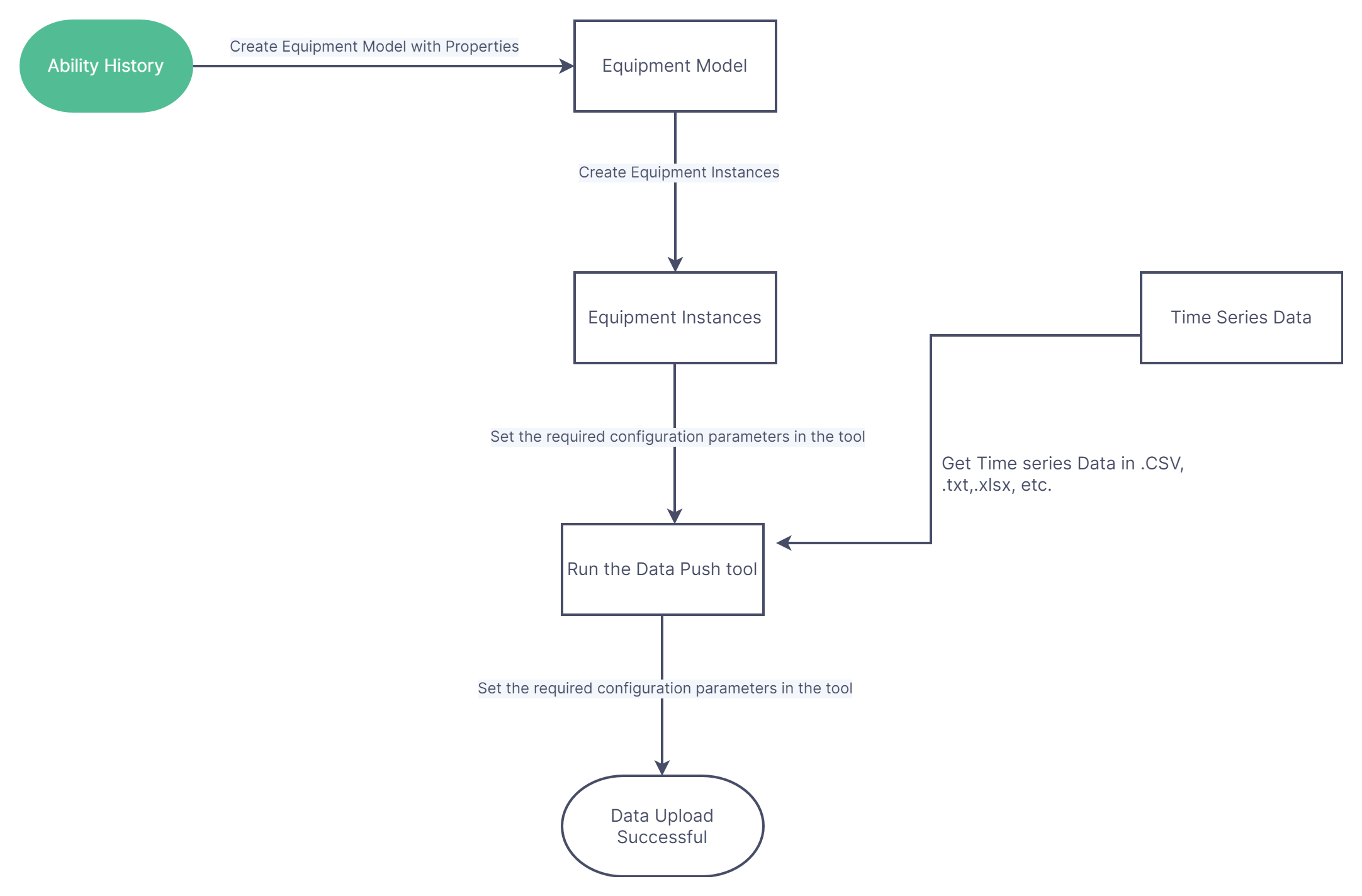
Process Flow Chart to load the data in Ability History
As an commissioning engineer , shall follow the below process workflow to load data into Ability History. Note that the VtrinLib based application needs to be developed before pushing the data.
Updated 6 months ago