
Customize Engineering UI
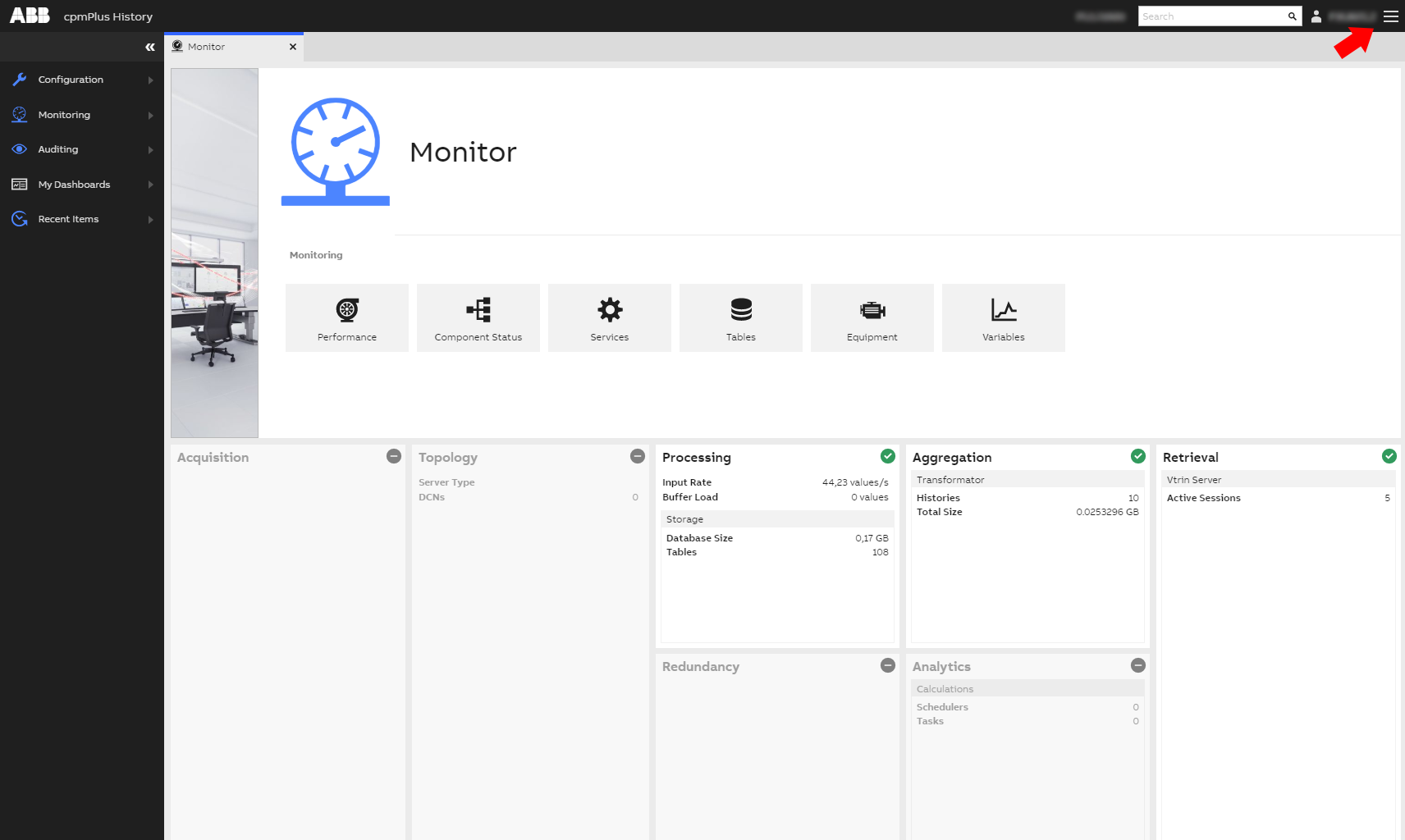
You can customize the Engineering UI based on your needs. From the top bar menu, you can find the options for customization.
First, click the menu
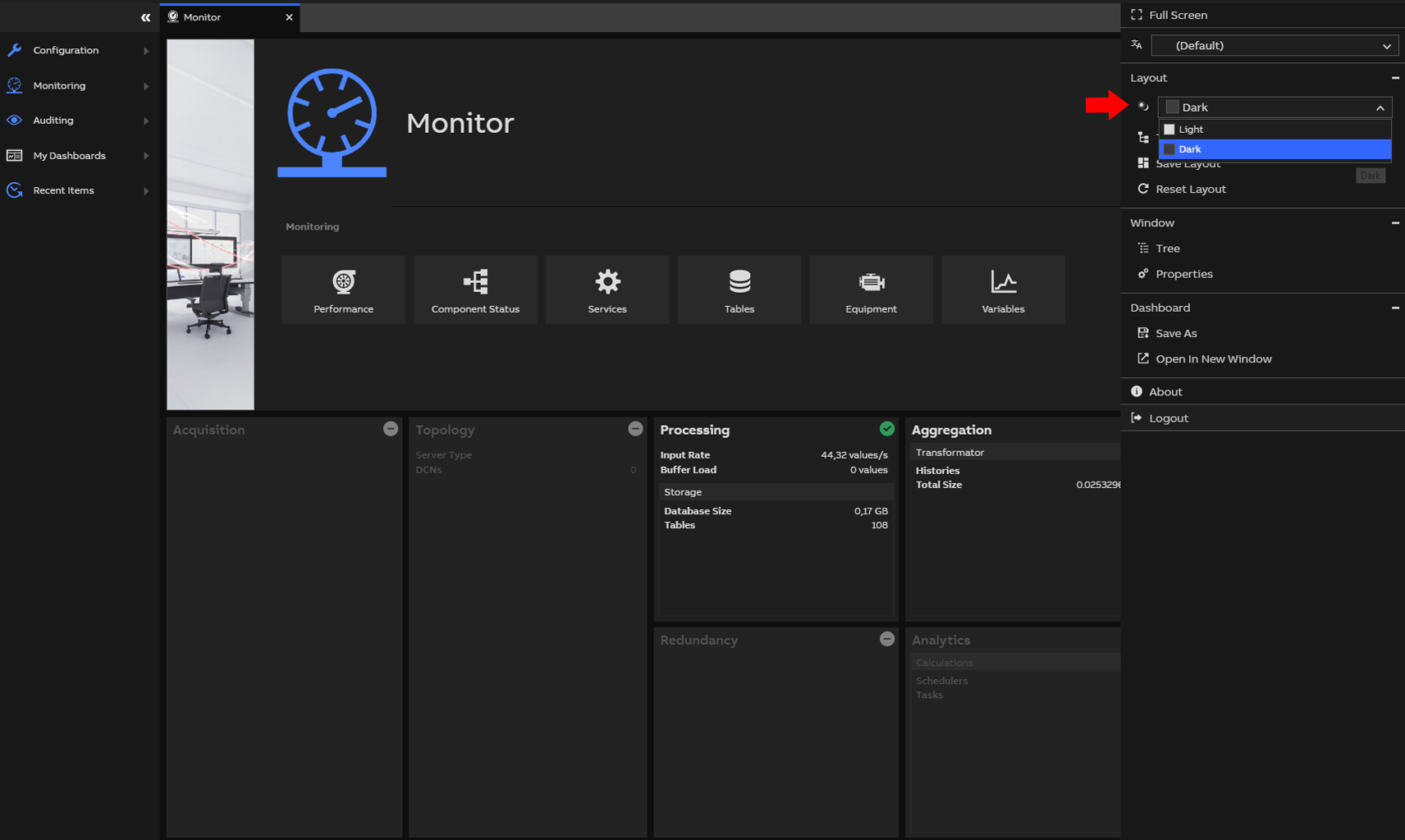
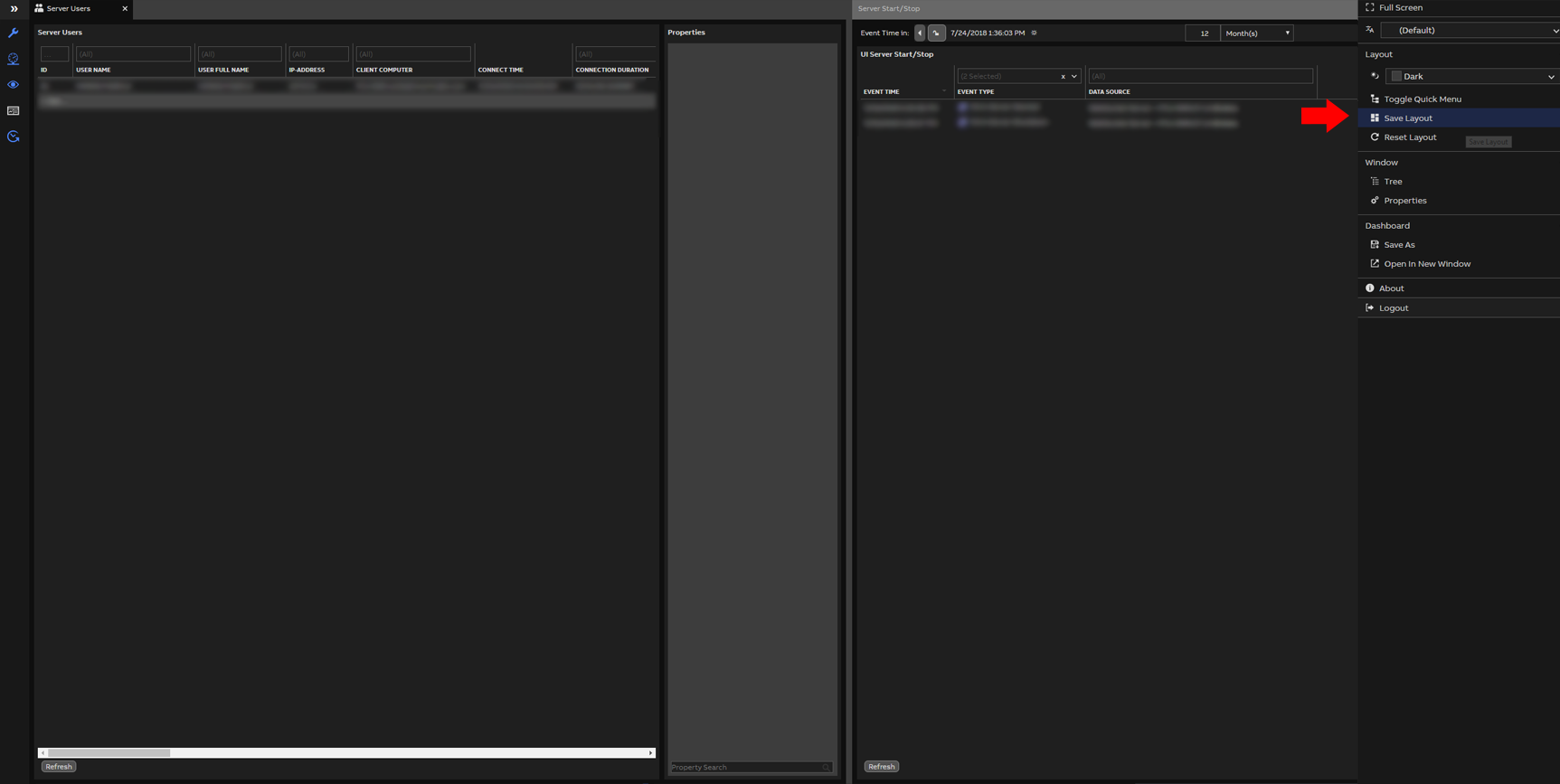
To change your Engineering UI theme, click first icon under "Layout". Engineering UI has two themes, light and dark.
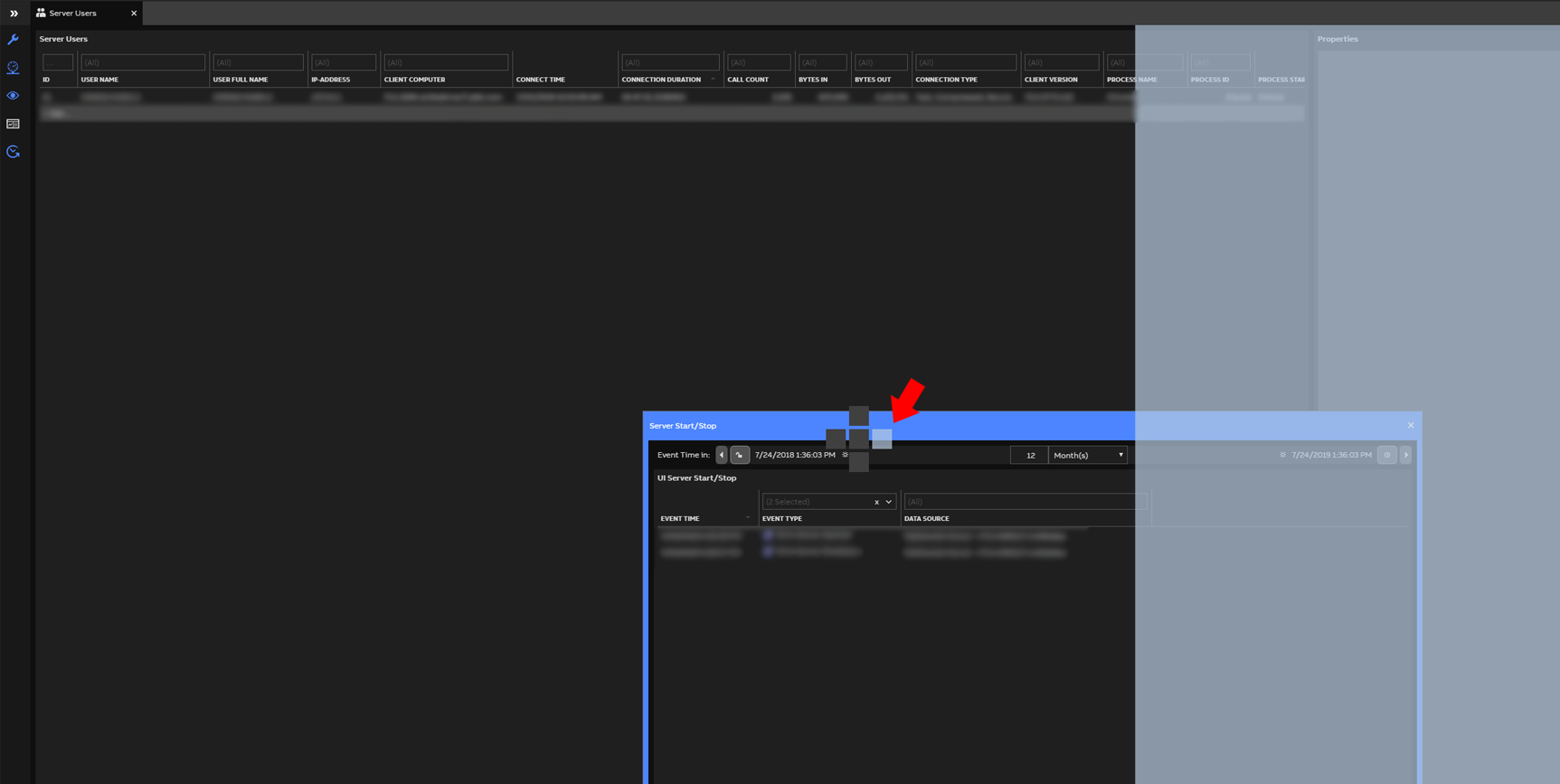
You can also change the default layout of the tool. Let’s say, you want the Server Users with Server Login/Log off next to it (both under Auditing), to be the default layout. Meaning this view will open, when you go to the tool with your credentials.
Open the tabs wanted, and drag and drop them in preferred place.
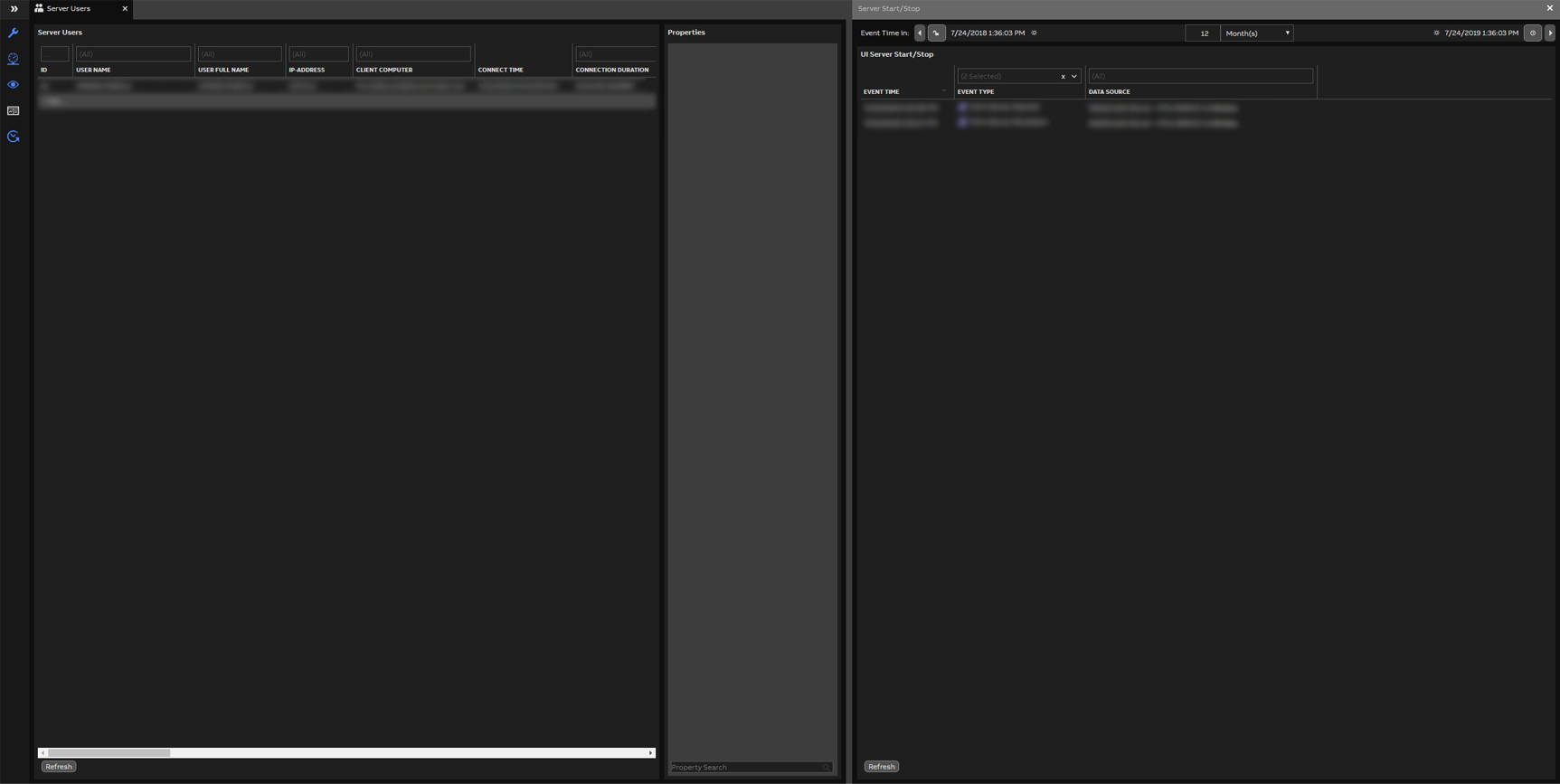
Then, from the top bar menu, choose “Save Layout”. Try refreshing the page, and you can see that the saved layout will appear.
If you want to reset the layout back to default, simply choose “Reset Layout”.
Customize branding
The logo and the app name "ABB Ability History" could also be customized by system administrator. In order to change the logo and the app name, follow this steps:
- Go to the Vtrin server webroot, in windows installation, by default it is in c:\inetpub. You might have to check your webroot configuration to know the location of it.
- From the webroot open this folder <webroot>\wwwroot\view\dashboard\data\users\engineeringui\
- In this folder, you will find appconfig.json file, this is the file that contains configuration of the engineering UI. You can change directly any configuration within this file and see the effect immediately on the browser, but since this file will be overwritten on upgrade, you should instead create another file named custom_appconfig.json. We provide custom_appconfig_example.json in our deliverable so you can just rename that file to custom_appconfig.json.
- You can override any configuration item existing under appconfig.json by setting the value in custom_appconfig.json.
- When custom_appconfig.json is ready to use. Don't forget to set the "LoadCustomAppConfig" property to "true" in the appconfig.json file to activate your custom settings.
- In the case of customizing the branding of engineering UI, you would be interested in 3 configuration items, they are
- AppTitle. This will be the name of the app. Which is being shown both in topbar and about dialog.
- LogoText: If LogoImage is not defined, the value from LogoText will be shown as the logo.
- LogoImage: To show a logo image, you need to supply this value with the path to the logo. We are recommending SVG logo with height no taller than 25px. We also recommend the logo to be bright colored (preferably white) because the topbar background is black.
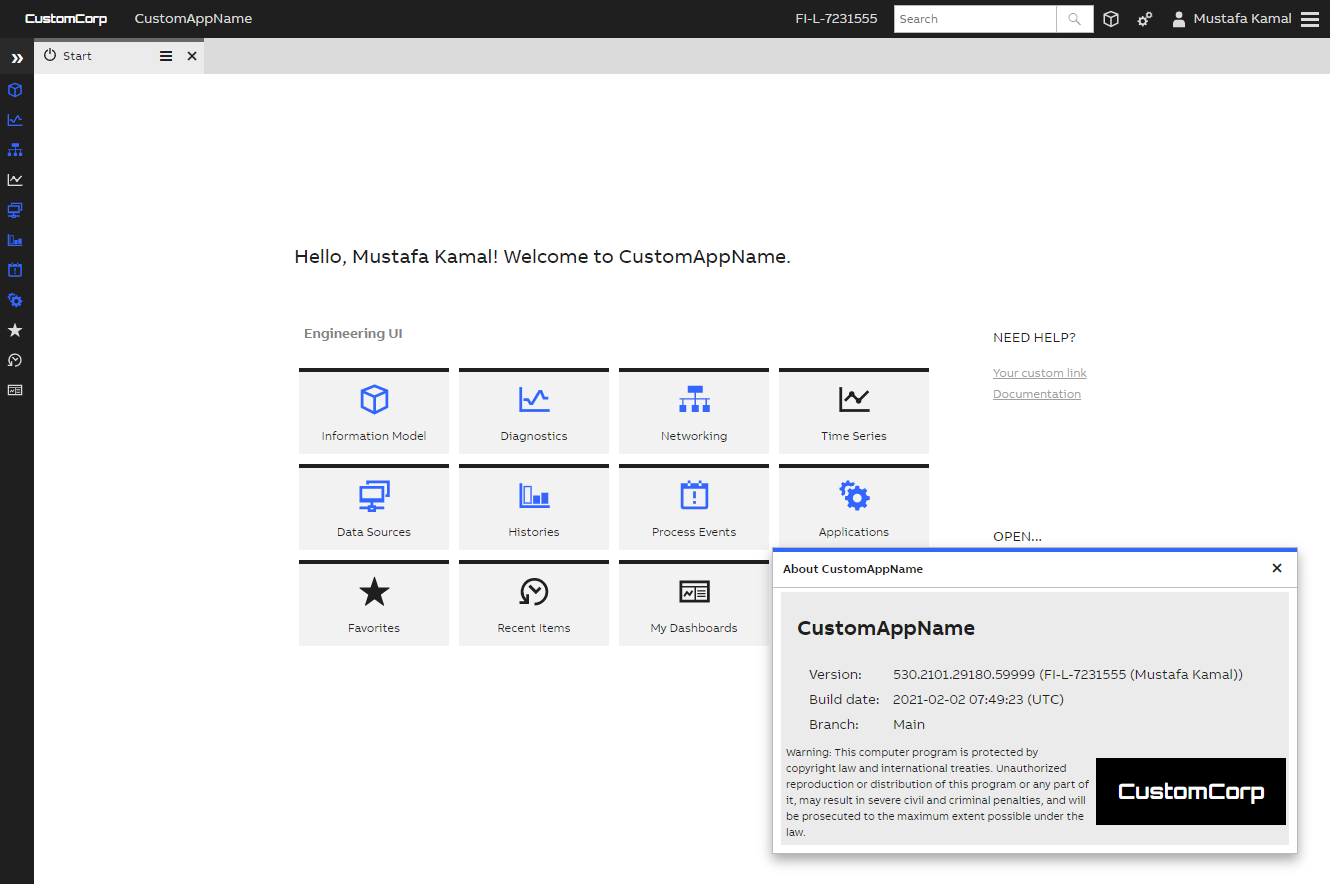
Example of rebranded engineering UI
Customize the start page links
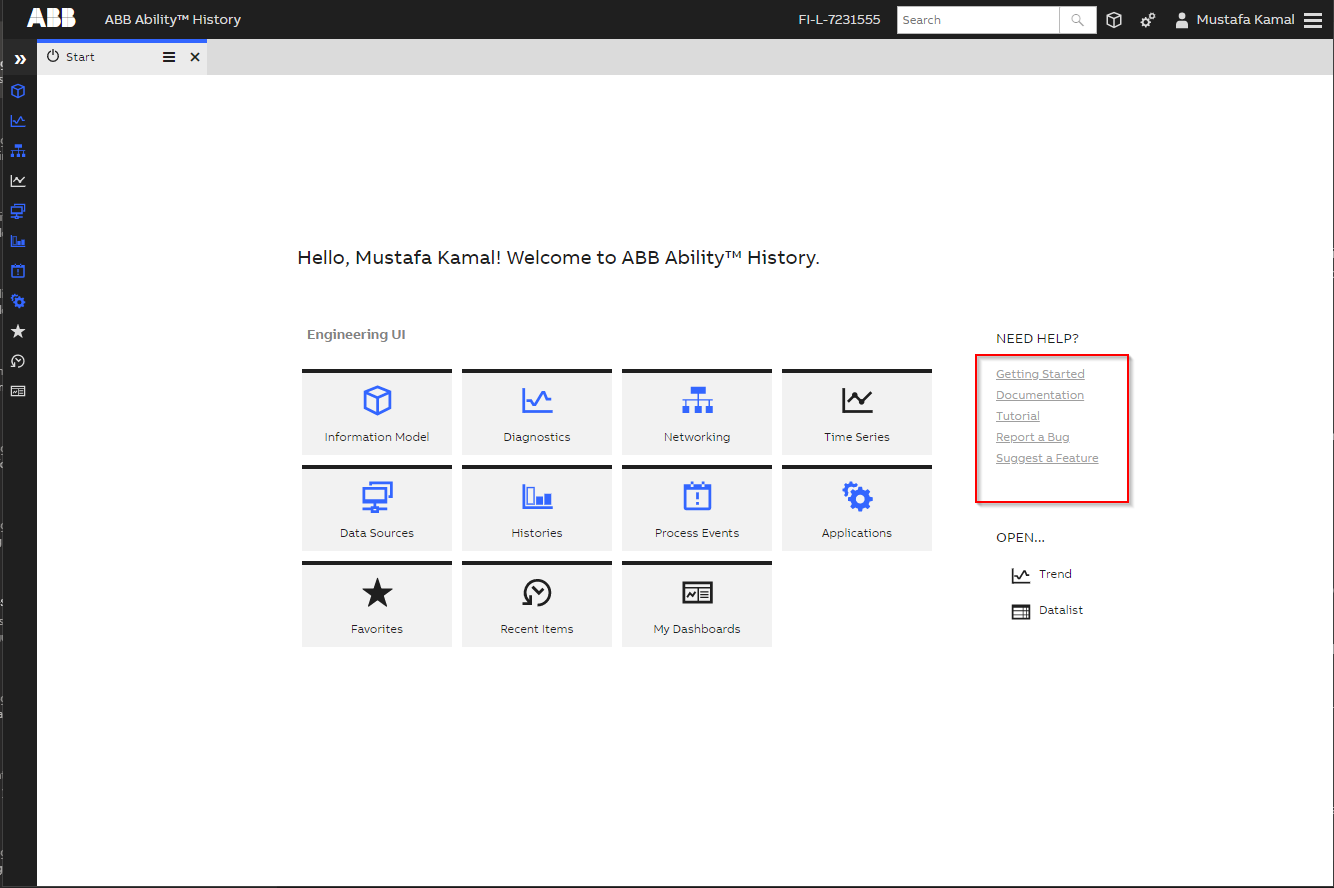
Specific to Engineering UI, the help links in the welcome page could also be customized. That text is coming from <webroot>\wwwroot\view\dashboard\data\users\engineeringui\startpagelinks.html, if you want to customize it, you should create another file named custom_startpagelinks.html in the same folder. Then you can edit that html file as you wish. Engineering UI will then ignore the startpagelinks.html and load your custom_startpagelinks.html instead on the start page link section.
Updated 9 months ago