
Calc Import Export CLI Tool
Purpose of the CalcImportExport.exe
The CalcImportExport.exe tool serves as a versatile solution for the seamless export and import of calculations. This process can be executed both remotely and locally, offering flexibility in data management. It's important to note that, prior to importing, it is assumed that the target machines already have pertinent equipment types defined to ensure the smooth and accurate execution of calculations.
Detailed workflow
- Create a compliant calculation catalog on the source machine, complete with precise code definitions.
- Implement data mapping for calculations on the source machine, enhancing precision and relevance.
- Utilize the CLI tool to seamlessly export calculation catalogs from the source machine, generating them in JSON format for streamlined sharing and integration.
- Ensure the target system is well-prepared for the import process by defining Equipment Types, Instances, and Variables where the calculations will be integrated.
- Execute a seamless import process by incorporating the calculation catalogs created in step 3 into the target machine using the CLI, ensuring a smooth and efficient transition.
Example 1 - Exporting specific Calc Catalog
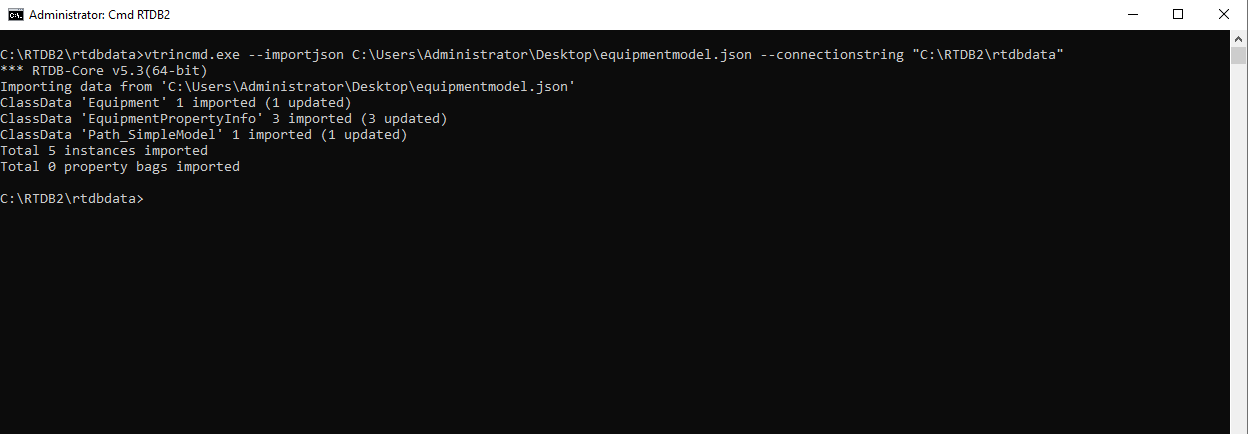
- To start with calculation export and import let's import an Equipment Model ( below .JSON snippet) into source and target systems. Successful import will show the message as shown in the screenshot below.
{
  "ClassData": [
    {
      "Class": "Equipment",
      "Instances": [
        {
          "Id": "7b915007-7165-47bd-8d3d-d07d683e472b",
          "Name": "SimpleModel",
          "ClassName": "Path_SimpleModel"
        }
      ]
    },
    {
      "Class": "EquipmentPropertyInfo",
      "Instances": [
        {
          "Id": "0dd2ba67-98e6-478a-a1d9-379fdb0f2217",
          "DisplayName": "PropertyA",
          "Equipment": "7b915007-7165-47bd-8d3d-d07d683e472b",
          "Type": 14,
          "Historized": true
        },
        {
          "Id": "1e9abfa6-57e5-48d7-98ed-e4ba0f73bdd4",
          "DisplayName": "PropertyB",
          "Equipment": "7b915007-7165-47bd-8d3d-d07d683e472b",
          "Type": 14,
          "Historized": false
        },
        {
          "Id": "fcc82b71-3d55-4409-b9bb-e2e74f623bae",
          "DisplayName": "PropertyC",
          "Equipment": "7b915007-7165-47bd-8d3d-d07d683e472b",
          "Type": 14,
          "Historized": true
        }
      ]
    },
    {
      "Class": "Path_SimpleModel",
      "Instances": [
        {
          "Id": "8c341824-9340-44c7-abbb-cdb1a10bfe1b",
          "Name": "SimpleTree.simplemodel",
          "PropertyB": "2"
        }
      ]
    }
  ]
}
# Here provided the Direct DB connection as a connection string.
# If you don't have direct access we can pass the wss connection string of the maching with username and password

vtrincmd.exe --importjson C:\Users\Administrator\Desktop\equipmentmodel.json --connectionstring "C:\RTDB1\rtdbdata"
- Let's create a sample calculation in the source system for simple addition operation and export the calculation using the calcimportexport.exe CLI tool.
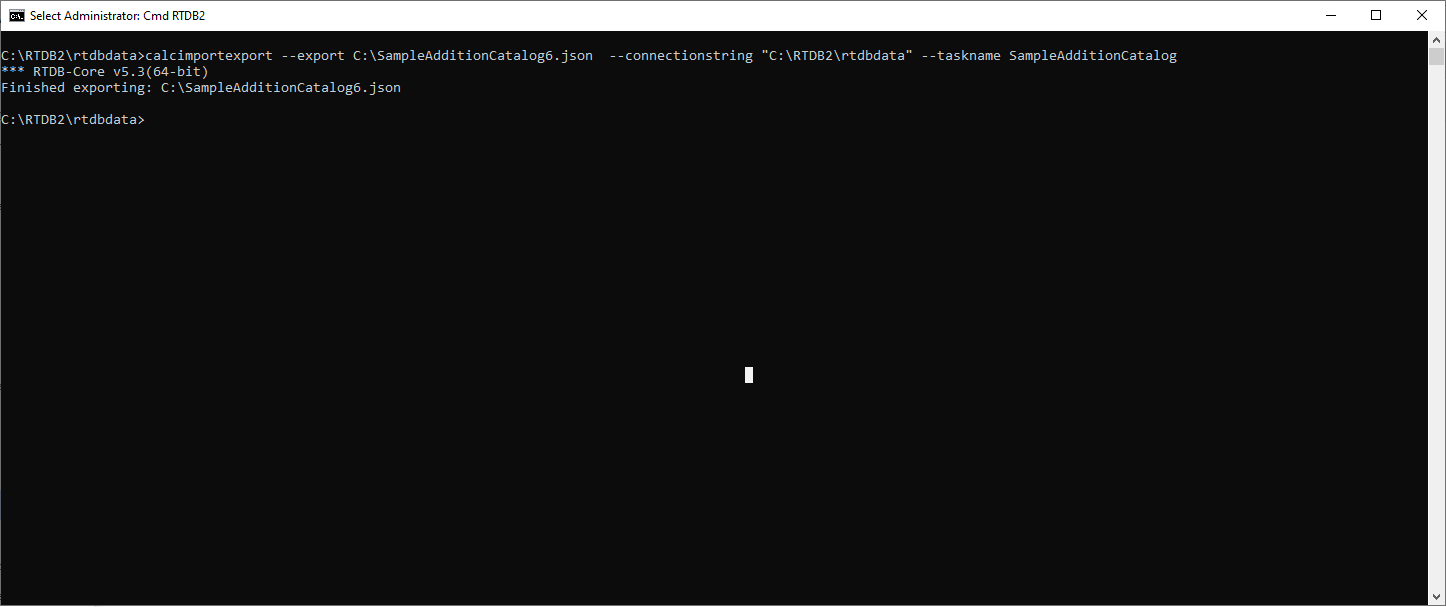
- Below example will export the calculation catalog to the specified path by using the direct DB connection. A user can pass the wss connection string path along with username and password as well. Please find the screenshot for the message after the export is successful.
- In this example we exported a specific calculation task with a name called 'SampleAdditionCatalog'
#Below command will export specific calculation catalog based on the taskname
calcimportexport --export C:\SampleAdditionCatalog6.json  --connectionstring "C:\RTDB2\rtdbdata" --taskname SampleAdditionCatalog
Example 2 - Exporting specific Calc Code
-
Export specific calculation definition (calculation code)
-
# Below command exports the specific calculation definitin name

calcimportexport --export C:\SampleAdditionCatalog7.json  --connectionstring "C:\RTDB2\rtdbdata" --definitionname addition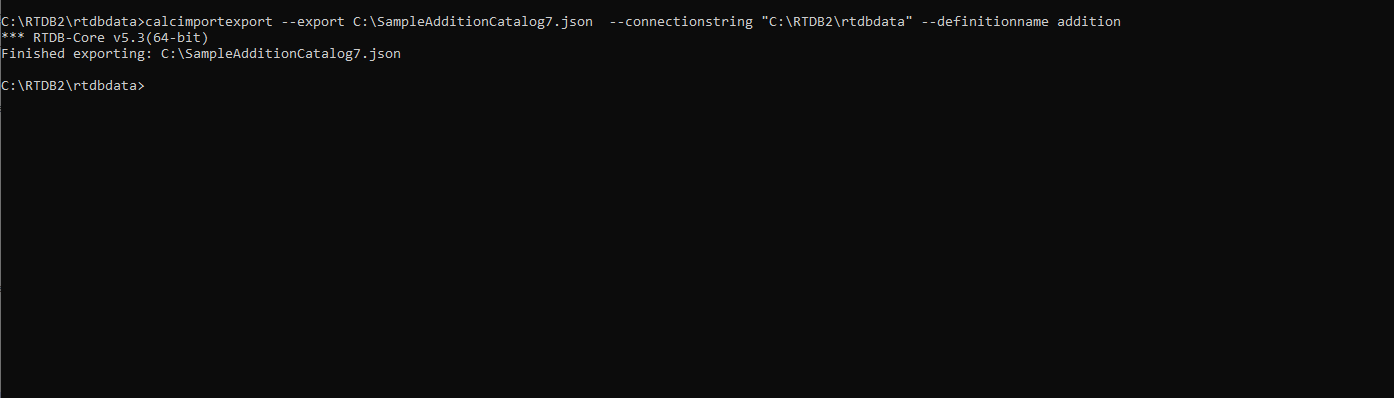
Example 3 - Exporting all
-
Export all the available calc tasks and definitions, below command is going to export all the available calc tasks and definitions.
-
# Below command will export all the available cals tasks and definitions when we do not provide anything

calcimportexport --export C:\SampleAdditionCatalog8.json  --connectionstring "C:\RTDB2\rtdbdata"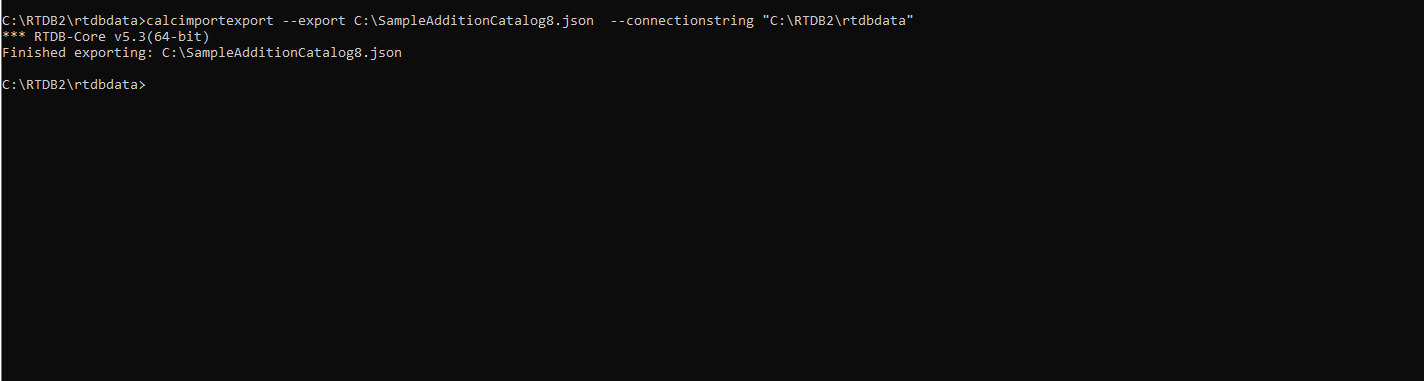
Example 4 - Export with wss connection string, username and password
# Below command will export all the calc tasks using wss connection string

calcimportexport --export C:\sampleadditioncatalog9.json --connectionstring "wss://localhost/history" --user administrator

# running the above command will ask the user for password, enter a valid password
# on successful completion of the command process the calcs will be exported.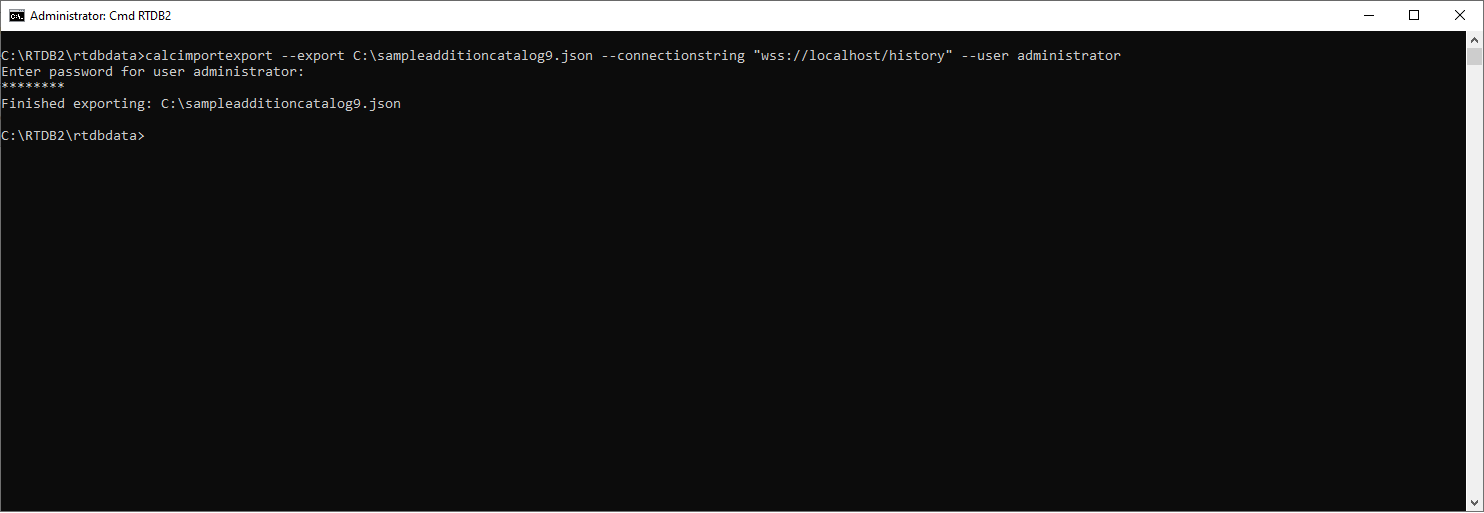
Example 5 - Import calculation definition directly to the Target system Database
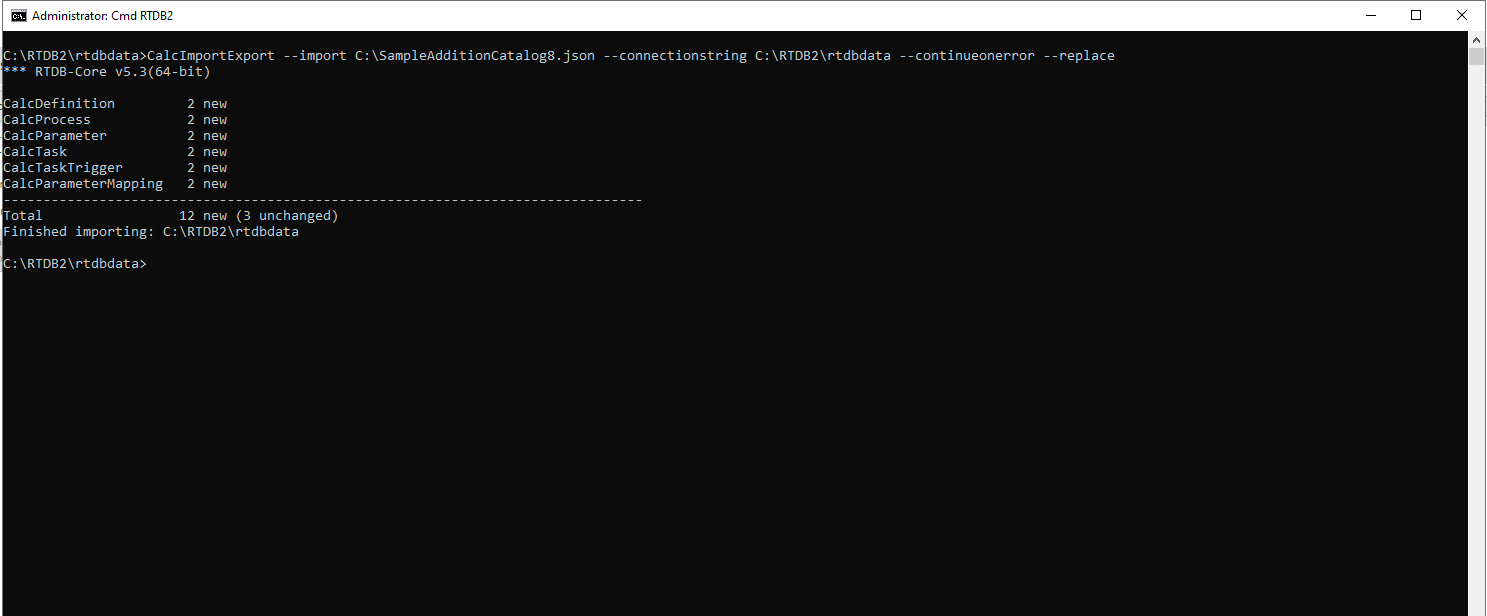
On successful import user should not see any error
# Below command will import all the definitions, calc process, calcscheduler, calc mapping, calc parameter, calc task, calc task trigger, calcparameter mapping into the target system
CalcImportExport --import C:\SampleAdditionCatalog8.json --connectionstring C:\RTDB2\rtdbdata --continueonerror
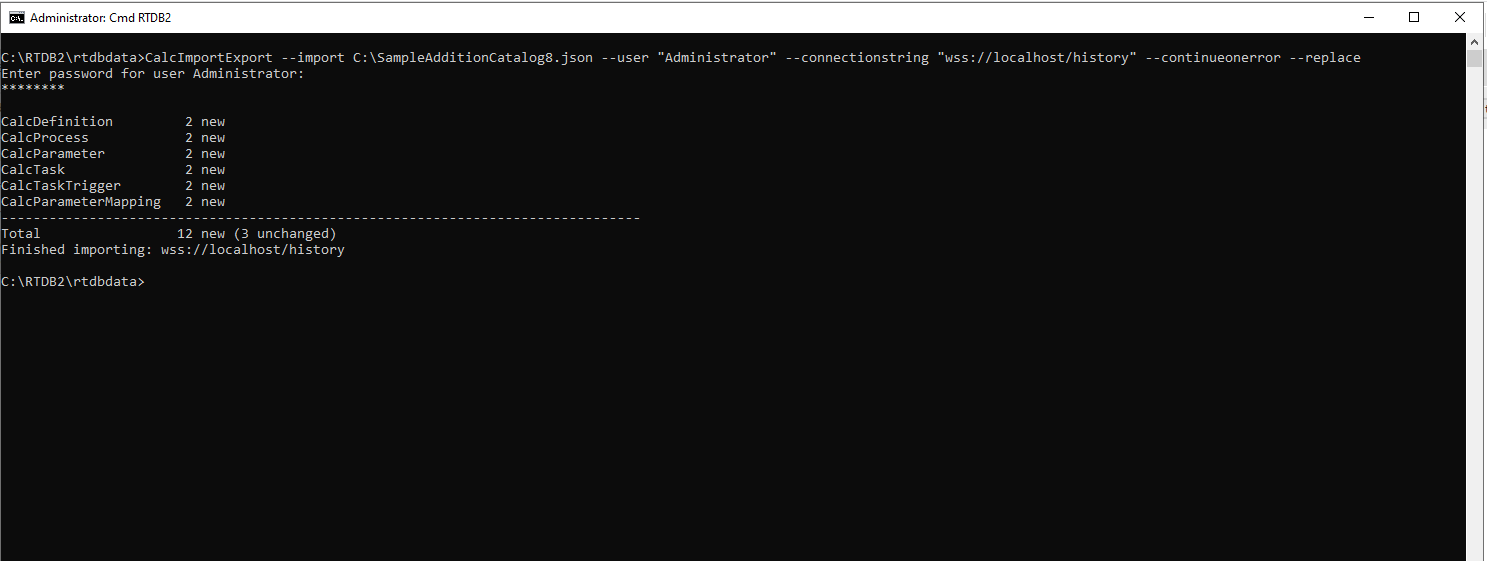
Example 5 - Import calculation definition to the Target system Database using wss connection string , username and password.
# Below command will import all the definitions, calc process, calcscheduler, calc mapping, calc parameter, calc task, calc task trigger, calcparameter mapping into the target system

CalcImportExport --import C:\SampleAdditionCatalog8.json --user "Administrator" --connectionstring "wss://localhost/history" --continueonerror --replace
Example 6 - Import specific calculation definition and exclude required CalcTaskTrigger
# Below command will import specific calculation definition and exclude CalcTask,CalcTaskTrigger,CalcParameterMapping,CalcProcess,CalcScheduler

CalcImportExport --import C:\SampleAdditionCatalog8.json --user "Administrator" --connectionstring "wss://localhost/history" --continueonerror --exclude CalcTaskTrigger,CalcScheduler,CalcMapping

Example 7 - Import All and Remap Instances Paths
If other sites have different process paths and variables names, then it is possible to remap paths and variables before importing. Either modify directly WhereString-property in JSON file or command-line user interface. Let's assume the example model has imported another machine and the instance path is changed to SimpleTreeNew.simplemodelNew, then we can remap:
CalcImportExport --import <json file> --user <user> --connectionstring <rtdb location> --continueonerror --replace --separator '|' --remapseparator '>' --remap 'oldpath.oldinstance1>newpath.newinstance1|oldpath.oldinstance2>newpath.newinstance2'
Example 8 - Import and Print very detailed report
CalcImportExport --import <json file> --user <user> --connectionstring <rtdb location> --continueonerror --verbosity 5 --acceptnewkeys
Updated 8 months ago