
Upgrading History software
This article will guide you through how to upgrade ABB Ability™ History Server on Windows environment
DownloadDownload the latest History software from ABB Ability™ History Downloads and copy to your local drive.
The software download is available only from ABB intranet.Installation through Network share is not supported.
- Log on with the user in which ABB Ability™ History is installed previously.
- It is recommended to have a valid backup before upgrading the software.
This can be verified by looking for OnlineCopy.ok file in “<backupDrive>:\OnlineCopy Folder” e.g. (F:\OnlineCopy). Note: If you have installed separate applications for example a view application, it is advised to take a backup of these separately. - Stop RTDB from RTDB Control panel.
NoteEnsure there are no open or broken tables, and all the services are stopped properly. If you see any open or broken tables, don’t proceed further. Contact your support team for further assistance.
- Proceed to the next step only if your current ABB Ability™ History version is 5.1 else skip to step 6.
- If the upgrade is from version 5.1 to a higher version and the Stream History table is used for storage then during the upgrade, the size of old Stream History tables will be doubled. In case if the available free disk space for the database drive is less than 50% then follow the below steps else skip to step 6. Note: This step will cause the upgrade to run longer than normal.
a. Open Admin CMD b. Run command ‘SET RTDB_UHT_FixStreamBlockSize=All’ - Browse to the latest software media from the local drive and double click to extract.
- After extraction find the Upgrade Project CPIMS.bat in the Project CPIMS folder. In the folder you can also find Project CPIMS RTDB Setup Instructions.txt file that will give you more detailed installation instructions, if needed.
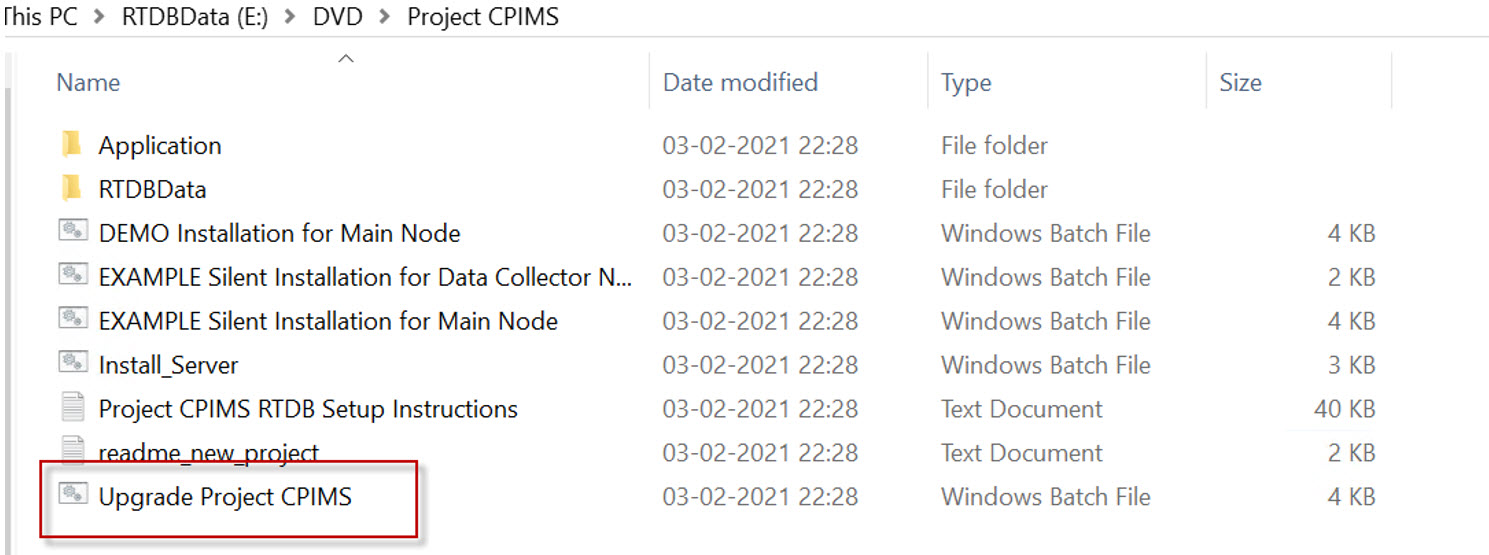
- Run the “Upgrade Project CPIMS” from the elevated CMD prompt and follow the instructions.
NoteDo not start the batch file by directly double-clicking it. It’s a good practice to start the batch file from the command line.
- The batch file will start the upgradation in interactive mode, Provide the below inputs.
a. Provide Command ‘1’ for the upgrade. b. Provide ‘N’ for NLB configuration c. Provide 'Y’ for Have users been notified. d. Provide ‘Y’ for Have local applications been stopped. After providing the above parameters, the upgrade will proceed. - Once the upgrade completes, Check for the message at the end of the installation. There are possibilities that the user needs to relaunch the same batch file if there any pending restarts. Start RTDB only after seeing the confirmation message like ‘Upgrade completed successfully'.
Updated 8 months ago