
Dashboard Features
This article presents features of the dashboard editor that enable you to make your dashboard interactive
Context
Context is a mechanism used to pass data on dashboard between widgets between different dashboards. Context can, for example, contain references to equipment; a selector widget that allows the user to select an equipment can emit a context event that a chart widget listens to, and upon hearing that event, the chart updates itself to show information related to that particular equipment.
Different widgets respond to context events in different ways; in most cases by displaying some data related to the equipment passed to it.
In widget settings we have different properties for context handling and passing:
- Drag allowed
- Drop allowed
- Accept Context
- Listen to Context
- Listen Global Context
- Send Global Context
- Merge Context
We also have Handlers and Listeners that are dashboard definition properties and can be used when passing context between dashboards.
Dragging and dropping context
If the "Drag Allowed" property of a widget is enabled, it becomes possible to use the cursor to drag context from this widget onto other widgets or dashboards.
If the "Drop Allowed" property is enabled, the widget is allowed to receive context that is dragged onto it from another widget or dashboard.
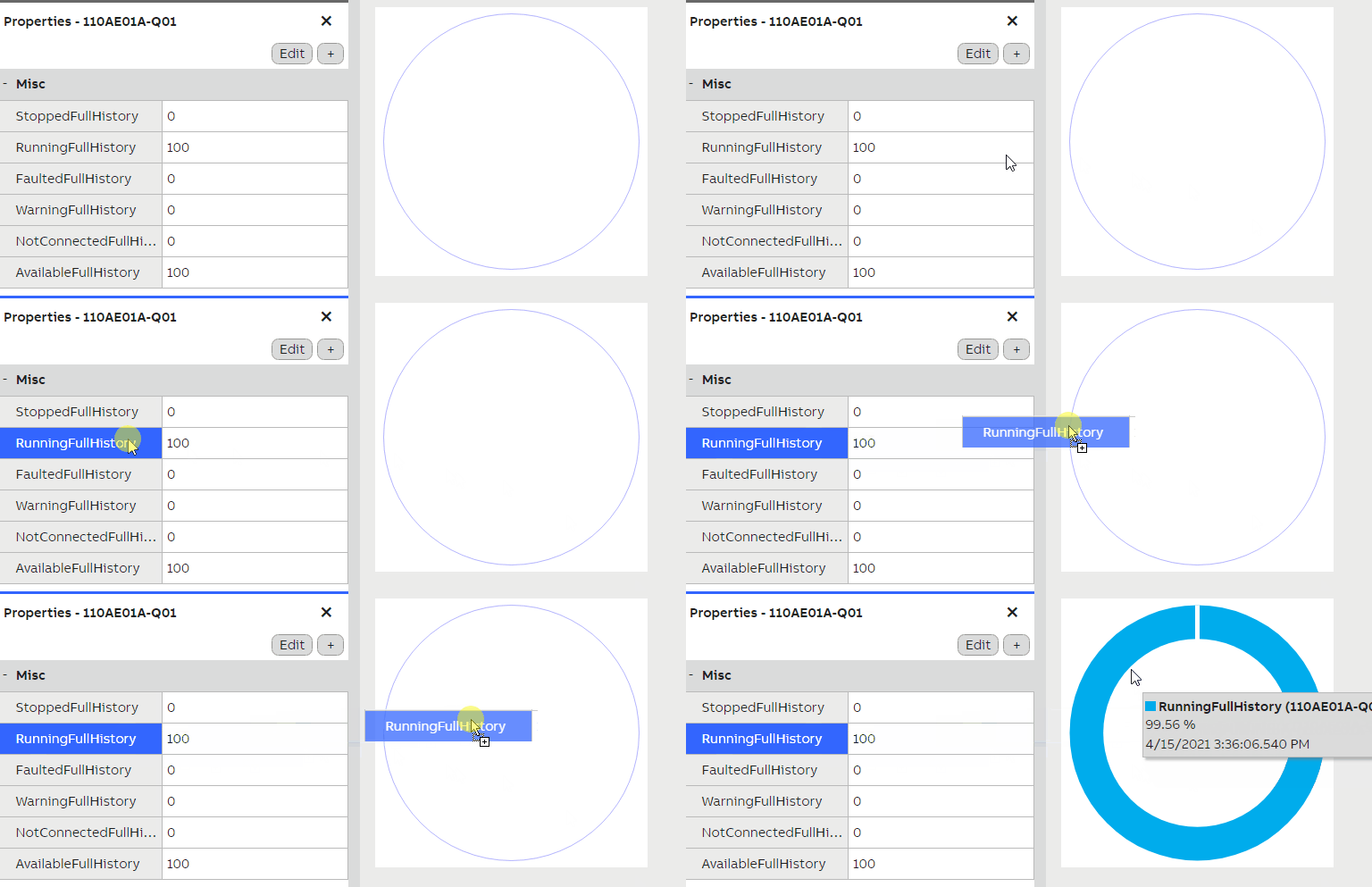
Context can be dragged between different widgets, dashboards and windows.
Passing context between widgets
A widget can listen to another widget's context by having the Accept Context property enabled and the Listen to Context property referencing the other widget we want to pass the information from. Any context events emitted by that widget are then listened to by the receiving widget.
All widgets have these features and the Listen to Context property allows the widget to listen to one or multiple other widgets for context. Most standard widgets work with the standard data context with no additional configuration required, and context behavior can be pre-configured (depending on the widget).
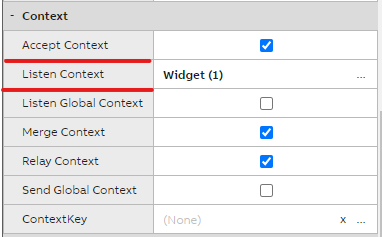
Example of Accept and Listen To Context settings
When selecting multiple sources, normally, the latest context event received by the widget overwrites the previous context. However, if the "Merge Context" property is enabled, contexts from different widgets are combined together. This allows for example, showing properties from multiple different equipment in a chart at once.
Tutorial: Please see simple example of how to pass context between widgets here.
Passing context between dashboards
Exchanging data between dashboards can be achieved with Context Mapper (includes context handler) and Context Builder (includes context listener) in dashboards. These are dashboard definition features.
A dashboard might for example contain another dashboard as a sub-dashboard. You can make that sub-dashboard listen to context in the same way a widget would. However, you need to define how the context will be passed to the widget on the dashboard it received the context to. This is done with context handler that can be defined in the dashboard properties.
A single handler - also known as a mapping - listens to context events of a certain class. You can select this class in the handler's properties. A key can be used to further filter what kind of events this dashboard wants to receive. The handler only handles events that contain the same key in themselves. If no key is defined, the handler handles any event with or without a key.
The handler then uses its defined target to pass on the context event. This target refers to a widget on the dashboard, and there can be multiple of them.
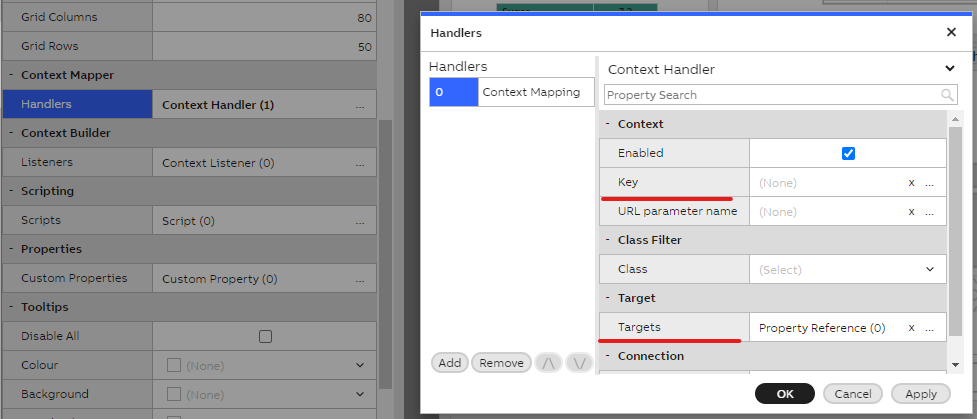
Example of context handler
Tutorials:
- Please see a simple tutorial on how to pass context between main- and sub-dashboard here.
- Please see a simpla tutorial on how to pass context between independent dashboards here.
Global context
Global context is a mechanism used to pass context on a very high level. When emitting a global context event, it can be listened to globally in the entire application. For example, Engineering UI's Time Series dashboard listens to global context and displays any equipment that is selected from the equipment browser. The equipment browser emits the selected equipment as global context events.
Global context can be configured for a single widget or a sub-dashboard via the properties Send Global Context and Listen Global Context.
Creating Data Context Sensitive Dashboards
Dashboards react to data context, showing data instances from the current system or data selected by the user. We can, however, also base the application and dashboard design on the data model (=data of specific type) instead of specific equipment instances. The data model mainly refers to equipment classes and their properties.
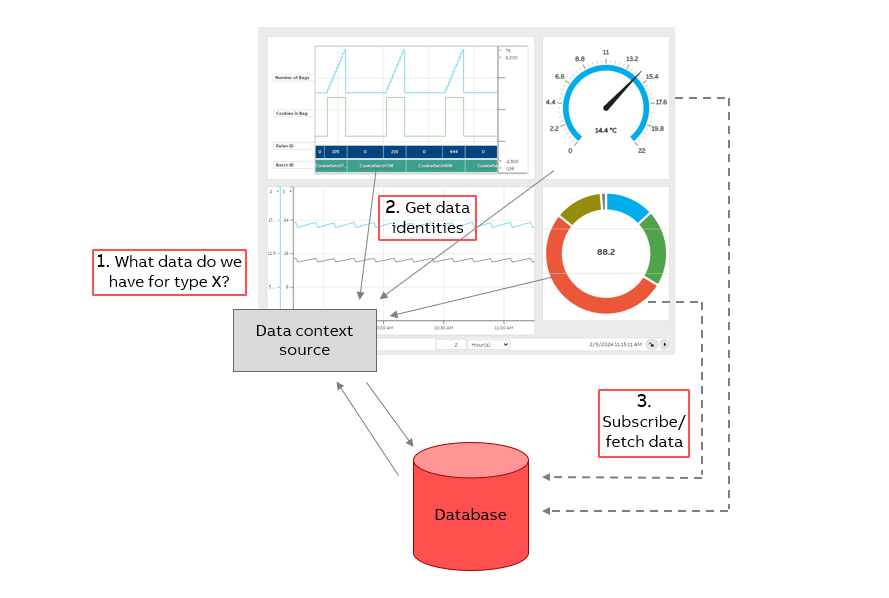
In this example, the widgets on the dashboard fetch data from the database based on the types of data they can display.
When creating data model -based dashboards, you need to figure out the logic to find the "main" instance. This can be done by utilizing masking, sorting and scripting logic on the dashboard.
Sometimes instance-specific custom dashboards are still the desired way, but configuring them to be context sensitive can still make them easier to configure and reuse.
Context sensitive dashboard
To configure your dashboard to be context sensitive, first ensure you have test data available in your development system. This data should be in the form of Path_* classes and their properties.
Next, you need to select a widget on your dashboard as the data context source (which all other widgets will listen to). Certain widgets provide context in a format other widgets can consume. These include the following widgets:
- Select
- Datalist
- Class Instance
- Navigation Tree (Configure the source and masking to select the main instance on this widget)
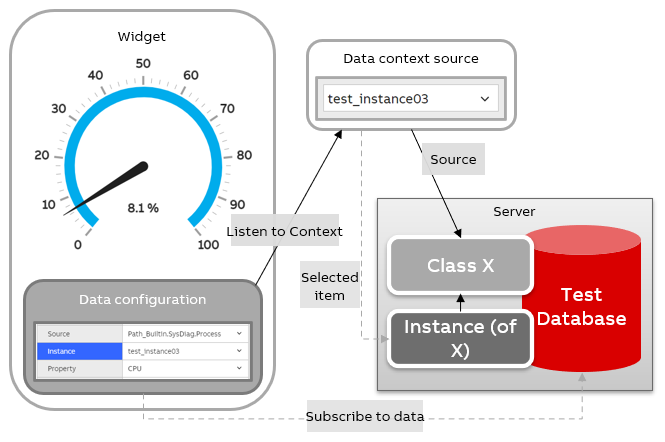
Image gives an example of a process when Gauge widget listens to Select widget
Scripting
It is possible to utilize scripting on the dashboard to achieve more complex behaviors.
Tutorials:
- For further information on scripting please see our video introduction that you may find here.
- Detailed examples of scripting in View dashboard may be found here .
Send To
Right-clicking a node in a tree or an equipment in the Equipment Browser allows you to send that particular node as context to another dashboard. The dashboard is automatically opened upon being selected from the "Send To" menu, if it is not already open.
This feature is configured in the Engineering UI from the "Applications" -> "User Interface" -> "UI References" dashboard. This dashboard contains a table showing all UI references in the application.
Tutorial: Please see our tutorial here.
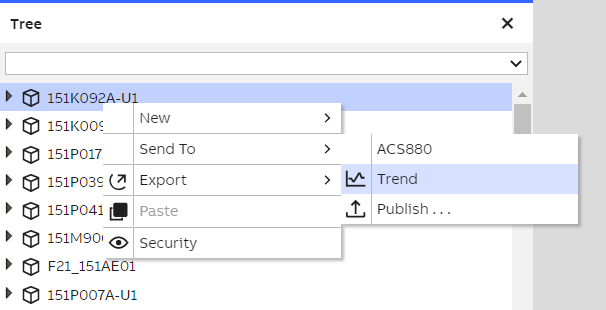
"Send To" options configured for an equipment.
Sub-dashboards
By dragging a dashboard from the tree onto another dashboard in the editor, you create a sub-dashboard. Sub-dashboards can be used to embed dashboards within each other, which allows you to reuse complex widget constructs between multiple dashboards.
You can pass context between the parent dashboard and its child dashboards; see the section Passing context between dashboards.
Display Inheritance
Display inheritance is a concept where you create a base template for a display, and other displays can inherit all the widgets and layout from this base template.
Please see further information in How to Use Display Inheritance tutorial.
Display Template
A Display Template is a useful tool for creating a shared base for multiple dashboards. It’s particularly helpful when creating several similar dashboards with minor changes. Once a template is created, it can be used to generate new dashboards, allowing you to focus only on the necessary changes.
Please see further information in How to Create a Display Template tutorial.
Widget Concealment
Widget concealment configuration allows users to hide widgets that are useful for path reference, calculations, and other functions but are not intended for display on the dashboard.
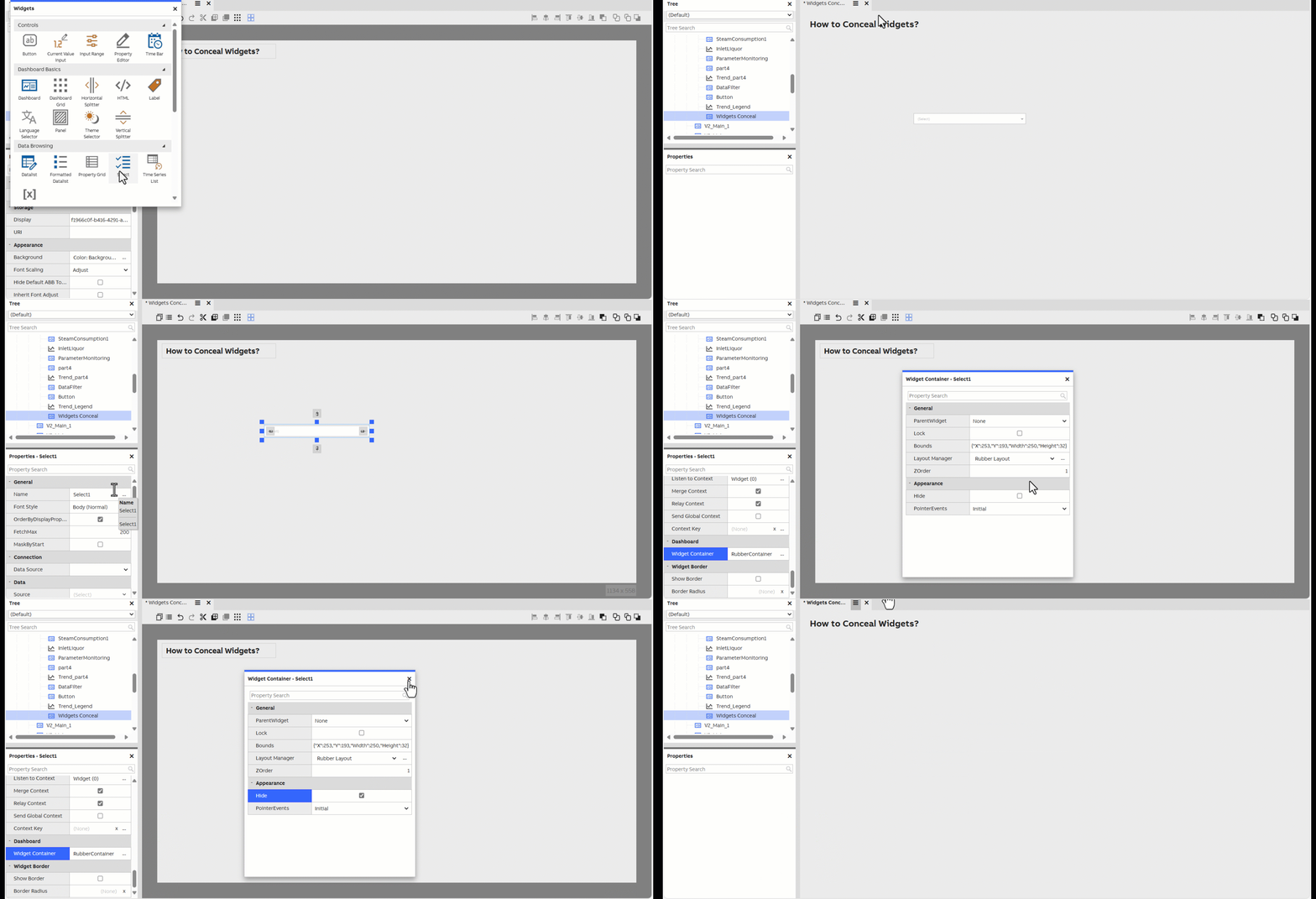
Utilize the Application Built-in Icons
Making full use of the system built-in icons for navigation and plain display provides a consistent visual language and helps users quickly identify key functions and information. Whenever possible, leverage the icon library to enhance clarity and maintain a cohesive look throughout your dashboards.
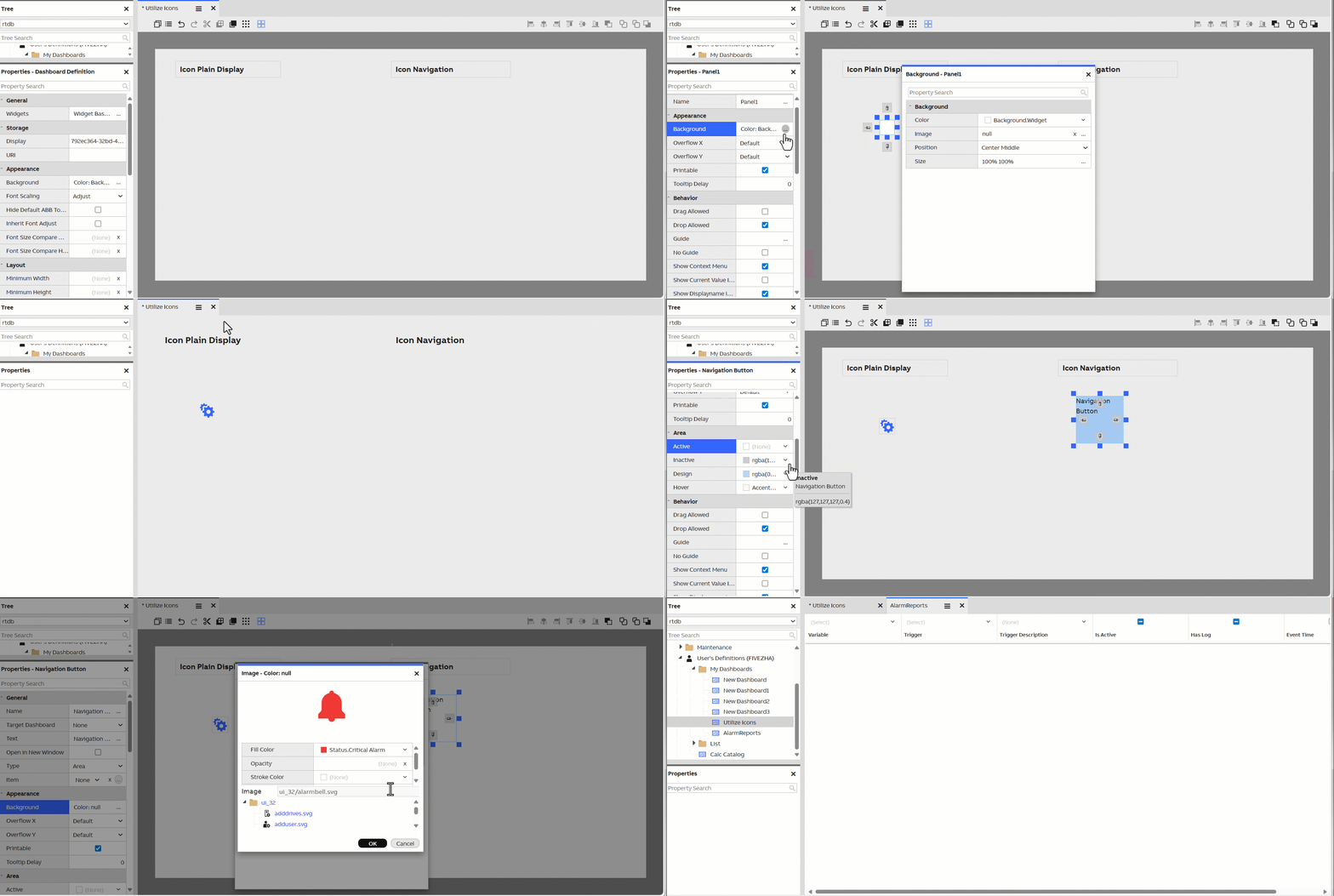
Updated 8 months ago