
Create Tags using Excel Bulk Load Tool
This tutorial includes:
To create a tag and collect data it requires bare minimal properties to have a valid value in the tag configuration list. Below are the minimum required fields that need to have a valid value to collect data.
Tag definitions
The complete definitions of all the properties in the Tag class may be found in the tables below.
Property | Description |
|---|---|
Proposed Name | This is a mandatory field to create an entry in to the list |
DA Type | This specifies Protocol and Client which will be used to collect data. |
DA Path | Based on the DA types Both the ProgId and CLSID of the OPC server should be given to prevent the usage of remote OPC registry browsing or usage of OPC enum component. If the OPC server is locally connected, <host> and <clsid> can be dropped, e.g. OPCUA: MODBUS: |
DA Frequency | Data collection frequency in millisecond (default is 1000ms) |
Activity | Active (Default is Inactive) |
DataFlowDirection | Option [in] means RTDB-OPCClient reads data from OPC Server, then write them to RTDB; |
For the Tags where redundant data collection is supported below are the properties to be considerd.
Property | Description |
|---|---|
ConsistencyControlled | The Tag is under tag consistency control only if this has been set to true. Default is false. |
CollectorNode | Defines the collector node for this tag. Refers to DataBaseNode instance that defines all nodes available in the system. |
RedundantDataCollection | Defines whether the redundant data collection is done for this Tag. Default is false. |
CollectorNodeRedundant | If the RedundantDataCollection is defined to be true, this should be set to refer to the node that does this redundant data collection. |
DaTypeRedundant | In the redundant collector node, this DaType setting is used. |
DaPathRedundant | Based on the DA types Both the ProgId and CLSID of the OPC server should be given to prevent the usage of remote OPC registry browsing or usage of OPC enum component. If the OPC server is locally connected, <host> and <clsid> can be dropped, e.g. OPCUA: MODBUS: |
Creating tags using Excel bulk load tool
Usually, the amount of tags is large, and it might be beneficial to use Microsoft Excel ™ to populate the database instead of using Engineering UI. There is an Excel-plugin available to do this. These instructions cover the usage of the Excel-plugin from Windows 2008 R2 server, which has History installed.
A pre-requirement of running the Excel-plugin is to have Excel and the related license installed. These instructions have been written using Microsoft Office Standard 2010 (64-bit version).
All the Excel-plugins that are working on top of VtrinLib (like Tag Excel Populate) also work using the 64 bit Excel version. Some older Excel-plugins that are on top of ODBC only work with 32 bit Excel Versions, as the History ODBC interface is only running as 32 bit currently.
CAUTION: The Excel application does not work with elevated (administrator) privileges. Instead, the Populate or Start button just causes a message "Can't create object (ABB.cExcelPopulate)" in the Excel status bar. If the Windows User Account Control (UAC) is disabled and you have administrator privileges, running Excel without elevated privileges is not possible in which case there is a workaround to register the ExcelPopulate.dll com interop with the following commands:
C:\Windows\Microsoft.NET\Framework64\v4.0.30319\RegAsm.exe d:\rtdbdata\VtrinShared\XL\ExcelPopulate.dll /codebase
C:\Windows\Microsoft.NET\Framework\v4.0.30319\RegAsm.exe d:\rtdbdata\VtrinShared\XL\ExcelPopulate.dll /codebase
Note: replace d:\rtdbdata with your actual database directory in case it is different
The easiest way to open the bulk load tool is by browsing to the folder %APP_DATAPATH%\VtrinShared\R (e.g., D:\RTDBData\VtrinShared\R) and double-clicking the Excel Populate.xls file. The window opened (after enabling the macros) should be similar to the following figure.
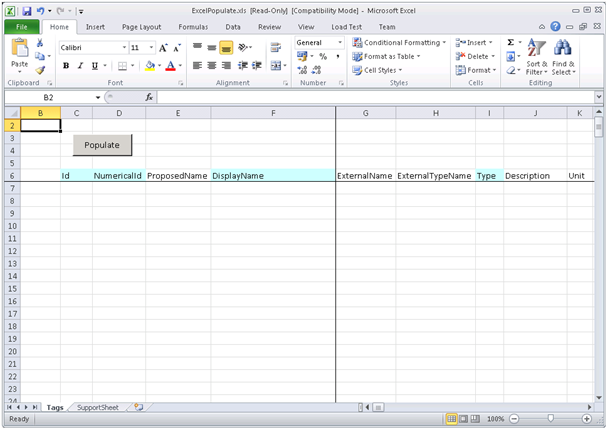
There are two sheets visible: "Tags" and "SupportSheet". The support sheet only contains some internal configuration information and should be automatically populated correctly at the startup. The most important information in "SupportSheet" is the "dll directory" that should point to %APP_DATAPATH%\VtrinShared\XL. Usually, the user is not required, and shouldn't, modify the data available in "SupportSheet". The top-most sheet is "Tags", which is the place where bulk-population is done.
Populating tags is started by pressing the "Populate" button. This opens the dialog similar to the following image.
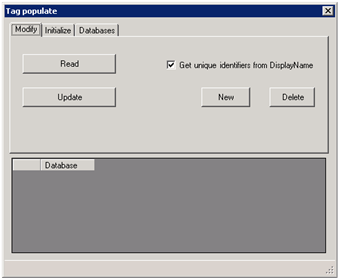
There are three tabs in the populate dialog: the "Modify" tab is used to create or delete tags, and to fetch or modify the existing tags. The tag bulk-load tool is bi-directional, and its user should always remember that History database is a master for the configuration, and the Excel sheet is only one application to access that information.
The "Initialize" tab is used to declare which Tag class properties are visible in the Excel sheet. The 'Read' button is used to restrict the set of tags that are fetched from the database. In the very first phase, the content of this tab is not needed.
The "Databases" tab, although the last one, is the one to get started with. Without first defining the database to connect to, it is impossible to get tags populated. If one tries e.g., to read tags from the database before connecting, a dialog "No databases defined" would pop up. Pressing the "Add" button in the "Databases" tab pops up the logon box familiar from the Engineering UI user interface. The "Databases" tab, as it appears after a successful connection, is illustrated in the following image.
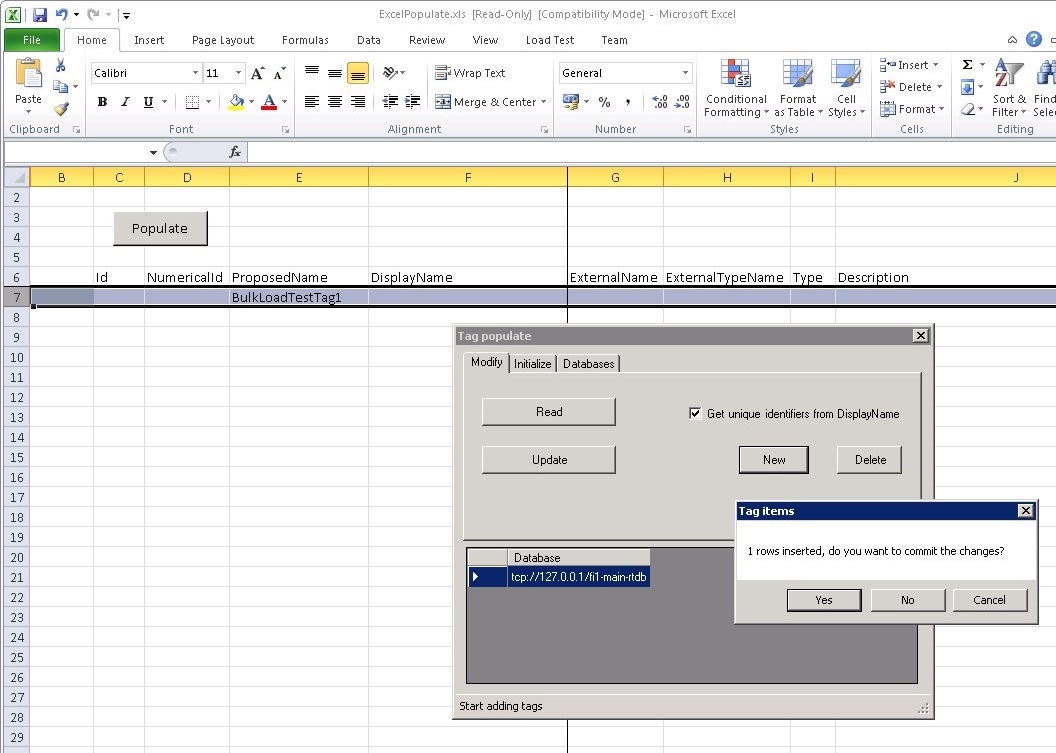
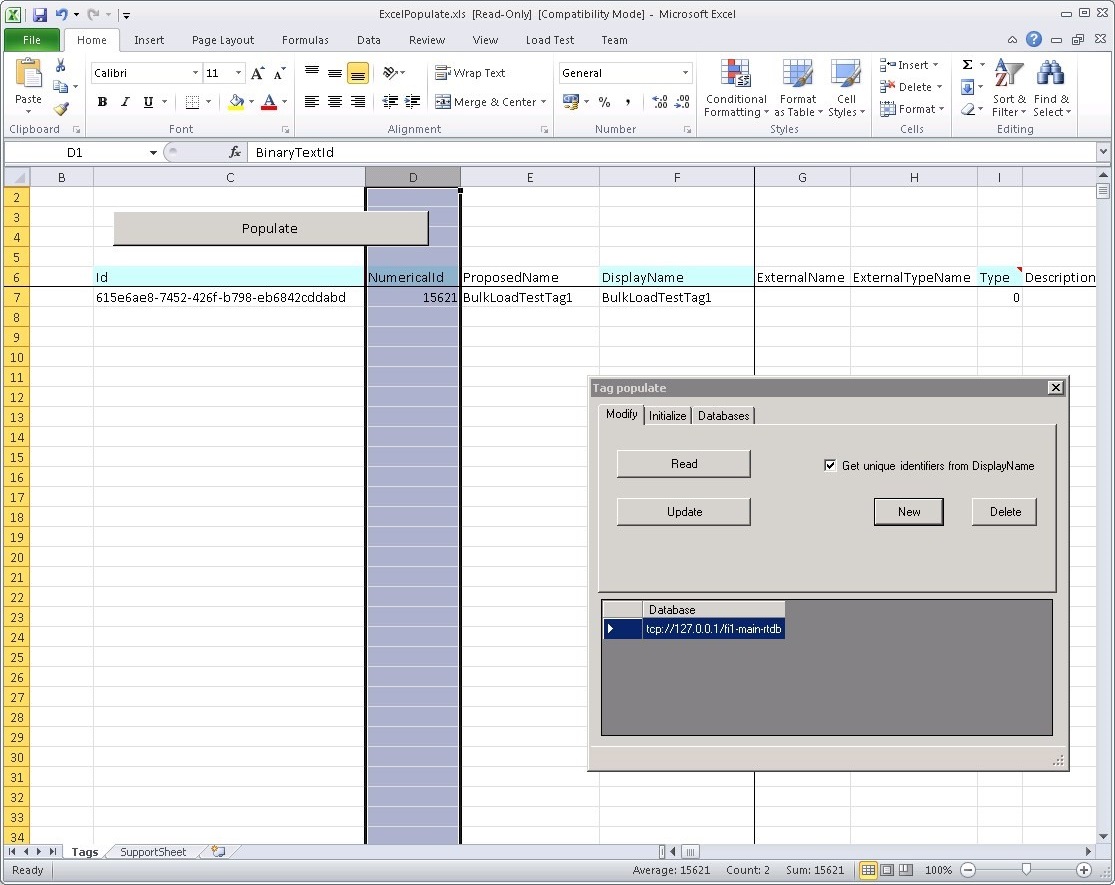
After creating the tag, it can be modified either by using Engineering UI or the Excel bulk load tool. Modifying using Excel is done by modifying the selected properties and pressing the "Update" button. Deleting tags is done using the "Delete" button. Without selecting any rows, all tags in Excel will be deleted, so selecting one or more rows before deleting is often required. Note that after deleting the selected tags, the Excel bulk load tool removes the content of the "Id" and "NumericalId" properties, but leaves other properties on the sheet. If these are not needed, they can be deleted using the normal Excel "delete row" operation.
The "Read" button from the "Modify" tab can be used to fetch tags, as well as the changes are done using Vtrin or ODBC interface, back to Excel.
Fine-tuning using Variables
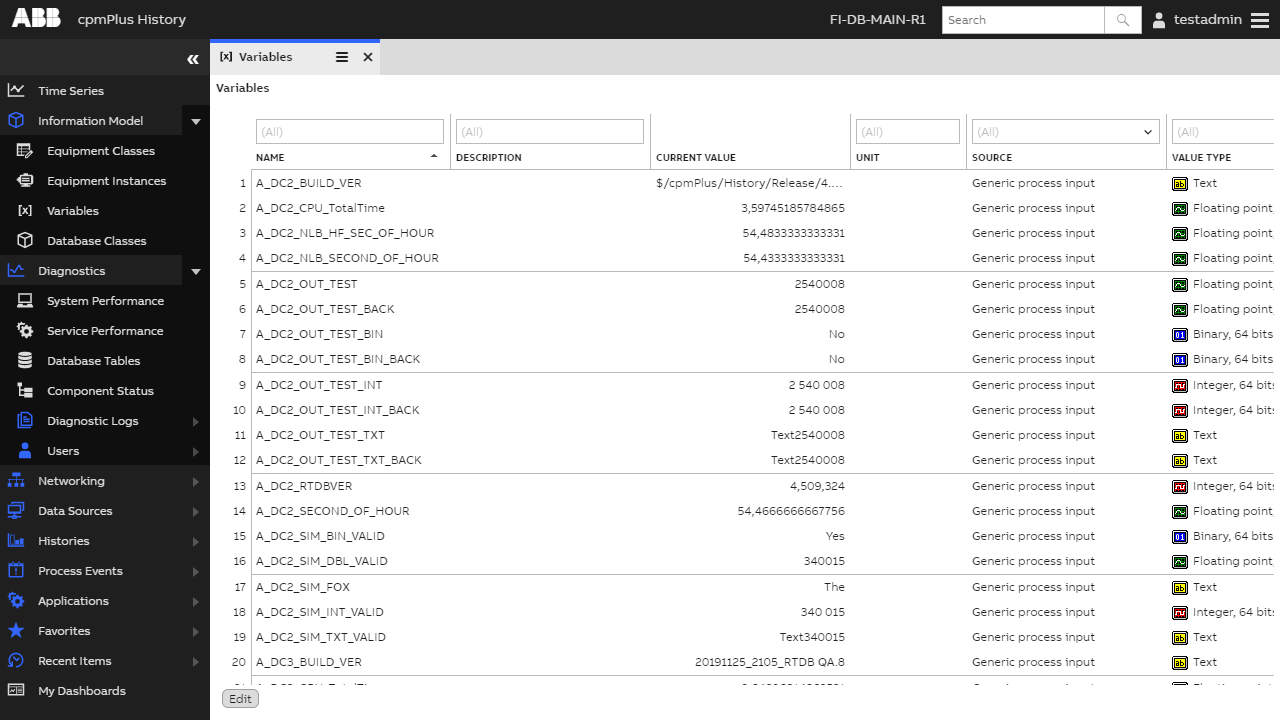
As explained in previous chapters, creating Tag creates Variable as well. The Tag class extends the Variable class with some additional functionality. In addition to just extending the functionality of Variable, the Tag class also hides some details from the Variable class. In cases where some functionality is only available in the Variable class, the user might want to fine-tune the behavior by accessing the Variable properties directly. In addition, sometimes, the user wants to create variable instances without creating a tag instance. A typical example of this would be variables used in C# calculations. In case the calculation is producing data to a variable, it might make sense to only create a variable without a tag, in order to get as lightweight a solution as possible.
The Variables list is available from Engineering UI. To find them, select "Configuration" > "Variable Definitions" from the left side navigation panel. Variables can be created using the list functionality (From edit mode "New" > "Commit"). The selected Tag's properties can be seen on the column on the right.
Creating tags using 800xA interface
When History is connected to System 800xA, the most natural approach to create tags is to use the tools available in 800xA. This is user-friendly for those users that are already familiar with 800xA administration. This approach is also recommended, as it provides seamless integration to 800xA. To be able to create tags from 800xA, a so-called 800xA Interface for ABB Ability™ History should have been installed. This is usually done using the 800xA system installer for ABB Ability™ History, or using a separate installer for 800xA interface in case the data collector node with ABB Ability™ History is already installed. See the mode detailed instructions from 800xA History documentation.
Updated 9 months ago