
UI & UX Design
Introduction
On this page, we examine some aspects of user experience (UX) and user interface (UI) design to consider when creating your dashboards.
The CommonUX design system presents practical guidelines for data visualization on your dashboards. The Interaction Design Foundation provides further UI and UX design resources and literature.
What are UI and UX design?UI design is the practice of designing your dashboard so that you put a focus on ease-of-use, accessibility and enjoyability of the dashboard. There are some very practical methods for this, many of which are described in this document. We suggest you also read the Interaction Design Foundation article on the subject.
User experience design goes a step further from UI design. When considering your user's experience in your dashboard, there is a plentitude of angles from which you can look at it. You can think of if the content is meaningful to your user? Is it what they want and need to see? Is there cohesion between this dashboard and the other dashboards? Can using your dashboard be fun?
The purpose of the dashboard
Even before creating your dashboard, you should decide:
- Who is this dashboard for?
- What kind of information does your user need?
- Do they want an overview to the data, or a more in-depth view?
- What is the most important information?
- What does the user want to see first, what should always be kept on the forefront?
- Should you split the data among multiple dashboards?
- There is only a limited amount of space on a single dashboard, so it is important to consider if all of your data needs to be displayed right away.
You can discuss these questions with your users.
PrototypingConstructing a complex dashboard can involve quite a bit of effort, and you might not have a clear picture of how everything should work when you start working on it. You can start by creating a prototype.
It is possible to create a simple mockup of a dashboard in the UI SDK with panel and label widgets to demonstrate the final dashboard's structure to your users. You can also use pen and paper. These are cheap and efficient ways to communicate your dashboard design to others, and collect feedback from them.
Hierarchy of data
When the user opens a dashboard, you want their attention to focus on your most important content, the core information that is the most relevant for the user. When planning the layout of the dashboard, you might want to consider the following guidelines for visual hierarchy:
- Position
- Western users instinctively read content from left to right, top to bottom. This means that the most important information on your dashboard should be positioned on the top left corner, with the importance decreasing towards the lower right.
- Size
- Large elements are more eye-catching compared to smaller ones. This means the more important content should be larger.
- If your dashboard contains multiple headers, you can create a hierarchy for them by using a larger font size for the higher level headers. Headers of a similar level of importance or should be of the same size.
- Proximity
- Group elements that are related to each other together, so that they are positioned next to each other on the dashboard. This is especially relevant on overview dashboards, that display a wide variety of distinct pieces of information.
Readability and accessibility
When designing your dashboard, take readability and accessibility into account. A great dashboard is not only well-structured, but also a pleasure to look at and easy to understand. Taking time to consider the following aspects improves your user's experience.
- Color
- Colorful elements are very attention-grabbing, no matter where they are positioned.
- Graphs with a distinct, bright color palette are a great way to bring content into focus.
- In general, use color only for highlighting. Avoid large colored blocks and backgrounds, opting for white or gray instead. Too intense visual stimuli hurts your dashboard's readability. When using color to guide the user's focus, less is more.
- Ensure you are using a colorblind friendly palette.
- Alignment
- As stated before, aim to align all of your elements of the same level of importance, such as headers, uniformly. Out-of-alignment elements look busy and cluttered, and cause unneeded cognitive load on the user.
- Spacing
- Remember to not pack your dashboard too tight. If it feels too full of content, consider splitting it into multiple dashboards.
- Consider users with different screen sizes to yours. Does your dashboard still look good if it is viewed on a monitor that is smaller than yours?
- Having whitespace between your dashboard's elements helps the user better distinguish between them.
FamiliarityYour users have most likely used different kinds of user interfaces and dashboards before, and as a result they have expectations of how components of a user interface work. They expect a button to give some sort of feedback upon being pressed; otherwise they assume the click didn't go through. They expect that the legend right below a chart refers to that specific chart.
You have to be careful to fulfill these expectations when creating your dashboard; but likewise, they can also be a powerful tool. Familiar patterns are convenient and don't require much explanation to your users. If everything works as they would expect, your dashboard is easy to use.
Iterating based on feedback
When you have created the first version of your dashboard, you should show it to its eventual users and gather feedback from them. This way you can ensure it fulfills their needs.
- Does it look good on the monitors they are using?
- If you have users with visual impairments, can they read everything on the dashboard?
- Is there anything that is unclear or confusing for your users?
- Is the most relevant content highlighted properly?
If there is anything causing issues, it is worth it to take some time to correct it.
Example dashboard
In this section, we take a look at an example dashboard and discuss the design decisions behind it. This dashboard shows an overview of a single device in a pulp mill. The user is an overseer who wants to ensure that everything in the mill works correctly.
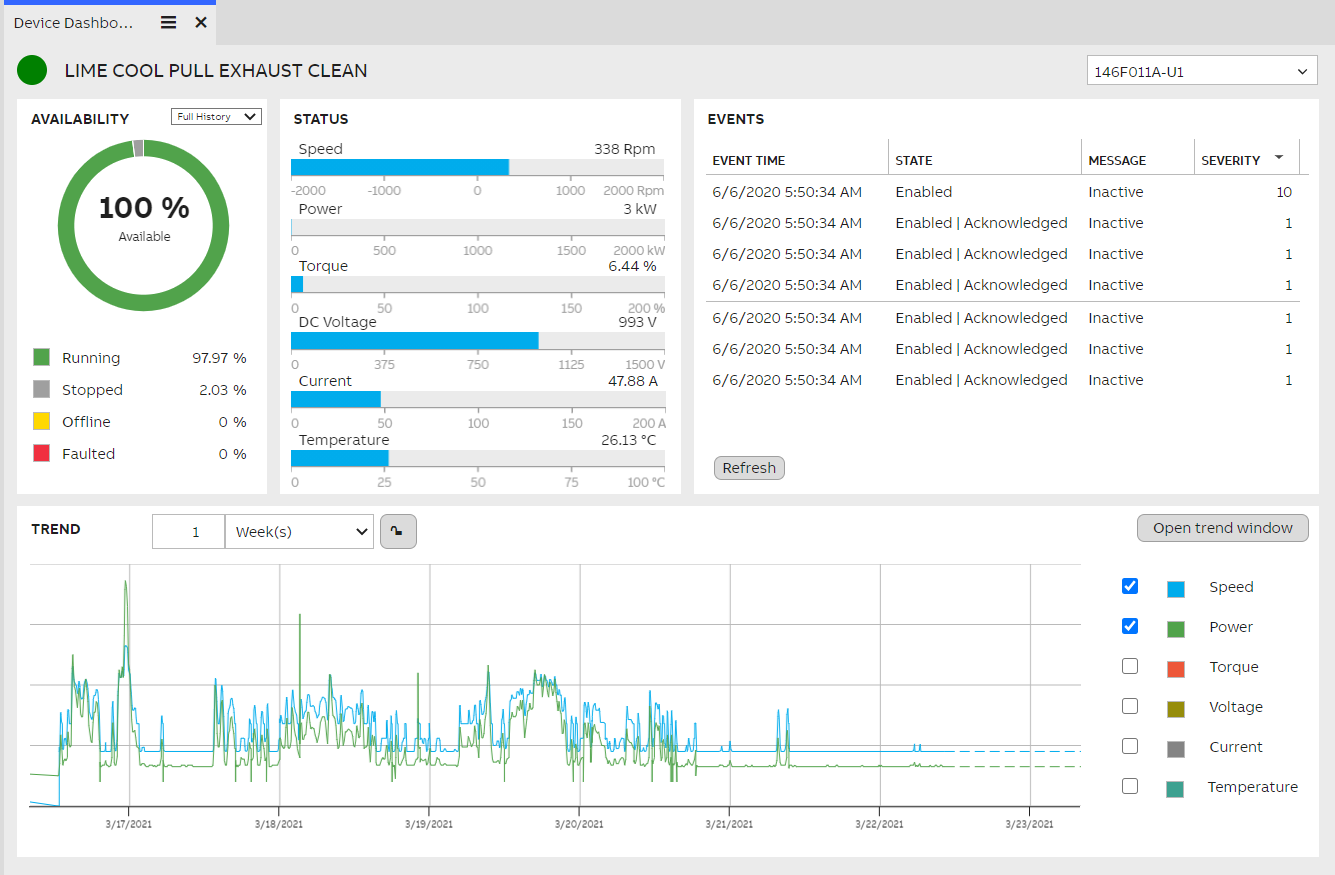
A dashboard showing an overview of a pulp mill device.
Overview
Initially, the user's attention is drawn by the largest and the most colorful objects, positioned here in the top left area. At the very corner, we have a colored indicator of the device's status; a quick way to see if everything is at it should be. Next to it is the device's name as the main header.
The other content on the dashboard is framed within four panels with a white background. This clearly separates the areas visually from each other, and gives the contents of the dashboard room to breathe.
Major sections
The availability section contains a pie chart, a large graphical element, containing a number. This allows the user to immediately see how available the device has been in the last period of time. The length of the chosen period can be selected from the dropdown, positioned within the same panel, immediately signaling its relevance to this chart. Below the chart is the legend, explaining the chart's colors.
The next section contains thick, blue bars, likewise very attention-grabbing. This section shows the current status of the device. The user of this dashboard can see here if something is wrong at this moment. The value ranges of the bars are selected to highlight anomalies.
Minor sections
The last two sections are of a comparably lesser urgency. The Events section contains a list of the latest events of this device. These should be sorted from newest to oldest, as the topmost ones are the ones the user notices first. If there are warnings or errors here, they could be color-coded as yellow and red, respectively, alongside relevant icons. This makes them immediately stand out, as they might be critical. Simply informative events require no highlighting.
Finally, the history trend graph is positioned at the bottom. A trend graph showing a long timespan should be reserved a wide horizontal area to show as long a timespan as is needed. Single properties should be color-coded here, to clearly distinguish them from each other. As the lines frequently overlap, select a color scheme that allows colorblind users to distinguish between them. The right-hand legend section allows the user to configure which properties are shown in the graph. Choose the most important ones to be shown by default, avoid immediately cluttering the graph too much.
Updated 9 months ago