
Access OPC Events in 800xA History Environment with Vtrinlib ODBC Driver
The OPC Events generated within the 800xA History environment include some special 800xA specific vendor attributes. When accessed via the Vtrinlib ODBC Driver, the column names of these attributes are displayed by default using Attribute IDs.
To display the column names with their corresponding attribute names instead of IDs, you can configure a setting in the ODBC client application's connection string or update the registry setting of the ODBC DSN used for connection. This tutorial provides a step-by-step procedure to access the OPC Event, which displays the attribute names as column names instead of AttributeID.
Create an ODBC DSN
- Install the latest Vtrinlib ODBC Driver, which is delivered as part of ABB Ability™ History Media (This step is required if a non-RTDB machine is used and can be skipped if RTDB node is used)
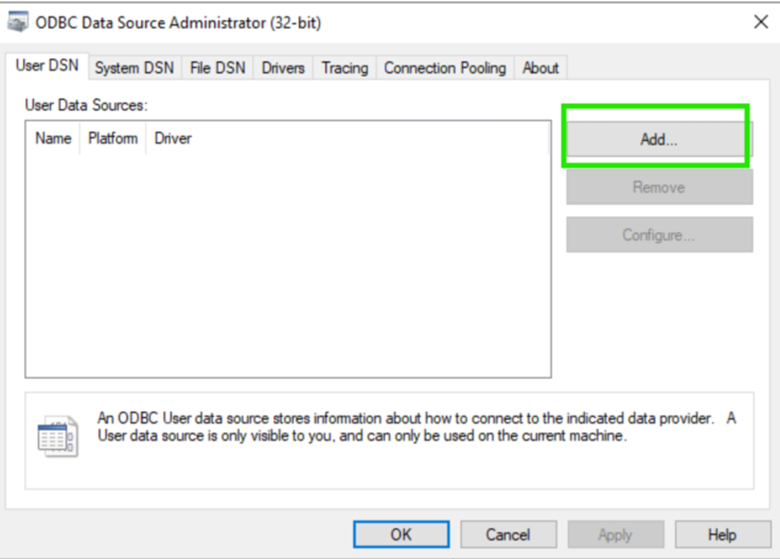
- Create a DSN using the Windows ODBC Data Source Administrator App
Windows
- Click On Add
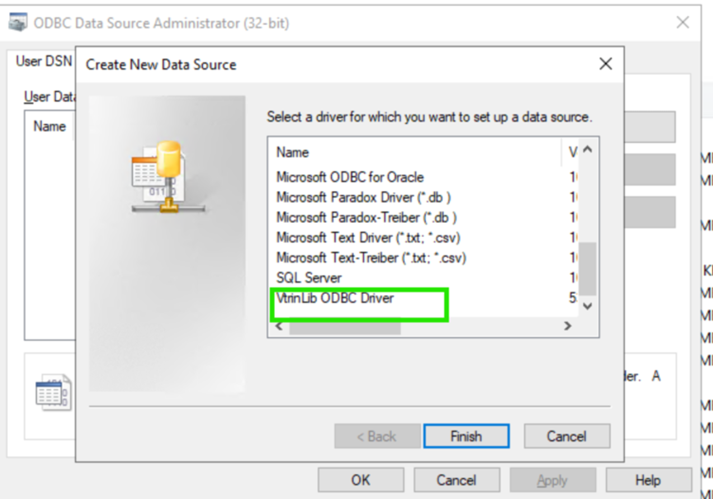
- Select VtrinLib ODBC Driver and click on Finish
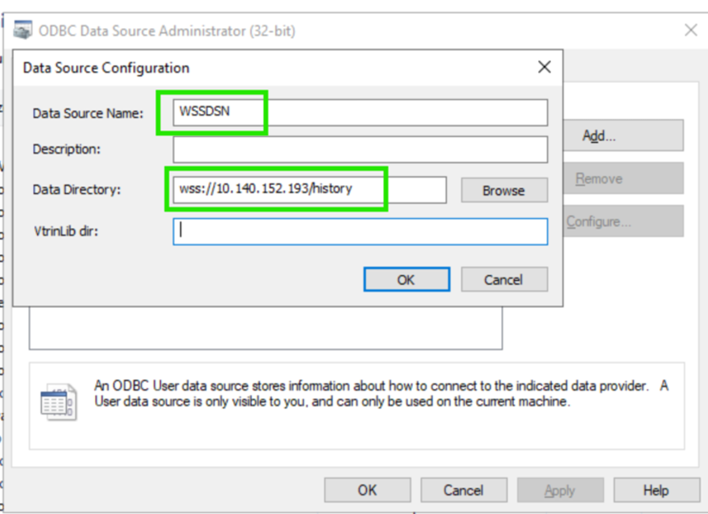
- Provide
WSSDSNfor the “Data Source Name” and use wss connection string (e.g. wss://<TargetMachineName\IP>/history) of the target machine for “Data Directory” and click on OK
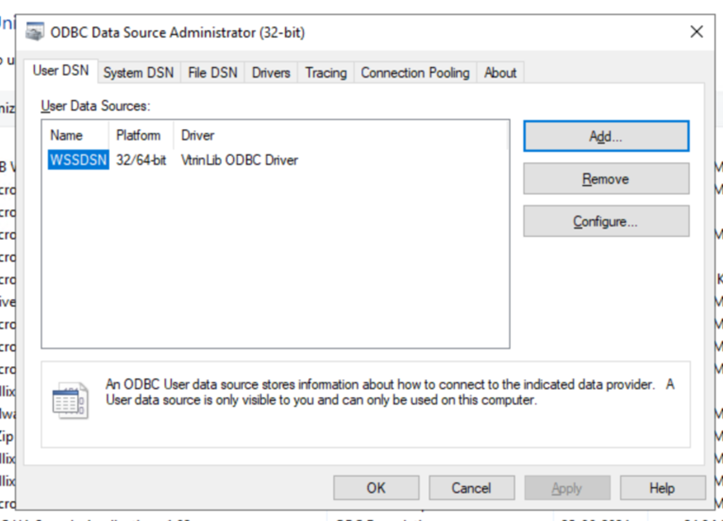
Now the DSN is created
Config Setting
The Config setting can be passed as a parameter in the client tool or set as a registry value to the created DSN. The below steps provide the option to set the Config setting to the registry, so it need not be passed explicitly in the client tool.
- Open the registry editor using Win+R and regedit
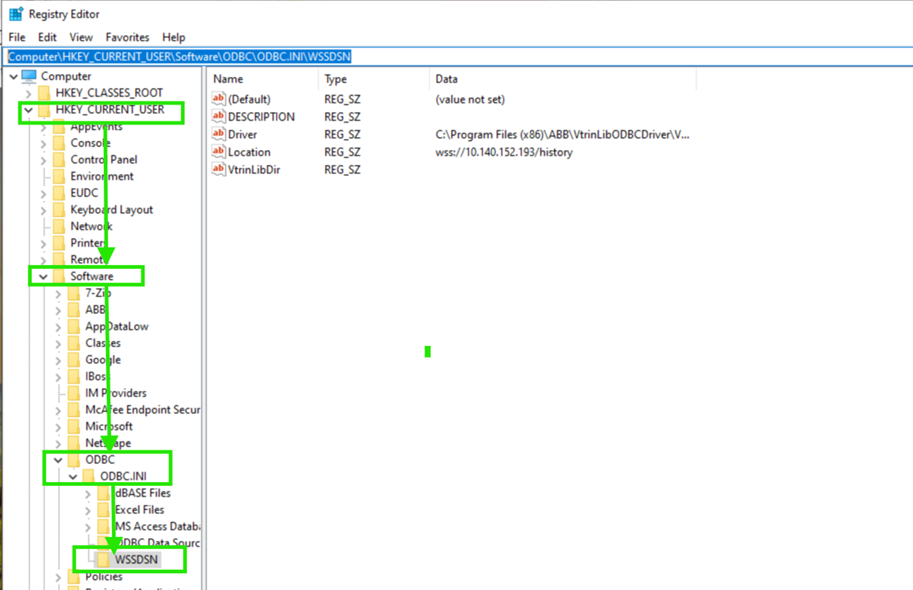
- Navigate to HKEY_CURRENT_USER ->Software ->ODBC ->ODBC.INI ->WSSDSN
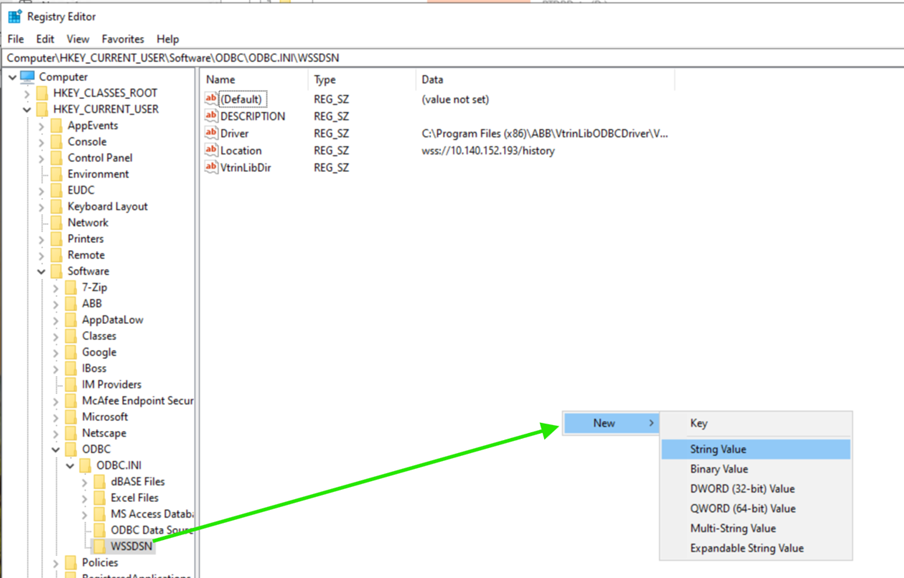
Right Click on the right side pane empty area, add a new string value with the name “config”
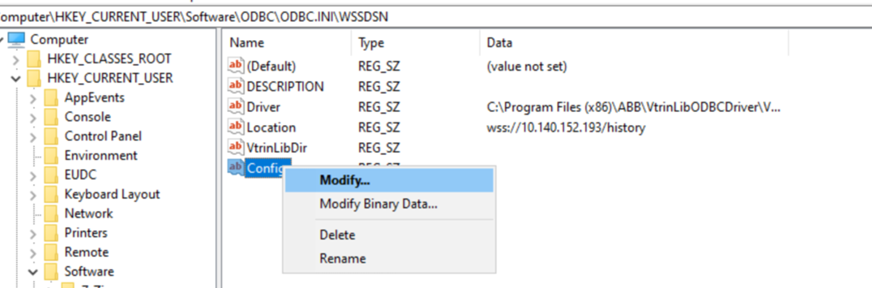
On the newly added Key “config” right click and select modify, Provide {TableSettings :[{ColumnNameStyle:3}][{ColumnNameStyle:3}]} as value.
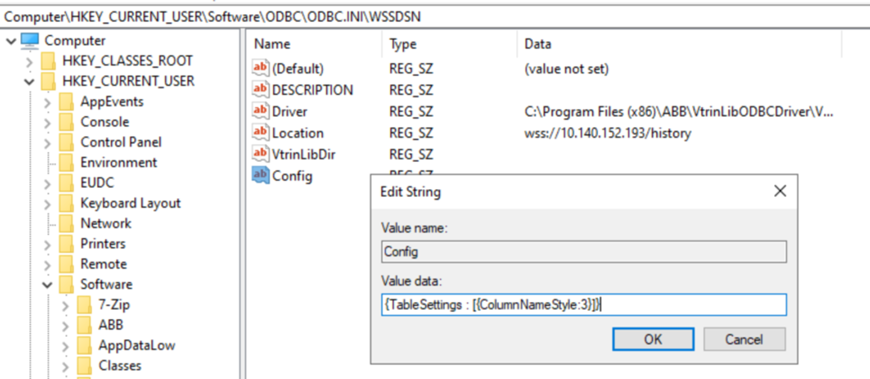
Click OK
Accessing the Eventlist using Excel
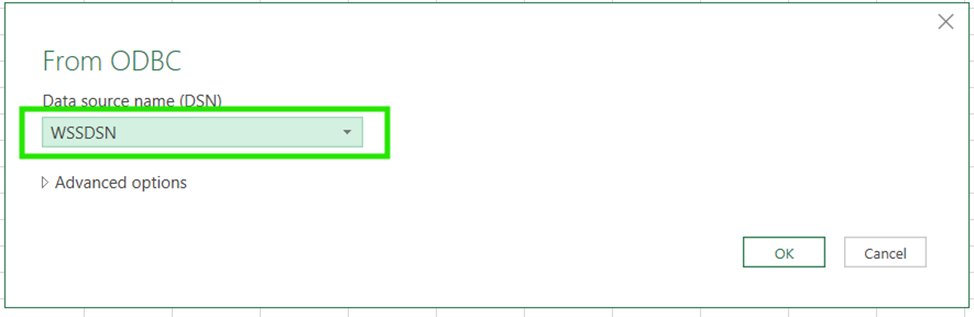
- Launch Excel, and use the WSSDSN, which was created earlier to access the OPC event class
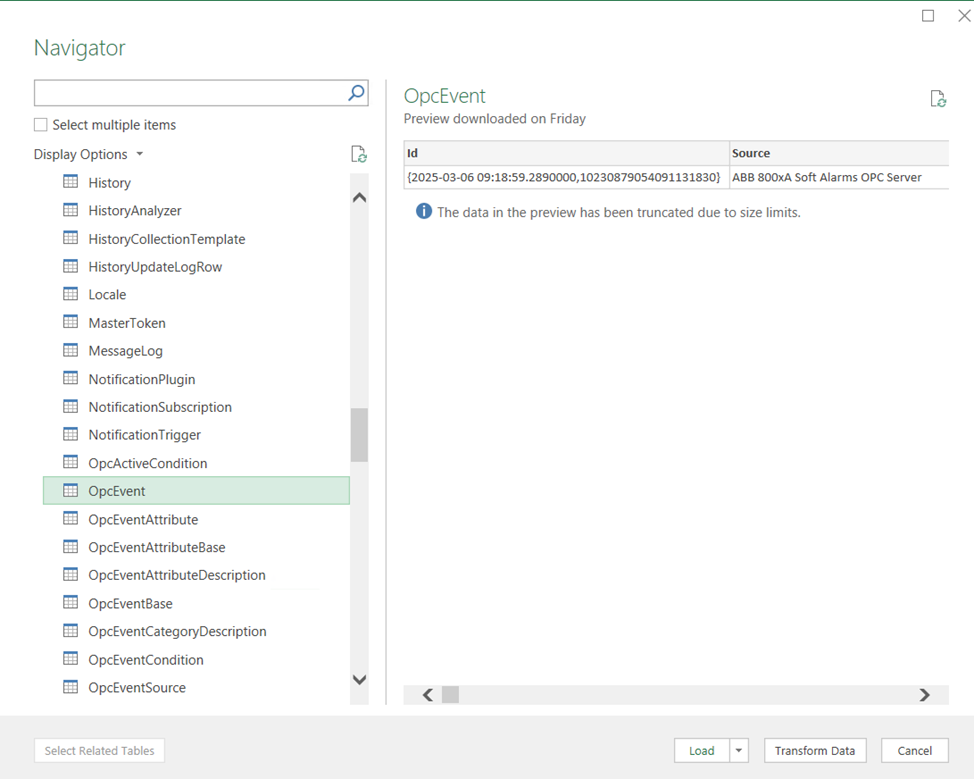
Select Opc Event Table, use ‘Transform Data’ button to select the columns, sorting, etc., or send entire columns to query by clicking on “Load”
-
Wait for the query to fetch data and load it into Excel
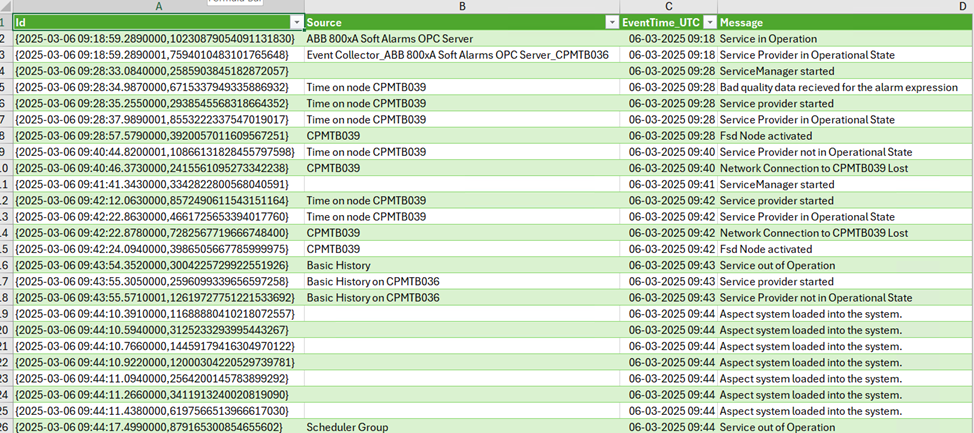
The OPC Event data is loaded, and all the columns have proper attribute names instead of attribute ID
Updated 9 months ago