
OPC UA Server 2
Introduction
The History OPC UA Server 2 is a new software created to have OPC UA support on Linux platform. It is available as well in Windows platform, but it is not installed as default. It is run using .NET Core and is using Vtrinlib to connect database either in local machine or in remote machine. In either case it uses wss-connection to connect database.
The current version of the History OPC UA Server 2 implements “Standard Server profile” from the OPC UA specification version 1.03.
Additionally three historical read facets are supported:
- Historical Raw Data Server Facet
- Base Historical Event Server Facet - Numerical History and Process Events
- Historical Data Insert Server Facet - Numerical History and Process Events
From high level functional perspective the History OPC UA Server 2 supports:
- Data Access (DA) functionality to read and write current values of any property available as a Vtrin class property.
- Node management, which reflects the Vtrinlib object model. It allows browsing of the Vtrin classes, as well as the available Equipment types and instances. it allows creating new instances and deleting existing ones. It allows adding and removing references between existing instances. It allows listening changes in address space to reflect instance creation and delete.
- Reading numerical timeseries data from Variables and Historized properties
- Reading history of process events from OpcEvent and from EquipmentEvent
Platform support
Linux and Windows are currently supported platforms. The History OPC UA Server (RTDB-OpcUaServer) continues to be supported in Windows as well and it is installed by default.
Compatibility between UA Server and UA Server 2
The History OPC UA Server 2 is not a carbon copy of the older UA Server. However, mapping from Vtrinlib information model to OPC UA information is identical as well preserving node ids to be same what they used to be. As many of the UA clients persist node ids, the 'node id-compatibility' enables us to replace older UA server with History UA Server 2 in future e.g. if Windows-based History system would be upgraded to Linux based system during its life cycle.
Address space layout (Browsing) is not promised to remain same, even though today they are identical.
Old OPC UA server continues to be supported to foreseeable future in Windows platform.
Compliance Testing
The History OPC UA server 2 is not yet compliance tested as used .Net Core OPC UA SDK is not compliance tested. Having server self-tested with the OPC Foundation tooling is in the road map.
Installation
OpcUaServer2 requires installation of .NET core first. The versions up to 5.3_23.11 used .NET 6.0 and versions starting with 5.3_23.12 uses .NET 8.0. You can check with command dotnet --info whether the correct version is already installed. To install, download and run the installer from https://dotnet.microsoft.com/en-us/download/dotnet. Select the ".NET Desktop Runtime" package.
Starting from version 5.3_25.12 OPCUA Server2 is installed automatically by RTDB
NOTE: When upgrading old (pre 5.3_25.12) installations, second OPC UA Server2 service may be added. In that case the newly added service may be disabled.
Manual installation
# The UA server program file is installed by the RTDB_utaOpcUaServer2 the ABB Ability™ History installer.
# The executable can be found from: "%RTDBRoot64%\Bin\netcore\RTDB_OPCUAServer2.exe"

# Run the following command to install RTDB_OPCUAServer2 as service:

"C:\Program Files\ABB Oy\RTDB\Bin\netcore\RTDB_OPCUAServer2.exe" -c "C:\Program Files\ABB Oy\RTDB\Bin\netcore\RTDB_OPCUAServer2_ExampleVtrinSettings.ini" -c "C:\Program Files\ABB Oy\RTDB\Bin\netcore\RTDB_OPCUAServer2_basesettings.ini" -c "C:\Program Files\ABB Oy\RTDB\Bin\netcore\RTDB_OPCUAServer2_SecuredApplication.xml" -d [PATH_TO_DATABASE] -si RTDB-OpcUaServer2

# For service installation configuration file paths must be absolute.

#(Version Info: For versions older than 5.3_25.10, -d [PATH_TO_DATABASE] has to be omitted)

# "-d [PATH_TO_DATABASE]" is not required if already configured in RTDB_OPCUAServer2_ExampleVtrinSettings.ini
# If direct database path is used, the above command automatically updates RTDB.ini entry for RTDB_ServiceManager to handle the start and Stop of this RTDB-OpcUAserver2 Services along with RTDB start and Stop command. Otherwise RTDB.ini entry needs to be added with the following command:

CSCommon_Cmd -setini "%APP_DATAPATH%\RTDB.ini" Services "RTDB-OpcUaServer2" "ON"
#(Version Info: For versions older than 5.3_25.09, the above command is always required)
#The software can be installed from a package on Debian and Arch Linux systems.
#In debian linux once you have added the cpmplus package sources, you can install the software with command:
#Debian:
apt-get install cpmplusopcuaserver2
#Arch Linux:
pacman -S cpmplusopcuaserver2
packman -Syy cpmplusopcuaserver2
#To run as service and having it managed by RTDB-ServiceManager can be done by running below 2 commands:
CSCommon_Cmd -setini /var/lib/rtdbdata/RTDB.INI Services RTDB-OPCUAServer2 ON
CSCommon_Cmd -setini /var/lib/rtdbdata/RTDB.INI RTDB-OPCUAServer2 CmdLine "/usr/share/dotnet/dotnet /usr/share/cpmplus/netcore/RTDB_OPCUAServer2.dll -c /usr/share/cpmplus/netcore/RTDB_OPCUAServer2_SecuredApplication.xml -lf /tmp/opcuas2log.txt -c /usr/share/cpmplus/netcore/RTDB_OPCUAServer2_basesettings.ini -c /usr/share/cpmplus/netcore/RTDB_OPCUAServer2_ExampleVtrinSettings.ini -d [PATH_TO_DATBASE]"
#(Version Info: For versions older than 5.3_25.10, -d [PATH_TO_DATBASE] has to be omitted)
# "-d [PATH_TO_DATBASE]" is not required if already configured in RTDB_OPCUAServer2_ExampleVtrinSettings.ini
#Note that the paths are absolute in this case, and instead on OPCUAServer2.exe executable, the dotnet path and OPCUAServer2 DLL is specified.NOTE: When editing RTDB.ini entry directly, replace any dashes '-', underscores '_' and other special characters from the service name with spaces ' ', otherwise RTDB_ServiceManager is not able to locate the service. This is because serviceinstallation replaces dashes and other special characters from service name with spaces, but retains them on the service display name.
Configuration
There are .ini and .xml configuration files that are given as arguments to the command with -c switch. The ones that are included with the software contain configuration for vtrin connection and how the database classes are expressed in OPCUA.
The example configuration files are: RTDB_OPCUASERVER2_ExampleVtrinSettings.ini RTDB_OPCUAServer2_basesettings.ini RTDB_OPCUAServer2_SecuredApplication.xml All are located in the same directory as RTDB OPC UA Server 2.
With automatic installation the configuration files can be found from:
[Databasedirectory]\Config\OpcIniFiles
You have to modify the example files, or make a new copy from those to have connection details. Secured Application part is based on SecuredApplication schema in Annex E of Part 6 of the OPC UA Specification.
NOTE: If changes to these files are needed, it is recommended to create copy and edit the copies of these files. Otherwise changes will be lost during software upgrade.
RTDB_OPCUASERVER2_VtrinSettings.ini
VtrinSettings.ini is quite simple. Below is the content of RTDB_OPCUASERVER2_VtrinSettings.ini which also has logging configuration.
Important entries to set:
Url = [databasepath or wss:// address]
LogFile = [logfile path]
Driver = Vtrin or RTDB
**Note: ** Url and LogFile entries have no effect if using databasepath (-d) argument to run the server. Automatically installed server is ran with -databasepath argument.
[SecuredApplication:Extensions:Extension:0:VtrinSettings:Vtrin:0]
;ServerName can be changed to differentiate multiple instances of RTDB OPC UA Server 2 (since version 5.3_25.10)
ServerName = RTDB_OPCUAServer2
;Url can either be wss:// adress or a direct path to database
Url = wss://[NodeName]/History
;Note: On Linux hostname may need to be mapped to IP adress on /etc/hosts file
;Note: Url-setting doesn't have effect if databasepath (-d) argument is used
;Url = D:\RTDB\rtdbdata
Driver = Vtrin
;Driver = RTDB

;For security reasons its recommended to leave the entries for username and password null and use credential vault based User configuration
;Username =
;Password =

;Separate database login for anonymous clients, vault based User configuration is recommended
;AnonymousLoginUsername =
;AnonymousLoginPassword =

ConnectOptions = AcceptNewServerKeys, AcceptServerKeyChanges
CloseDelay = 300
RetryDelay = 4

RootFolder:Enabled = true
RootFolder:DisplayName = [NodeName]

;(Version Info: Starting from version 5.3_25.10)
MinimumSamplingInterval = 500

;Types:NamespaceIndex = 2
Types:NamespaceUri = http://fi.abb.com/Vtrin
;Objects:NamespaceIndex = 3
Objects:NamespaceUri = urn:[NodeName]:Model

; ClassRules
;ClassRule:!FirstRule!:Glob:0 = *
;ClassRule:!FirstRule!:Policy = Enabled,Visible

; ACL Rules
;UIAccessControlListEntry:0:GroupOrUserName = user1
;UIAccessControlListEntry:0:Allow = Read
;UIAccessControlListEntry:0:Deny = Write|Execute|Create|Delete
;UIAccessControlListEntry:0:ObjectRef = /Class/Tag

; VtrinLogger options
[VtrinLogger]
LogFile = c:\rtdbdata\Diag\opcuaserver2.log
;Note: LogFile-setting doesn't have effect if -databasepath argument is used with direct directory path

LogToFile = true
LogToConsole = true
;(Version info: LogToFile and LogToConsole settings has been replaced by optional LoggingEnabled [logging is enabled unless otherwise specified] setting starting from 5.3_25.11)

; Prepend the component name from [Logging:LogLevel] (RTDB.UaServer, Diagnostics, etc) before the message
LogComponent = false
; Prepend the loglevel (INFO, DEBUG, etct) before the message
LogLogLevel = false

; Tracers
[Logging:LogLevel]
Default = Debug
Diagnostics = Debug
RTDB.UaServer = Debug
UnifiedAutomation.Stack = Warning
UnifiedAutomation.Server = Warning
RTDB.UaServer.VtrinNodeManager.VtrinNodeManager = InformationNOTE: Though the option is provided for passing Username and Password in VtrinSettings.ini file, for security reasons its recommended to leave the entries for username and password null in ini file and use credential vault based User configuration (which is covered in upcoming sections)
RTDB_OPCUAServer2_basesettings.ini
RTDB_OPCUAServer2_basesettings.ini file contains more configuration more related to the data modeling. This is in detail described in the OPCUaServer2 reference documentation. These sections in the config describe what classes are visible through opc ua.
[SecuredApplication:Extensions:Extension:!default!:VtrinSettings:DefaultClassRule:Disabled]
Policy = Hidden, Disabled
ClassName:0 = CurrentHistory
ClassName:1 = TagRtdbInternal
ClassName:2 = VariableStatus
ClassName:3 = ProcessHistory
ClassName:4 = ProcessVariableCombination
Regex:0 = OpcEvent.+

[SecuredApplication:Extensions:Extension:!default!:VtrinSettings:DefaultClassRule:Hidden]
Policy = Hidden, FolderDisabled, FolderHidden, EventsDisabled, ObjectsHidden
Regex:0 = [\\_].*|^((?!Path).)*

[SecuredApplication:Extensions:Extension:!default!:VtrinSettings:DefaultClassRule:Visible]
Policy = Visible, Enabled, ObjectsVisible, ObjectsEnabled, TypeVisible, TypeEnabled, FolderVisible, FolderEnabled
ClassName:0 = History
ClassName:1 = DataBaseNode
ClassName:2 = ComponentStatus
ClassName:3 = HistoryCollectionTemplate
ClassName:4 = Path
SecuredApplication.xml
SecuredApplication.xml contains the behavior of the opcua server so that it applies to the opcua specification of secured application. This includes authentication and cipher settings.
The recommended practice is to manage configuration files in a dedicated directory and have separate things configured in their own files. Configuration files can be dropped in and out, and modified while server is running. (ReloadOnChange=true)
Secured Application is based on SecuredApplication schema in Annex E of Part 6 of the OPC UA Specification.
SecurityPolicy: None And NoSecurity
SecurityPolicy:None is disabled by default and can be enabled by uncommenting this block:
<SecurityProfile>
<ProfileUri>http://opcfoundation.org/UA/SecurityPolicy#None</ProfileUri>
<Enabled>true</Enabled>
</SecurityProfile>

## And NoSecurity can be enabled by setting:
<DisableNoSecurity>false</DisableNoSecurity>
For anonymous connections, either "UASERVER2ANONYMOUS" credential vault (see below) needs to be configured, or alternatively uncommenting and setting "AnonymousLoginUsername" and "AnonymousLoginPassword" from RTDB_OPCUASERVER2_VtrinSettings.ini.
Credential Storing Via Credential vault
In case wss:// connection path is used, Vtrin credentials have to added to vault for connection to succeed.
In both Windows OS and Linux OS machines the Credentials for the Url can be set as:
REM Direct connections (default when installed by RTDB installation script)

REM When using direct path, the command should be for example:
Vtrin-NetServer --username [myusername] --password [mypassword] --addcredentials UASERVER2ANONYMOUS/D:\RTDBData
REM And (not required when using direct connection)
Vtrin-NetServer --username [myusername] --password [mypassword] --addcredentials UASERVER2/D:\RTDBData

REM ----------------------------------

REM Remote and WSS:// connections

Vtrin-NetServer --username [myusername] --password [mypassword] --addcredentials UASERVER2/wss://[NodeName]/History
REM Replace [NodeName] with actual hostname of the system.
REM Replace [myusername] and [mypassword] with credentials

Vtrin-NetServer --username myusername --password mypassword --addcredentials UASERVER2ANONYMOUS/wss://[NodeName]/History
REM Replace [NodeName] with actual hostname of the system
## Direct connections (default when installed by RTDB installation script)
# When using direct path, the command should be for example:
Vtrin-NetServer --username [myusername] --password [mypassword] --addcredentials UASERVER2ANONYMOUS//var/lib/rtdbdata
# And (not required when using direct connection)
Vtrin-NetServer --username [myusername] --password [mypassword] --addcredentials UASERVER2//var/lib/rtdbdata
# --------------------------------------------------
## Remote and WSS:// Connections
Vtrin-NetServer --username [myusername] --password [mypassword] --addcredentials UASERVER2/wss://[NodeName]/History
# Replace [NodeName] with actual hostname of the system.
# Replace [myusername] and [mypassword] with credentials
Vtrin-NetServer --username myusername --password mypassword --addcredentials UASERVER2ANONYMOUS/wss://[NodeName]/History
# Replace [NodeName] with actual hostname of the systemWindows Only:
Notice that the saved credentials are user specific, whereas in Windows OS the install command installs the service to run as System user. In that case the added credential should be transferred to service account using below steps in Elevated Command prompt (Command Prompt run as administrator)
REM Navigate to folder  "%app_root%\Config\FeatureInstall"
cd /d "%app_root%\Config\FeatureInstall"
REM run following two commands to transfer the vault entry to Service user

REM On direct connections and default installation:

APP_TransferVaultEntries.bat /name "VTRIN/UASERVER2/D:\RTDBData"
APP_TransferVaultEntries.bat /name "VTRIN/UASERVER2ANONYMOUS/D:\RTDBData"

REM Replace D:\RTDBData with actual database path.

REM -------------------------------------------------
REM For WSS:// connections:

APP_TransferVaultEntries.bat /name "VTRIN/UASERVER2/wss://[NodeName]/History"
APP_TransferVaultEntries.bat /name "VTRIN/UASERVER2ANONYMOUS/wss://[NodeName]/History"

REM Makesure to replace [NodeName] with hostname
Running
Software binaries are in RTDB binaries directory. (In Windows, the directory is not in PATH, so you need to switch to "%RTDBRoot64%\Bin\netcore").
In Windows the default RTDB binary directory is: C:\Program Files\ABB Oy\RTDB\Bin\netcore In Linux the default RTDB binary directory is: /usr/share/cpmplus/netcore
The switch -h prints help messages.
"C:\Program Files\ABB Oy\RTDB\Bin\netcore\RTDB_OPCUAServer2.exe"\RTDB_OPCUAServer2.exe -hRTDB_OPCUAServer2 -hTo run the server from commandline:
"C:\Program Files\ABB Oy\RTDB\Bin\netcore\RTDB_OPCUAServer2.exe" -c "C:\Program Files\ABB Oy\RTDB\Bin\netcore\RTDB_OPCUAServer2_ExampleVtrinSettings.ini" -c "C:\Program Files\ABB Oy\RTDB\Bin\netcore\RTDB_OPCUAServer2_basesettings.ini" -sa -d [PATH_TO_DATABASE]RTDB_OPCUAServer2 -c "/usr/share/cpmplus/netcore/RTDB_OPCUAServer2_basesettings.ini" -c "/usr/share/cpmplus/netcore/RTDB_OPCUAServer2_ExampleVtrinSettings.ini" -sa -d [PATH_TO_DATBASE](The availability and location of the default configurations might change)
Command line arguments
Table: All command-line switches
Argument | Description |
|---|---|
-h | Print help. |
-v | Print application version numbers |
-pl | Print all configurations as a list. |
-pt | Print all configurations as a tree. |
-plr | Print all configuations as a list, environment-variables resolved. |
-ptr | Print all configurations as a tree, enviroinment-variables resolved. |
-nr | No run. |
-pa | Print attributions and licenses. |
-V | Print verbose messages "Debug". |
-VV | Print moreverbose messages "Debug" |
-q | Quiet, no console logging. |
-c [config file] | Include config file(s). This value is glob pattern "*/.xml". Supported extensions are .xml, .ini and .json. |
-si [servicename] | Install service. |
-sia [servicename] | Install service in automatic mode. Not supported by RTDB_ServiceManager. |
-su [servicename] | Remove service. |
-sr | Run as service. |
Key=Value | Insert configuration setting. e.g. "ReloadOnChange=true" |
-sa | Include default SecuredApplication settings. Same as: -c %ApplicationPath%/SecuredApplication.xml |
-lf [logfilepath,loglevel] | Log to filepath. Placeholders {Date},{Hour} and {HalfHour} can be used. Loglevel is optional. Loglevel values: None, Critical, Error, Warning, Information, Debug, Trace Example: -lf D:RTDB\rtdbdata\diag\uaserver2.log,Error |
-d [databasepath] | (Starting from Version 5.3_25.10) Sets database and logging directory if applicable. In example: -d D:RTDB\rtdbdata Logging directory will be set as D:RTDB\rtdbdata\diag If wss:// connection, like -d wss://127.0.0.1/History?noproxy=1 ,logging directory has to be set separately from RTDB_OPCUAServer2_basesettings.ini |
Useful command line options
-v prints application version.
RTDB_UaServer -vVersion:
Build = 20200416
RTDB_UaServer = 1.0.0.0
VtrinLib = 1.1.0.0
RTDB.UaServer = 1.0.0.0
UnifiedAutomation.UaBase.BouncyCastle = 3.0.4.0
UnifiedAutomation.UaBase = 3.0.4.0
UnifiedAutomation.UaServer = 3.0.4.0Switches -pl, -pt, -plr, -ptr print effective configurations.
RTDB_UaServer2 -pl -ptThe switch -nr (no run) prevents the server to run. It's used for evaluating effective configurations.
RTDB_UaServer2 -pr -nr-q "quiet" suppresses console logging.
RTDB_UaServer2 -q-c includes a configuration file or files. Supported file formats are .xml, .json, .ini.
RTDB_UaServer -c "%ApplicationPath%/Config/**.xml"Configuration Key-value pairs can be directly defined as arguments.
RTDB_UaServer Logging:LogLevel:UnifiedAutomation.Stack=ErrorOutput
The startup can be observed on the console. The key things are that the right configuration is loaded:
30015 I] Configuration files:
[30015 I]     C:/.../RTDB_OPCUAServer2_SecuredApplication.xml
[30015 I]     C:/.../RTDB_OPCUAServer2_ExampleVtrinSettings.ini
[30015 I]     C:/.../RTDB_OPCUAServer2_basesettings.ini
[30015 I]     C:/.../OpcDriverSupport.ini
Another part prints the opcua endpoints. This tells where the client can connect to.
[52100 I] Endpoints:
[52100 I]     opc.tcp://desktop:48031/ [SignAndEncrypt:http://opcfoundation.org/UA/SecurityPolicy#Basic256Sha256:Binary] Status=Good
[52100 I]     opc.tcp://desktop:48031/ [Sign:http://opcfoundation.org/UA/SecurityPolicy#Basic256Sha256:Binary] Status=Good
[52100 I]     opc.tcp://desktop:48031/ [SignAndEncrypt:http://opcfoundation.org/UA/SecurityPolicy#Aes128_Sha256_RsaOaep:Binary] Status=Good
[52100 I]     opc.tcp://desktop:48031/ [Sign:http://opcfoundation.org/UA/SecurityPolicy#Aes128_Sha256_RsaOaep:Binary] Status=Good
[52100 I]     opc.tcp://desktop:48031/ [SignAndEncrypt:http://opcfoundation.org/UA/SecurityPolicy#Basic128Rsa15:Binary] Status=Good
[52100 I]     opc.tcp://desktop:48031/ [Sign:http://opcfoundation.org/UA/SecurityPolicy#Basic128Rsa15:Binary] Status=Good
Then there should be a notification about connection to vtrin.
[56003 I] Connected to vtrin (url=wss://DESKTOPKEKKIS/History?noproxy=1, driver=vtrin, username=root)If all these succeed, the server is ready to accept connections.
Diagnosing
If used -d [databasepath] argument, when installing or running OPC UA Server 2 produces log files in:
%APP_DATAPATH%\Diag (e.g. D:\RTDBData\Diag)
Otherwise logs can be found from the path defined in RTDB_OPCUASERVER2_ExampleVtrinSettings.ini, or to default location at:
%APPDATA%\ABB\RTDBOPCUAserver2
# If ran as a service (system user), the above directory will be:
# C:\Windows\System32\config\systemprofile\AppData\Roaming\ABB\RTDBOPCUAserver2/root/.config/ABB/RTDBOPCUAserver2Logging can be disabled from the same file by setting:
LoggingEnabled = false
Further Information
Known issues
- Not fully compliance tested yet
- Limited amount of Endurance testing / Performance testing done.
Where clause
Filter the retrieved records with conditions.
Out of the complete list of OPC specified operators, the following are supported.
https://reference.opcfoundation.org/v104/Core/docs/Part4/7.4.3/#Table119
| Operator | Opc UA Server 2 |
|---|---|
| Equals, Greater, GreaterThanOrEqual, Less, LessThanOrEqual | yes |
| IsNull, Like, Between, InList | yes |
| And, Or, Not | yes |
| BitWiseAnd, BitWiseOr | no |
| Cast | no |
| InView, OfType, RelatedTo | no |
| Wildcard characters: '%', '_' | yes |
| List of characters: [], [^] | no |
Information model mapping between Vtrinlib and OPC UA
Detailed information is by the link below: https://docs.cpmplus.net/docs/opc-ua-server#information-model-mapping-between-vtrinlib-and-opc-ua
Node Ids
Detailed information is by the link below: https://docs.cpmplus.net/docs/opc-ua-server#node-ids
Accepting Client Certificates
Client generates are generated to directory specified in ([Databasedirectory]\Config\OpcIniFiles)RTDB_OPCUAServer2_basesettings.ini
# By default client certificates will be generated in:
C:\WINDOWS\system32\config\systemprofile\AppData\Local\RTDB\pki\rejected\certs

# And needs to be moved to:
C:\WINDOWS\system32\config\systemprofile\AppData\Local\RTDB\pki\trusted\certs

#------------
# If server is installed manually and running as local user the certificates will appear at:
C:\Users\USERNAME\AppData\Local\RTDB\pki\rejected\certs
# And moved to
C:\Users\USERNAME\AppData\Local\RTDB\pki\trusted\certs
# By default client certificates will be generated in:
/home/cpmplus/.local/share/RTDB/pki/trusted/certs
# And moved to:
/home/cpmplus/.local/share/RTDB/pki/trusted/certs
Connecting the server with Unified Automation UA Expert
History OPC UA server is connected like any other OPC UA server. Connecting with security policy ‘None’ is not allowed by default starting from version 4.5, and the only supported security policy is Basic128Rsa15 with the message security mode ‘Sign and encrypt’. As an example, instructions to get connected are demonstrated here using a free OPC UA client, UA Expert, from Unified Automation. This is currently the most used free test OPC UA client. A freeware download is available from (Registration required): http://www.unified-automation.com/opc-ua-clients/ After installing UA Expert (the installation is a simple Next → Next process), it is started from the Windows Start menu or from the desktop. Once the client is started for the first time, a certificate is required to be generated for the client. UA requires both client and server applications to be identified using certificates. To get connected, both the client and the server certificates can be self-signed. The certificate details should be filled as asked. This is a one-time process only, as the certificate will be saved to the disk and used automatically later on. This is shown in the following two figures.
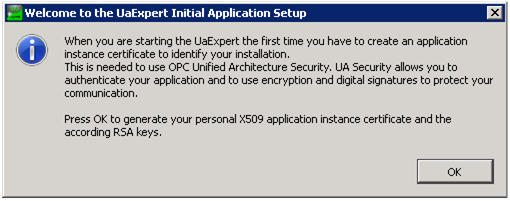
After starting the UA expert, the certificate for the client application should be generated.
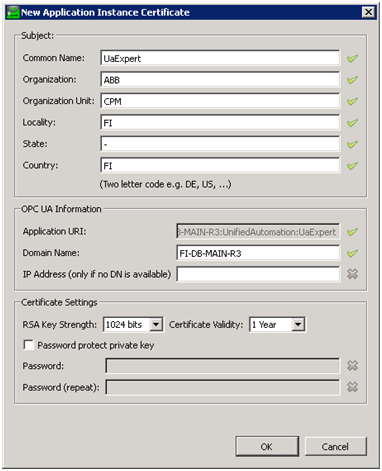
Certificate details for the client application certificate. An example.
You can enable downloading updates automatically, if an internet connection is available, as shown in the figure below.
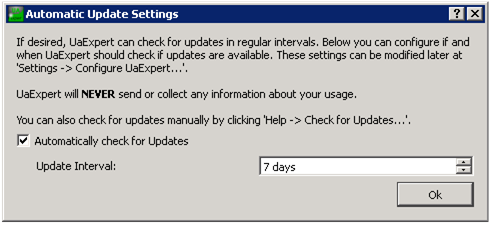
Enabling automatic updates.
After these steps, UA Expert is ready to use, as displayed in the next figure.
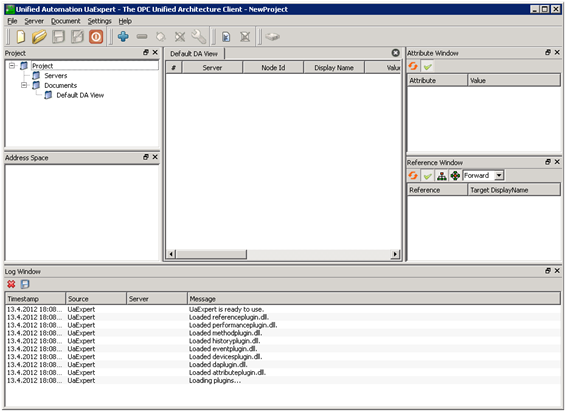
UA Expert is ready to use. The available components are ‘Project view’, where servers can be selected to connect to. ‘Address Space’ shows the content of the selected server. ‘Default DA View’ is used to monitor the value attributes of selected objects. ‘Attribute Window’ shows the attributes of the selected object (selection is done from the ‘Address Space’ view). ‘Reference Window’ shows the references of the selected object. ‘Log Window’ shows the status of the last interface calls and internal operations.
Connecting to the server starts by adding a new server from the context menu in Project view ‘Project\Servers → Add’. As there isn’t a discovery server running by default, the server is connected from the ‘Advanced’ tab, by giving the exact ‘Endpoint Url’ with security and authentication details. The Endpoint Url should be:
opc.tcp://127.0.0.1:48031
The port 48031 is the default tcp-communication port in the UA specification. The Security Settings should be selected to be ‘Basic128Rsa15’ and ‘Sign & Encrypt’. ‘Configuration Name’ and ‘Session Name’ can be anything that characterizes the connection. See the following figure.
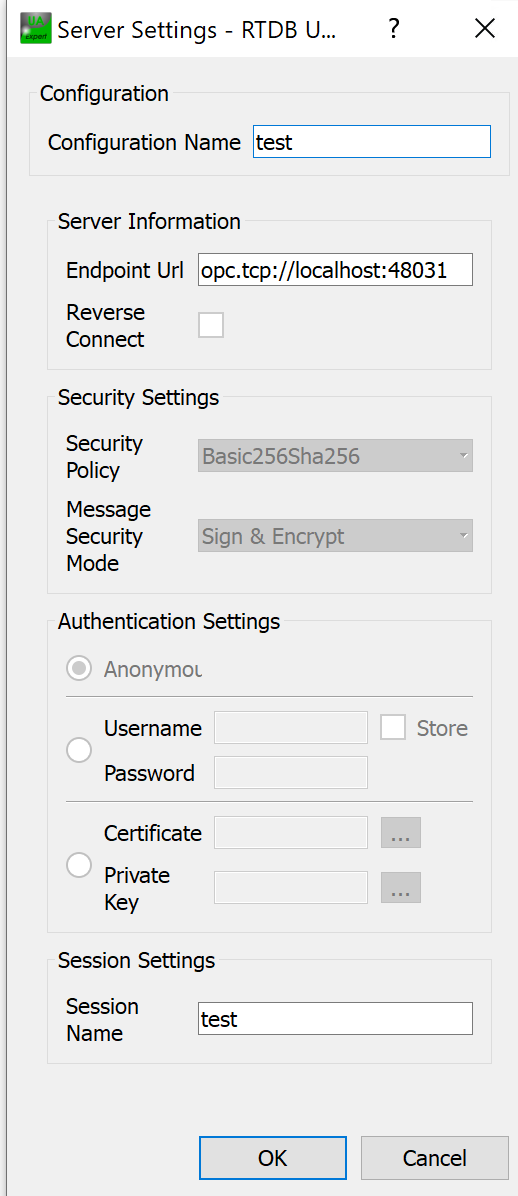
Preparing the UA server to be connected.
Once the server is configured, it can be connected from the context menu, by right-clicking ‘Connect’ (see the following figure).
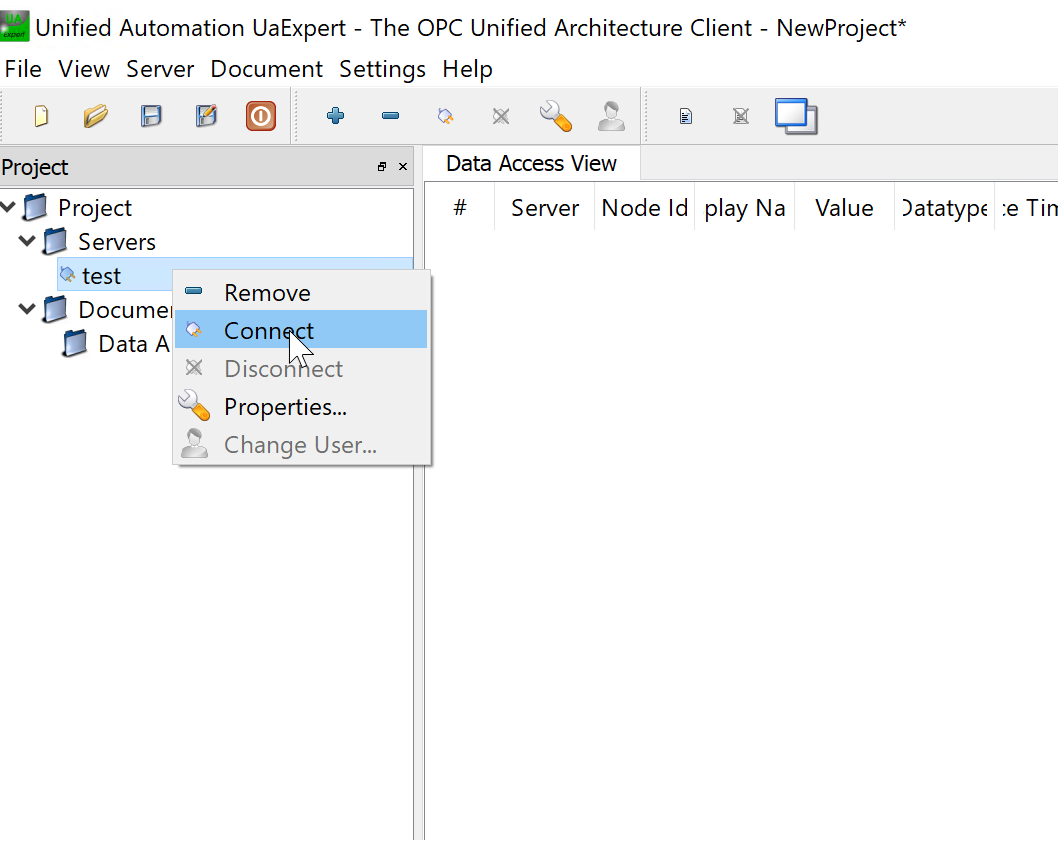
Connecting the UA server
The first connect attempt fails with the error “Connection failed with error ‘BadCertificateInvalid’, as the client application has not been accepted to connect to the server. This can be done next by going to the server computer and moving the client’s certificate from the rejected directory to the trusted directory.
The directories are configured in RTDB_OPCUAServer2_basesettings.ini
[SecuredApplication:TrustedCertificateStore]
StorePath = %LocalApplicationData%/RTDB/pki/trusted

[SecuredApplication:RejectedCertificatesStore]
StorePath = %LocalApplicationData%/RTDB/pki/rejected
[SecuredApplication:TrustedCertificateStore]
StorePath = /home/cpmplus/.local/share/RTDB/pki/trusted

[SecuredApplication:RejectedCertificatesStore]
StorePath = /home/cpmplus/.local/share/RTDB/pki/rejected
In practice those entries would resolve to something close to these:
C:\Users\USERNAME\AppData\Local\RTDB\pki\rejected\certs and
C:\Users\USERNAME\AppData\Local\RTDB\pki\trusted\certs
Or if running as a service as the SYSTEM account, under the directory:
C:\WINDOWS\system32\config\systemprofile\AppData\Local\RTDB\pki
Once connected, the server returns its self-signed application instance certificate to the client, and UA Expert asks to accept that (see the next figure). The certificate can be accepted permanently or only for this session.
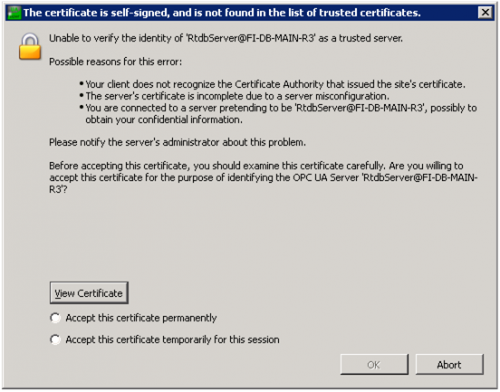
UA expert asks to accept the server's application instance certificate. The certificate details are found behind the ’View Certificate’ button.
In case the security policy ‘None’ is used, the server is not validating the client application instance certificate. The security policy settings can be changed from the file:
If the connection is successful, it is reported in the ‘Log’ window, and the ‘Address Space’ window is populated to show the currently available types and objects. If the connection fails, it might be due to a connection timeout. In this case, the message ‘Connection failed with error bad timeout’ is displayed in the ‘Log’ Window. UA Expert uses relatively tight default timeouts to determine that the connection cannot be established. As History OPC UA server 2 initializes the device connection when the first OPC UA client connects, it might be that it was not able to do that fast enough. The Client-side timeout settings can be changed from the menu ‘Settings\Configure UaExpert’. Alternatively, retry the connection. If the connection was successful, the resulting view is similar to the following figure.
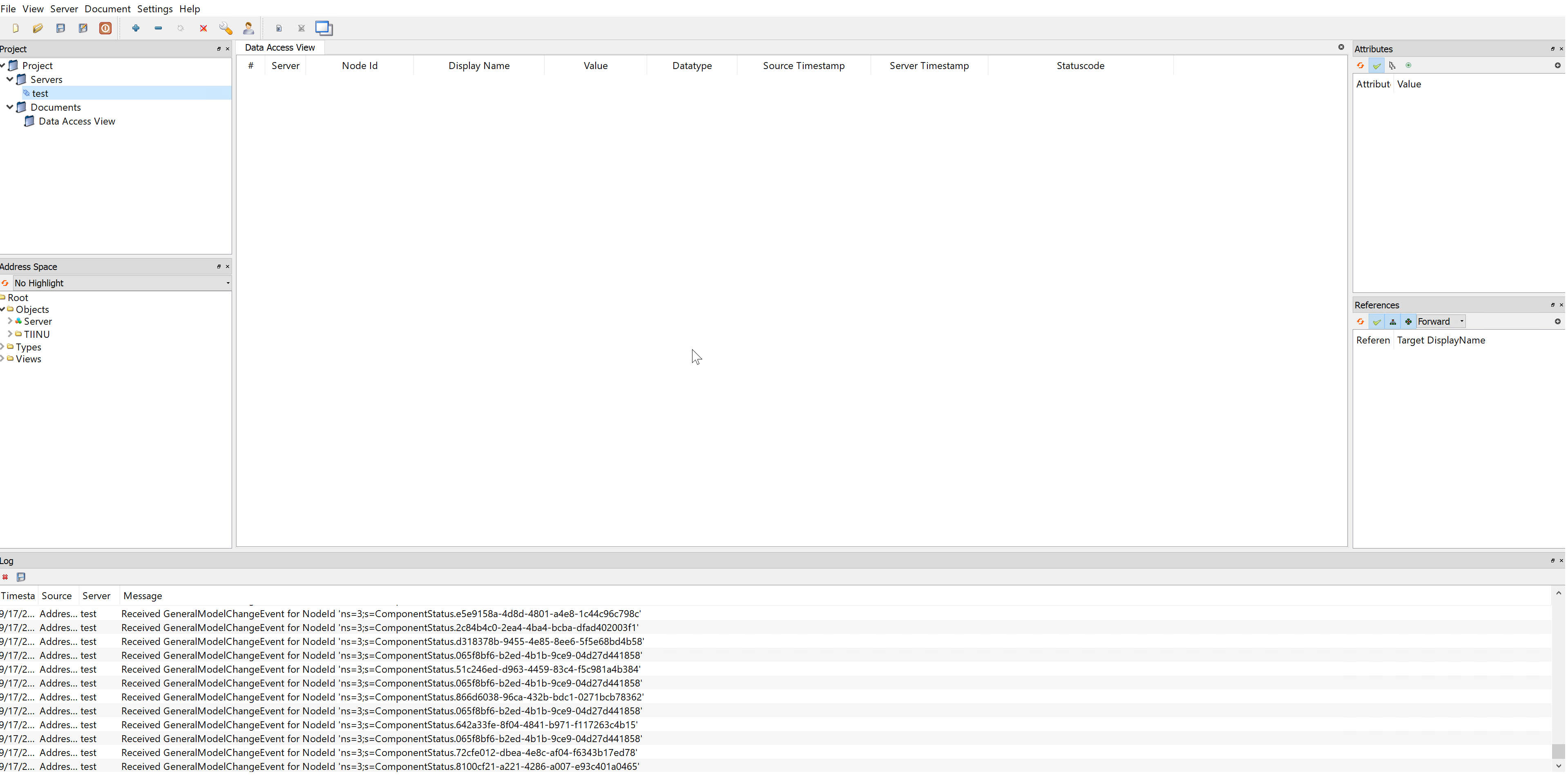
UA Expert is successfully connected with RTDB OPC UA Server.
Updated about 2 months ago