
Context passing from Source to Target Dashboard
This tutorial explains how to pass context from Source to Target dashboard.
This tutorial will give a simple example on how to pass context between dashboards. This tutorial will guide through context passing between two independent dashboards. However, if you are specifically looking for tutorial of context passing between main- and sub-dashboard, please refer to our other tutorial Dashboard context passing between main- and sub-dashboard.
For this tutorial we have created two dashboards (Dashboard1 and Dashboard2). Dashboard1 will have two widgets: Select widget and a Navigation Button widget. Dashboard2 will have only one widget: A label widget. Now we want to pass values selected in Select widget on Dashboard1 to Dashboard2 Label widget and there are a few steps we need to complete.
Step 1: In Dashboard 1 - Add Context Listener
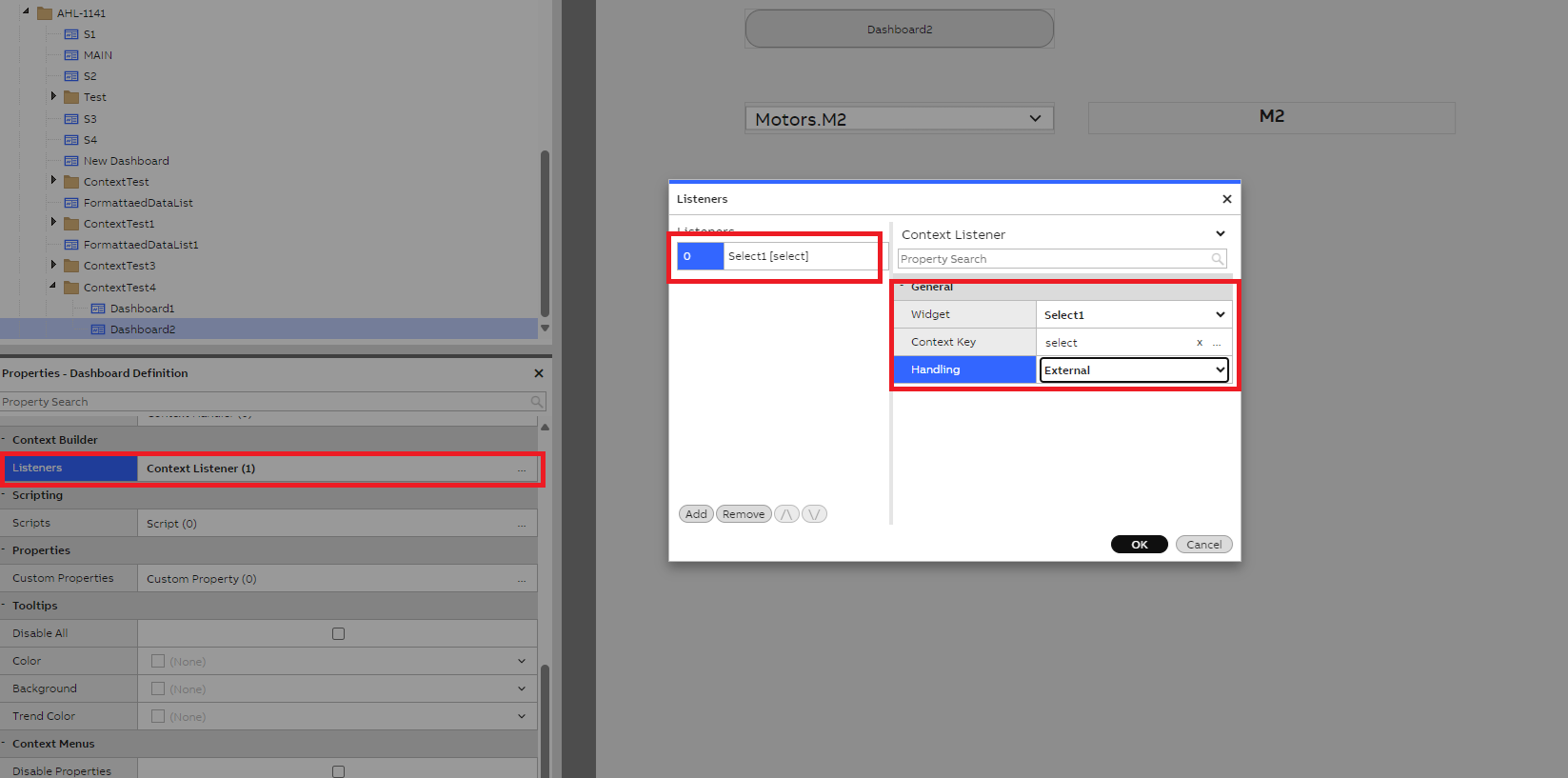
Now, in order to send the context to Dashboard2, we need to add one Context Listener and this should be done on the dashboard1 settings. As the picture below shows, we have defined the following:
- Widget: Select 1
- Context key: Choose key name as wished ex: 'select'
- Handling: External
Remember to save settings.
Step 2: In Dashboard 2 - Add Context Handler
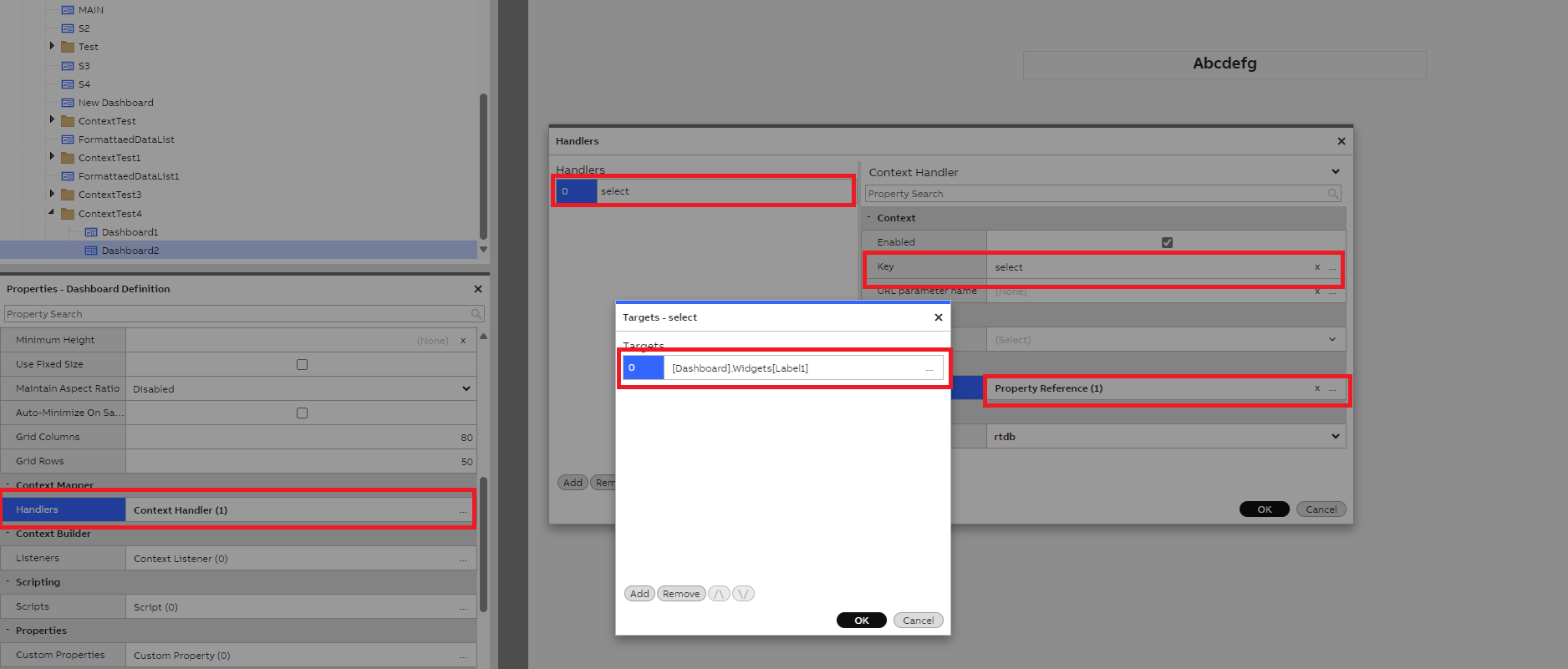
To receive the context sent by Select widget on Dashboard2, we need to add one Context Handler to our Dashboard2. Again, this can be done on the dashboard settings. As picture below shows, we have defined the following:
- Key: Same as we set for our Dashboard1 Context Listener. ex: 'select'
- Targets: Label1
Remember to save settings before closing.
Step 3: In Dashboard 1 - Configure Navigation button to Navigate to Dashboard 2
Drag and Drop Dashboard 2 on to the Navigation button widget in the Dashboard 1 so that when user clicks on the Navigation Button widget will be navigated to Dashboard 2.
Please note if "Open in new window" setting is enabled for navigation button, sending context does not work as should. If enabled, please uncheck this setting and save changes.
Step 4: Test the scenario
Now we save all settings and exit the edit modes on both dashboards, then in Dashboard 1 select a Process Path. Now, click on Navigation button in the Dashboard 1, user will be navigated to Dashboard 2, and will see that Label will show the same Process Path name selected in Dashboard 1.
Updated 6 months ago