
OData API: Power BI Report with ABB Ability™ History
Step by step guide to create Power BI report using ABB Ability™ History OData API.
- Create a new Power BI report file ex: PUMP.pbix
- Go to Get Data menu item in Power BI Desktop application and select Web
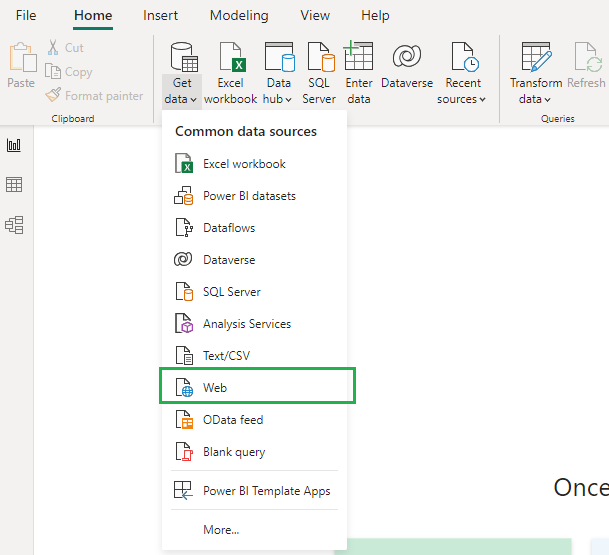
- Select Basic radio button
- Enter the oData query as referenced in the OData API documentation and click on OK button.
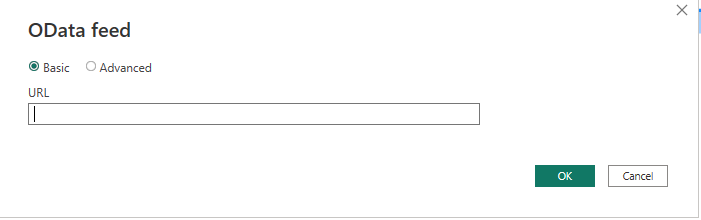
Connection string should be added to start with odata queries.
- OData Sample Query:
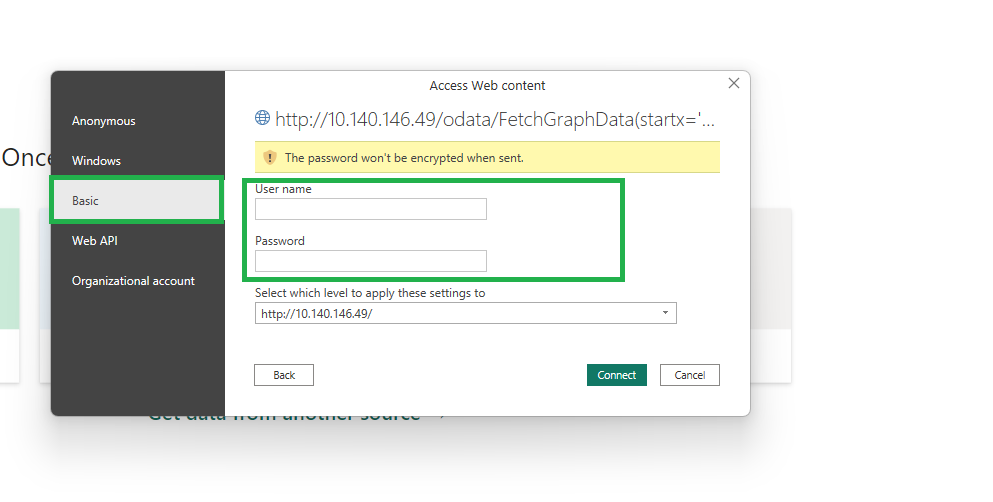
http://localhost/odata/FetchGraphData(startx='2023-10-27T00:00:00',classname='EquipmentHistory',endx='2023-10-27T00:30:00Z',wherestring='Path=%3F%20AND%20Property=%3F',whereargs=['Cars.FuelType.Petrol.Maruti',%20'RPM'],filter='AVG1min')- Select the authentication method as 'Basic' and provide the credentials to connect to the RTDB data source.
- Click on Connect button to execute the oData Query on executing the OData query loads the Data Transformation window as shown below. The query result is converted as Power BI Table automatically.
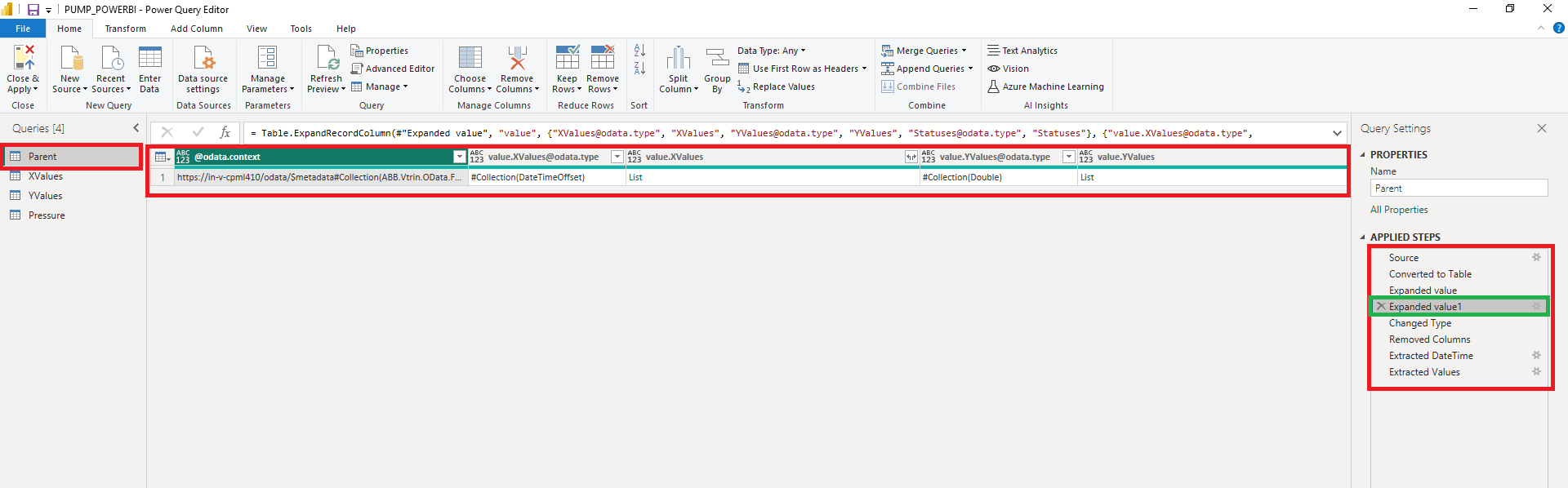
- Now, transform the data source as per steps below:
-
Rename the data source as 'Parent', but this can be named as wished. All the JSON nodes will be shown as column names in the table.
-
Convert the Data Source to Table
-
Expand Value column as Record
-
Expand the Record in Value column
-
Removed the unnecessary columns, ex: '@odata.context', '[email protected]', '[email protected]', '[email protected]', 'value.Statuses'
-
Now we can see only 'value.XValues' and 'value.YValues' columns as List
-
Extract the data in the XValues and YValues columns as it's separated by a ','
-

- Now we can create another table called XValues from the 'Parent' table. This may be done with a few steps described below. Also shown on screenshot.
- Choose Source ('Parent' table)
- Remove YValues column
- Split XValues column by delimiter
- Change type
- Add a new index column
- Reorder columns
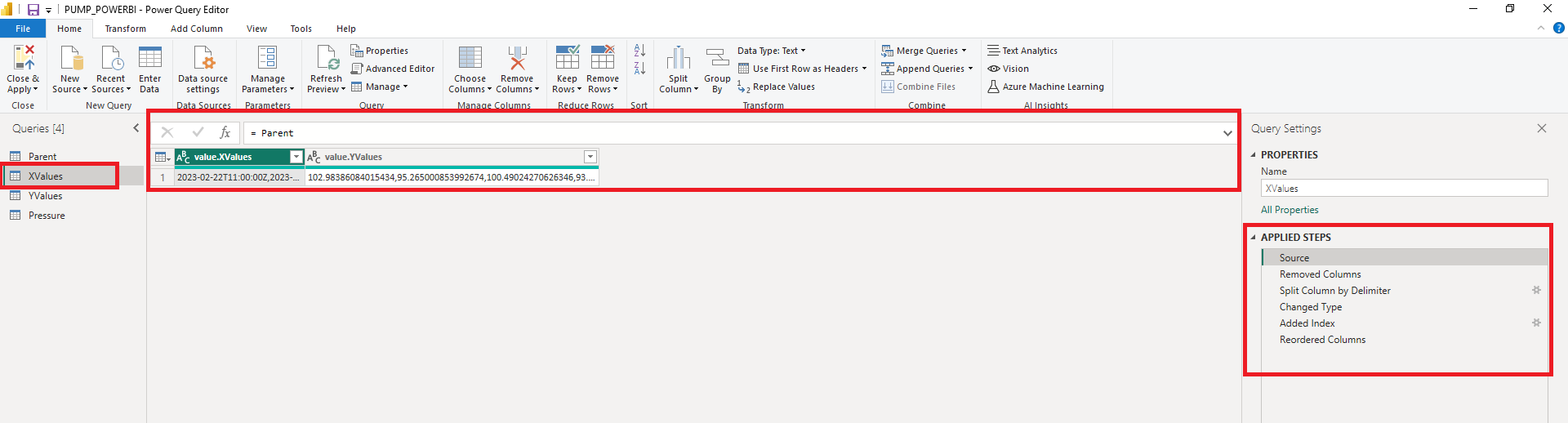
Applied settings for creating a 'YValues' table
- Then we create another table from 'Parent' for YValues and we will call 'YValues'. We apply similar steps here as with the XValues above. Steps shown below.
- Define Source
- Remove XValues column
- Split YValues column by delimiter
- Change the type
- Add a new Index column
- Reorder the columns
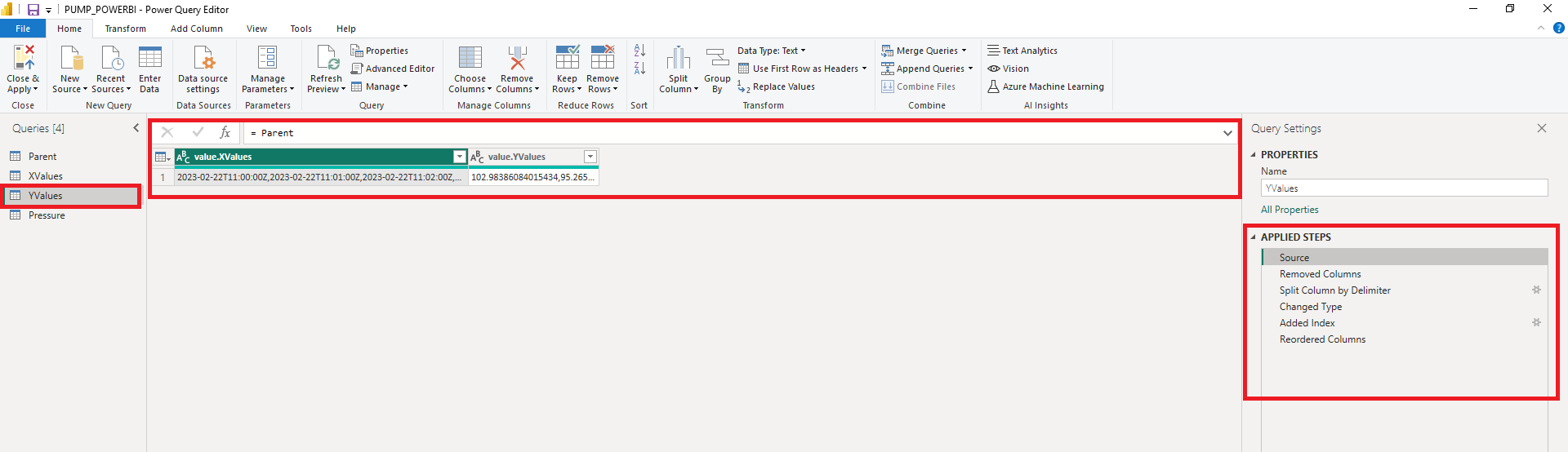
Applied setting for creating 'YValues' table
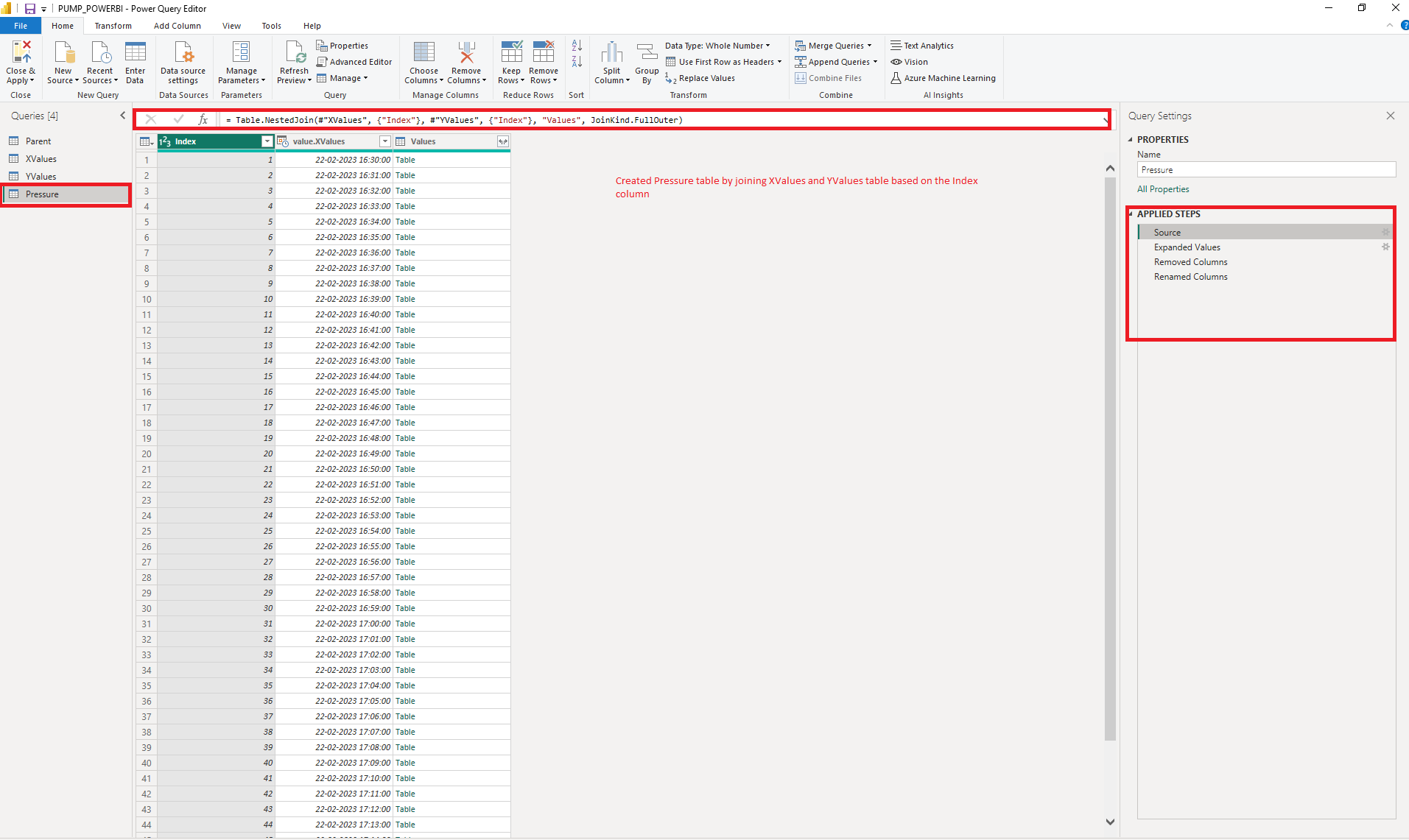
- Finally we create a table called 'Pressure' by joining XValues and YValues table based on Index column. The data in this table is used to create the Power BI reports. The screenshot below will show further information including applied steps.
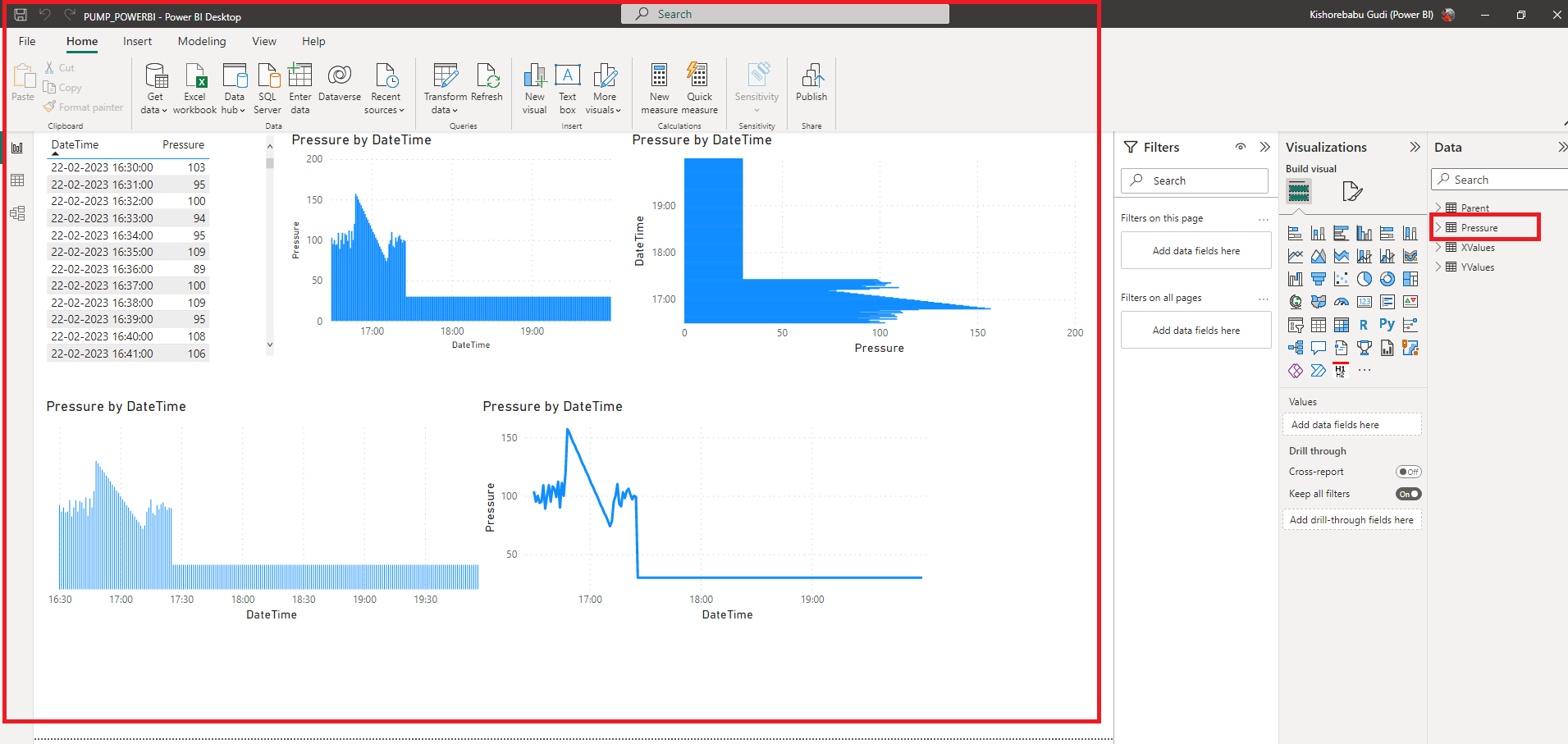
- Now we can navigate to Report view in the Power BI file we created in step 1 and create reports based on Pressure table.
Updated 9 months ago