
How to Use Display Inheritance
Display inheritance is a concept where you create a base display, and other displays can inherit all the widgets and layout from this base display. When you modify the layout or add widgets to the base display, those changes automatically reflect in the inherited displays. Inheritance helps achieve a consistent look across multiple displays and makes it easier to create displays with similar elements.
Step 1. Create the Base Display
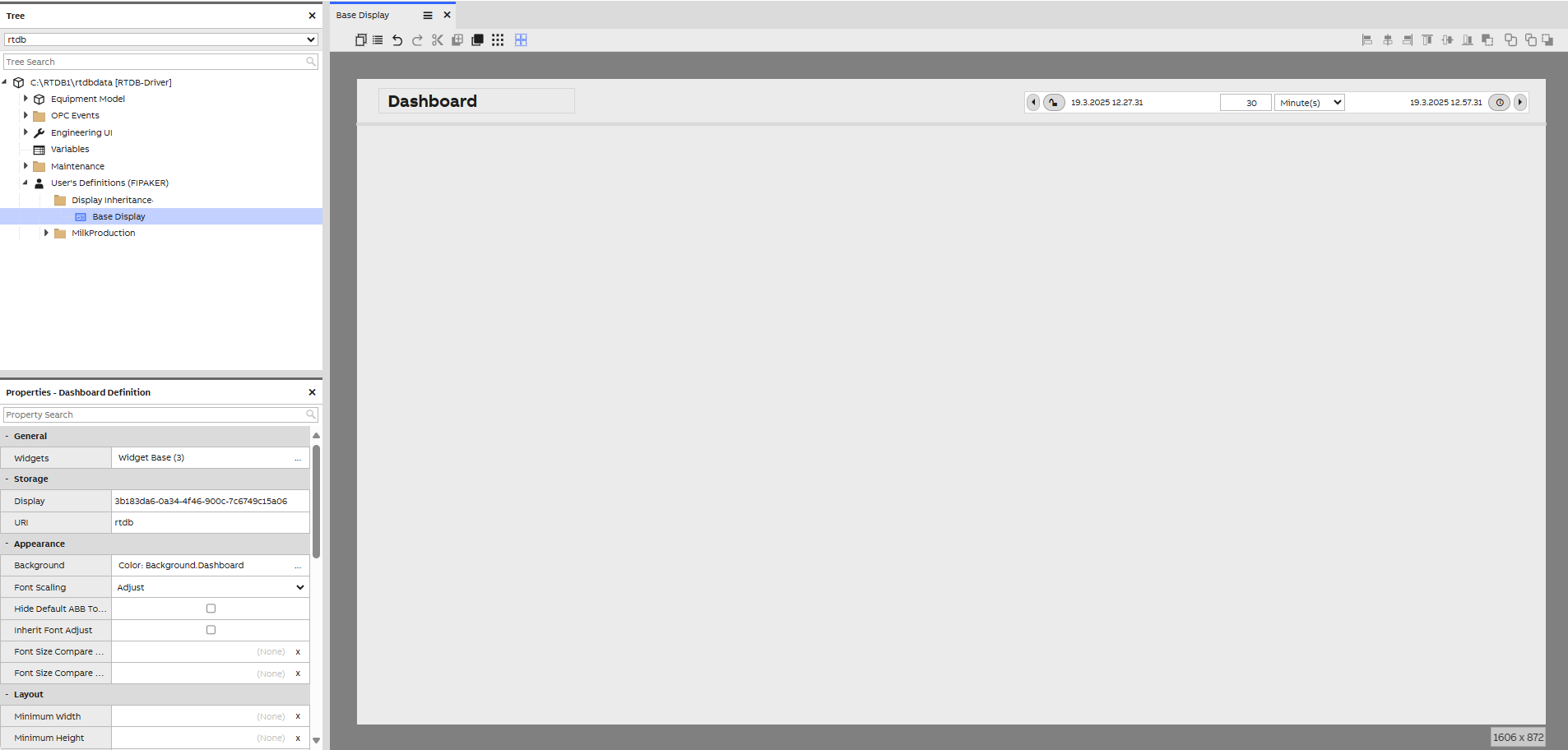
First, we need to create a display that will serve as the base for other displays. Let’s create a new dashboard and call it Base Display.
- In this example, we will add the following widgets to the Base Display dashboard to create a simple header:
- Label for the headline.
- Timebar.
- Panel used as a light stroke under the header to visually separate it from the content below
- Once the layout is complete, save your changes and close the Base Display window.
Step 2. Create the Inherited Display
Next, we will create a new dashboard that will inherit the layout from the Base Display and name it Inherited Display1.
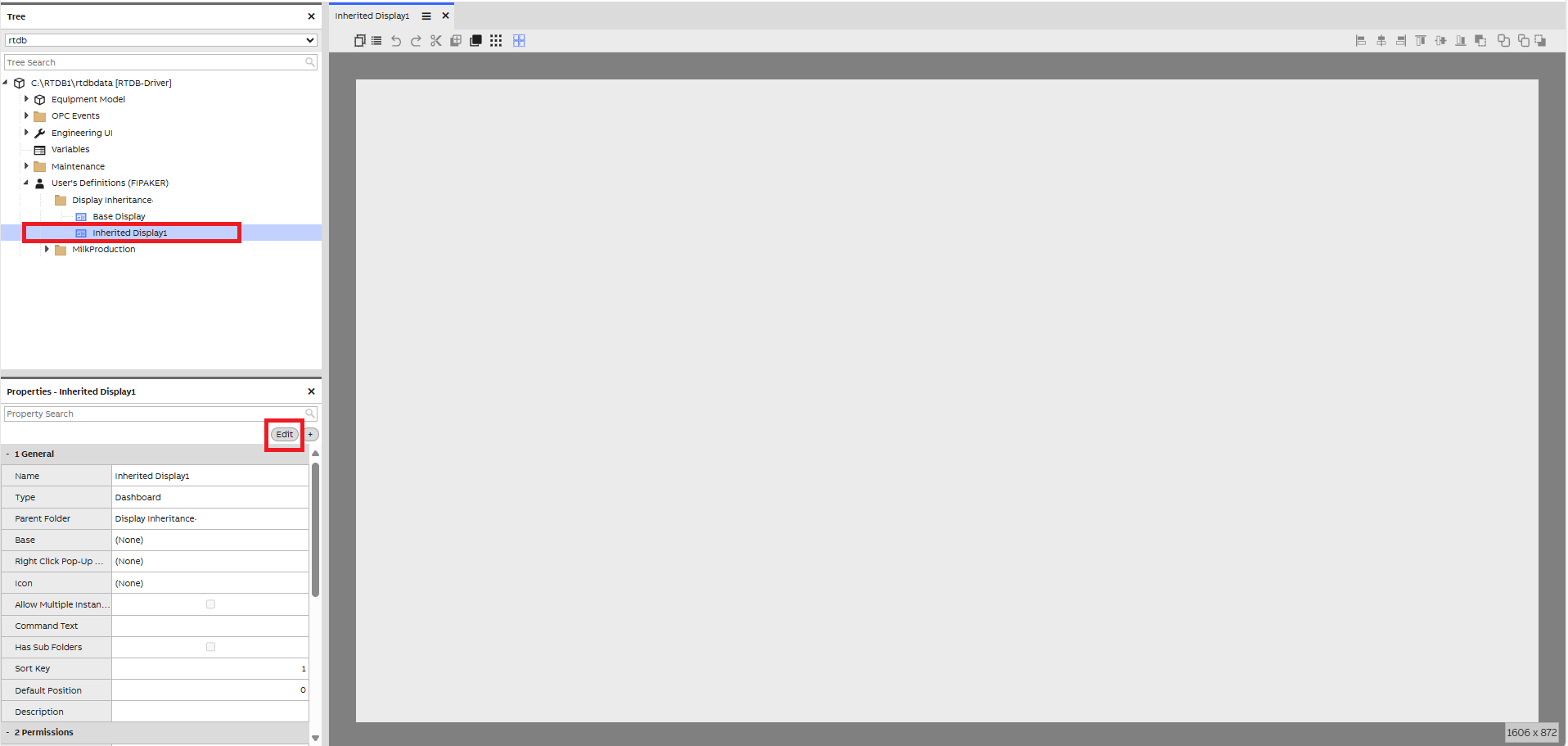
- In the navigation tree, select Inherited Display1 to activate the dashboard properties window.
In the properties window, click the Edit button to modify the properties.
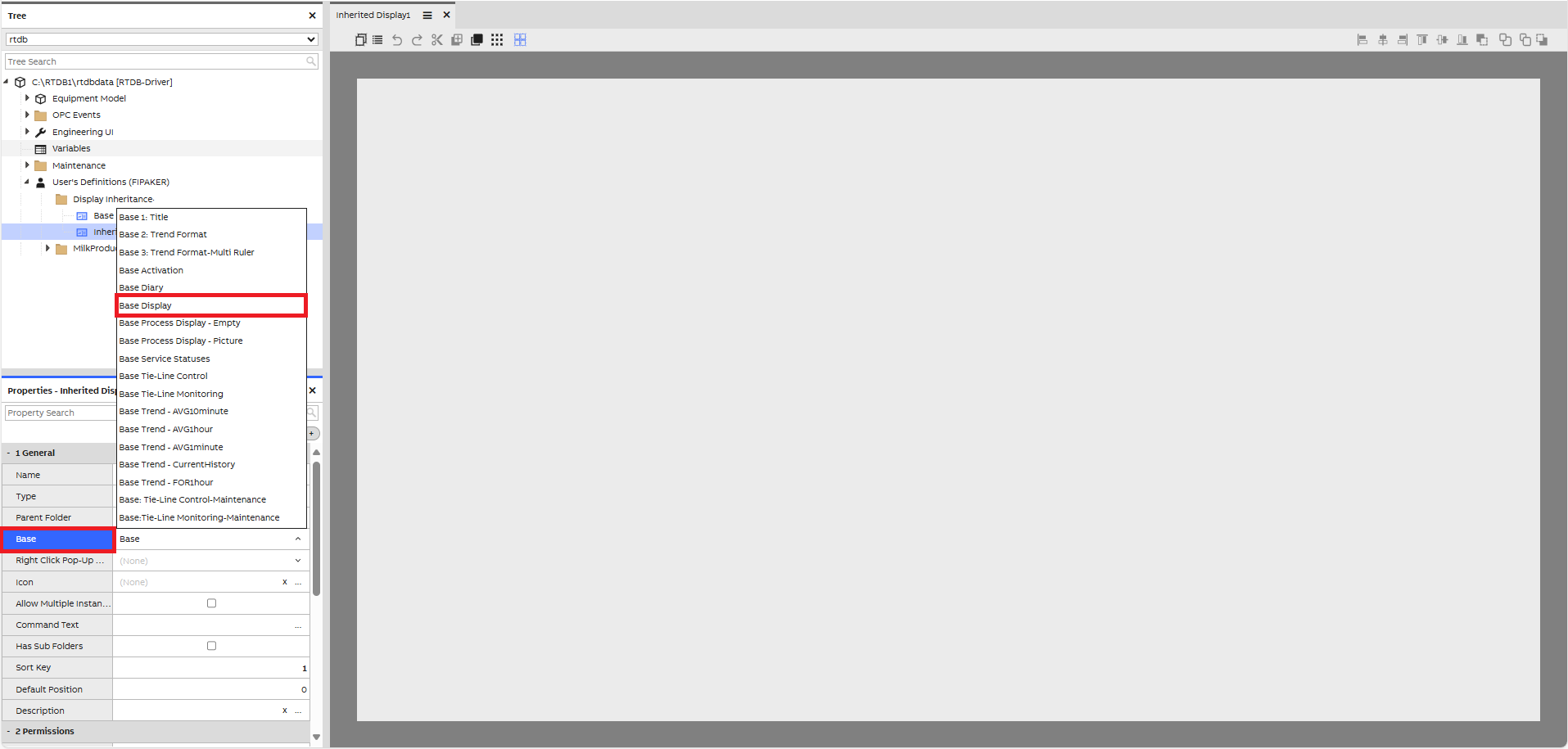
- In the Properties window, under the General section, locate the Base field.
From the dropdown menu, select the previously created Base Display dashboard as the base display.
Note: You can start typing the name of the display in the dropdown field to quickly find and select the desired display.
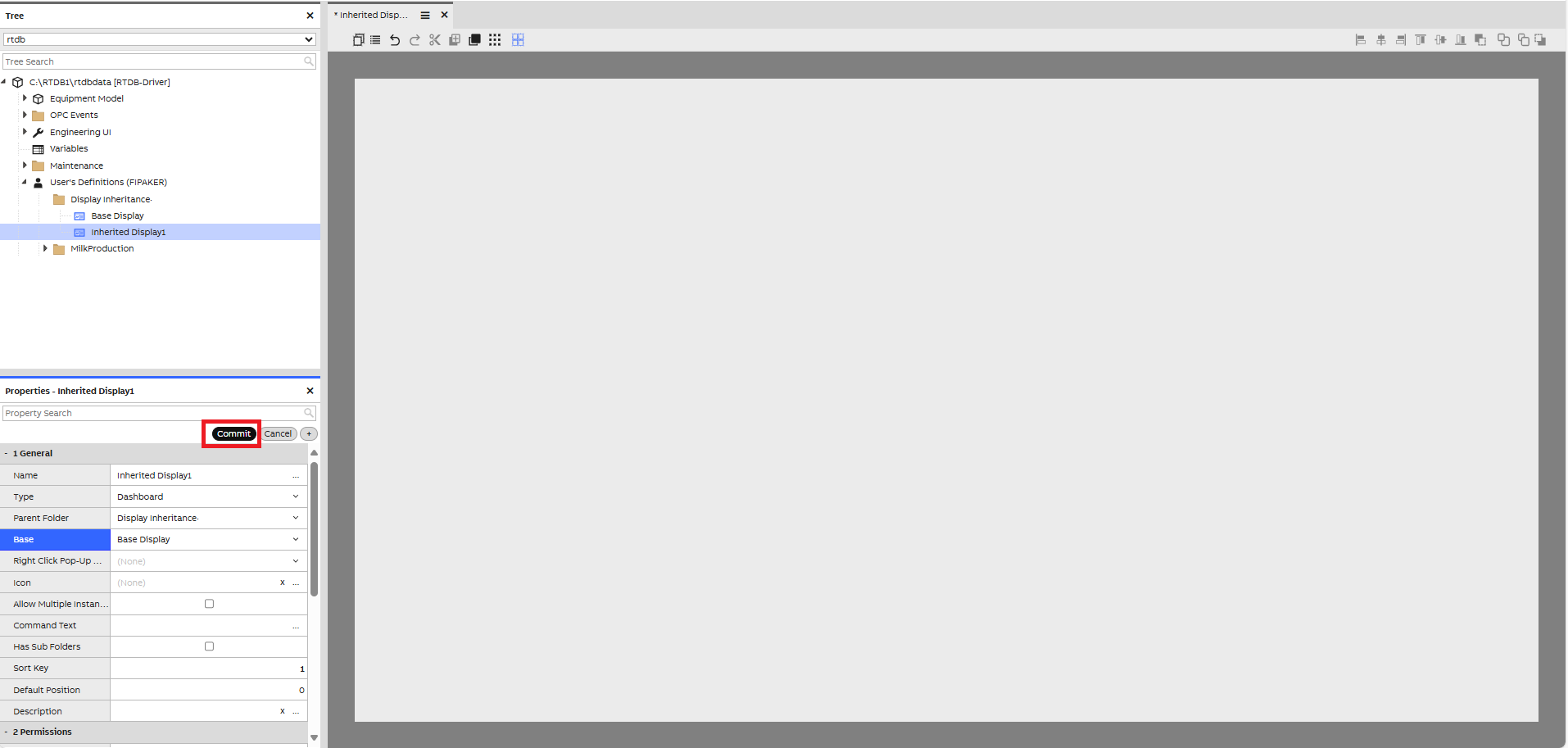
- Once the Base Display is selected, click the Commit button to confirm the changes and apply the base display to the dashboard.
- Finally, save your changes and close the Inherited Display window to complete the process.
Step 3. Check that Inheritance Has Been Done
Now, you can open the Inherited Display1 dashboard to verify that the elements from Base Display have been inherited. These elements will appear as "locked" because any changes can only be made in the Base Display.
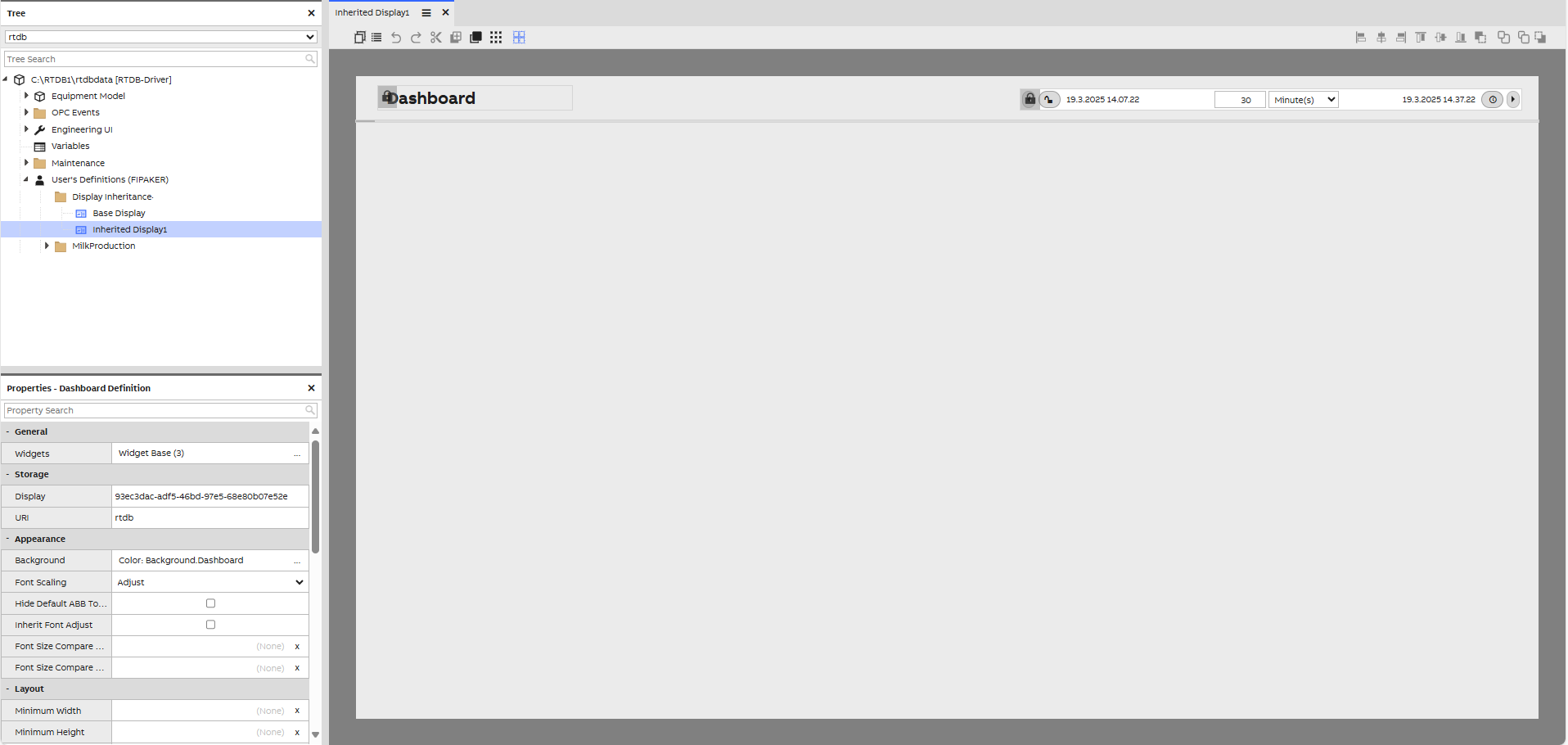
Step 4. Modify Base Display to Reflect Changes in Inherited Display
Now, you can test how inheritance works by making changes to the Base Display. Let’s change the header background color and the headline color.
- Open the Base Display.
- Change the header background color and the headline color as desired.
- After making the changes, save the display and close the Base Display window.
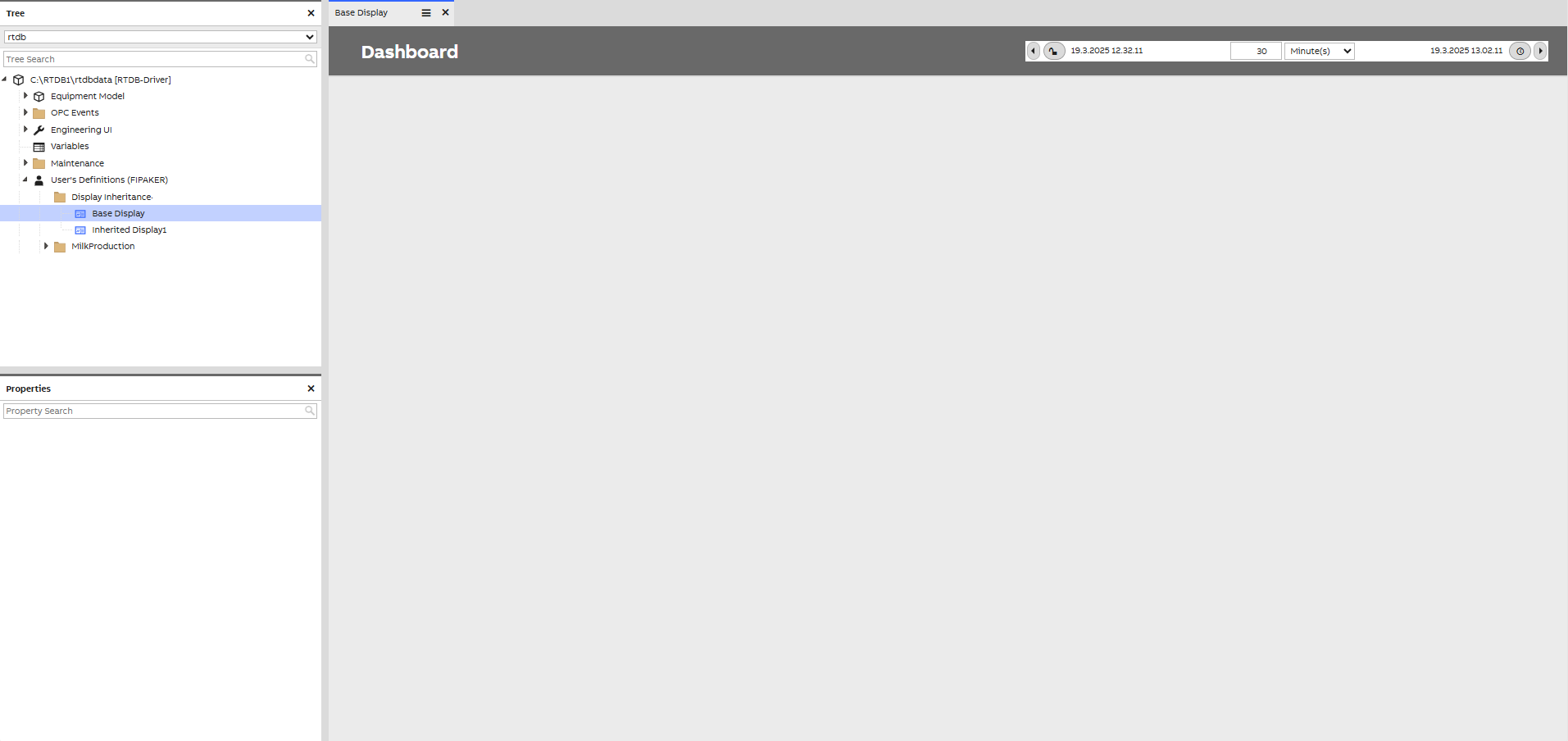
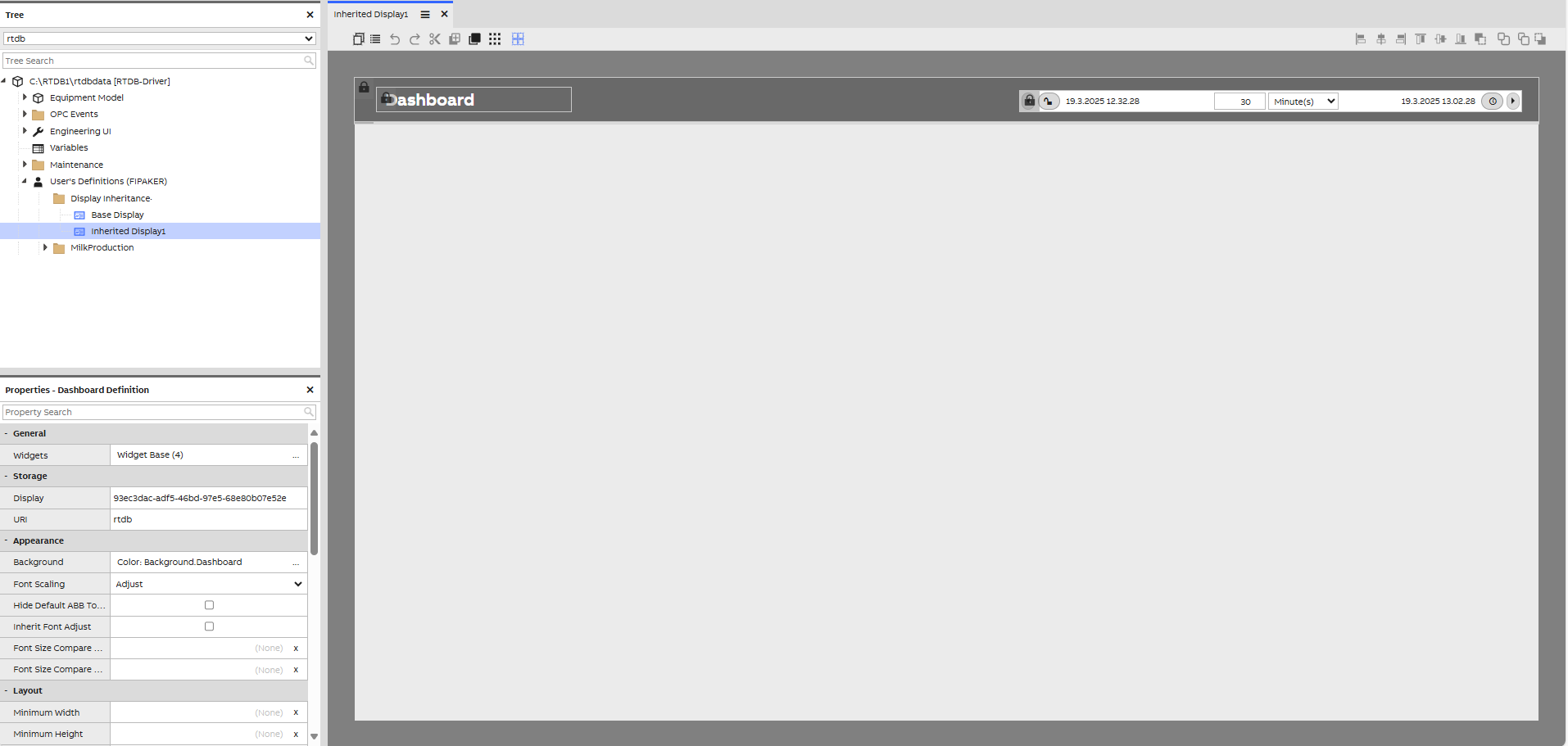
- Once you have made the changes, open the Inherited Display. You should immediately see that the changes made in the Base Display are also reflected in the Inherited Display.
Key Points to Remember
- Changes made in the Base Display automatically reflect in all inherited displays.
- You can modify widget properties in inherited displays but not their size, position, or deletion.
- Inherited displays should not include specific data or context handling, but shared context (such as the Time Bar) can be included in the base display.
Updated 6 months ago