
Calc service and processes
This page goes in-depth at explaining the machinery responsible for managing and executing the Calculation Tool calculations.
There are two important entities that run the Calculation Tool, CalcService and CalcProcess. CalcProcess is a process that executes the calculation code and CalcService is a service that manages these processes. On this page, we'll cover how both CalcService and CalcProcess operate and see how they interact with each other.
CalcService
CalcService is an RTDB service that is responsible for the top-level Calculation Tool functionality. It is responsible for starting and managing CalcProcesses, which do the actual execution of the calculations. In addition, CalcService compiles the calculation code, which the CalcProcesses execute.
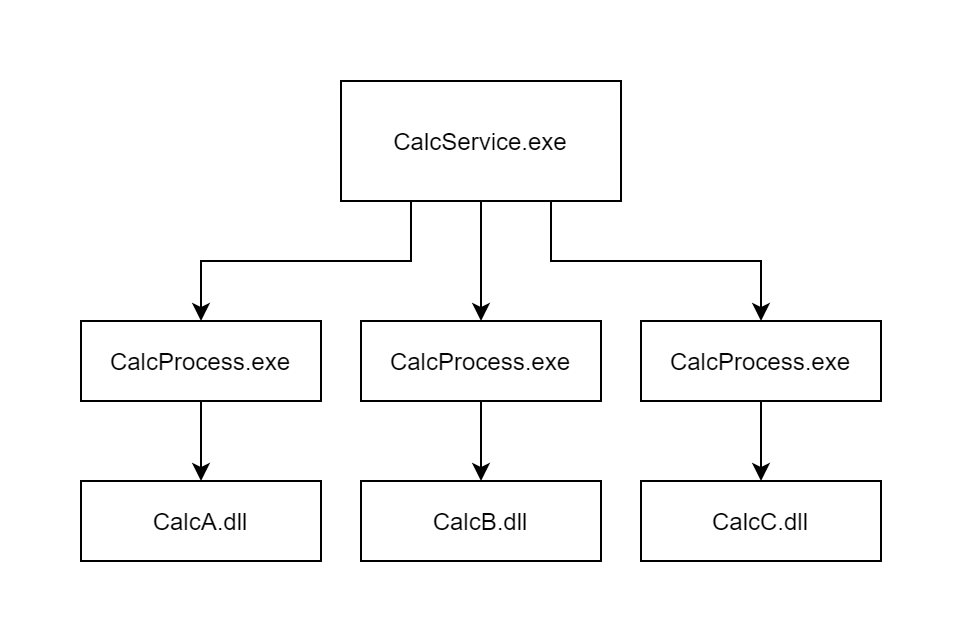
CalcService is responsible for starting CalcProcesses. CalcProcesses call the calculation DLLs, which contain the calculation code.
When CalcService is started, it will automatically start all the needed CalcProcesses. Likewise, when CalcService is stopped, it will stop all CalcProcesses. All CalcProcesses are child processes of CalcService.
CalcService can be toggled on or off from %APP_DATAPATH%\RTDB.INI RTDB.ini by settings RTDB-CalcService=ON or RTDB-CalcService=OFF. More information on how to control RTDB services.
CalcProcess
CalcProcess is a system process that is responsible for executing calculations. CalcProcesses are children of CalcService, which takes care of their management.
The actual calculation code is compiled into a DLL by the CalcService. When executing the calculation, the assigned CalcProcess calls the corresponding code from the DLL. A single CalcProcess can be assigned to many calculations. In this case, the code of all these calculations is compiled into a single DLL. The compiled DLLs can be found from the location specified by the tempFileDirectory configuration parameter.
Lifecycle
CalcProcesses are managed by the CalcService. When the CalcService is started, it starts CalcProcesses for every calculation. New CalcProcesses are also started when you create a new calculation without specifying an existing process.
A CalcProcess exists until either all calculations are removed from it or the CalcService is stopped. This means that the process exists even if it isn't currently execution any calculations. Therefore, you will always see all your CalcProcesses in the task manager:
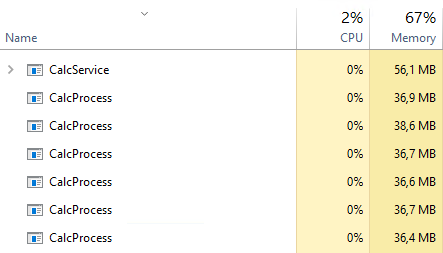
If a CalcProcess crashes or gets killed, a new system process is created by CalcService.
Performance
According to our tests, the resources consumption for a single process has been seen stable and scaling well with the number of tasks assigned to it: there is very little difference seen between having 1 or 100 tasks assigned to one process. The default behavior in the UI client is to create a separate process for every calculations task, but we recommend to group related tasks in the parent processes in case of big amounts of different calculation tasks, to keep the load on memory low.
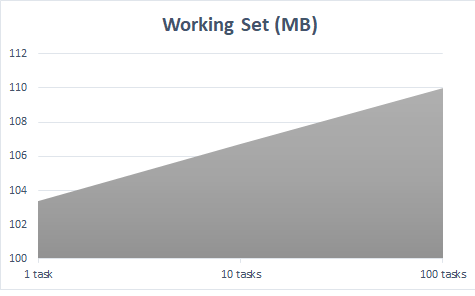
Memory usage scaling with number of tasks.
Execution
CalcProcess is responsible for the initiation and execution of its calculations. In other words, CalcProcess triggers an execution when the trigger conditions are fulfilled. It also takes care of running the executions in a sequential order.
Calculation Lifecycle
The calculation execution lifecycle can be divided into to phases. In the first phase, a new execution is created and pushed into a queue. In the second phase, an execution is taken from the top of the queue and executed.
The diagram below shows the steps that a calculation execution goes through, starting from the initial triggering and ending to the actual code execution.
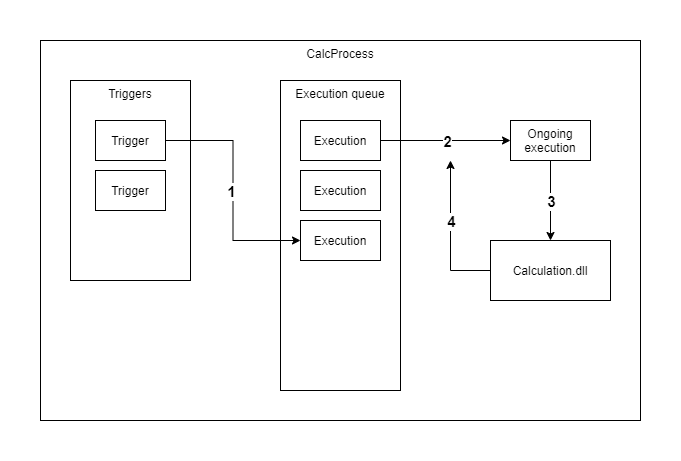
Calculation triggering and execution.
- A trigger fires, causing a new execution to be created and pushed to the end of the execution queue.
- CalcProcess takes an execution from the top of the queue and executes it.
- When CalcProcess starts executing a calculation it calls the corresponding code from the calculation DLL.
- After the execution finishes, CalcProcess takes a new execution from the queue and starts the cycle again from step 2. If the queue is empty, it starts waiting for executions to be pushed into the queue.
This can be thought of as an implementation of the producer-consumer pattern where the triggers are producing executions and a single thread is consuming them synchronously.
Calculation period time range
The calculation period start and end times are determined when the execution is added to the queue. These are always predictable. For example, a trigger, which fires with a one-second interval and starts exactly at midnight, will produce the following periods:
start           end
----------------------------
00:00:00.000    00:00:01.000
00:00:01.000    00:00:02.000
00:00:02.000    00:00:03.000
00:00:03.000    00:00:04.000
...             ...
Missed executions
Some executions for a calculation might be missed, for example, due to CalcService being temporarily down or the CalcProcess crashing. We are currently working on a solution to calculate the missed executions once the CalcProcess starts again.
Task triggers
If a calculation has been set as a trigger for another calculation, both of these calculations must be assigned to the same process. When selecting a calculation as a trigger, the triggered calculation will be moved to the process of the tiggering calculation. In addition, any calculation that specifies the triggered calculation as a trigger, will also be moved to the same process.
As an example, consider a following setup:
- Process A
- Calculation 1
- Process B
- Calculation 2
- Calculation 3
We also assume that Calculation 3 will be triggered by Calculation 2. If we were to set Calculation 1 as a trigger for Calculation 2, both Calculation 2 and Calculation 3 would get moved under Process A, resulting in the following setup:
- Process A
- Calculation 1
- Calculation 2
- Calculation 3
When you have calculations that are triggered by other calculations, the triggering and triggered calculations must all exist in the same process.
NoteThe automatic transfer of calculations from process to process happens only when using the Calculation Tool view in Engineering UI. If you edit the calculations some other way, you'll have to manually move the calculations to the correct process. Otherwise, the calculations will not get triggered.
Updated 9 months ago