
EquipmentPropertyInfo attribute override in Engineering UI
Overriding property attributes in Engineering UI is simple and allows you to do changes on Instance level. Yet these changes require a few things we will go through below.
First to see all the EquipmentPropertyInfo attributes we go to Information Model > Database classes. On this table we can see all property names grouped by classes.
To see only a list of EquipmenPropertyInfo attributes and all their detailed information, we can first choose Class from dropdown menu and in our case it will be Class Property. Then to the search box on Class Name column we will type EquipmentPropertyInfo. The Name column shows us how the names are written in code. This information we need in the next phase.
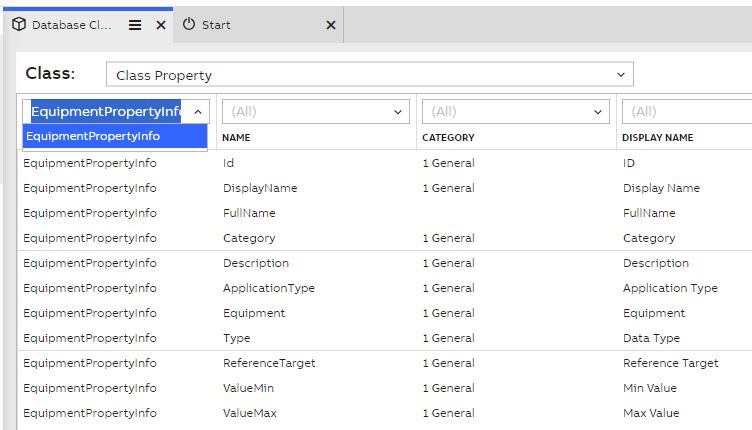
Database classes EquipmentPropertyInfo selection
Now on Engineering UI main menu we can select Information Model > Equipment Classes and here choose the Equipment Model property we want to modify. Then we open the property editor tool window and here we can see the property attributes.(see picture below). On default this is empty, but we can insert here the attributes we want. Please be advised to type the names as they are displayed on the Database classes EquipmentPropertyInfo Name column. Example shown below. Remember to commit changes to save them.
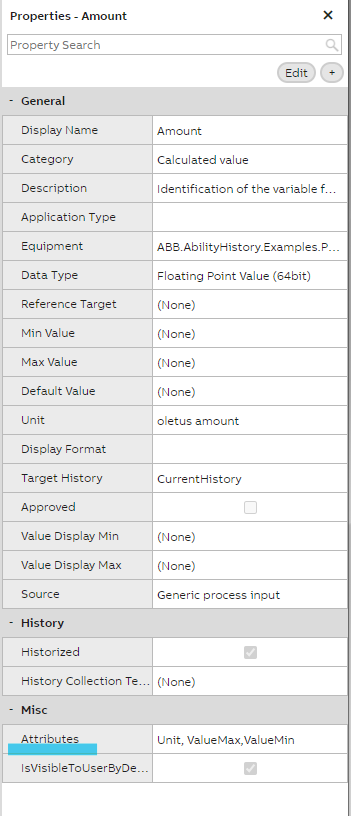
Property editor list
Lastly we can go to our Information Model > Equipment List display and here open the Equipment Model property editor to see the attributes we just added. If some of these were already defined when creating the model, the values will be shown here. Otherwise these are marked as "undefined" or simply empty. If you define overriding attributes to multiple properties, these will all be listed here.
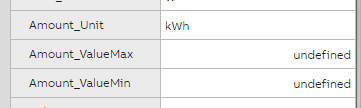
Attribute definitions example on Instance level
Updated 3 months ago