
Create Tags in Engineering UI
To create a new Tag using Engineering UI, first you must open it. Locally on the server the Engineering UI can be accessed by navigating in a web browser to https://localhost/history.
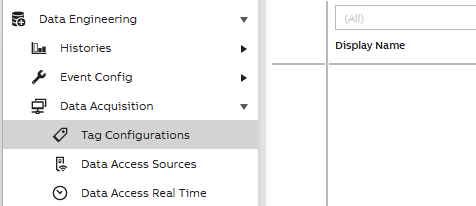
Next, select Data Engineering > Data Acquisition > Tag Configurations from the navigation panel on left.
Now, on the bottom of the page, you should able to see "Edit" button. By clicking the "Edit" button the bottom menu will update and reveal the edit bar. Now, you can create a new Tag by clicking "New". This will create a new row, that represents the new Tag. On "Properties" panel on left, you can edit the Tag's properties. When the Tag is ready, you can commit changes by clicking the "Commit" button on the bottom of the screen.
To create a tag and collect data it requires bare minimal properties to have a valid value in the tag configuration list. Below are the minimum required fields that need to have a valid value to collect data.
Tag definitions
The complete definitions of all the properties in the Tag class may be found in the tables below.
Property | Description |
|---|---|
Proposed Name | This is a mandatory field to create an entry in to the list |
DA Type | This specifies Protocol and Client which will be used to collect data. |
DA Path | Based on the DA types Both the ProgId and CLSID of the OPC server should be given to prevent the usage of remote OPC registry browsing or usage of OPC enum component. If the OPC server is locally connected, <host> and <clsid> can be dropped, e.g. OPCUA: MODBUS: |
DA Frequency | Data collection frequency in millisecond (default is 1000ms) |
Activity | Active (Default is Inactive) |
DataFlowDirection | Option [in] means RTDB-OPCClient reads data from OPC Server, then write them to RTDB; |
For the Tags where redundant data collection is supported below are the properties to be considerd.
Property | Description |
|---|---|
ConsistencyControlled | The Tag is under tag consistency control only if this has been set to true. Default is false. |
CollectorNode | Defines the collector node for this tag. Refers to DataBaseNode instance that defines all nodes available in the system. |
RedundantDataCollection | Defines whether the redundant data collection is done for this Tag. Default is false. |
CollectorNodeRedundant | If the RedundantDataCollection is defined to be true, this should be set to refer to the node that does this redundant data collection. |
DaTypeRedundant | In the redundant collector node, this DaType setting is used. |
DaPathRedundant | Based on the DA types Both the ProgId and CLSID of the OPC server should be given to prevent the usage of remote OPC registry browsing or usage of OPC enum component. If the OPC server is locally connected, <host> and <clsid> can be dropped, e.g. OPCUA: MODBUS: |
Fine-tuning using Variables
As explained in previous chapters, creating Tag creates Variable as well. The Tag class extends the Variable class with some additional functionality. In addition to just extending the functionality of Variable, the Tag class also hides some details from the Variable class. In cases where some functionality is only available in the Variable class, the user might want to fine-tune the behavior by accessing the Variable properties directly. In addition, sometimes, the user wants to create variable instances without creating a tag instance. A typical example of this would be variables used in C# calculations. In case the calculation is producing data to a variable, it might make sense to only create a variable without a tag, in order to get as lightweight a solution as possible.
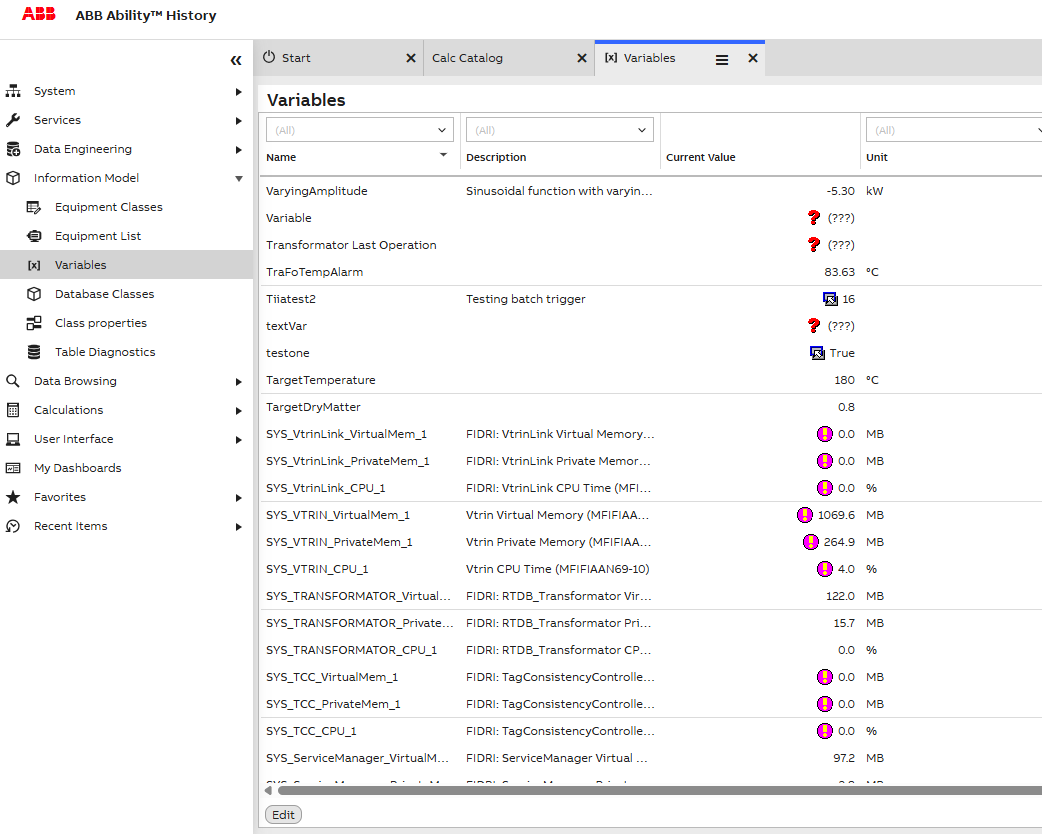
The Variables list is available from Engineering UI. To find them, select Information Model > Variables from the left side navigation panel. Variables can be created using the list functionality (From edit mode "New" > "Commit"). The selected Tag's properties can be seen on the column on the right.
Updated 9 months ago