
Gateway Server
There are some use cases where the ABB Ability™ History is behind a firewall in more secure zone, whereas the users need to access it from other network zone and perhaps also authenticated from another id management system. In such case we can install ABB Ability™ History View at the enterprise network and configure it as a secure gateway server for the Target History server. Now the users from the enterprise can connect to the Target History server via the Gateway server using their credentials in secure mode where the data authorization is applied similarly to direct connections.
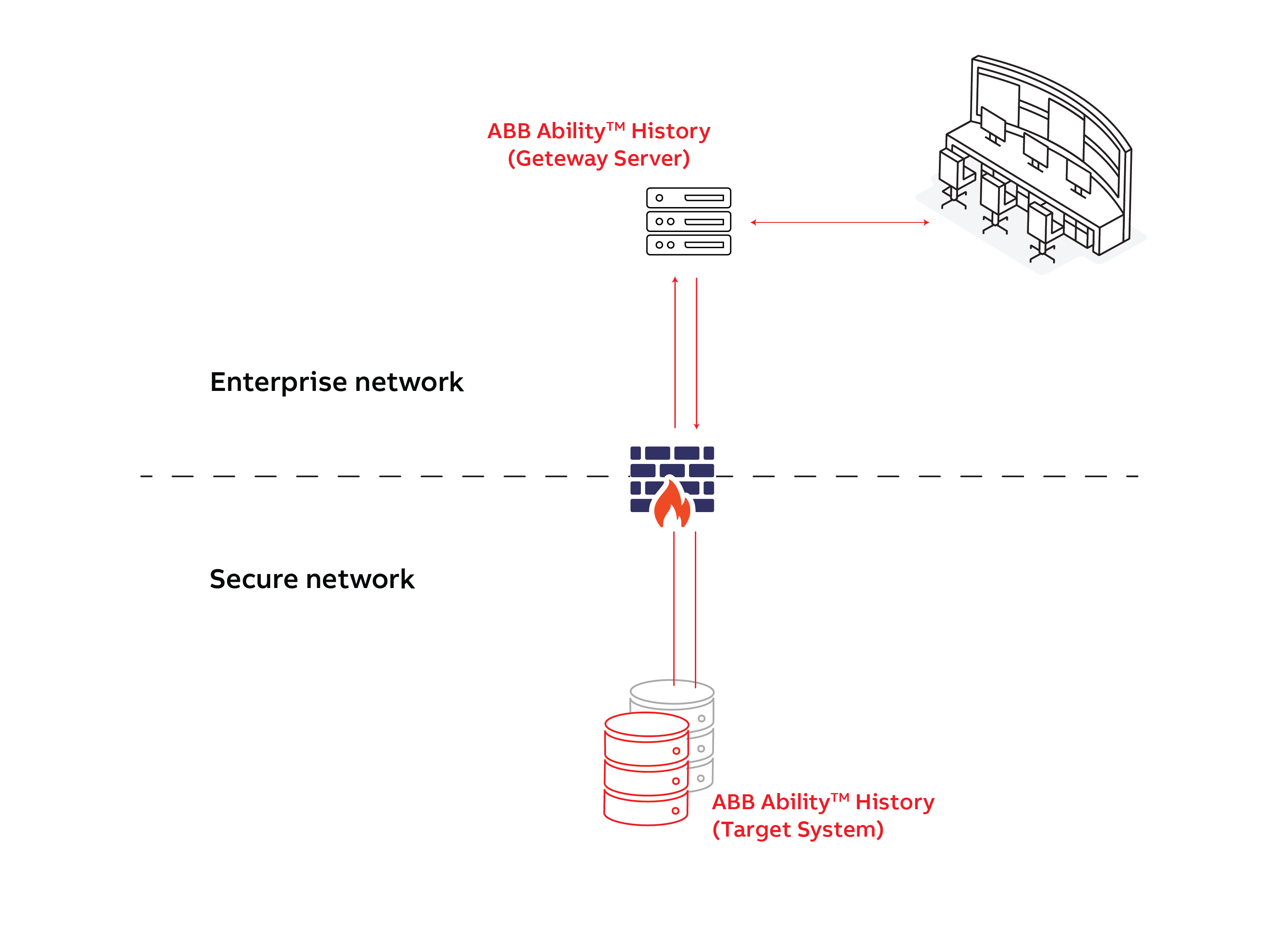
This article will guide you on installing a standalone ABB Ability™ History View as a gateway server, which can be configured to establish a secure connection to the ABB Ability™ History.
Installation Media
The ABB Ability™ History View build is part of ABB Ability™ History Installation media under the folder View.
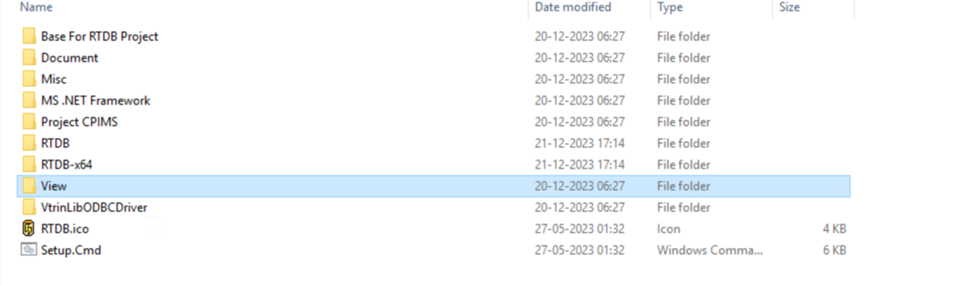
Copy the ‘View’ folder to the machine which you are configuring as view gateway system.
Installing View on Gateway Server
Prerequisites
- Windows Desktop or Server version.
- Make sure that the target history system is accessible from this machine via secure port 443.
- Firewall should be opened for port 443, as by default Vtrin Server connects to the target system Via port 443.
- Keep the target History node details and credentials handy
Installation
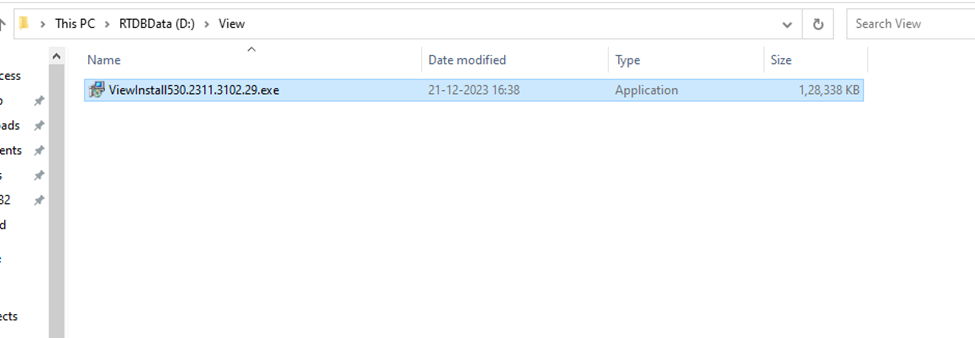
From the folder that is copied to the Gateway Server, double click the ‘ViewInstall*.exe’.
Proceed with default selection.
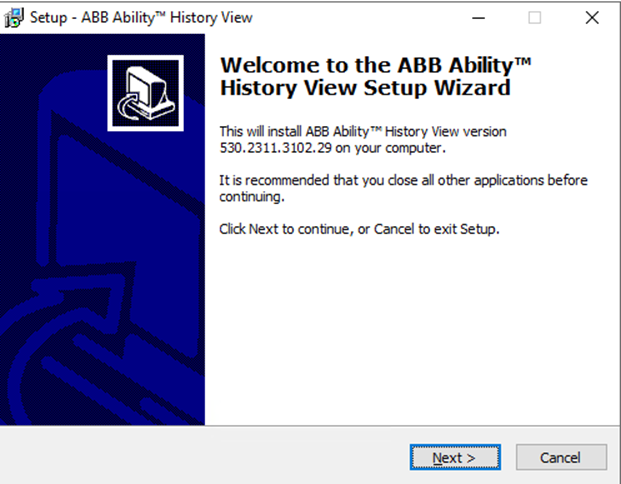
Click on ‘Next’
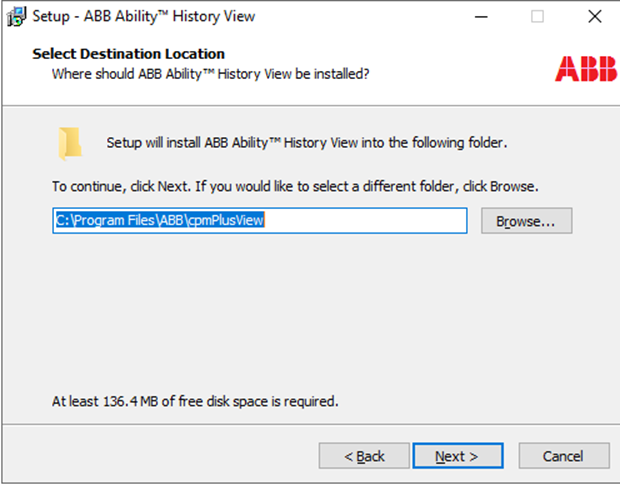
Click on ‘Next’
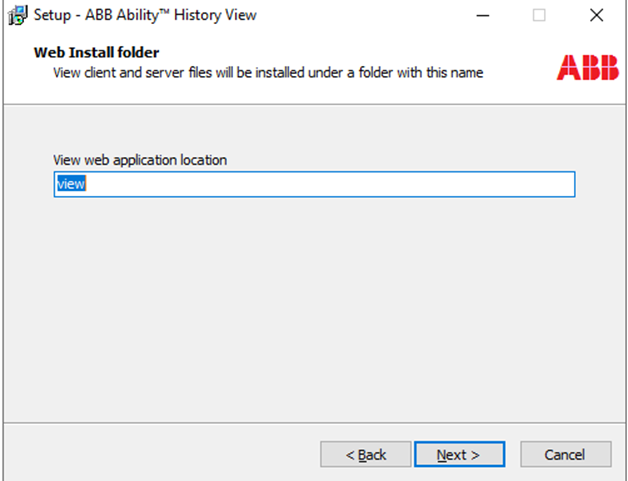
Click on ‘Next’
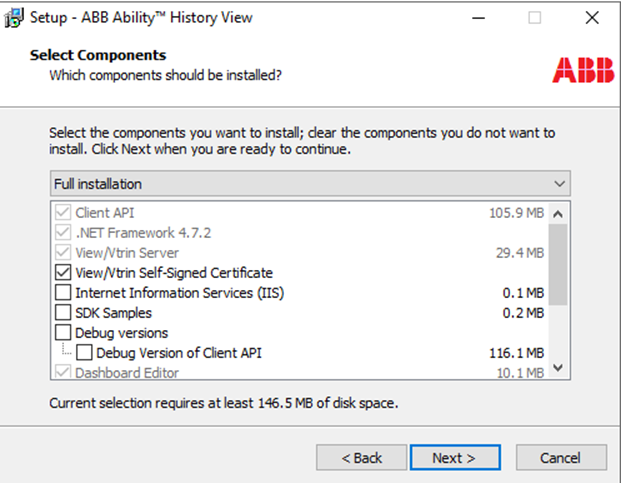
Keep the default selection and proceed with ‘Next’.
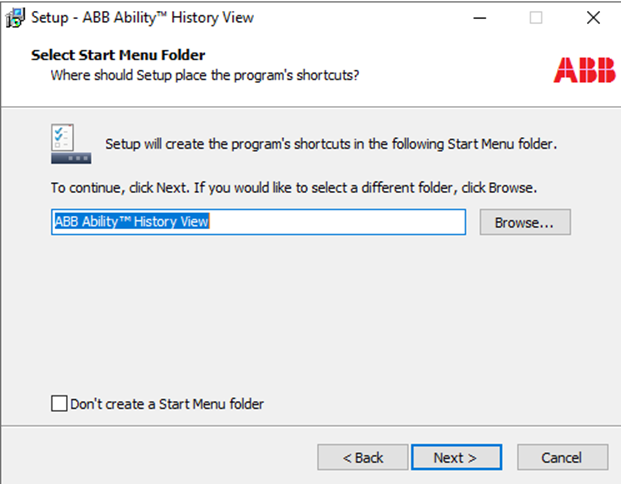
Continue with ‘Next’ and click on ‘Install’.
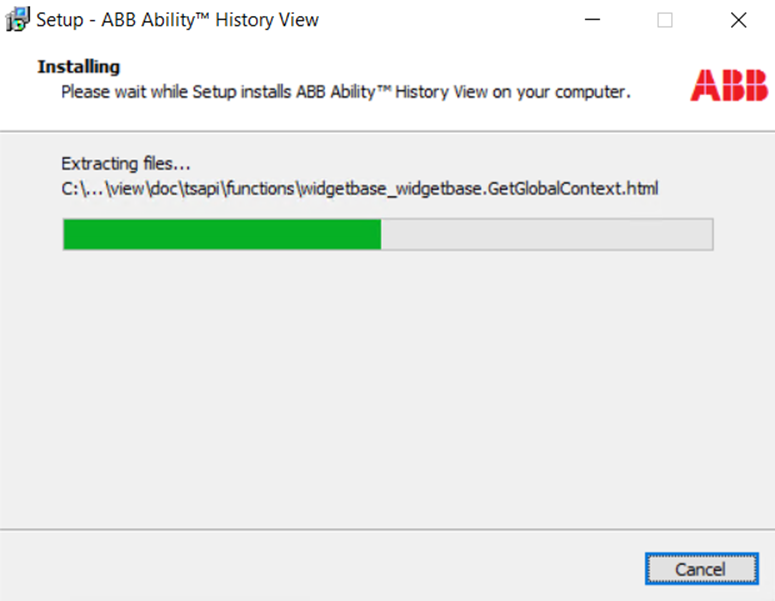
This installs the ABB Ability™ History View on the computer and opens the View configuration tool.
You can either configure the Target History server as part of the ongoing installation or you can do it later by launching the ‘ABB Ability™ History View Server Config’ tool created in the desktop and follow the steps from configuration section which is described below. This installation installs view, creates a service called ‘Vtrin Server’ and creates a self-signed certificate.
Configuration
As explained earlier you can perform the configuration of view during installation or launch the ‘ABB Ability™ History View Server Config’ which opens below window.
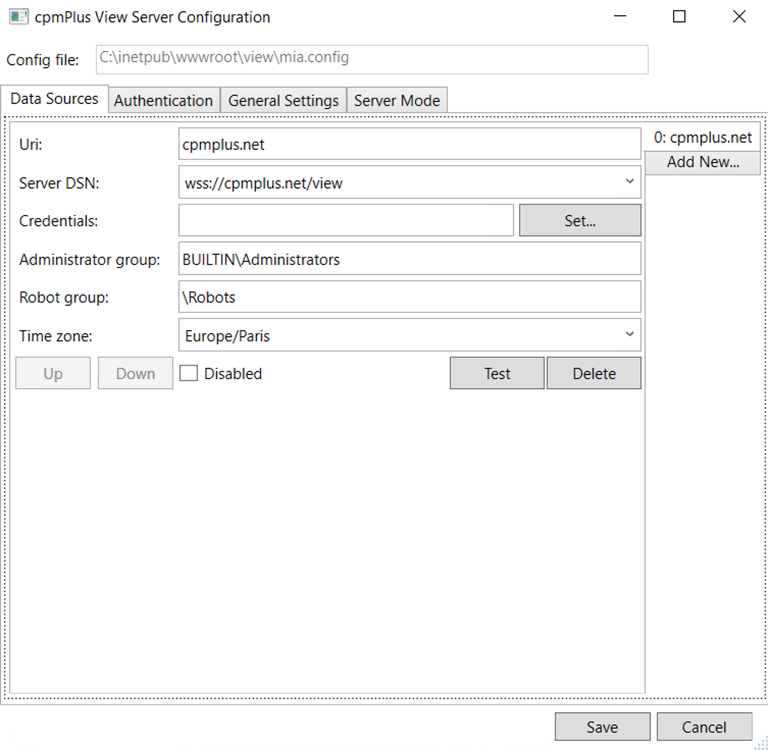
Note: - Here you can configure more than one target History node with different ‘URI’ by clicking on ‘Add New…’ button.
Make sure to click ‘Save’ button on the bottom of config window only when all the tabs are configured, as each ‘Save’ action restarts the Vtrin Server service in background
In this example, we are going to Make changes to the default entry which in normal case, points to the historian in the local node. Since this is a stand-alone installation and there is no history in local node we are editing the default entries.
Perform the following changes in the cpmPlus View Server Configuration window.
Data Sources tab,
- Uri: Provide the Target server name or the Name of your choice, in this example ‘DemoServer’ is provided as URI.
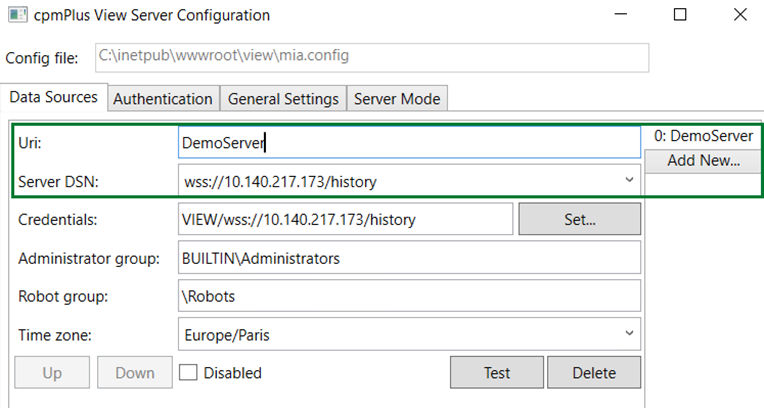
- Server DSN: Pass the wss connection string of your target node (e.g. wss://10.140.217.173/history).
- Credentials: Click on ‘Set’ button and provide the history login credential of the target history server.
-
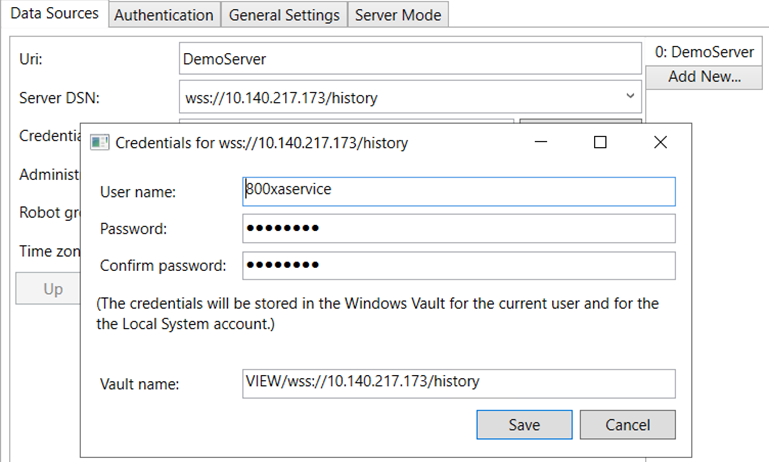
Notice that the credentials are such that the gateway server connects to the target history server. The permissions of the used user account limits the permissions of all end user connections to the gateway server. Notice also that the ACL security groups are interpreted by the gateway server itself, so typically the local group names should not be used for maintaining the ACL security settings. Otherwise, the users could have difference access depending whether to connect directly to the target server, or via the gateway server.
-
- Once the credentials are entered click on ‘Test’ button to validate the credentials and the connection to the target History Node.
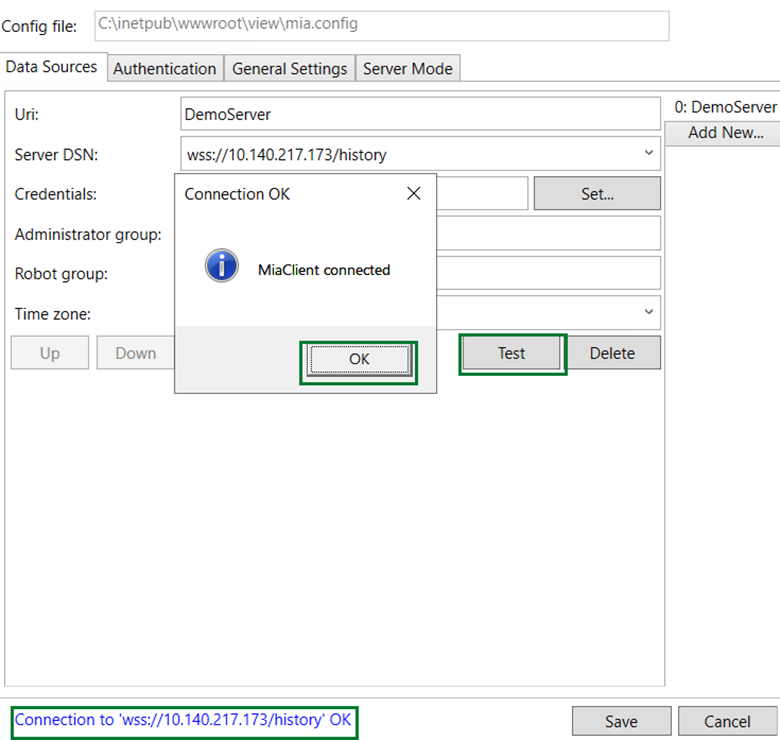
Note: Proceed to Next Step only if this connection test is successful, else fix the connection issue.
- Click OK on the connection success dialogue box.
- Keep the Administrator Group and Robot group fields with default Selection.
- Change the time zone according to the system time zone (e.g. Asia/Kolkata) and navigate to Authentication Tab.
View Server settings
There are different types of Authentication methods supported by ABB Ability™ History View. All those supported authentications are listed in the Authentication tab. The selection can be done based on the requirement.
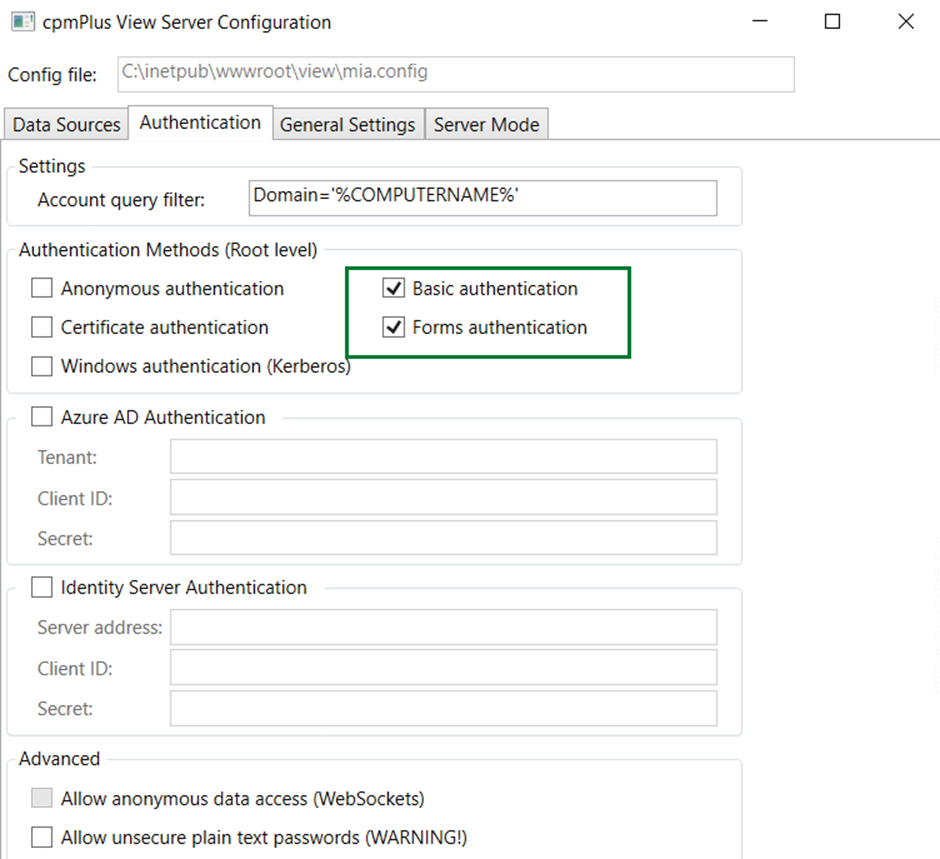
There are other functionalities for user session management, logging and port forwarding, which is covered in General Settings & Server Mode. The details can be found in this link
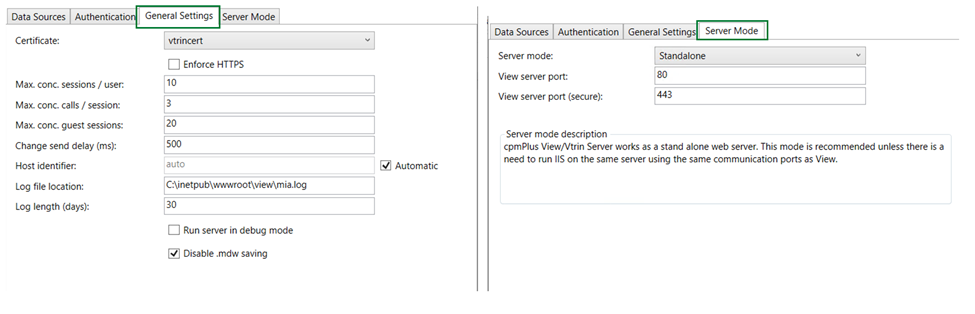
Now Configuration is Complete, finally Click on Save button on the bottom right of the configuration window.
Launching View as Gateway Server
Open a new web browser and launch https://localhost/view this will open the view connection of the target, When Prompted provide the credentials of the Gateway Server, which will connect to the target History Server.
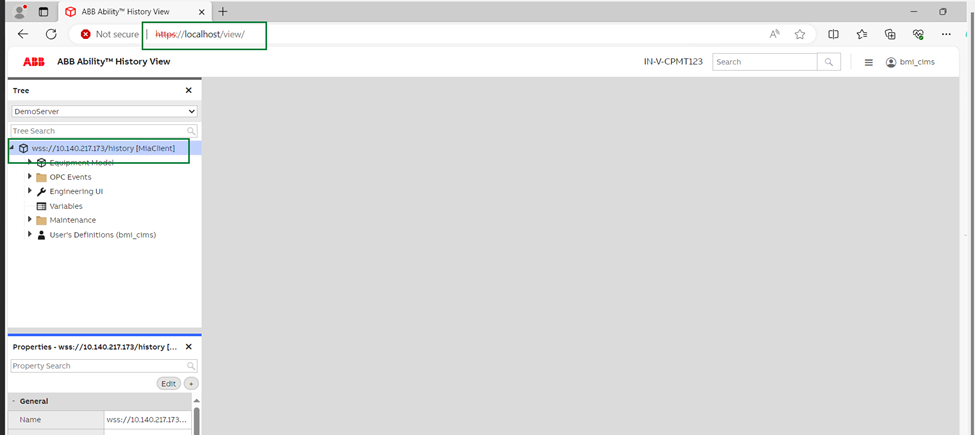
Launching Engineering UI from Gateway Server
In order to launch the engineering UI also from Gateway server the following steps needs to be followed.
Once the View Gateway server is successfully configured.
From the target server copy the folder historyfrom the following path C:\inetpub\wwwroot to the same path in view gateway server
Updated 6 months ago