
Setting a write permission for a single instance
NoteThis how-to guide uses the equipment types from Example equipment model.
Initially, History is configured so that everyone can see everything but only users in RTDB-admin group are able to write or modify anything.
First we need to open our Engineering UI. Locally on the server the Engineering UI can be accessed by navigating on a web browser to https\://localhost/history.
To see the ACL permissions for an object, right-click the object on the UI and select Security. For example, to see the permissions of the pump instance, right-click it on the hierarchy in the Time Series window.
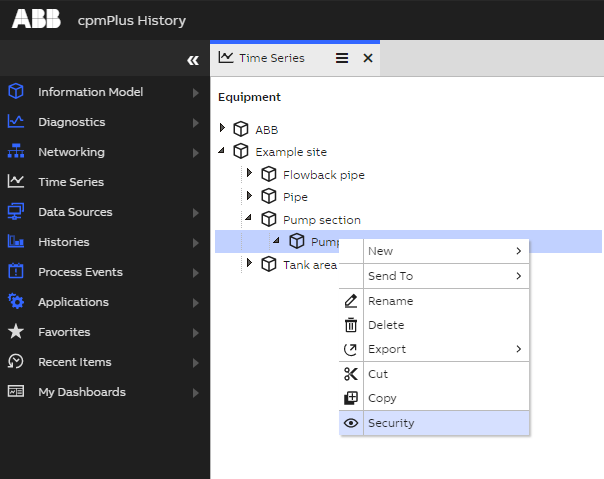
After clicking Security, you should see the following permission settings.
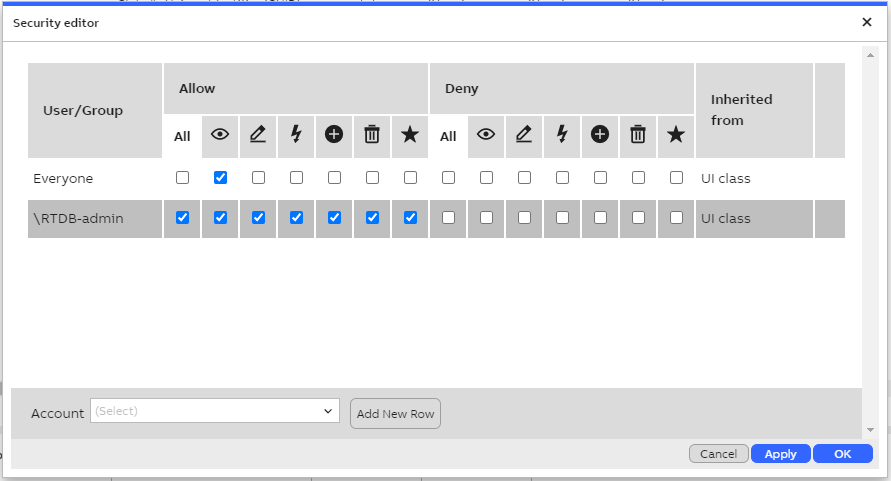
ACL permissions for a fresh History installation.
We want to give the user Operator access to write to this pump instance's properties. You must be logged in with an admin user to modify ACL entries.
- Type
\Operatorinto the Account field. - Click Add New Row.
- On the new ACL row, toggle on the checkbox to allow writing (pen icon).
- Click OK.
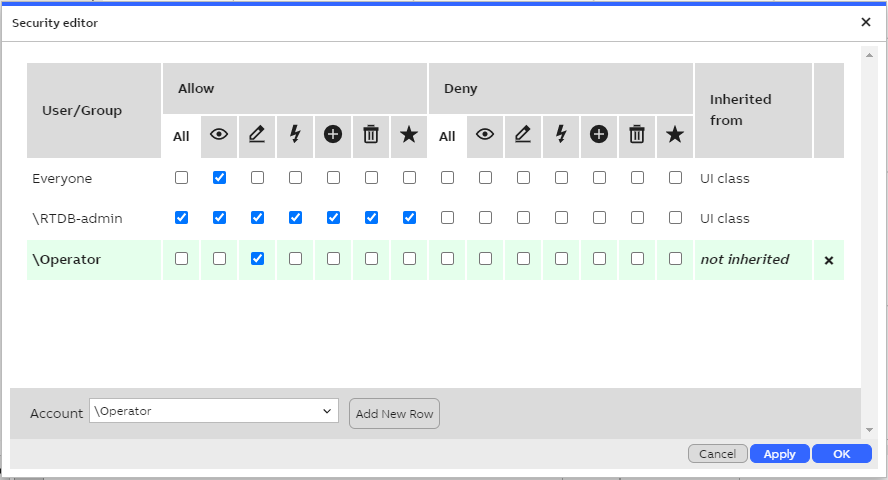
Now Operator user is able to write to this pump instance's properties.
Updated 9 months ago