
How to Export and Import Certificates in Windows Environment
This document outlines the basic steps to export a self-signed vtrin certificate from one system with ABB Ability™ History installed and import it into another system's Trusted Root Certification Authority, both of which operate on Windows OS.
Exporting Vtrin Self Signed Certificate
The certificates of the computer can be viewed by launching Manage Computer Certificates in latest versions of windows or by following these steps:
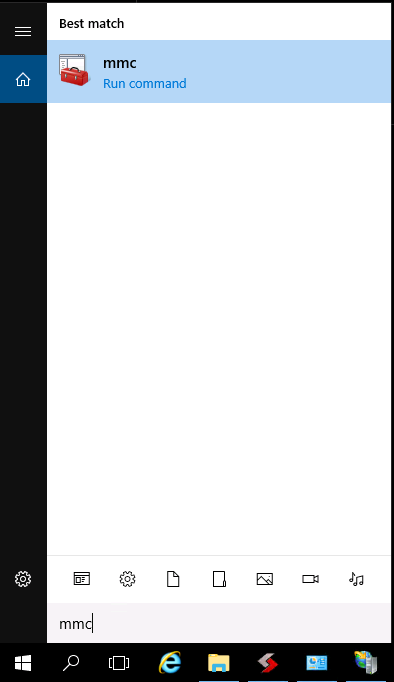
- Type mmc to the Search function of Windows, and press Enter.
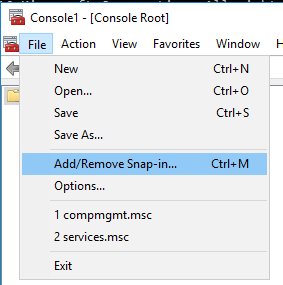
- Next, select File → Add/Remove Snap-in... from the console.
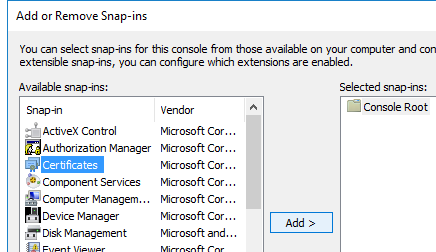
- In the following list, click Certificates and Add then select Computer account → Next → Local computer → Finish → OK.
- The Vtrin Certificates can be found in the Personal → Certificates folder, and their period of validity is shown in the Expiration Date column of the console.
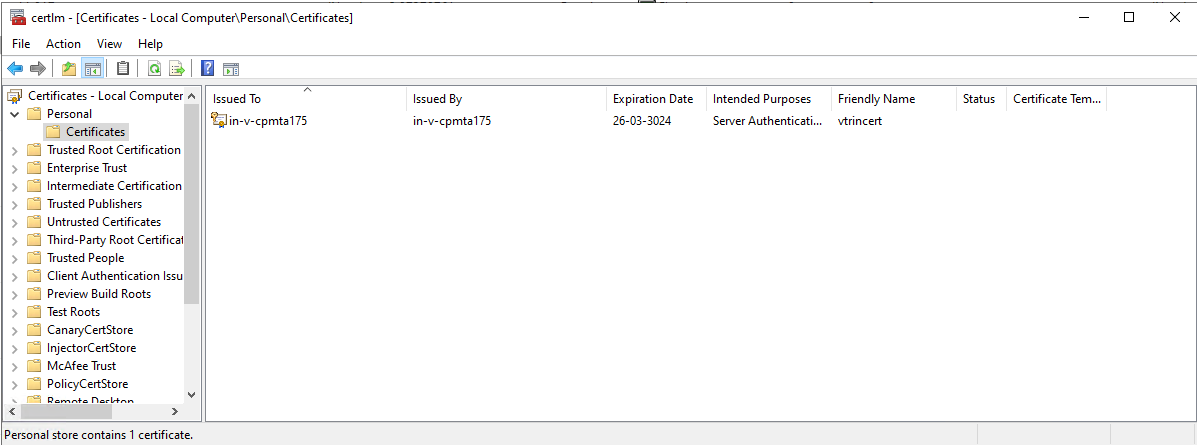
Vtrincert Certificate
- Export the vtrin certificate by Right-click → All Tasks → Export
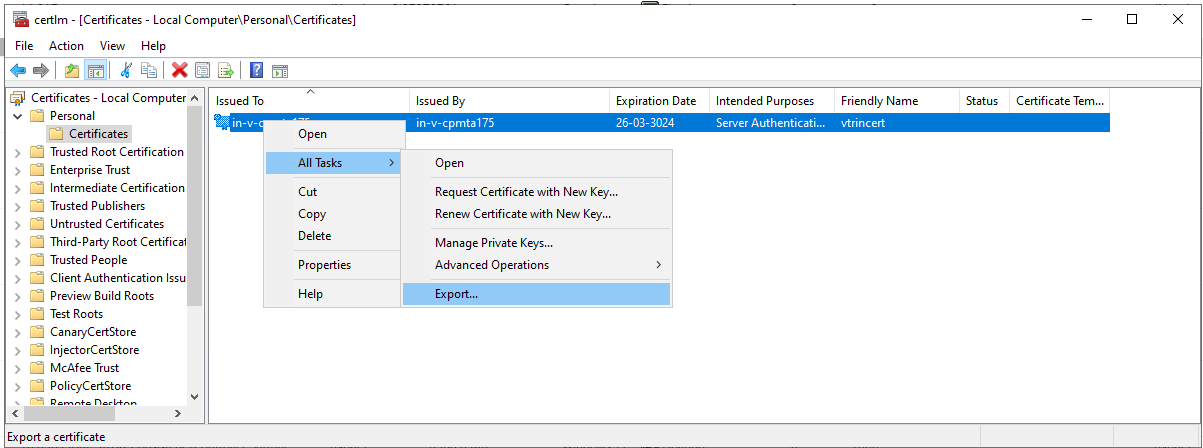
Export Certificate
-
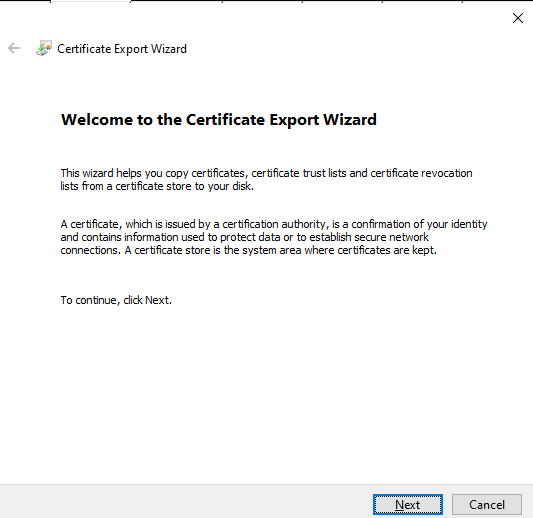
This will launch a new Window Click Next
-
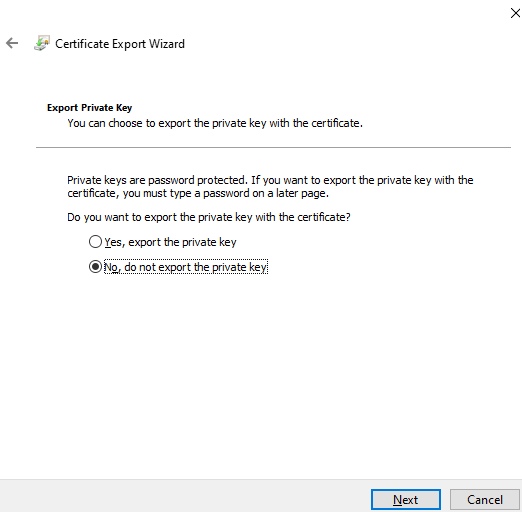
Select No, do not export the private key and click on Next
-
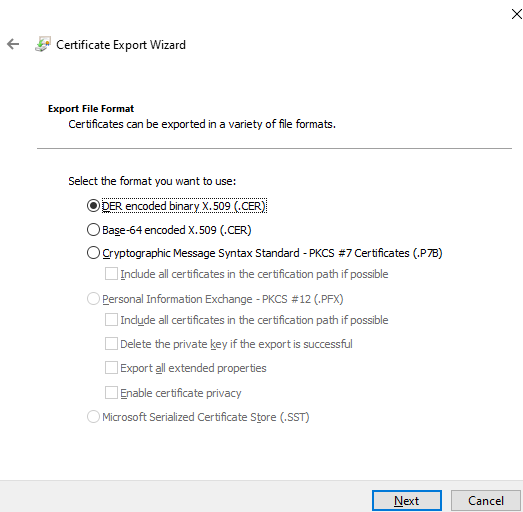
Keep the default selection (DER encoded binary X.509 (.CER) in the next screen and click on Next
-
Provide a Path and filename so that the *.cer file is generated in the given path with the given name and click on Next
-
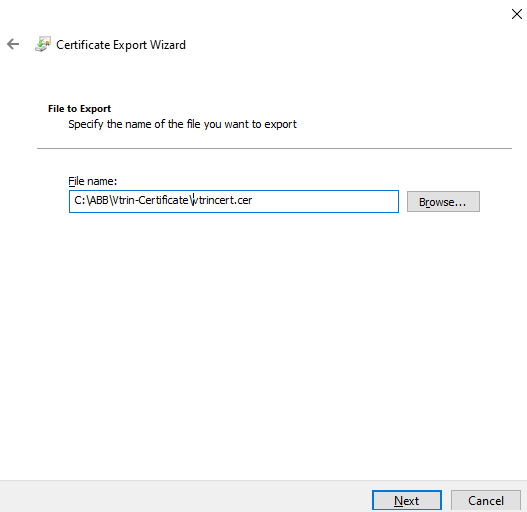
Click on Finish and verify that the certificate is exported to the path given in previous step
Installing certificates
The exported self signed certificate is installed to the server as follows:
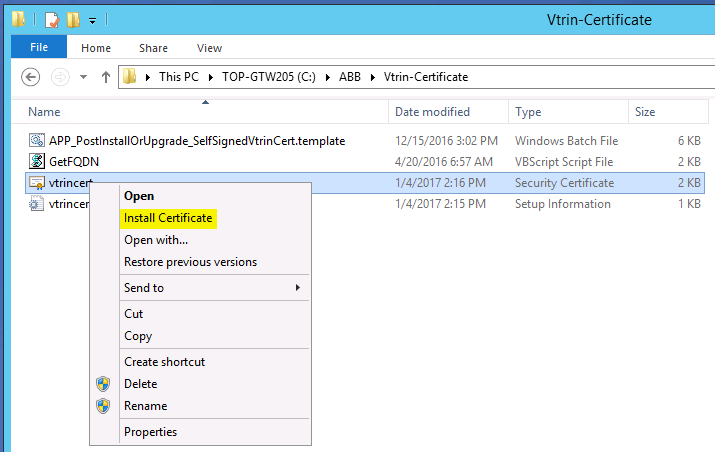
- Bring the exported certificate to the server. Right-click the file and select Install Certificate.
-
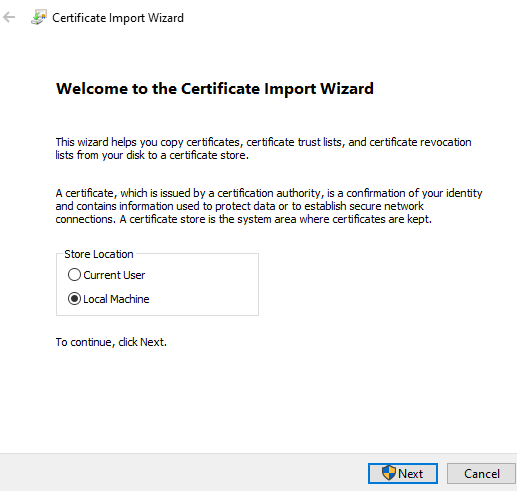
In the Certificate Import Wizard, select Local Machine and click Next, after which the certificate will be available to all users of the computer.
-
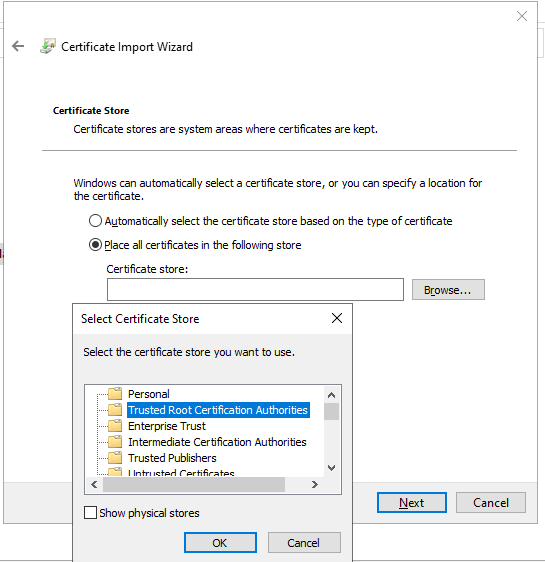
In the next screen select the option Place all certificates in the following store → Browse → Trusted Root Certification Authorities and click OK and Next
-
Then click on Finish, You will get a confirmation message like The import was successfull after a brief period of time.
Updated 9 months ago