
Creating a View application
This tutorial will guide you through:
- Exporting and importing dashboards
- Navigation structure and methods
- Creating an application
- Window layout
- Application deployment
Exporting and Importing Dashboards
Export
It is possible to export dashboards as .json files from the context menu of the navigation tree. There are two options: single and recursive. Single exports only the single node, recursive also includes all of its children. The exported file contains:
TreeNodeinstances- Related
UIStringinstances - Related
References– for the "Send To" menu functionality Property Bag, containing the dashboard configuration
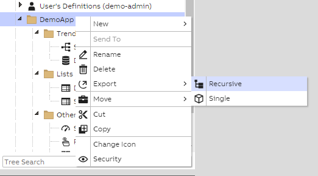
Exporting dashboards can be done through the context menu of the navigation tree.
Import
Importing dashboards is done through the VtrinCmd command line tool. It is available for both Linux and Windows. It connects to the target database and imports the dashboard data. The following options are useful here:
--importjson– Import data from the specified JSON file--importjsonfolder– Import data from all JSON files under a specified folder and its child folders
See Importing tool, VtrinCmd for additional information.
VtrinCmd -c %APP_DATAPATH% -i <Filepath\importfile.json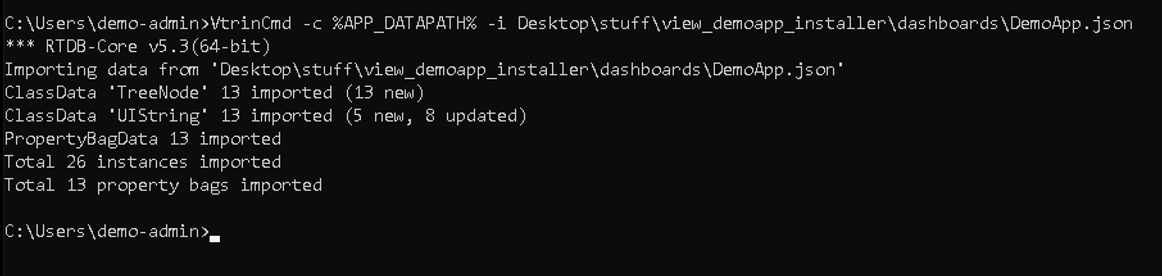
Example usage of the VtrinCmd command line tool.
Navigation Structure and Methods
Next, we need to create navigation for our application. The navigation structure can be designed and developed in View in the Tree window. It allows you to create and modify nodes (TreeNode class instances) in the tree structure. These nodes can be folders, dashboards, shortcuts, or templates. You can move dashboards in the tree by dragging them with the mouse while holding the Ctrl key. The right-click context menu provides Cut, Copy and Paste tools.
An application does not see another application's navigation items, even if they are in the same database. However, they can be configured to do so if required.
An entire application's navigation items can be exported at once by recursively exporting the root node.
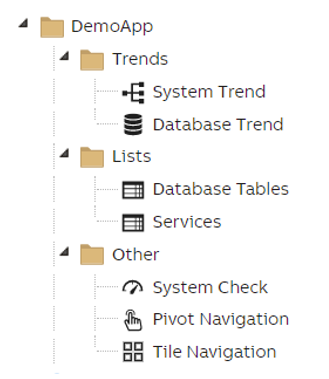
A simple navigation structure seen in the Tree window.
Navigation Methods
There are a few ways to create navigation for your application based on the hierarchy created in View. These include:
- QuickMenu, a simplified tree on the left side of the window
- A dashboard can have internal navigation with the Dashboard widget showing the selected dashboard (has the TreeNode instance passed to it as context).
- Navigation Tree with a couple of different modes:
- Normal
- Compact
- Tile (for touch screens)
- Navigation Button (and Area)
- These are components used to make very customized navigation between dashboards. The Area mode can be used to make invisible navigation areas on top of any content on a dashboard.
- Pivot Navigator, for mobile UIs
- Allows using a swipe action to navigate between dashboards.
Creating an Application
Next, we want to configure our application. First, we want to create a start page.
HTML File
The easiest way to create a start page is to copy the `Index.html file from c:\inetpub\wwwroot\History and place it in the folder you want your application start page to be located in. On this HTML page, we require a script:
<title>Demo Application</title>
...
<script>
  window.onload=function()
  {
    var gui=ABB.Mia.LoadModule("dashboard/gui.mdw.json");
    gui.WhenReady(function()
    {
      ABB.Mia.GUI.Start(document.body, "demoapp");
    });
  };
</script>
The first parameter of the function ABB.Mia.GUI.Start defines the root HTML element of the application, whereas the second parameter is an applicationidentifier to identify the application.
Through this HTML file, you can also change the page's title and set a favicon.
Application Configuration
The application configuration file appconfig.json should be placed in the folder /view/dashboard/data/users/applicationidentifier (replace applicationidentifier with the identifier of your application). In this file, you may define:
- The title of the application, shown in the standard top bar
- QuickMenu settings and the root TreeNode for the menu
- Top menu options visible to the user (Language, layout options, "About" information, login/logout, etc.)
- Whether editing and saving users' own dashboards is allowed or not
- Favorites
Here is an example configuration:
{
	"AppTitle": "Demo Application",
	"LogoText": "ABB",
	"ShowFavoriteDashboardButton": false,
	"ShowEditDashboardButton": false,
	"ShowSaveDashboardButton": false,
	"AllowSavingOwnDashboards": false,
	"ReadOnlyTemplates": false,
	"DefaultSaveAsLocation": "$USER_HOME_FOLDER",
	"QuickMenu": {
		"Show": true,
		"RootNodeId": "ba0b1527-0862-4be7-a074-c641b864ecd9",//ID of your Base App Folder
		"ExpandOnHover": false,
		"IsCompact": false
	},
	"NewWindowRoot": "/demoapp/",
	"NoDashboardCreation": true,
	"HideWidgetProperties": true,
	"ShowViewVersion": false,
	"TopBar":
	{
		"Menu":
		{
			"Layout":
			{
				"QuickMenuToggle": true
			}
		}
	}
}
Window Layout
The application should have a default layout defined. This layout is shown to the user logging into the system for the first time. You can design this layout in View and export it as a JSON file from the top menu, by selecting Layout and then Export.
The layout may have any number of dashboards open, positioned as you see fit. It can also contain some of the standard tool windows (such as Properties) if desired. This file should then be renamed default.json and placed in the folder /view/dashboard/data/users/applicationidentifier. Now this layout is used as the default layout by your application.
Application Deployment
Finally, we want to package and install our application. The files needed to package an application consist of:
- The application start page (
index.html) - The configuration files
appconfig.jsondefault.json
- The dashboards and navigation items of your application, exported as JSON
- (Custom widgets required by the application)
An installer script or program is recommended to make deployment of your application easier. In practice, this is partly OS-specific, as the default install locations are different on Linux and Windows. The installer script should simply copy the start page and configuration files in their correct location, and use VtrinCmd to install the dashboards into the database (see Exporting and Importing Dashboards.
Updating the Application
Upgrading the application to a newer version is straightforward; VtrinCmd replaces any existing navigation items with newer versions by default. This works even if the navigation item's location in the hierarchy has changed.
Updated 9 months ago