
Preserve the Context when navigating between dashboards
The document provides a step-by-step guide to creating a main dashboard with a Select and Label widget, setting up two sub dashboards that listen to context from the main dashboard, and integrating them using a Navigation Tree to ensure context persistence when switching between tabs.
Before starting with the below steps, create a folder ex: Context Test with 2 sub folders Main and Sub under root folder or user desired folder.
1. Main Dashboard with a Select Widget, Label Widget and Navigation Tree
- Create a main dashboard with a Select Widget and configure the Source as Variable
- In the select widget properties add Context Key as 'select'
- Add a Label widget in the main dashboard and Listen to Context from Select Widget so that selected name will be displayed in the Label widget, and also add Context Key as 'label'.
2. Sub Dashboard 1 and 2 with a Label widget and listens context from Main Dashboard.
-
Create two sub dashboards with a Label widget.
-
Click on empty area on the dashboard to see properties and add handlers as shown in the below screenshot.
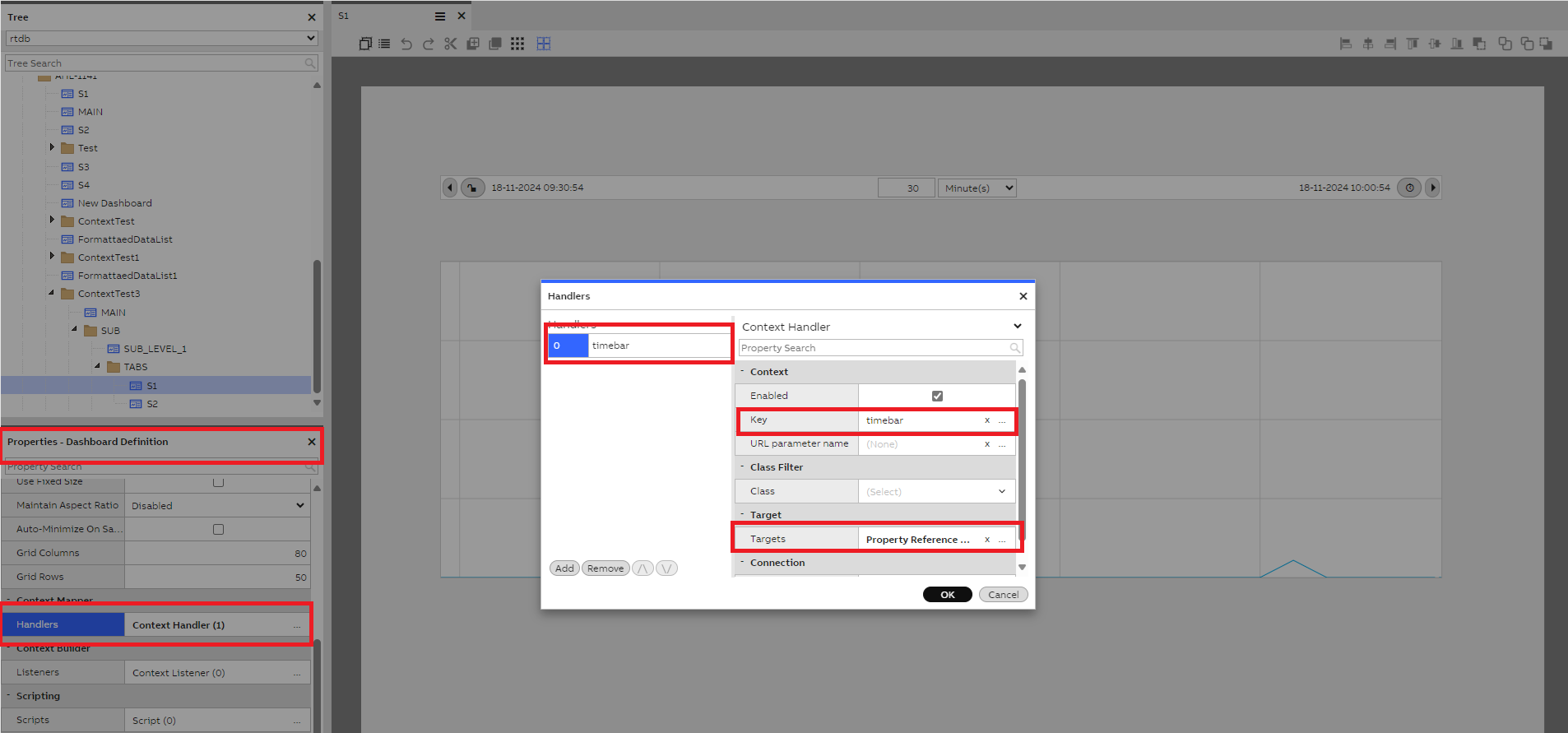
-
In both sub dashboards add a context handler in the dashboard properties with key as 'label' and target as 'Label Widget' as shown in the below screenshot. So that incoming context from the Main Dashboard is handled.
-
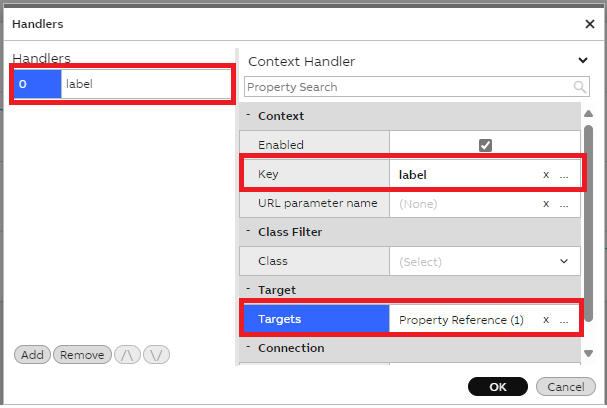
3. Drag and Drop Sub Dashboard 1 or 2 into Main Dashboard
-
Drag and Drop Sub Dashboard 1 or 2 to the main dashboard
-
In the Navigation Tree widget properties search for the folder name and select root node ID as Sub Dashboards folder path ex: 'Sub' as shown in the below screenshot.
-
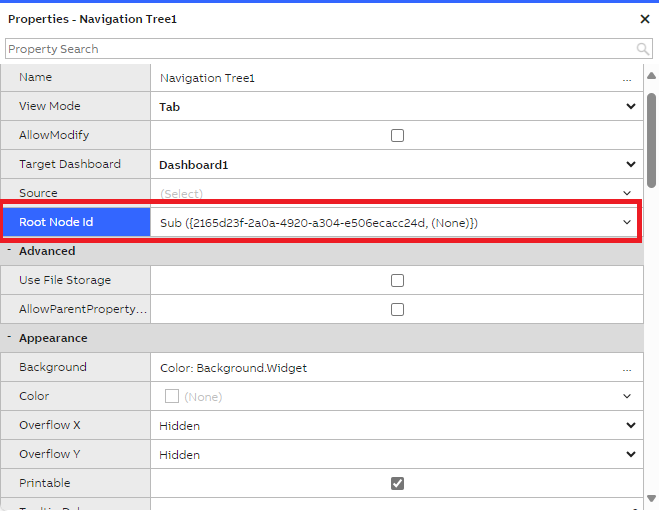
Open the sub dashboard widget properties and add a new Listen Context and select Label widget as shown in the below screenshot, and apply changes.
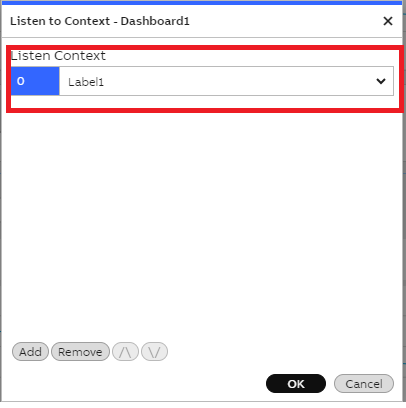
-
In the Navigation Tree widget select the view Mode as 'Tab' to see the Tab view as show in the below screenshot.

-
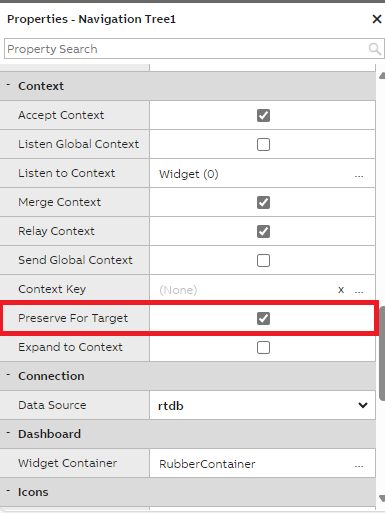
Enable Preserve For Target checkbox in Navigation Tree as show in the below screenshot and save the changes.
-
Now select a variable in the Select Widget dropdown from Main Dashboard and check if the Label widget value in Sub Dashboard is changed.
-
Also, click on S1 tab and check if the Label widget value in S1 (Sub Dashboard 1) is matching with the Select widget dropdown value in the Main Dashboard is persisted.
-
At end of this workflow when user switch between the tabs then context should be preserved and the Label widget value should persist.
Updated 6 months ago