
Authentication
Client authentication
History provides a few different authentication methods, each with their own trade-offs. The available methods are:
- Anonymous
- Basic HTTP
- TLS client certificates
- Forms
- Integrated Windows Authentication
- OAuth2
- Azure Active Directory - one example of OAuth2
In this section, we're going to give you a high-level overview of these different methods. There's also a comparison table which highlights the key differences between the methods.
History itself doesn't store any user credentials. Identity management is handled externally, for example, by the operating system. We discuss different identity providers in the Identity providers section. In general, supported identity providers, with some operating system restrictions, are:
- Local operating system users
- Windows domain users
- LDAP
- OAuth2 including Azure Active Directory
- Certificates
Operating system support section discusses which authentication methods and identity providers are supported for different operating systems.
Anonymous
Anonymous authentication allows unauthenticated users to access the web content in the History server. By default the server data sources cannot be accessed anonymously, but there is a separate setting for that "Server API (WS) anonyous access" (AllowGuestLogin) that allows unauthenticated users to connect to the Server datasources using WebSockets.
URL parameter: authtype=anonymous
Basic
History supports Basic HTTP authentication. It can be used by browser users and also for machine-to-machine communication. The following sequence diagram shows a scenario of a user accessing History from their browser:
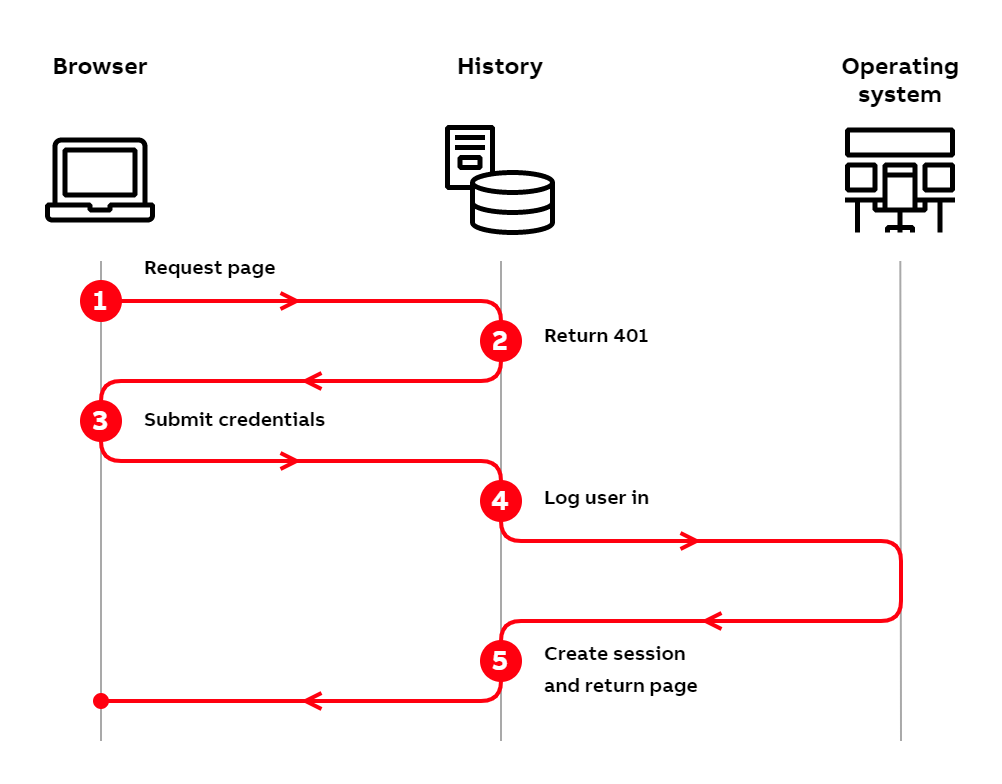
Basic authentication flow with browser
- The user tries to access History by typing the address into their browser.
- The History server checks the incoming request and notices that the user is not logged in. Since the user is not logged in, the server responds with HTTP status code
401 Unauthorized. - The 401 status code causes the browser to display a login dialog. The user enters their credentials into this dialog and submits them to the History server.
- The History server logs the user into the operating system.
- After a successful login, the History server creates a session for the user and returns the requested page to the browser.
When using Basic authentication for machine-to-machine communication, you should pay attention to storing the passwords securely.
Identity management
Supported identity providers for Basic authentication are:
- Windows (local/domain)
- Linux (local)
- LDAP
Certificate
TLS client certificate-based authentication. Used primarily for machine-to-machine communication.
Certificates are used here to establish mutual trust-relationship between client and History server, or between two History servers for data transfer. Certificate based authentication is used by providing the name of the certificate in the connection string while connecting to History server.
Guidelines for setting up the KPI infra and registering the certificates can be found in History wiki documentation.
Forms
When using Forms authentication, the user uses an HTML form to input their username and password. This is similar to the login most web services use. The texts on the login form can be configured.
The authentication flow from the user perspective is pretty similar to Basic authentication in the browser. The only difference is that the user is displayed an HTML form instead of the browser's login dialog.
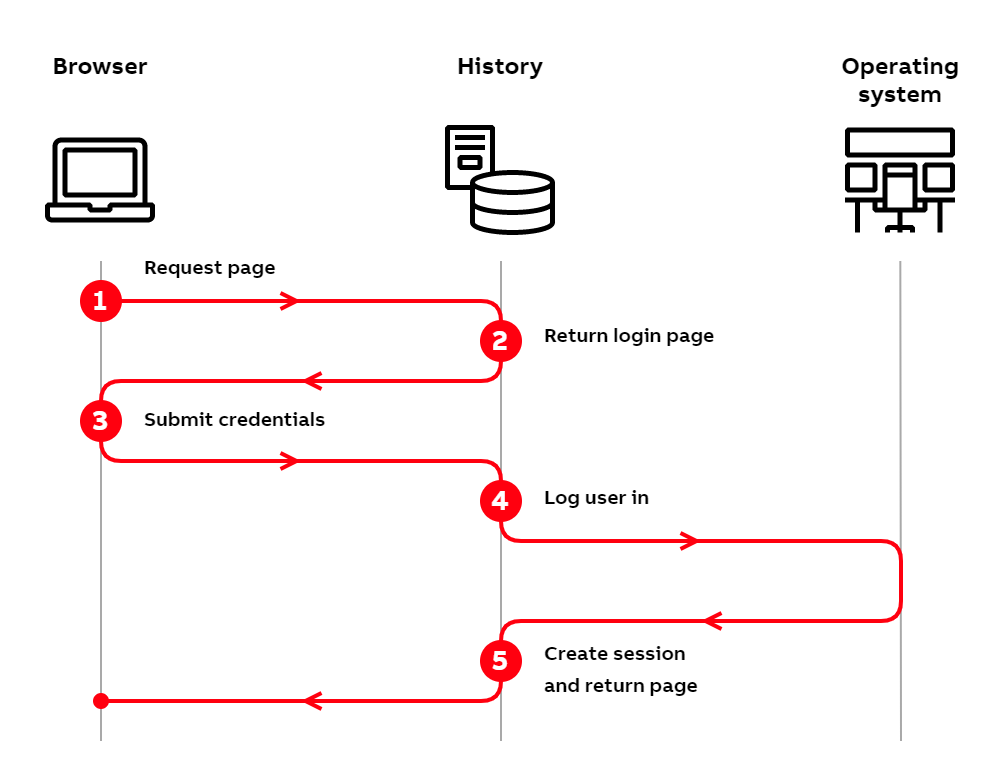
Forms authentication flow
- The user tries to access History by typing the address into their browser.
- The History server checks the incoming request and notices that the user is not logged in. Since the user is not logged in, the server responds with the login page.
- The user enters their credentials into the login form and submits them to the History server.
- The History server logs the user into the operating system.
- After a successful login, the History server creates a session for the user and returns the requested page to the browser.
Identity management
Supported identity providers for Forms authentication are:
- Windows (local/domain)
- Linux (local)
- LDAP
Windows
Integrated Windows Authentication is available as an authentication method. In Windows authentication, the credentials of the currently logged-in user are used to log into the target system. For this to work, both the user's machine and the target machine must understand the same credentials, i.e. they must be in the same domain.
From the user's point of view, Windows authentication differs from Basic and Forms authentication so that the user doesn't have to input their credentials. Instead, the browser (or any other client) automatically submits the identity of the currently logged-in user to the server. Because of this, Windows authentication is effortless for the user.
It's also worth noting that the actual credentials are never transferred over the network when using Windows authentication. Rather, the user's password hash is used to encrypt cryptographic challenges sent over the network. This is in contrast to Basic and Forms authentications, where the user's credentials are transferred from the client to the History server.
Internally Windows authentication uses either Kerberos or NTLM. For VtrinLib based clients, both Kerberos and NTLM can be used. In other cases, only NTLM is available.
Below we present the authentication flows of Windows authentication when using NTLM and Kerberos.
NTLM authentication flow
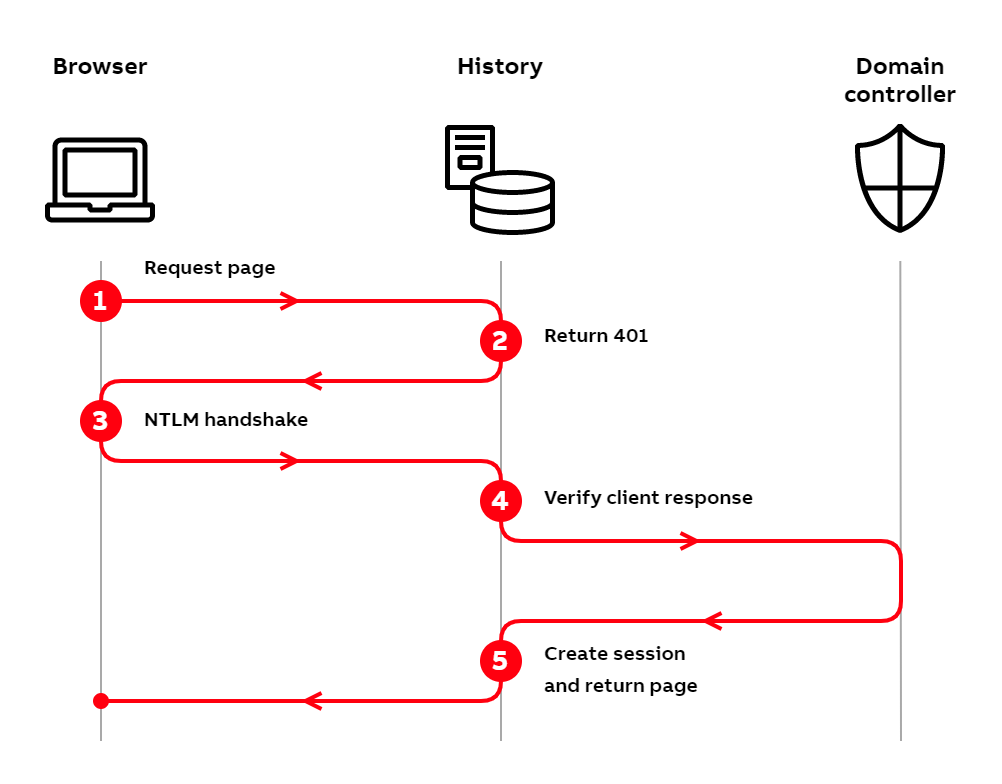
Windows authentication flow using NTLM
- The user tries to access History by typing the address into their browser.
- The History server checks the incoming request and notices that the user is not logged in. Since the user is not logged in, the server responds with HTTP status code
401 Unauthorized. - The 401 status code causes the browser to initiate an NTLM handshake. The handshake consists of multiple requests, which we don't present in detail here. In the handshake, the server receives a cryptographically signed challenge from the client, which it uses to check the identity of the user in the next step.
- The server sends the challenge to the domain controller. The domain controller validates if the user has provided correct credentials and relays this information back to the server.
- After receiving successful validation from the domain controller, the History server creates a session for the user and returns the requested page to the browser.
Kerberos authentication flow
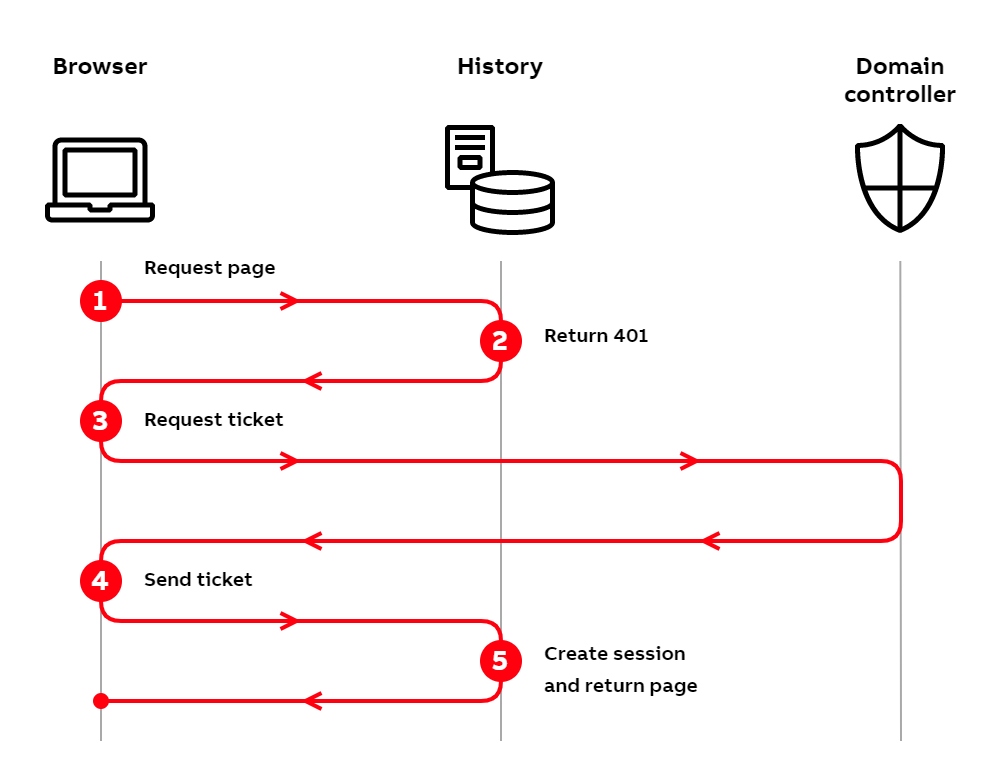
Windows authentication flow using Kerberos
- The user tries to access History by typing the address into their browser.
- The History server checks the incoming request and notices that the user is not logged in. Since the user is not logged in, the server responds with HTTP status code
401 Unauthorized. - The 401 status code causes the browser to request a Kerberos service ticket from the domain controller. This consists of multiple requests and responses, which we don't present in detail here. During this phase, the domain controller sends the browser a cryptographic challenge signed using the user's password hash. The browser is able to solve this challenge only if the logged-in user is the one whom the ticket was requested for.
- After obtaining the service ticket from the domain controller, the client forwards the ticket to the History server.
- The server checks the ticket's validity using its own secret key. After validating it successfully, the History server creates a session for the user and returns the requested page to the browser.
Whether Kerberos or NTLM is used, is mostly an implementation detail. As long as the user, History server, and the domain controller are all in the same domain, Windows authentication will automatically select which protocol to use. The difference between NTLM and Kerberos authentication flows is mainly that in NTLM the History server communicates with the domain controller, whereas in Kerberos the client communicates with the domain controller.
Identity management
Supported identity providers for Windows authentication are:
- Windows (local/domain)
OAuth2
"Open Authorization" is an open standard for access delegation, commonly used as a way for internet users to grant websites or applications access to their information on other websites but without giving them the passwords. See more OAuth 2.0
Azure AD
Azure Active Directory-based login. The username and password are not transmitted to the target system at all. Rather, Microsoft Azure service handles the authentication.
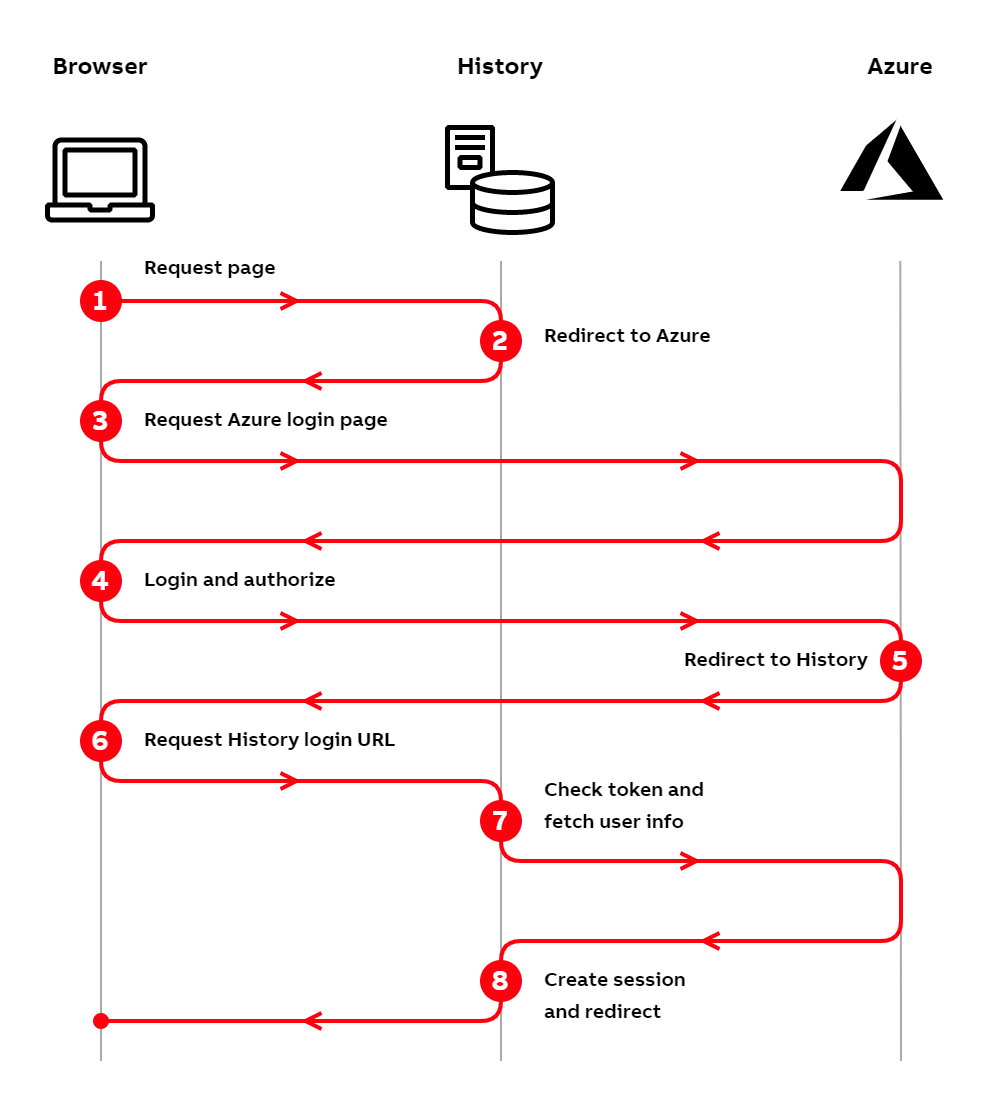
Azure AD authentication flow
- The user tries to access History by typing the address into their browser.
- The History server checks the incoming request and notices that the user is not logged in. Since the user is not logged in, the server responds with a redirect to the Azure AD login page.
- The browser makes a request to Azure for the login page.
- The user logs in to Azure and authorizes History to access their identity from Azure AD.
- Azure generates an access token and returns a redirect to the browser for History's login URL.
- The browser requests History's login URL with the access token.
- The History server checks the access token validity and fetches user information from Azure. These happen as separate requests (here depicted as one).
- After successfully validating the access token, the History server creates a session for the user and returns a redirect to the originally requested page.
Comparison
| Method | Pros | Cons | Usage | Credentials transmitted | VtrinLib Support |
|---|---|---|---|---|---|
| Basic | Easy to setup. | Logout issues with some browsers (at least Chrome and Firefox) | Human/machine | Yes | Yes |
| Certificate | No need to change password constantly. Good machine-to-machine communication. A well implemented infrastructure for managing the certificates. | Setup requires a lot of effort | Machine/human | No | Yes |
| Forms | Login form allows for some layout text configuration. Easy to setup. | Human | Yes | No | |
| Windows | No need to input credentials; seamless authentication. | Human/machine | No | Yes | |
| OAuth2 | Open standard for access delegation | Human | No | No | |
| Azure AD | OAuth2 | Human | No | No |
Identity providers
The table below shows the identity providers (columns) available for each authentication method (rows).
| Windows (local) | Linux (local) | Windows (domain) | LDAP | Certificates | OAuth2 | Azure AD | |
|---|---|---|---|---|---|---|---|
| Basic | X | X | X | X | |||
| Forms | X | X | X | X | |||
| Certificates | X | ||||||
| Windows | X | X | |||||
| OAuth2 | X | X | |||||
| Azure AD | X | X |
Windows users
When using Windows users for identity management, both local and domain users can be used. History uses LogonUser function to log the users into the operating system.
Linux users
When using Linux users for identity management, only local PAM users can be used.
LDAP
History can be configured to use LDAP for identity management. Only supported on Windows.
Operating system support
Windows
All the authentication methods and identity providers in History are available on Windows.
Linux
The following authentication methods and identity providers are not supported on Linux:
- Windows integrated authentication
- LDAP identity provider
- Only local users are available when using Linux as an identity provider. Domain users are not supported.
Docker
Docker supports the same authentication methods and identity providers as Linux.
Usage
The used authentication type can be forced using authtype query parameter, for example:
https://hostname/history?authtype=basicauthtype can be one of: anonymous, basic, forms, windows, azuread
Audit trail
Login, logout, server starts, stops and updates to classes with logging enabled are logged to the UILog / UILog detail classes, when available. The updates done by user accounts that are a member of the “RobotGroup” specified in Vtrin-NetServer.exe.config are not logged. However, login/logout is logged for the “RobotGroup” members as well. “RobotGroup” is meant to be used by non-interactive software, which would otherwise fill the logs with junk. Interactive users should never be included to “RobotGroup”.
Server authentication
History server authentication is handled by using proper TLS certificate that is bound to the History server domain name.
Updated 9 months ago