
Restricting equipment visibility
In this guide, we take a look at how to hide the equipment hierarchy from users, leaving only a portion of it visible.
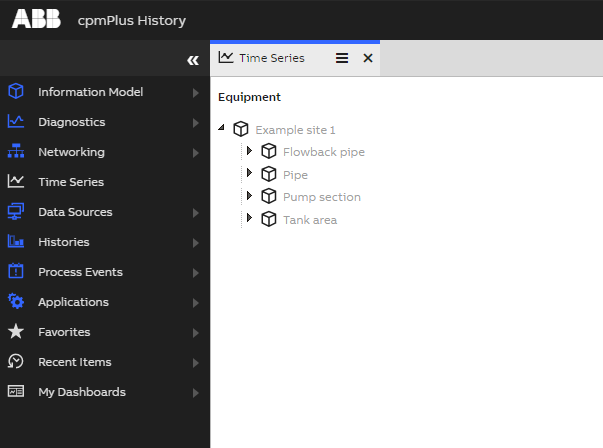
Consider the following equipment hierarchy:
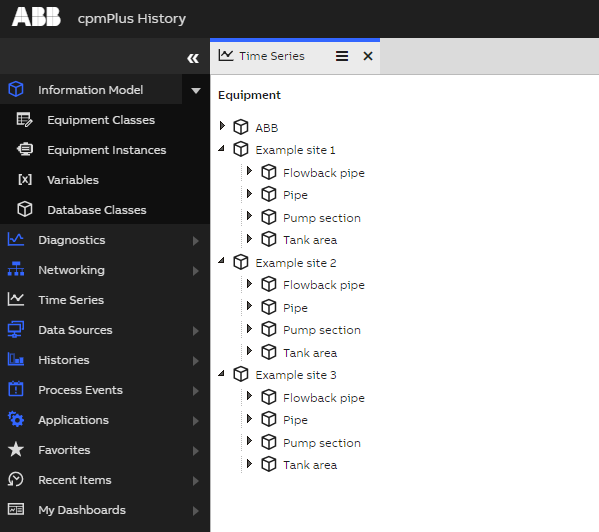
Let's say we'd like to hide everything else except Example site 1 from user Operator. There are two things we need to do:
- Add permission which hides all the equipment instances from the user.
- Add more specific permission that allows the user to see
Example site 1.
Hiding all the equipment instances
First we open our Engineering UI. Locally on the server the Engineering UI can be accessed by navigating on a web browser to https://localhost/history
- From the left-side navigation, open Information Model > Database Classes window.
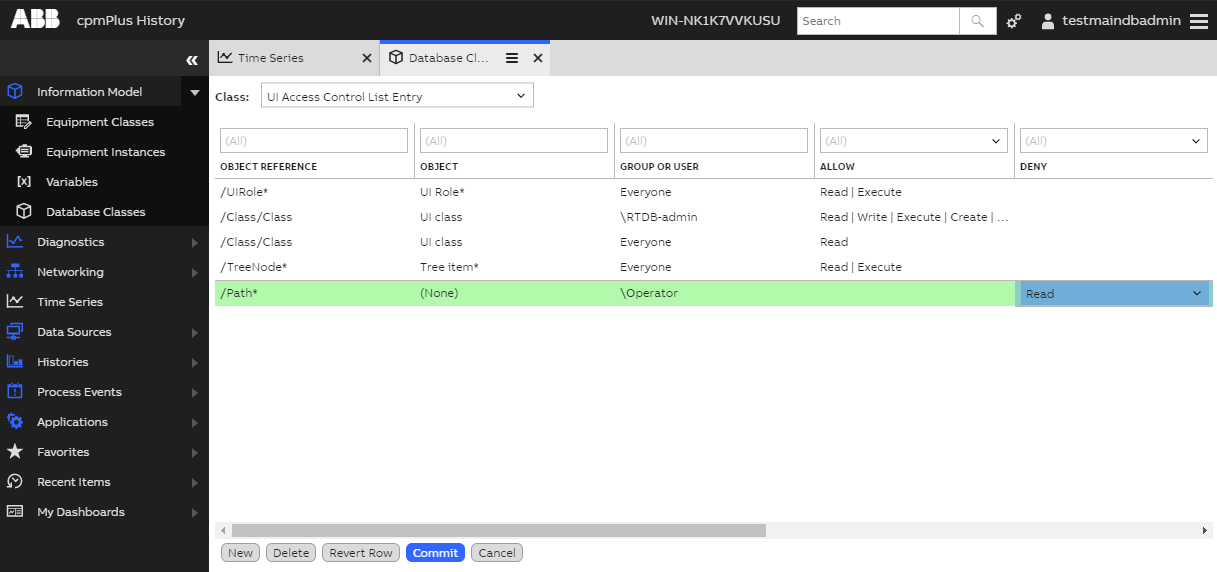
- From the Class dropdown at the top, select UI Access Control List Entry.
- Click Edit at the bottom.
- Click New at the bottom.
- Set Object reference to
/Path*. - Set Group or user to
\Operator. - Set Deny to
Read. - Click Commit at the bottom.
- Click OK in the commit dialog.
Displaying the specific site
- Go to the Time Series window from the left-side navigation.
- Right-click
Example site 1in the hierarchy to open the context menu and select Security.
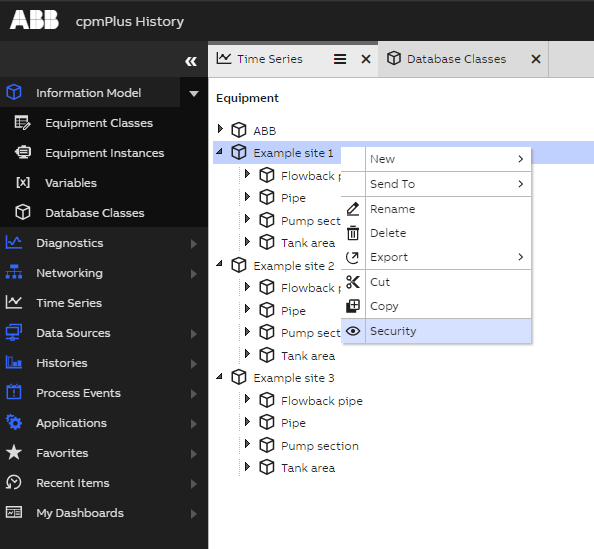
Equipment hierarchy context menu
- In the security editor that opens, check the Read (eye icon) checkbox under Allow.
- Click OK.
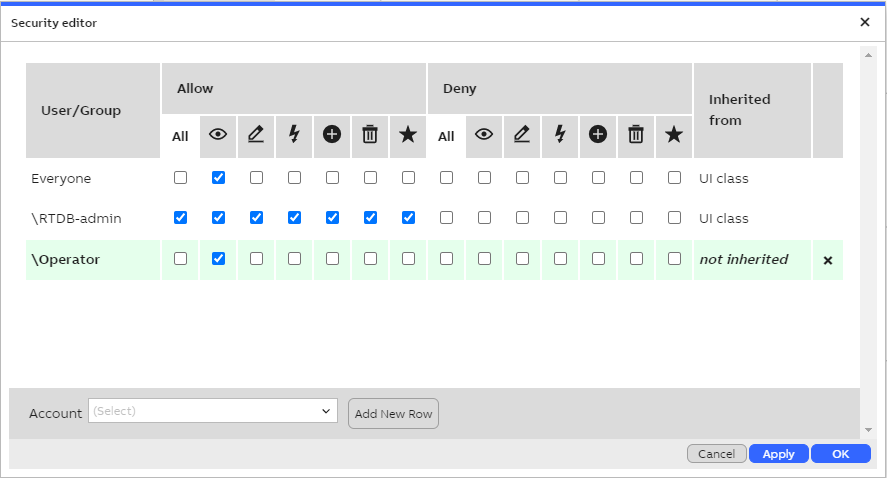
Security editor for Example site 1
If we now log in as Operator, we can see that only Example site 1 is visible in the equipment hierarchy:
Updated 9 months ago