
Dashboard context passing between main and sub dashboard
This tutorial demonstrates how to use a single time bar across a main dashboard and a sub-dashboard by setting up context keys and handlers, allowing synchronized time span changes on both dashboards while hiding the sub-dashboard's time bar for a streamlined view.
In this tutorial we will show how to use one time bar on main dashboard and sub dashboard. We created a simple example to demonstrate how context passing works, but same logic may be utilized on more complex solutions as well.
For this we have created two separate dashboards with simple charts on both. Both dashboards have time bars attached to charts (changing timespan on time bar will change data information on chart). Then we dragged and dropped one of the dashboards onto the other one to make it a sub-dashboard. The picture below shows the charts on one dashboard, but the lower one is actually a sub-dashboard.
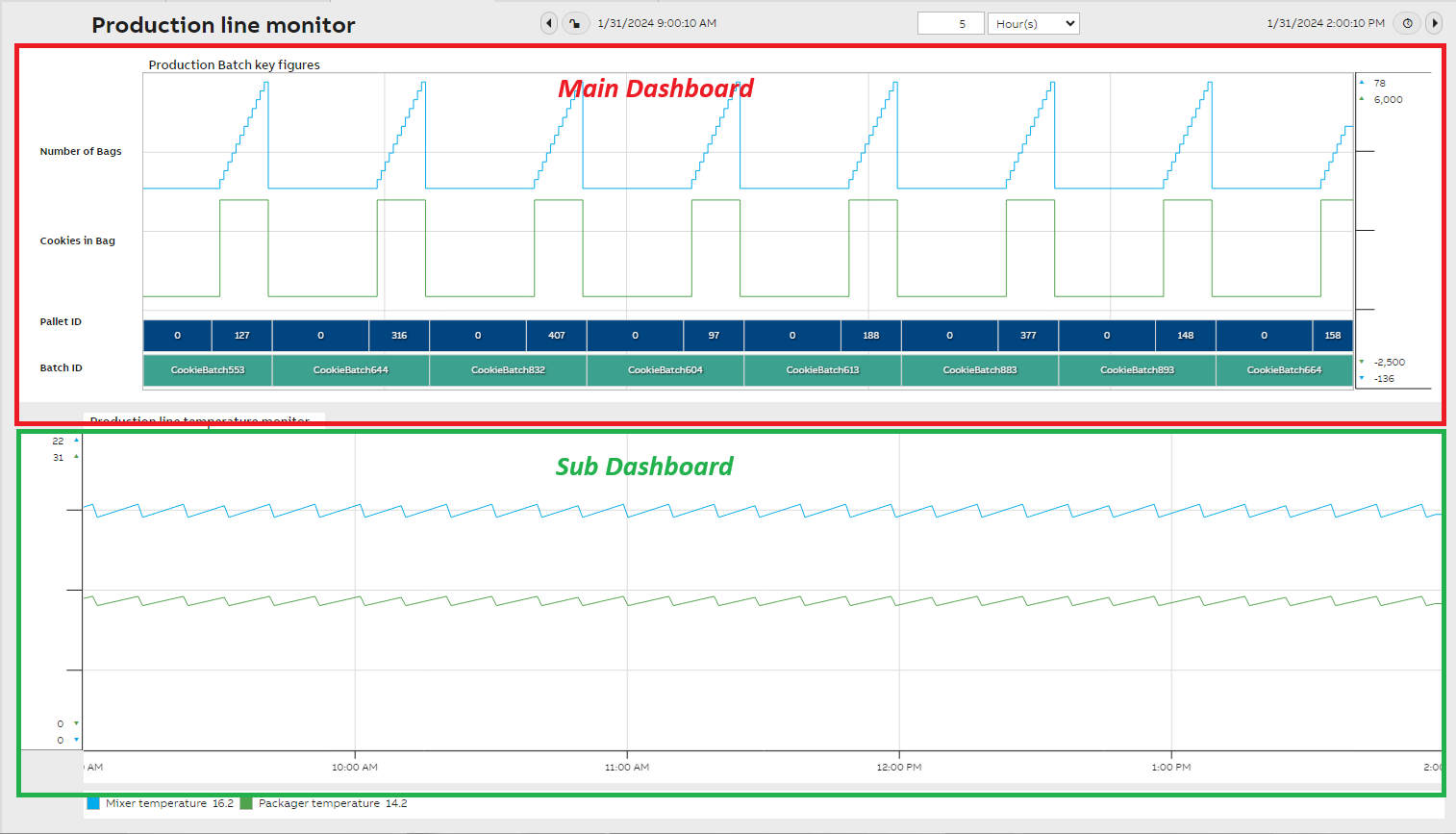
To enable main dashboard time bar use on both we have a few steps we need to do.
Step 1: Context Key - Main Dashboard Time Bar
First we need to create a context key for Time Bar widget in our main dashboard. This may be done on the Time Bar widget properties under Context section as shown in the below screenshot.
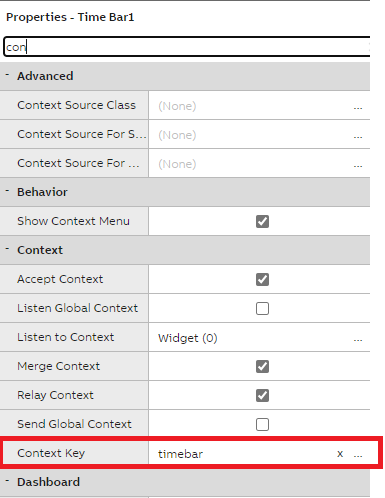
Remember to save changes. If there are multiple widgets, in that case also we can follow the same step.
Step 2: Listen Context in the Dashboard Widget (Sub Dashboard) in Main Dashboard
Next we need to add Time Bar widget to Listen Context of Dashboard Widget (Sub Dashboard) in as shown in the below screenshot.
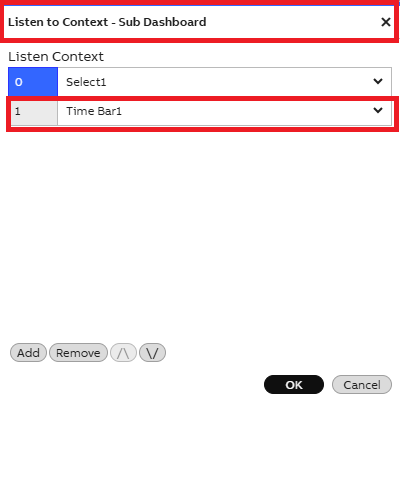
Sub Dashboard - Widget Settings, add a Listen Context and select Time Bar1
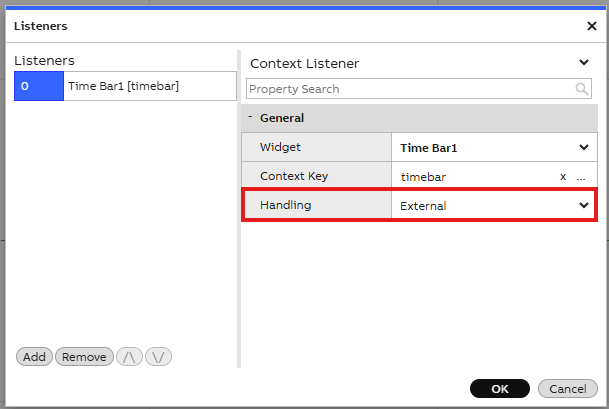
Context Listener settings for timebar1 in Sub Dashboard. Remember to choose "External" handling.
Remember to save changes.
Now the time bar context is sent to the whole sub-dashboard, but we still need to receive it on the sub-dashboard for time changes to be visible on both main- and sub-dashboards.
Step 3: Context Handler on sub-dashboard
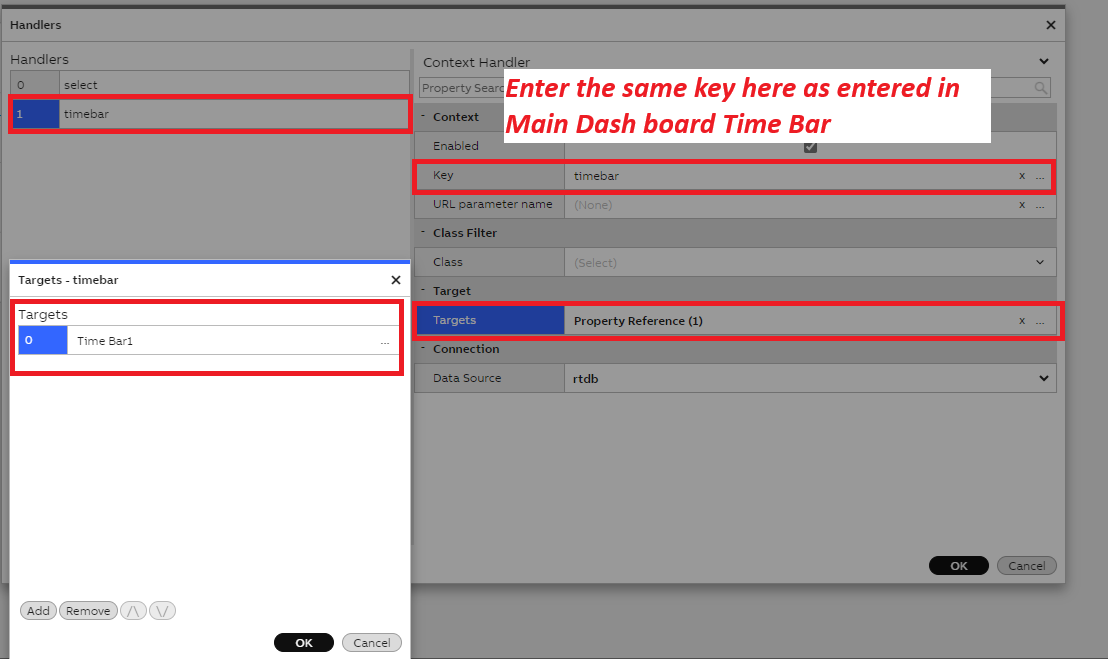
In the sub-dashboard we need to create a Context Handler so that we can handle the incoming context from the main dashboard. Open Context Handler ellipses in the Sub Dashboard settings and add a new handler as shown in the screenshot below.
- Key: timebar (same as we created for the Time Bar widget in the main dashboard)
- Target: Widget: Time bar (now we choose our time bar widget as the target)
Remember to save changes.
Step 4: Hide time bar on sub-dashboard
Lastly we can hide the time bar on our sub-dashboard so we have only one time bar visible. This can be done on the time bar definitions under Widget Container menu. Open the Rubber Container settings and under Appearance select the hide option.
Save settings and now when closing the dashboard edit view, the time bar is not visible anymore. It is only visible on dashboard edit mode.
Step 5: Test that everything works smoothly
Finally, if we close the edit modes on both dashboards, go to our main dashboard and change the time span on our time bar, both the charts should show data within the same time span and change data accordingly.
Updated 6 months ago