
Calculation Troubleshooting
Log files
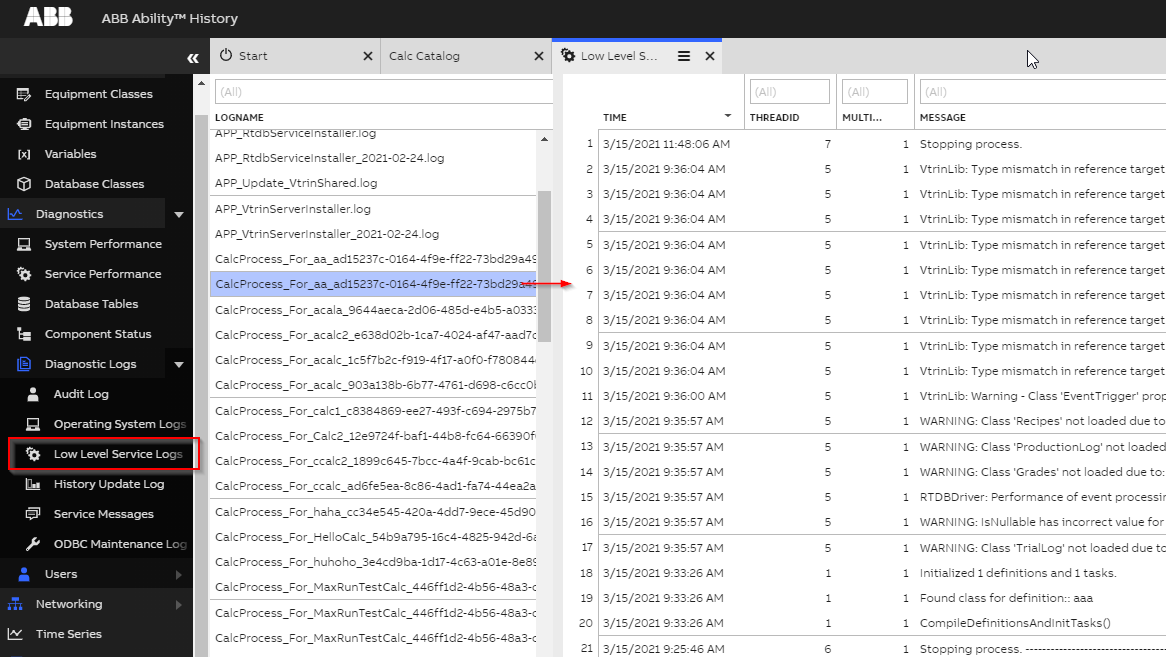
To write the output of a calculation into a file, the calculation must have the Debug property set to true. The log files are located in [tempFileDirectory]\logs. The logs can be accessed from engineering UI. They are located in Diagnostics > Diagnostic Log > Low Level Service Logs. On the left side of this dashboard you can see list of all the log level service log files under the tempFileDirectory. You should be able to clearly see the log file of your calculation process based on its name. By clicking one of those, you will see the content of the log file in a nice tabular format on the right side.
Process Logs
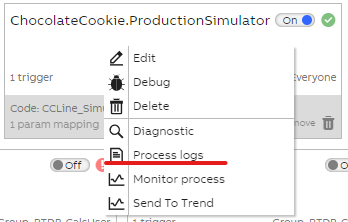
Each calculation also includes Process Logs where you may find all the log messages of your calculation. Right click on your calculation and from the opening menu choose Process Logs. Here you can see also WriteLine messages, if you have written them.
Errors
If there are errors when executing a calculation, a red exclamation mark icon will appear in the Calc Engine main view as shown below.
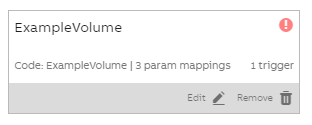
Clicking on the icon opens up a text dialog, which shows the errors in JSON format. Review errors, make suggested changes and save the calculation again.
UnauthorizedAccessError
If you get errors like
"UnauthorizedAccessError: Some permissions are missing (read and write access required) to Variable instance(s): [MyVariable]"the group of the calculation is missing access rights (read, write, or execute) to the objects the calculation is trying to write to. Check Security - Access control for instances used in calculations for more information.
Missing CalcClass error
If you get missing CalcClass error, it means that there is a problem during (re)compilation of the code. Follow the instructions below to troubleshoot the issue:
- Re-enable
Disable the calculation, wait for ~10s and then enable again. The waiting is important to allow CalcService to try to re launch the process. - Re-create
Create a new calculation with the exact same configuration. If that works you can remove the problematic calculation. - Re-code
Recreate a new code with the exact same code, commit and compile it. If compilation is successfull, you can then re-assign the calc with that new code.
If you are have access to the server you can also try to do the following:
- Check assembly
Check whether the assembly file exist in the calcmodules folder that is located inside the database folder. - Restart CalcService
Restarting calcservice will make sure all the gets recompiled.
Whitelist Error
If you get an error like
Failed to compile definition: not allowed code found:it caused by whitelist error meaning that you need to Whitelist the error it is pointing to (e.g. a class). Please find detailed instructions under API Whitelisting tutorial.
Debugging user code
We have also prepared a separate tutorial that gives short guidance on how to use our calculation debugging tool. Please find further information under Debug user code.
Updated 9 months ago