
Management tasks
Starting RTDB
Starting RTDB is done automatically when the computer is started. The RTDB main service is set to startup automatically both in data collectors and main nodes.
If RTDB is not running (e.g., someone has set it to start manually from services.msc), it can be started from the RTDB Control Panel. The RTDB control panel is available in:
%APP_DATAPATH%\RTDB Control Panel\It is also available for all administrators in Windows in "Administrative Tools" > "RTDB Control Panel", and on the desktop of the user that installed RTDB.
Starting RTDB is done as follows:
- Open the RTDB control panel
- Go to the "Starting and Stopping" subfolder of the RTDB Control panel
- Run "Start RTDB" (it will ask for elevated privileges if needed)
At the startup phase, all tables are checked to be healthy. This check is done by the "RTDB_ScanDB" process. Scanning through all the tables takes some time, and the database is not fully functional before "RTDB_ScanDB" has finished. The scanning order of the tables is prioritized so that producing data into the database can start as soon as possible, and making Vtrin connections to the database would be possible. The old history splits are scanned in the very last phase, as this is usually the least interesting data.
To monitor what RTDB services are running, the task manager is the fastest tool to use. Most RTDB processes are prefixed by "RTDB_" in the "Processes" tab of Windows Task Manager, so arranging by name quickly shows if there are running RTDB processes.
The progress of RTDB_ScanDB.exe can be monitored from the log file sca*.temp in the Windows temp directory (usually C:\Windows\temp), but in some systems it can also be in C:\documents and settings\LocalSystem\local settings\temp. The log file is appended with the log file of the RTDB main service in the %APP_DATAPATH%\Diag directory after RTDB_ScanDB.exe has completed.
A good reason to use RTDB Control Panel scripts to start (and stop) RTDB is that it gives warnings if RTDB is attempted to start when it has already been started. It also displays warnings on startup if broken tables are found (and they are automatically fixed).
Stopping RTDB
It is recommended to shut down RTDB manually before shutting down Windows. Interactively shutting down the database provides the administrator with the possibility to monitor the shutdown process.
RTDB should be shut down from the "RTDB Control Panel" subfolder "Starting and Stopping" using the script "Stop RTDB". The shutdown script is able to detect if any tables are corrupted. In addition, it warns if there are some applications that are keeping tables open. In the case that tables are kept open by some process, the shutdown script suggests a way to resolve the conflict (e.g. "kill", "re-try" or "kill the process forcibly").
If RTDB is not shut down manually before shutting down Windows, there are Windows shutdown scripts that do the work automatically. In that case, however, the administrator is not able to monitor the process. Windows tries to shut down RTDB automatically before shutting itself down, and, by default, waits for a maximum of 30 minutes that all RTDB-related services have been stopped. Of course, Windows continues the process of shutting down the operating system as soon as the shutdown scripts have been completed.
Before stopping RTDB in production, it is a good idea to notify the users beforehand. A proper wording for the message could be something like:
The database %APP_DSN% will be shut down for <reason> at <time>. The system will be back again after 30 minutes. <Administrator name>/tel. 555-5555RTDB consists of many service processes, but the RTDB main service (RTDB ) takes care of starting and stopping the other RTDB services. When RTDB is in the shutdown state, none of the RTDB services are running; data acquisition services do not produce data to the database, history is not collected, and it is not possible to connect to the database from remote nodes through ODBC. Local direct use of the database is possible, but it should still be avoided.
Restarting, enabling and disabling separate RTDB services
If you need to stop a service for some reason, it is recommended to modify RTDB.ini from the database directory %APP_DATAPATH%\RTDB.INI and set the service state to OFF. After that, the service will be stopped within one minute (the polling cycle can be changed from RTDB.ini (Interval_ms=60000)). There are two kinds of services; most services are just stopped, while some other services (OPC servers) are also disabled when stopped. The reason for disabling services in this case is that, otherwise, OPC clients could start up services when the database is not running using the normal DCOM startup mechanism.
Another mechanism to stop the service is to directly use the services.msc, and disable and stop services from there. In this mechanism, disabling the service is needed for all services. Just stopping the service with the NET STOP command, or from the Windows Services application, would make RTDB service manager restart the service within one minute (by default). This mechanism cannot be used for those services that are marked with DisableWhenStop=1 (i.e. OPC servers). These would be started from a disabled state by RTDB service manager.
The easiest way to restart RTDB services is to use the "Restart" command of the Windows Services application. (A quick restart of "Vtrin Server" or "Vtrin Server RTDB Internal" may not always succeed. You may have to retry the start, or just let RTDB service manager start it automatically when it detects that the service is not running).
Backing Up the RTDB Database and Software Files
Because most database files of RTDB are usually kept open by the RTDB software, you cannot back up a running RTDB database with just Windows Backup. For backing up RTDB, the following methods are available:
- Offline database backup
- Full database disk "tape" backup
- Online backup
- Essential backup
- Application backup
- Product software backup
Offline database backup is done by shutting down RTDB and taking a copy of the database directory (%APP_DATAPATH%) using any backup tool or the user’s favorite method. The benefits of offline backup are the easy-to-understand concept and independency from the RTDB product.
Full database disk "tape" backup, which is done online using a backup technique that is able to execute without having to lock files (e.g. Windows shadow copy mechanism). In case the database disk breaks up, in addition to the online copy, at least one backup of the original disk is needed to be able to fully restore the system. See the next section for details on restoring from backups.
Online backup is an RTDB mechanism that is automatically scheduled to run every day to backup all data from the database directory to the backup disk specified in setup phase (the E: disk is often used for the backups). By default, the online backup is only configured to run in main nodes, and not in data collectors. This is because the purpose of the data collectors is only to buffer data for a short time period. The content of the online copy reflects the latest data in the database directory.
Essential backup contains a copy of those RTDB database tables that contain configuration information (it does not include history data or logs). Essential backups are stored to the backup disk in the folder: %APP_BACKUP_ROOT%\EssentialBackup
It is, by default, scheduled to run daily, but unlike online backup, it is running both in data collector and main nodes. Different from online backup, there are several versions of essential backup available:
- Backup from each day for the last 7 days
- Backup from each week during the last 4 weeks
- Backup from each month during the last 12 months
- Backup from each year when RTDB has been running
The above is achieved by re-using subfolder names. For example, a backup directory %APP_BACKUP_ROOT%\EssentialBackup\WeekDay2 would be re-used next Monday, unless it is time to take a weekly, monthly, or yearly backup.
In addition to the table files, essential backup contains all other files from the database directory and its subdirectories. E.g. the content of the ‘diag’ subdirectory is copied, which may be valuable when searching what kind of diagnostics various services have been producing in the past.
Essential backups can be especially valuable in cases when, due to some invalid user interaction, the configuration has become invalid. Having multiple versions of backups spanning a longer time period makes it possible to return back to a valid version anytime.
If RTDB is upgraded to a newer version, the RTDB software upgrade creates essential backups to the same directory, before running the upgrade.
Application backup is an RTDB mechanism to backup the files in the folder %APP_ROOT%. This folder contains e.g. calculations if such have been created. Application backup is different to the other backups in the sense that old versions of the application files from the backup are never automatically deleted. The backup appends the modification timestamp of the file to the target file name. As a result, all old versions from the end of the day will be found from the application backup directory.
Product software backup is not automatically executed by the scheduled RTDB backup task. Software is usually installed into the system disk under the folders "Program Files" and "Program Files (x86)" (the latter one is only available in 64-bit operating systems). However, the old version of the product software is backed up when the product software is upgraded to a new version. During a software upgrade, the backup is placed as a subdirectory under %APP_BACKUP_ROOT%, equipped with the current date in the directory name.
Monitoring backups can be done using Component status nodes available from the Vtrin tree in ‘Maintenance\Component Status\APP_Backup’. The ‘DiskFree’ status shows how much space there is currently available on the backup disk (from the generic properties window, ‘LastActiveTime’ presents the snapshot time and ‘StatusText’ the actual free space at the time of the snapshot). There are separate status nodes for ‘ApplicationBackup’, ‘EssentialBackup’ and ‘OnlineCopy’ (Online backup). The status is ok (green) when the backup procedure has succeeded in taking a backup as scheduled.
Online, essential, and application backups are actually executed using the scheduled task:
%APP_ROOT%\bin\APP_Run_PrepareDatabaseForOnlineBackup.batIt is up to RTDB-Scheduler to run this cyclically. The task definitions for RTDB-Scheduler are available in the ‘TimedTasks’ class (a list is available from the Vtrin tree in ‘Maintenance\System\Service Parameters\Timed Tasks’). The task used to schedule daily backups can be found the easiest by filtering the ‘TaskSpec’ property with the string ‘backup’. From the ‘ScheduleTime’ and ‘IntervalSecs’ properties, one can see that backups are executed every day starting from 21:12:20 local server time. Backing up the valuable process data can actually cause a large relative proportion of the disk load in the system. If the base disk load (e.g. because of extensive input data production) is already high, the backup procedure might not be able to complete within one day. In this case, the next backup cycle is skipped and the existing one is completed before the next one is started.
Suggested plan for taking "tape" backups
If you have sophisticated backup software and enough hardware resources, you should take daily backups of all disks of the RTDB server, but remember that:
- Backing up the database disk should exclude the
*.table*files, unless the backup software can back them up without locking.
For systems where the capabilities of the backup software or available hardware resources for tape backups are limited, you could take backups as follows:
- Back up all disks before and after product software upgrades.
- Back up the contents of the backup disk daily.
- Back up the database disk once a month. Exclude the ".table" files, unless the backup software can back them up without locking.
Disabling backups
There is not a separate setting to disable the backups. However, because the backups are run as TimedTask commands by RTDB-Scheduler, you can disable them for example with: praotstx %app_dsn% -sql "update timedtaskstate set procnumber=-6 where procnumber=6 and tasknum=606" (in consistency controlled systems, this needs to be done in both nodes separately)
If you only want to disable the daily onlinebackup but keep the essential and application backups, you can do it with this SimpleConfig setting: RTDB_Cmd dbc -datapath "%app_datapath%" -section OnlineBackup -key disablecyclic -strvalue 1 SetSimpleConfig (in consistency controlled systems, this setting is common for both nodes)
Note: when you upgrade the RTDB software with the Install_Server.bat file, the upgrade by default takes an essential backup, application files backup, and program files backup. To disable those, run the upgrade with the /NOBACKUP setting.
Restoring the RTDB Database from Backup
Restoring offline backups
To restore a backup that was taken while RTDB was shut down is straightforward:
- Shut down RTDB first.
- Restore the backup save sets from the tape to their original location.
- Start up RTDB.
Restoring RTDB from online backups
To restore from an RTDB online backup that was taken while RTDB was running requires some special steps:
- Shut down RTDB
- Restore the backup save sets from the tape to their original location (both the data directory and the "OnLineCopy" directory). (see the next section if you really do not have any tape backups)
- Prepare the online copy for restoration from cmd by running:
CD /D %app_backup_root%\onlinecopy
PrepareOnlineBackupForRestoration.bat- It then instructs the user to run something like this:
"C:\Program Files (x86)\ABB Oy\RTDB\config\RTDB_RestoreFromOnlineBackup.bat" "D:\RTDBData" /from_onlinebackup "E:\Onlinecopy"- Run
RTDB_RestoreFromOnlineBackup.batto replace the files in the database directory with the files in the online backup. Confirm with ‘y’ to be able to continue. - Start up RTDB
Restoring backups from live backups from tape
Use this for restoring a database that has been created by backing up a live database.
- Shut down RTDB first.
- Restore the backup save sets from the tape to their original location.
- Run paranoid scan (
RTDB_ScanDB -ap *) (see section Scanning the database tables) - Start up RTDB.
Restoring the RTDB Database Disk from the On-line Backup Disk
The original idea of the online backup disk was ONLY to make it possible to take a backup of the RTDB database while RTDB is running. However, nowadays it actually contains enough information to restore the Application and RTDBData directories of the database disk (the other directories, such as the "RTDB CD" directory which contains a copy of the latest installation disk, is not automatically available on the online backup disk). So if you do not have a tape (or other external media) backup of the database disk, you can also restore it from the online backup disk by following these instructions.
Note: It is possible that in a future RTDB version, the online backup idea will be changed, and tools will be made available to perform a full restoration. You should look for updated information before you try the steps that are described here.
Restoring the Application directory
The directory \Backup\Application contains backup versions of the \Application directory. The Application backup is organized so that it never deletes anything, but always keeps old versions of files in it. The modification time of the file is appended to the file name, resulting in file names such as APP_Install_Services_20110301_122543.bat (UTC time is used here). The backup script prepares a batch script that contains copy commands for restoring the particular version when the backup was taken. The batch script is saved to the backup disk as a file such as \Backup\Application\Misc\AppBackup\COPY_VER_BACK_20130205_191923.TXT. The extension .TXT is used so that the file cannot be accidentally executed. The file contains commands such as:
COPY "E:\Backup\Application\Config\Application\APP_Install_Services_20110301_122543.bat" "D:\Application\Config\Application\APP_Install_Services.bat"Unfortunately, the script requires that the target subdirectories are already present. The list of needed directories can be found from a directory listing file that the backup script also creates (with the DIR command). The name of the file is such as DIR_LIST_20130205_191816.TXT and it resides in the folder \Backup\Application\Misc\AppBackup. If you search the “Directory of” strings from the file, you can find the names of the directories. The following for command can then be used to create the target directories:
for /f "tokens=3*" %i in ('findstr /c:"Directory of" "DIR_LIST_20130205_191816.TXT"') do md "%i"After this, you can copy the COPY_VER_BACK_20130205_191923.TXT as copy_ver_back.bat and execute it.
Note: The script does not print any summary message of how the copying succeeded, so you should verify the output visually.
Note: If you actually want to revert to the version that was present before the latest upgrade, you can also simply copy the files from the directory such as
e:\UpgradeBackup\ApplicationSoftware_SAVED_2013-01-18.
Restoring the RTDBData directory
The directory \onlinecopy only contains a backup of the table files. The database also contains other files, such as RTDB.ini and Tools\PostUpgrade.bat. However, the \essentialbackup also contains the other files. So let’s start by copying the other files. First find the appropriate (the newest one, except if you know that an older one is better) essential backup directory, for example \EssentialBackup\Day9. Then restore its contents, but EXCLUDE all table files. Use the following kind of robocopy command to do this:
robocopy e:\EssentialBackup\day9 "%app_datapath%" /e /copyall /xf *.table*After that, run the restoration script from the onlinecopy directory, for example: e:\onlinecopy\PrepareOnlineBackupForRestoration.bat
Scanning the database tables
When RTDB starts up or shuts down, the RTDB_ScanDB.exe verifies the low-level database integrity by running "RTDB_ScanDB". The purpose of "RTDB_ScanDB" is to ensure that database tables are in good shape when RTDB is started up again.
The behavior of "RTDB_ScanDB" is different during shutdown and startup. In shutdown, it is running in "peek" mode. The purpose of this is to find out which tables are closed successfully, which tables are open (e.g. because some application has crashed, during which it has kept the database table open), and which tables are broken. The table is concluded to be broken if "RTDB_ScanDB" is not able to open it. One purpose of this is to accelerate the startup of RTDB.
Based on the information received during shutdown, and based on the information available in the configuration file %APP_DATAPATH%\ScanDB.ini, "RTDB_ScanDB" scans through all tables on startup. The scan order is defined in the configuration file and selected to be such that the tables that are required to be available for input data production (e.g. current values and variables) and for user interface support (UI classes, UI properties, UI strings) are scanned first. Old split files of historical data are scanned last, as this data might be seldom needed. If the tables are marked to be corrupted (or after an abrupt shutdown of the machine), the corrupted tables are scanned using extensive paranoid scan settings to get them fixed. In addition, based on the settings in ScanDB.ini, some tables are scanned using extensive checks even if the table looks ok based on the header information, in order to get even more confidence that data is available as it should. The settings available in the ScanDB.ini file are not recommended to be changed without a very good reason, or without deep experience from RTDB administration.
In case the startup is done after running RTDB or the operating system down in a controlled way, RTDB_ScanDB does fast checks. If the computer has crashed and a database table was open at that time, RTDB_ScanDB enables extensive checks to restore the integrity of the table. However, if a malfunctioning disk or software has corrupted a database table file, "RTDB_ScanDB" may not notice the error without activating it with the so-called paranoid mode. Troubleshooting e.g. these kinds of situations, or because some low-level administration task requires it, "RTDB_ScanDB" can be run from command line.
To get help regarding the different settings, run:
RTDB_ScanDB.exeTo be able to run "RTDB_ScanDB" interactively, RTDB should be stopped first. After that, command line is started using (elevated) administrator privileges from the database disk and from the database directory (cd %app_datapath%).
The most used commands are:
RTDB_ScanDB *which scans through all tables in the current directory.
RTDB_ScanDB -ap *which paranoid-scans through the entire database (running a paranoid scan through all tables can take a long time, depending on how much data there is in the database).
RTDB_ScanDB <tablename>e.g.
RTDB_ScanDB variableswhich scans only the specified table. In a production environment, it is good to remember that tables can be copied to temporary folders where "RTDB_ScanDB" is executed. This makes analyzing and fixing the problems possible, while RTDB is running.
Managing Client Software distribution
To get the Vtrin client available on some other computer than the actual server, there is a powerful Microsoft technology called "ClickOnce" available. On the server side, the "Vtrin Server" service acts as the web server that serves the "ClickOnce" installations. However, if Internet Information Server (IIS) is installed on the computer, the IIS serves the installations instead.
On the client side, all that has to be done is to install .Net framework 4.5 (if not installed already), and after that connect to the web address using a web browser (IE 8, 9, 10 and 11 tested):
http:///vtrinOr (unless IIS is used and https has not been configured for it):
https:///vtrin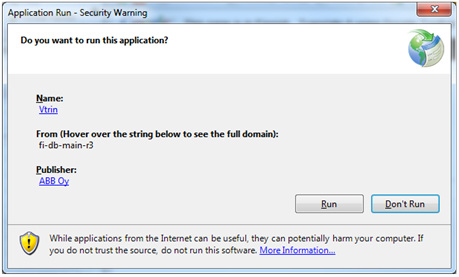
Dialog opened to confirm file download from server.
This should connect to the web server computer and start the downloading process. The figure above illustrates the download dialog. The code signing certificate is available from the Publisher link "ABB Oy" like in the picture below.
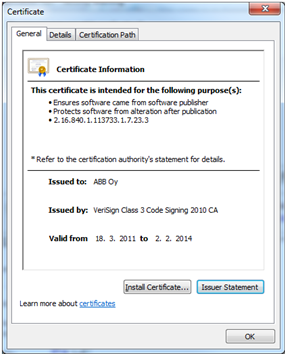
Code signing certificate is used to prove the publisher of the product.
The ‘Run’ button activates the downloading of the binaries from the server. After the download completes, a Vtrin connect dialog is automatically opened, like in the following picture. Once the binaries have been downloaded, the new click-once requests automatically use those without loading new ones from the server.
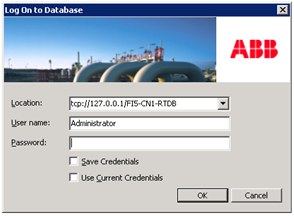
Connect dialog opened after succesfully downloading binaries from server.
Changing the setup configuration
When the RTDB is installed, it accepts many installation parameters such as the time zone setting for the database. Changing the setup parameter values is not very straightforward afterwards. In order to do it, multiple operations are typically needed. A collection of these tasks, together with some background information of the RTDB installation principles have been collected to a white paper document that is present also in installed system as file "%APP_ROOT%\Config\FeatureInstall\FeatureInstall_doc.txt". Here is the table of contents of the configuration tasks it currently contains:
- Instructions for tasks if the IP address of the MAIN server is changed.
- Instructions for tasks if the IP address of the DC node is changed.
- Instructions for tasks if the name of the DC or MAIN node is changed.
- Instructions for converting an existing traditional RTDB installation to cPIMS main or DC node
- Instructions for changing the install user
- Instructions for changing the adminuser
- Instructions for changing the dbadminuser
- Instructions for changing the password of the adminuser
- Instructions for changing the password of the dbadminuser
- Instructions for tasks to do after reinstalling a DC or MAIN node
- Instructions for changing the set of installed services
- Instructions for upgrading from Standalone Main server to High Availability configuration
- Instructions for changing the online backup directory
- Using 4.2 DCN computer with HA main systems.
- Documentation about the Used SimpleConfig Entries
- Instructions for changing the time zone
Updated 9 months ago