
“Listen to Context" Feature on a Single Dashboard
This tutorial demonstrates how the "Value" and "Label" widgets can listen to the context of a "Datalist" widget on a dashboard.
Step 1: Add “Label” and “Value” widgets to the Dashboard
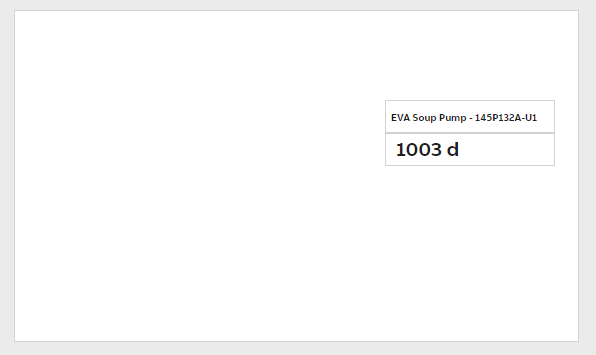
Open the widget library and add the needed amount of "Value" and “Label” widgets. In our example, we will add one “Label” and one “Value” widget. Let us call them Label1 and Value1.
Step 2: Add the "Datalist" Widget
- We add a "Datalist" widget, which Label1 and Value1 will listen to for context. Let us call this Datalist1.
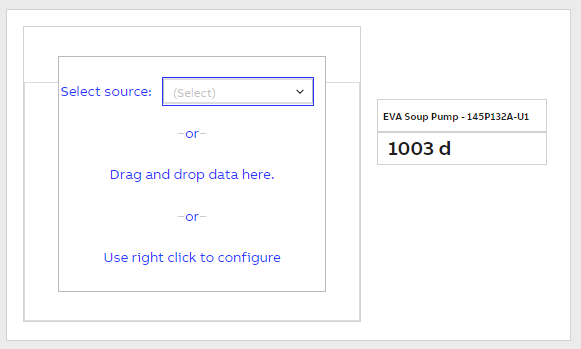
- Select Datalist1 active and go to properties window.
- In the Properties window under the Data section, choose the Source you want to present in the Datalist1.
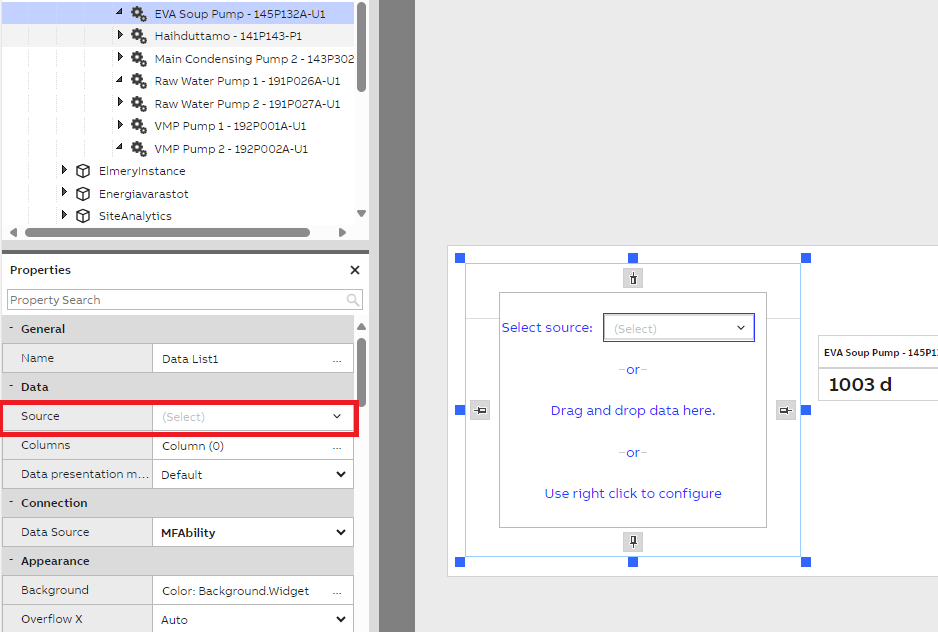
You can choose the source directly from the Data list1 widget after exiting 'Edit mode,' or by dragging the data on to the Data list 1 widget.
Step 3: Add the Context listeners
After adding the Datalist, configure context listeners for Label1 and Value1.
- Select Label1 and go to properties window.
- Under the Context section -> Listen to Context.
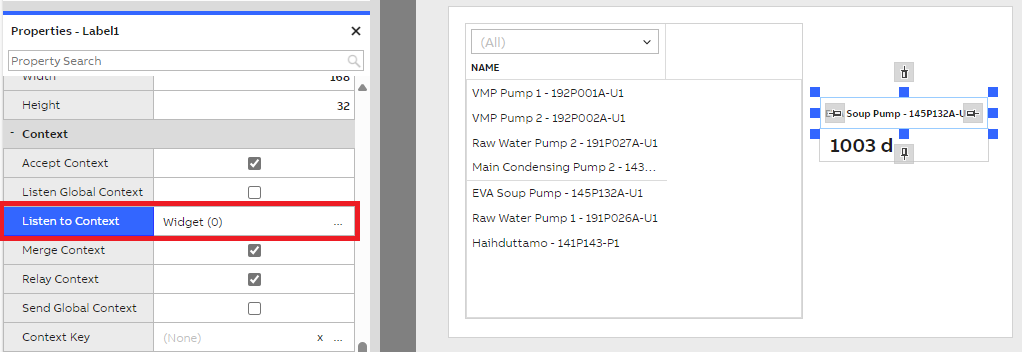
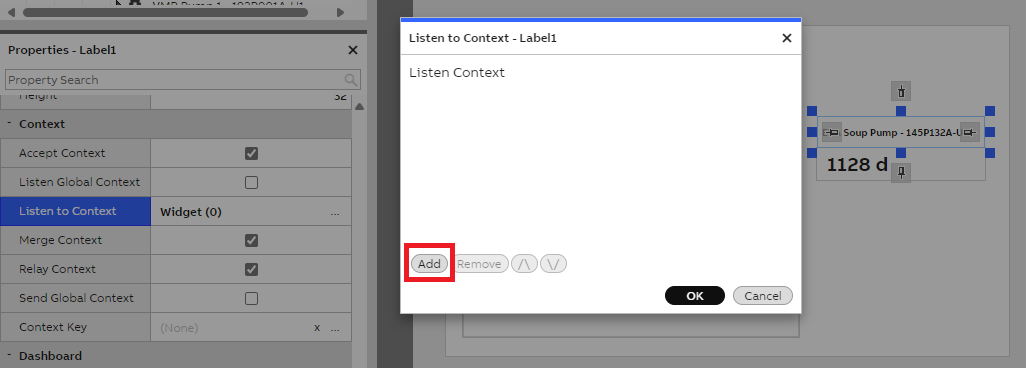
- Click the three dots next to the Listen to Context. This will open a popup window where you can add listeners by clicking “ADD”.
- From the dropdown menu, select the widget you want Label1 to listen to. In our example, choose Datalist1.
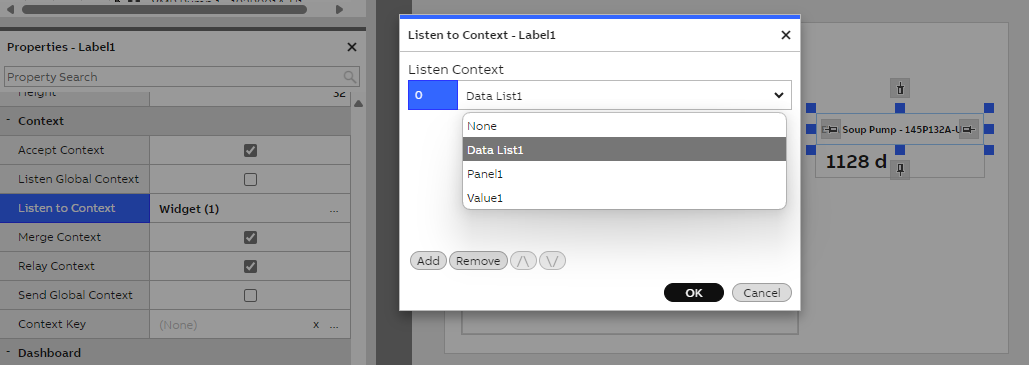
- Close the popup window.
- Repeat the same process for Value1 widget .
Final Step: Save the Dashboard and Exit Edit Mode
Once all configurations are complete, save the dashboard and exit edit mode. You should now see the updated values displayed in Label1 and Value1 based on the row selected in Data list1.
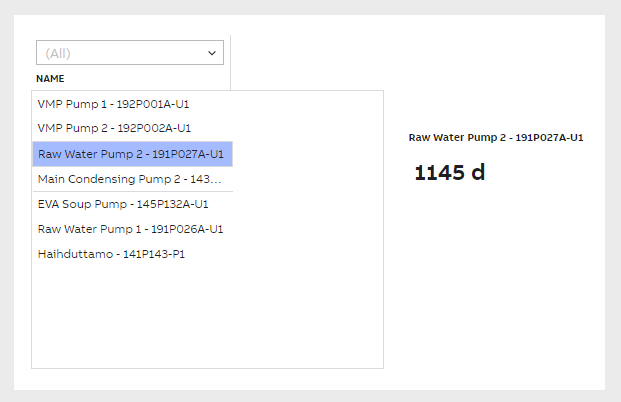
Now when you choose data on datalist, the values in Label1 and Value1 widget should change accordingly.
Updated 6 months ago