
How to Create a Display Template
A Display Template is a useful tool for creating a shared base for multiple dashboards. It’s particularly helpful when creating several similar dashboards with minor changes. Once a template is created, it can be used to generate new dashboards, allowing you to focus only on the necessary changes. It is recommended to use display inheritance in templates to make future updates easier and ensure that changes to the base template are automatically reflected in all dashboards created from it. You can find more detailed instructions on using display inheritance later in the guide.
Step 1. Create a Folder for Templates
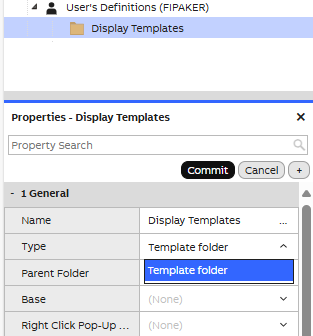
- Create a new folderto store your templates. Let’s call it Display Templates.
- Select the newly created Display Templates folder in the navigation tree. This will open the dashboard properties window.
- Change the folder type to Template folder to make the templates accessible in the right-click menu.
- Click the Commit button to confirm the changes.
Step 2. Create the Template Display
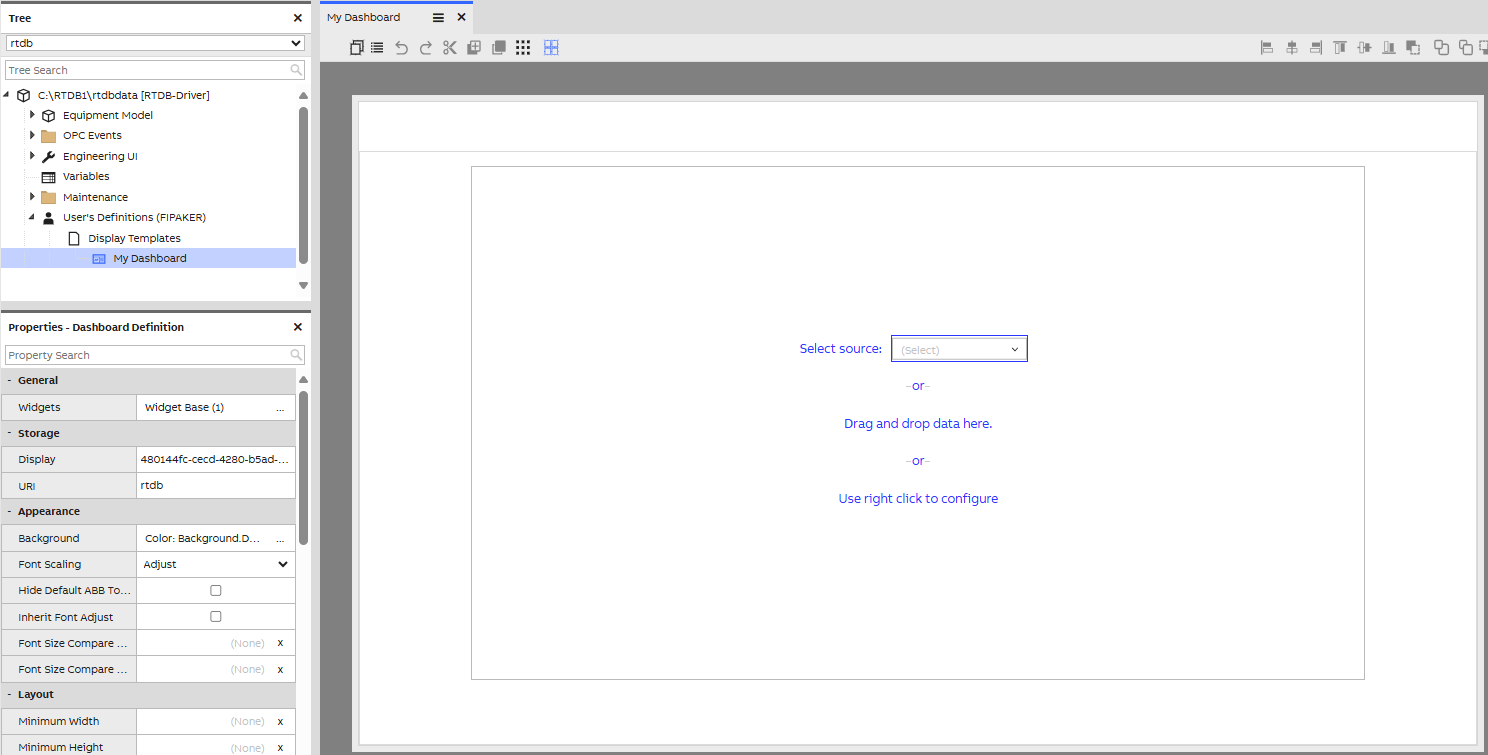
- Create a new dashboard in the Display Templates folder and name it My Dashboard.
- Add the widgets you want your template to have. In this example, we’ll add the basic Datalist widget.
- Once the layout is complete, save your changes and close the My Dashboard window.
How Template Changes Affect Existing DashboardsWhen a new dashboard is created from a template, it is a copy of the original template. All widgets, settings, and layouts are copied to the new dashboard. If you make changes to the original template afterward, those changes will not be applied to dashboards that have already been created.
Step 3. Check That You Can Use the Newly Created Template
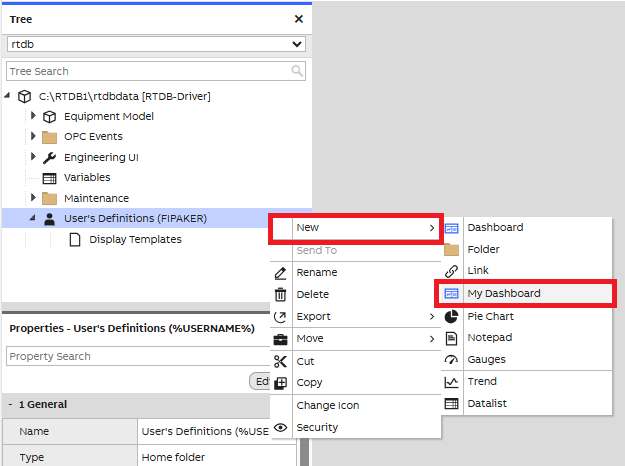
Now, check if your new template is usable by right-clicking in the directory where you want to create a new dashboard.
- Select New -> My Dashboard from the right-click menu to create a new display based on your template.
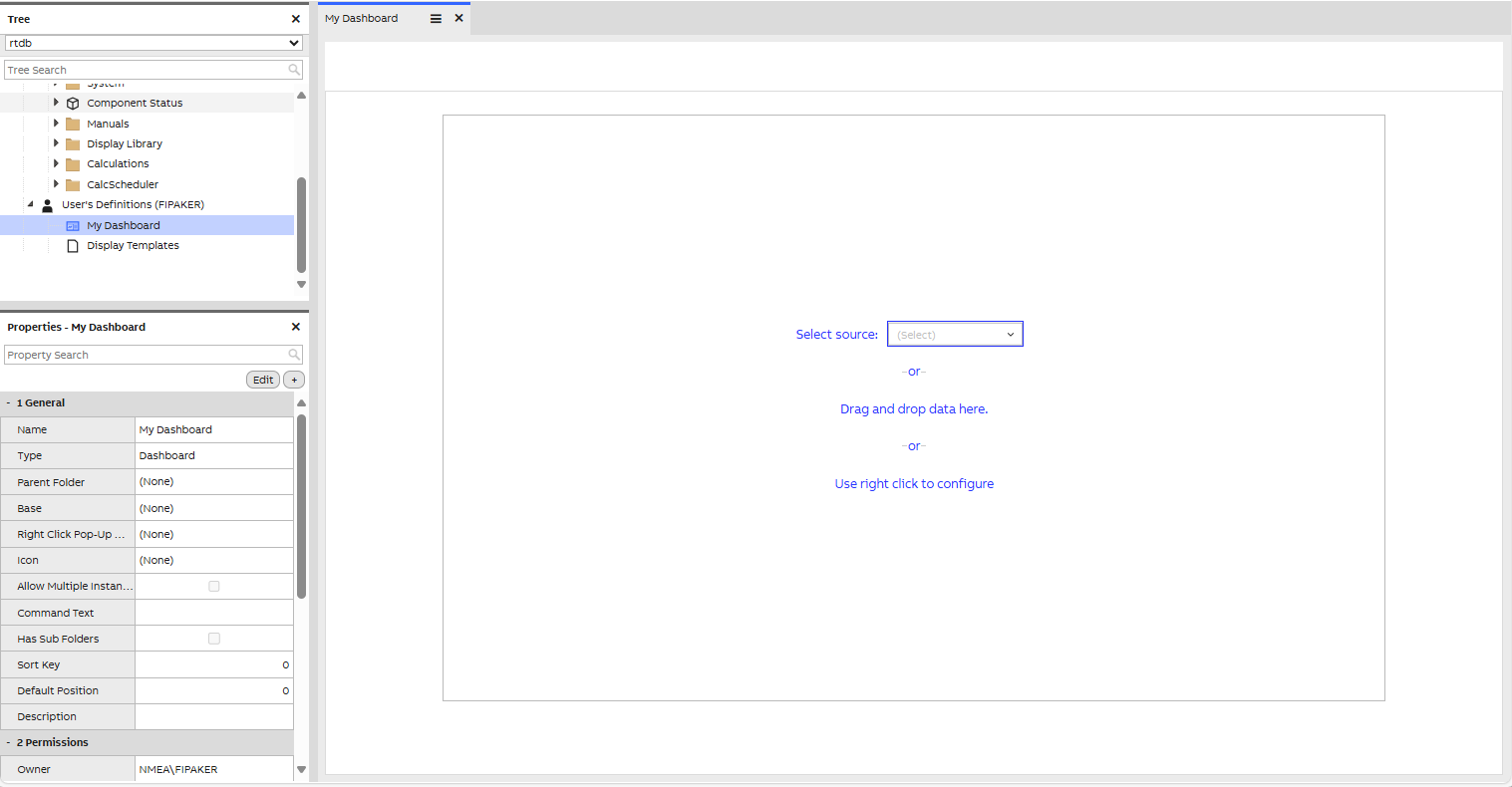
The new dashboard will appear in the navigation tree as My Dashboard, but you can rename it if needed.
(RECOMMENDED) Using Display Inheritance in the Template
Display inheritance is an important, but not mandatory , feature in the template creation process. By using inheritance from a base display, your template will automatically adopt the layout and settings of the base display, making future updates much easier. Any changes made to the base display will be applied to all dashboards that are created from the template, ensuring consistency and saving time.
What Elements Should Not Be Included in the Base TemplateIf you want users to be able to remove widgets or modify their size or position, these widgets should be added directly to the template, not the base display from which the template inherits.
For more detailed instructions on inheritance, you can refer to: How to Use Display Inheritance
Step 1. Create the Base Display
- Create a new dashboard and name it My Dashboard Base.
- Add the widgets you want your template to have. In this example, we’ll add the same basic Datalist widget.
- Once the layout is complete, save your changes and close the My Dashboard Base window.
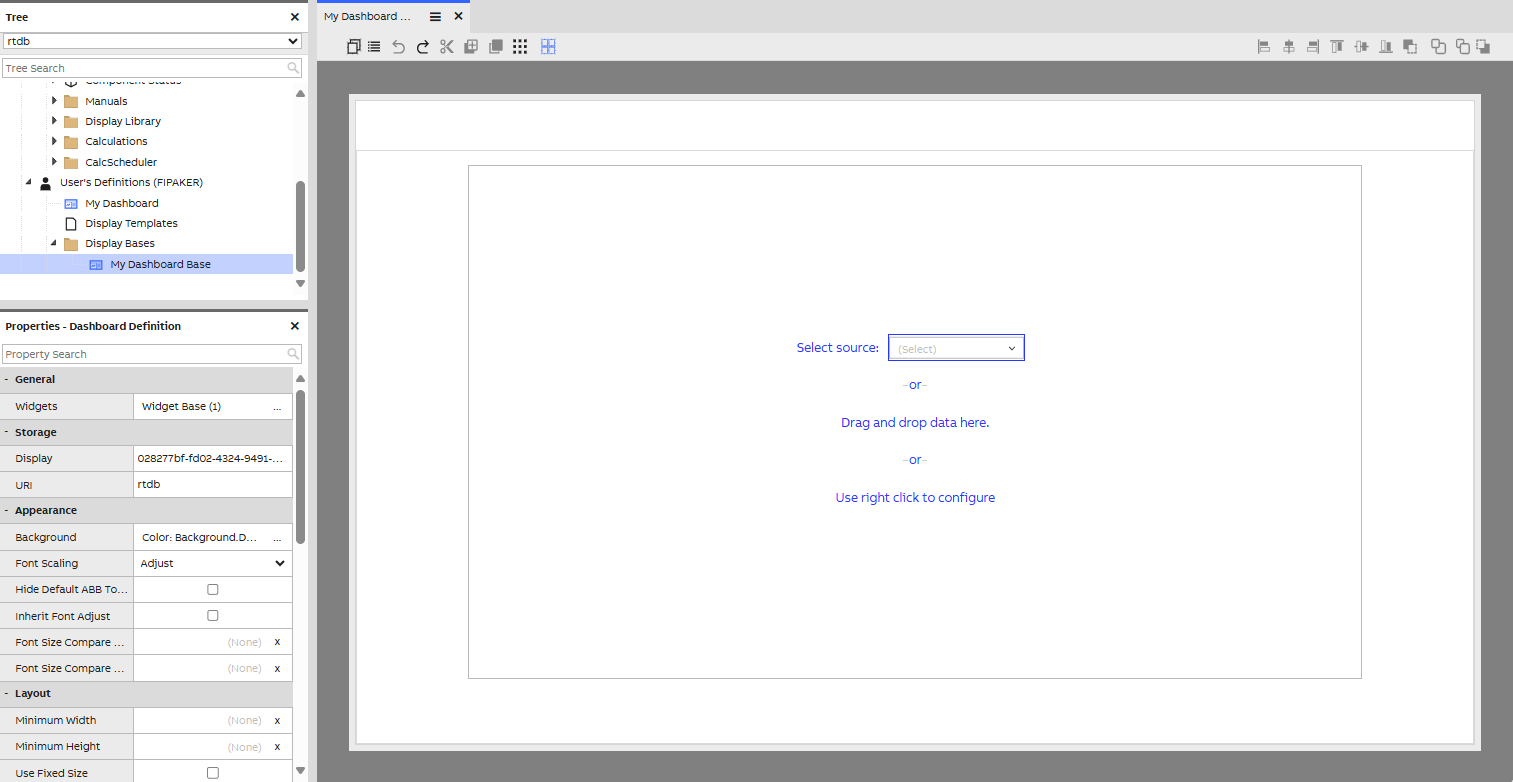
Step 2. Update Template to Use Base Display as Base Template
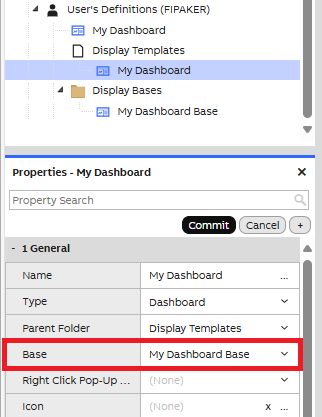
- Select the previously created My Dashboard display in the navigation tree to activate the properties window.
- In the properties window, click the Edit button to enter edit mode.
- Under the General section, select My Dashboard Base as the base template.
- Click Commit button to confirm the changes.
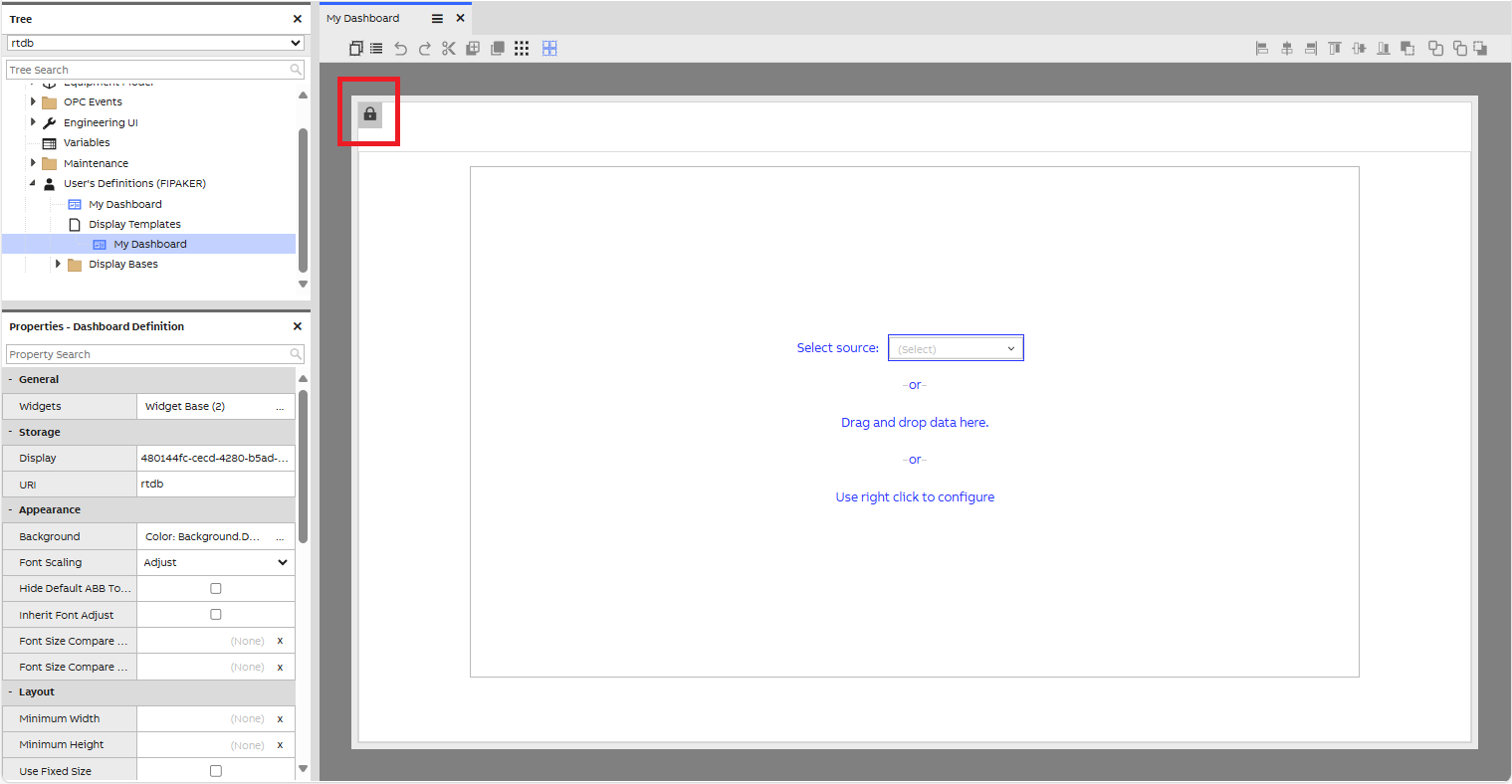
- Open the My Dashboard template and you can see from the lock icon that it uses inheritance. Now, the elements are locked.
Key Points to Remember
- Only templates that are in folders with the type Template folder can be shown in the right-click menu.
- If you are using display inheritance, make sure to add widgets that need their layout or size modified
directly to the template, not the base display.- For templates using inheritance, any changes made to the base display that the template inherits from will be reflected in all dashboards created from that template.
- When creating a template, do not include any scripts or context handling to those. These should be added only to the created dashboard copy of the template.
Updated 6 months ago