
Dashboard Archiving
Dashboard Archiving Feature
The Dashboard Archiving feature allows you to save dashboards as PDF files for record-keeping, reporting, or offline sharing. These archived files are stored on the server and can be accessed later, even if the live dashboard has changed.
Contents
- What is Dashboard Archiving?
- How to Archive a Dashboard
- Accessing Archived Dashboards
- Setting Up the Feature (for Admins)
- FAQ
1. What is Dashboard Archiving?
With this feature, any dashboard can be saved as a PDF file, preserving exactly how it looked at the time of archiving. This is useful for audits, historical records, and sharing with stakeholders who don’t have access to the system.
2. How to Archive a Dashboard
Archiving a dashboard is simple:
- Open the dashboard you want to archive.
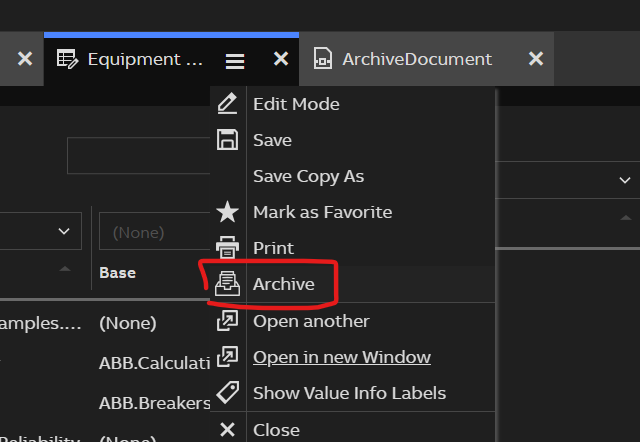
- Click the Archive button.
Select the paper size and orientation on the archiving dialog.
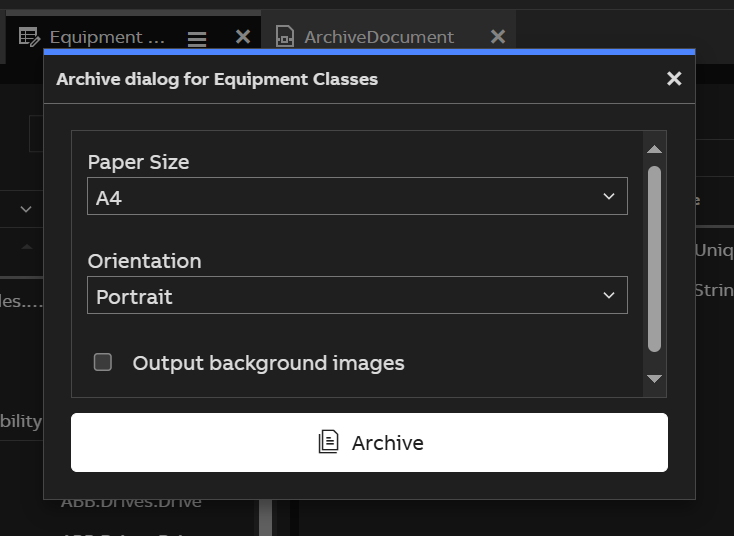
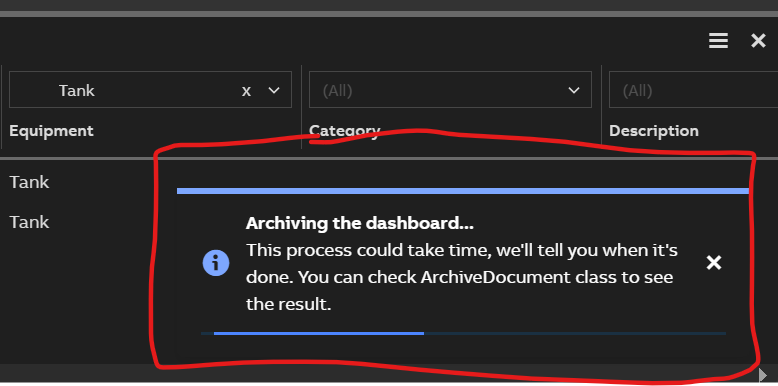
Click "Archive" button. The system will begin generating a PDF.
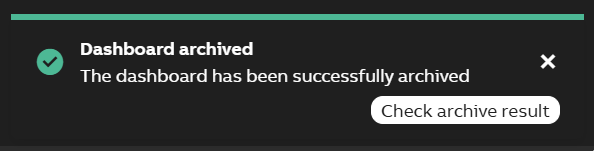
Once it's ready, you'll get a confirmation.
No additional setup is required on your part—just click and go.
3. Accessing Archived Dashboards
To view or download archived dashboards:
Go to the ArchiveDocument dashboard. From engineering UI it is located in User Interface > Archiving.
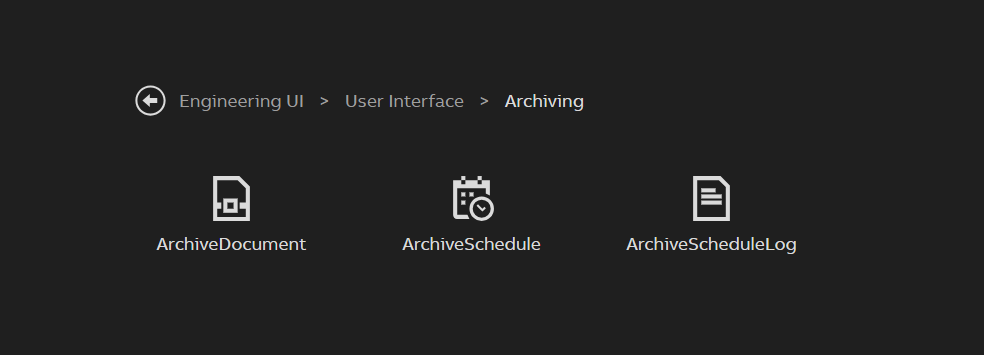
Browse the list or use the search function.
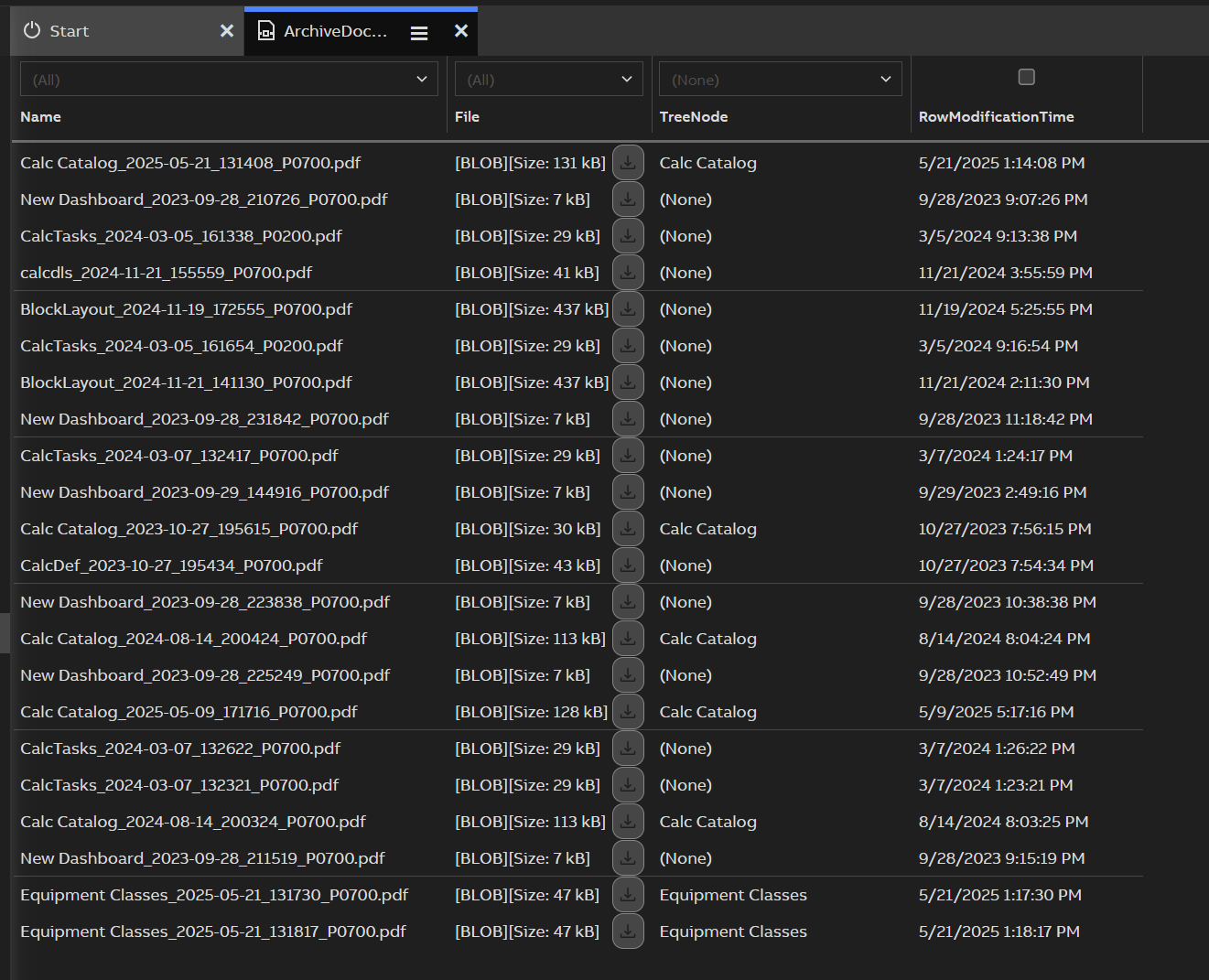
Click the download button on the File column to download the PDF.
Each archive includes a timestamp in its filename for easy tracking.
4. Setting Up the Feature (for Admins)
Important: This feature is not installed by default. If you’re a server admin, follow the steps below to enable it.
Installation
-
Packaged installer: Make sure the
cpmPlusVtrinNetServerDashboardArchiverpackage is installed. It includes Chrome and the correct version ofchromedriver. -
Monolithic installer: You’ll need to manually download the correct
chromedriver.exethat matches the version of Chrome installed on the server. Place thechromedriver.exefile in the same folder asVtrin-NetServer.exe.
Configuration
Dashboard archiving can be customized using your Vtrin-NetServer.exe.config file. Below is an example of the optional configuration section:
<configuration>
  <configSections>
    <!-- This configSections part is unfortunately neccessary because dotnet is validating this config file so it need to be told about this custom section schemas -->
    <sectionGroup name="webDriver">
      <section name="browser" type="System.Configuration.NameValueSectionHandler,System" />
      <section name="arguments" type="System.Configuration.NameValueSectionHandler,System" />
    </sectionGroup>
    <section name="dashboardArchivingConfig" type="System.Configuration.NameValueSectionHandler,System" />
  </configSections>
  <webDriver>
    <browser value="Chrome" />
    <arguments>
      <add value="headless" />
      <add value="ignore-certificate-errors" />
      <!-- <add value="auto-open-devtools-for-tabs" /> -->
      <!-- <add value="no-sandbox" /> -->
      <!-- <add value="disable-gpu" /> -->
      <!-- <add value="disable-extensions" /> -->
    </arguments>
  </webDriver>
  <dashboardArchivingConfig>
    <add name="Enabled" value="true" />
    <add name="SkipAuthCheck" value="false" />
    <add name="DefaultPaperSize" value="a3" />
    <add name="DefaultOrientation" value="landscape" />
    <add name="LoginSuccessIndicatorClassName" value="ABBMia_cTopBarUserName" />
    <add name="PrintReadyClassName" value="ABBMia_PrintReady" />
    <add name="UniqueNamingStyle" value="timestamp" /> <!-- timestamp or incremental -->
    <add name="LoginPageTimeout" value="6" />
    <add name="AuthCheckTimeout" value="11" />
    <add name="PrintPageTimeout" value="41" />
  </dashboardArchivingConfig>
  <!-- This is the Vtrin-NetServer example configuration file - you must edit this file to setup your server!	-->
  <!-- Vtrin-NetServer can be run either stand-alone or under Microsoft Internet Information Services (IIS) 	-->
  <!-- The address on the server will be formed like here: proto://computername[:port]/objectUri/datasourceUri 	-->
  <!-- Configure and copy this file to the directory the Vtrin-NetServer is installed and rename it to Vtrin-Netserver.exe.config -->
  <!-- For more information, please see: https://cpmplus.net/wiki/index.php?title=Vtrin_Server_Configuration -->
  <appSettings>
    <!-- <add key="AccountQueryFilter" value="Domain='%COMPUTERNAME%'" />		     -->
    <!-- Win32_Account query WHERE clause - can be used for performance reasons to prevent Vtrin-NetServer from scanning complete domain for users. (if the security editor seems to freeze, you need to tune this one). -->
    <!-- <add key="ChangeSendDelay" value="500" />					     -->
    <!-- Time to wait in ms when event is triggered for further events to combine them into a single frame, set to zero to disable (will disable lag, but cause a lot of tcp ping pong with any larger amounts of events). -->
    <add key="CertificateName" value="vtrincert" />
....
All configuration values are optional—defaults are hardcoded. The feature will still function even without custom configuration.
For more advanced configuration and troubleshooting, refer to the technical documentation or contact support.
5. FAQ
Q: Will the archive match what I see on my screen? A: Yes, it will capture the exact dashboard view, including filters and data.
Q: Can I archive dashboards I don’t have access to? A: No, archiving uses your current session and access level to ensure proper permissions.
Q: Can old archives be deleted? A: Yes, with the right permissions, you can delete or manage archive files.
Updated 5 months ago