
Configure NLS Translations for Navigation Tree Item (Dashboard)
This tutorial explains how a user can configure NLS translaitons for navigation tree items
-
Navigate to View and create a Dashboard whose name should be translated (ex: Create a Dashboard and make a note of ID of the dashboard)
-
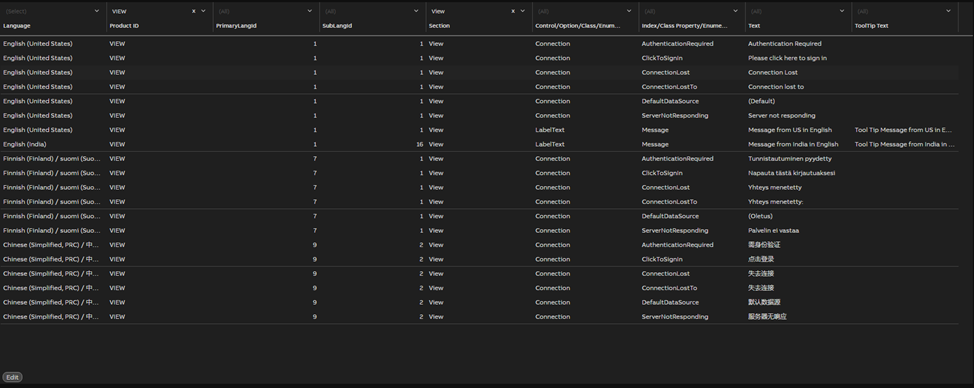
Navigate to Engineering UI and search for UIStrings/Language Strings so that all the UI Strings /Language Strings will be listed in the Data List with Edit option as shown in the screenshot below.
-
Create a new language string with below details:
-
Language Product ID Section Control/Option/Class/Enumeration Name Index/Class Property/Enumeration Text Telugu (India) / తెలుగు (భారత దేశం) View UITree 00000000-0000-0000-0000-000000000000 Dashboard Node ID Translated Dashboard Name Please find the below example screenshot for the same. Here, I selected the targeted language as 'Telugu'

-
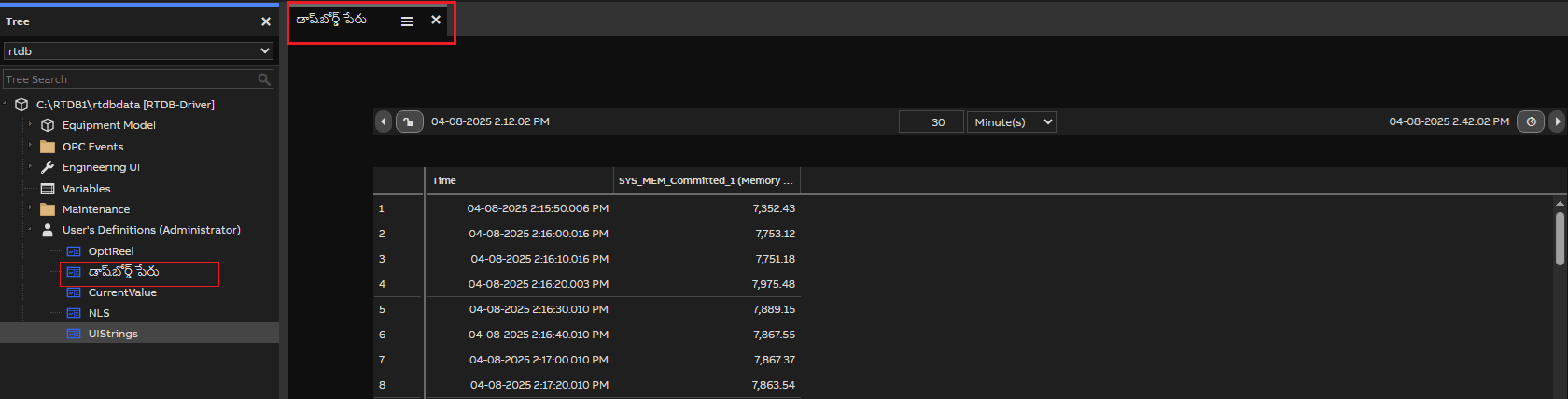
Now, open View application and select the Language select as 'Telugu' and observed that the Dashboard name is translated to Telugu as shown in the below screenshot. Similar approach can be used for other items in the navigation tree.
Updated 7 months ago