
Configure NLS for Label Widget
This tutorial explains how to configure and use NLS for Language Translations in View
-
Navigate to Engineering UI and search for UIStrings/Language Strings so that all the UI Strings /Language Strings will be listed in the Data List with Edit option as shown in the screenshot below.
-
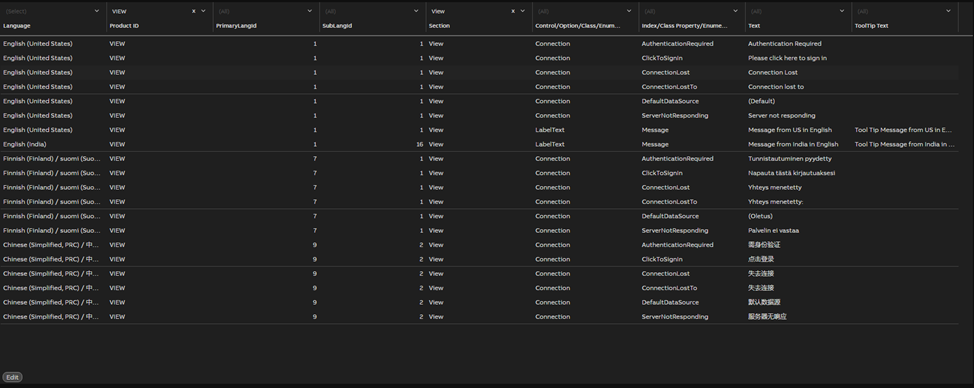
Defining enumerations: Enumerations are used for providing number-to-value translation in different languages. Enumerations are defined via multiple instances of the UIStrings class and have their properties defined as follows:
-
Property Name Value Section Used to group translations belonging together Key Used to group translations belonging together within a Section SubKey Used to group translations belonging together within a Section, Key PrimaryLangId Primary Language Id of the translation SubLangId Sub Language Id of the translation Text The translation to be displayed LongText Tooltip, used also for some other purposes
-
In the Data List table, insert View in the Product ID column to filter out the RTDB and VTRN UI Strings. And add required translations as shown in the screenshot below.
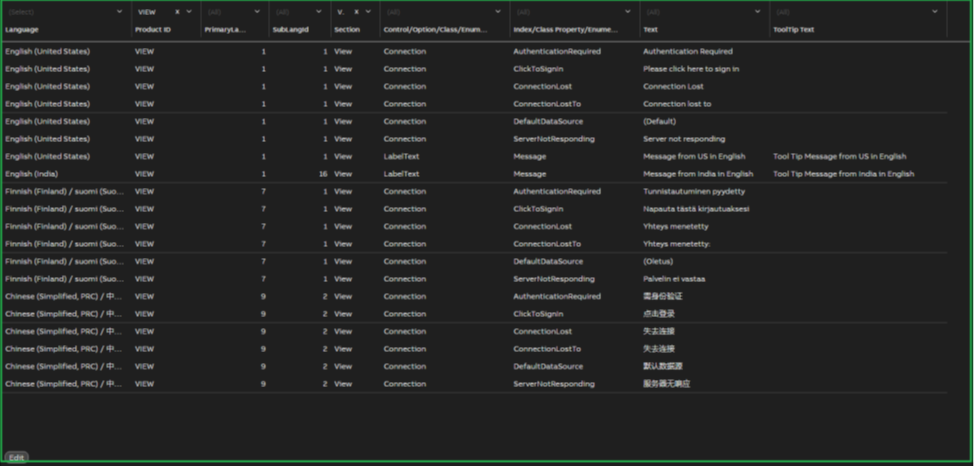
- New translations can be created by first clicking the Edit button, and then the New button. A new line is then created. You should copy the relevant parameters from the corresponding English line to that new line, select the desired language for the new line, and then do the translations for that language into the TEXT and TOOLTIP TEXT fields. Once you are finished with the translations, remember to click Commit.
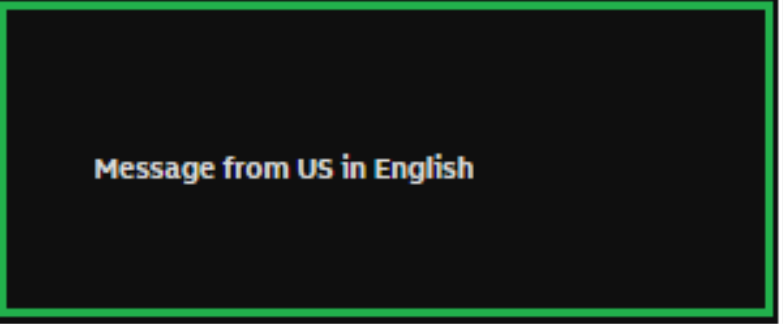
- For example, there is a ‘Key: Label Text’ and ‘Sub Key: Message’ whose equivalent string in English-US is ‘Message from US in English’ and English-India is ‘Message from India in English’

- In View application Now create a new dashboard and add a Label Widget.
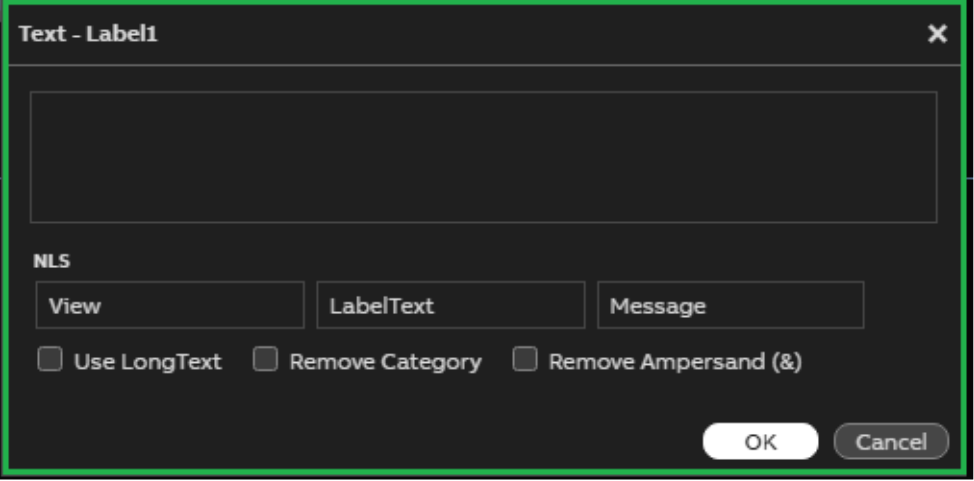
- Label widget has Test (NLS) property, provide Section as ‘View’, Key as ‘LabelText’ and Sub Key as ‘Message’
-
Click on the Burger menu in the top right-side part of the application and select the required language setting as shown in the screenshot below.
-
Updated 5 months ago