
React Integration
React Integration
This package provides functionality and tooling to enable React development within the View framework. The package requires React version of at least 16.3.0.
Overview
What is in this package?
- The
createWidgetFromfunction that turns your React component into a View widget. - A script to help create a View Module Definition file.
What is not in this package?
- The View framework
Getting started
Installation
The package is not available publicly, so you must add it in your dependencies by path.
For example, in your package json:
"dependencies": {
  "@abb/react-view-widget": "file:../react-view-widget",
}
Then run npm install.
Creating the Widget – Hello World example
To turn a React component into a widget, all you have to do is call the createWidgetFrom function. This will both create a wrapper widget and an adapter to connect the React component to the View framework, as well as register the widget with the View framework so that it can be used. This function should be called once in at the root level. In a normal React app, you might have an index.js file which contains a call to ReactDOM.render. This file is a good place to call to the createWidgetFrom function.
Below are examples of all the used files.
- index.js – This binds the React component with properties. As the component is a simple hello world, there are no properties that need to be defined.
- hello.jsx – A simple React component that returns a string with hello world.
- hello.mdw.json – File that is located in View folder. It defines the React component as a view widget
- webpack.config.js – Webpack was used to bundle everything into a single js file. This is just a example config file and the use of Webpack is optional.
Everything will be described in detail later. This group of files is just to give a simple example.
// index.js
import createWidgetFrom from 'react-view-widget';
import Widget from './Widget';

createWidgetFrom(Hello, [], "MyCompany.Widgets.Widget");
import React from 'react'
export default function Hello() {
return <h1>HELLO WORLD!</h1>;
}{
"Name": "Hello",
"Description": "A widget used for ...",
"Class": "Mycompany.Widgets.Hello",
"Icon": "../react.png",
"Category": "React",
"IsBrowsable": true,
"SlowLoad": true,
"IsSerializable": true,
"Dependencies": [
"src/widgetbase/widgetbase.mdw.json"
],
"Sources": [ "$/bundle.js" ]
}const path = require("path");
module.exports = {
mode: 'development',
entry: './src/index.js',
module: {
rules: [
{
test: /\.(js|jsx)$/,
exclude: /node_modules/,
use: ['babel-loader'],
},
],
},
output: {
path: path.resolve(__dirname, '../../cpmPlus/History/Main/Vtrin/View/mia/widgets/myWidgets/rtdb'),
filename: 'bundle.js'
},
resolve: {
extensions: ['*', '.js', '.jsx'],
modules: [
path.join(__dirname, './node_modules')
]
}
}In createWidgetFrom, the first argument is the top-level React component. The second argument is the list of properties of the widget, which are discussed in the next section. The final argument is the name of the widget. You may choose any name you like as long as there is at least one module name and a widget name, and the first module name is not "ABB". So for example "Widget" is not allowed (no modulename) but "Example.Widget" is ok.
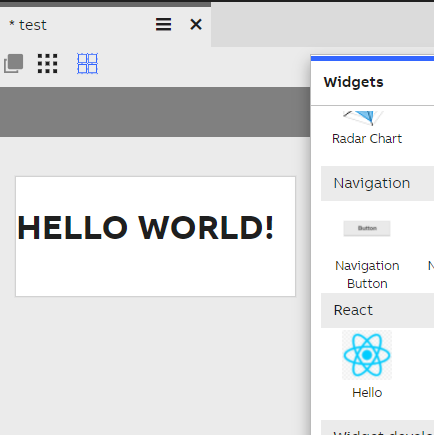
This is how the hello world widget looks like in the dashboard editor. In the mdw.json file, the icon property will be used for the widget's icon. In this example, it is a .png of of the React logo.
Defining properties
Data accessors to the RTDB database and user configuration can be added using View properties. The React-View Integration will take care of listening to changes in these properties, and re-render your component with the latest values.
Note that data accessors will have separate listeners which will be explained later.
As an example, let's take a widget that has some text content and an item that we want as properties.
They will be provided to the React component as props:
// Widget.jsx
import React from 'react';

export default class Widget extends React.Component {
  render() {
    const { content, item } = this.props;
    // rest of render...
  }
}
For the connection to work the properties must be added to the call of createWidgetFrom:
import createWidgetFrom from 'react-view-widget';
import Widget from './Widget';

const properties = [
  {
    Name: 'content',
    Type: globalThis.ABB.Mia.cPropertyType.Text,
    Description: 'Text content',
    DefaultValue: '',
    IsBrowsable: true,
    IsSerializable: true,
  },
  {
    Name: 'item',
    Type: globalThis.ABB.Mia.cPropertyType.Component,
    ComponentType: 'MyCompany.Components.cItem',
    Description: 'bg color',
    DefaultValue: globalThis.MyCompany.Components.cItem(),
    IsBrowsable: true,
    IsSerializable: true,
    IsNullable: false,
  },
];

createWidgetFrom(Widget, properties, 'MyCompany.Widgets.Widget');
Build
The build process requires these three steps:
- Build your code into .js (and .css) files that can be run by the browser
- Create a Module Definition file for your widget
- Place the files from steps 1 and 2 into a place where the View framework can find them
Part 1: Build the code
To transpile the code for the browser you can use whatever tooling you like. If possible, it is recommended that you output a small number of files with fixed names, since their paths have to be written into the json file in the next step. If this is not possible (if, for example, you are using create-react-app and don't want to eject), you can use the helper script provided to avoid manual copying of output filepaths. See Using the helper script for more information.
Part 2: Module definition file
For the widget to work, you have to create a module definition file (the provided script can be used to create a template). The file contains some metadata about the widget, most importantly the class, the source files, and settings to enable users to see and use the widget. Check out the documentation of View's module definition for more details.
Here is an example of a module definition file for a widget created with create-react-app:
{
  "Name":"Example Widget",
  "Category":"Custom Widgets",
  "Icon": "widget-icon.png",
  "Class":"MyCompany.Widgets.Widget",
  "IsBrowsable":true,
  "IsSerializable": true,
  "SlowLoad":true,
  "Dependencies":["src/widgetbase/widgetbase.mdw.json"],
  "Sources":[
  	"$/bundle.js"
  ]
}
The following configuration is required for your widget to work:
- Name the file with the file ending
.mdw.json - The
Classfield must be the same string that you passed to thecreateWidgetFromfunction - The
Dependenciesfield must be defined, and must include the path of the widget base module"src/widgetbase/widgetbase.mdw.json"extension - All your compiled .css and .js files must be listed in the
Sourcesfield. The special syntax$/points to the containing directory of the module definition file. The source files are loaded sequentially in the order they appear on the list. - If you want your users to use the widget in the GUI editor, the
IsBrowsableoption must the set to true. - If you want your users to be able to save configuration or data of the widget, the
IsSerializablefield must be set to true. - You may have to set
SlowLoadto true. It will load the files one by one, and is sometimes required.
Other useful fields:
- The
Namefield specifies the name of the widget shown to the user. - The
Categoryis an optional field that makes widgets easier to find in View's editor. - The
Iconfield provides a path to an image file that will be shown in View's editor. It is recommended you place the image file in the same folder as the module definition file.
Part 3: Place/Copy the files in the right place
Now that you have all the files ready, it is time to make sure View can find them.
In your View installation, find the widgets folder. Create a new folder underneath it for your widget, for example example-widget. Put all the build output files and the module definition file in this folder.
Make sure the the source paths are correct. For example, you may have the following directory structure:
example-widget
├── build
│ ├── main.js
│ └── styles.css
└── widget.mdw.json
The correct paths for sources in this setup are "$/build/main.js" and "$/build/styles.css".
Using the helper script
This is an optional step.
The build-mdw script provided with the react-view-widget package will update the sources in you .mdw.json file. If an earlier file exists, the script will only overwrite the Sources field, and leave the rest as is. This script is useful if you have many output files, or the names of output files change,
for example when using create-react-app.
The script takes two parameters, the name of the module definition file, and the name of the build directory.
For example with create-react-app, add the script to your build step in package.json:
{
  "scripts": {
    "build": "react-scripts build && build-mdw widget.mdw.json ./build"
  }
}
The build-mdw script will create a template for the module definition file if it does not exist. You can use this to quickly setup the module definition by running build-mdw <widget-file-name> <build directory>, and setting the correct values for some fields like the name and class manually.
Working with common View features
Using Context
To use View's context, add a method called widgetWillReceiveContext to your top level React component:
export default class Widget extends React.Component {

  widgetWillReceiveContext(ctx) {
    // use the context object ctx
  }

  render() {
    // rendering...
  }
}
Note that when using this method, you have to check if this context is relevant to your widget.
Using data accessors
Access to the RTDB database goes through database accessors from the View framework. The following example uses a cSingleValueItem which has been added to the widget's properties. To respond to new data values, you must setup the proper listeners to the value accessor. Since the property containing the value accessor (in this case item) may change, (usually the property is given a default value which is later overridden) you should put code to reset the listeners in, for example, componentDidUpdate. Here's an example that sets the listeners, and also cleans up the listener on unmount:
import './index.css';
import Gauge from './Gauge';
import createWidgetFrom from '@abb/react-view-widget';
import reportWebVitals from './reportWebVitals';

globalThis.MyWidgets = globalThis.MyWidgets ? globalThis.MyWidgets : {};
globalThis.MyWidgets.cGaugeItem = function (config) {
	const pub = globalThis.ABB.Mia.cSingleValueItemBase(config);

	pub.base.ReadProperties(config);

	pub.AddContextHandler(ctx => {
		pub.GetValueAccessor().FireContext(ctx);
	})

	return pub;
}
globalThis.ABB.Mia.Components.Add("MyWidgets.cGaugeItem", globalThis.ABB.Mia.cSingleValueItemBase);

const properties = [
	{
		Name: 'Item',
		Type: globalThis.ABB.Mia.cPropertyType.Component,
		ComponentType: 'MyWidgets.cGaugeItem',
		Description: 'bg color',
		DefaultValue: globalThis.MyWidgets.cGaugeItem(), // TODO: ask Tomi about config
		IsBrowsable: true,
		IsSerializable: true,
		IsNullable: false,
	},
	{
		Name: 'Color',
		Type: globalThis.ABB.Mia.cPropertyType.Color,
		Description: 'bg color',
		DefaultValue: 'teal',
		IsBrowsable: true,
		IsSerializable: true,
	},
	{
		Name: 'Min',
		Type: globalThis.ABB.Mia.cPropertyType.Number,
		Description: 'minimum value',
		DefaultValue: null,
		IsBrowsable: true,
		IsSerializable: true,
	},
	{
		Name: 'Max',
		Type: globalThis.ABB.Mia.cPropertyType.Number,
		Description: 'maximum value',
		DefaultValue: null,
		IsBrowsable: true,
		IsSerializable: true,
	},
];

createWidgetFrom(Gauge, properties, "Widgets.Gauge");

// If you want to start measuring performance in your app, pass a function
// to log results (for example: reportWebVitals(console.log))
// or send to an analytics endpoint. Learn more: https://bit.ly/CRA-vitals
reportWebVitals();
import React from 'react';
export default class Gauge extends React.Component {
constructor(props) {
super(props);
this.state = {
// listenerSet: false,
value: -1,
};
this.canvasRef = React.createRef();
try {
const accessor = props.Item.GetValueAccessor();
accessor.AddChangedListener(() => {
console.debug('value changed (react 2)');
this.setState({ value: accessor.GetValueRecord().GetRawValue() });
});
console.debug('succeeded to setup listener')
// this.setState({ listenerSet: true });
} catch (e) {
console.debug('failed to setup listener', e);
}
}
drawCanvas(ctx, container) {
let { Color, Min, Max, Item } = this.props;
const valStr = (''+this.state.value).slice(0, 4)+' %';
if (!Item) {
return <div>loading...</div>;
}
const accessor = Item.GetValueAccessor();
Min = Math.max(Min || accessor.GetMinimumValue(), accessor.GetMinimumValue());
Max = Math.min(Max || accessor.GetMaximumValue(), accessor.GetMaximumValue());
// DRAW
const { Width: width, Height: height } = container;
const pad = 10;
const w = width - pad*2;
const h = height - pad*2;
//ctx.strokeStyle = '#ff0000';
ctx.clearRect(0, 0, width, height);
const val = this.state.value;
const barw = (val - Min) / (Max - Min)
ctx.fillStyle = '#dedede';
ctx.fillRect(pad, h*0.42, w, h*0.15);
ctx.fillStyle = Color;
ctx.fillRect(pad, h*0.42, barw * w, h*0.15);
// ctx.strokeRect(pad, pad, w, h);
ctx.fillStyle = '#010101'
ctx.font = '12px sans-serif';
ctx.fillText(Min, pad-4, h*0.4);
ctx.fillText(Max, width-pad-16, h*0.4);
ctx.font = 'bold 16px sans-serif';
ctx.fillText(valStr, w/2-28, h*(0.42 + 0.075) + 6);
}
componentDidUpdate(prevProps) {
if (this.canvasRef && this.canvasRef.current) {
const canvas = this.canvasRef.current;
canvas.width = this.props.Container.GetBounds().Width;
canvas.height = this.props.Container.GetBounds().Height;
const ctx = canvas.getContext('2d');
this.drawCanvas(ctx, this.props.Container.GetBounds());
}
if (prevProps.Item === this.props.Item) {
return;
}
if (!this.props.Item) {
return;
}
// if the item changes, add listeners to the new one as well
const accessor = this.props.Item.GetValueAccessor();
accessor.AddChangedListener(() => {
this.setState({ value: accessor.GetValueRecord().GetRawValue() });
});
}
componentWillUnmount() {
console.debug("Will unmount called!");
// Remove listeners of accessors
}
widgetWillReceiveContext(ctx) {
console.debug('Received context from within React component', ctx);
}
render() {
const style = {
color: 'white',
textAlign: 'center',
width: '100%',
height: '100%',
boxSizing: 'border-box',
border: '2px solid red',
// backgroundColor: Color,
};
return (
<div style={style}>
<canvas ref={this.canvasRef} />
</div>
);
}
}{
"Name":"Gauge",
"Category":"Custom Widgets",
"Icon": "widget-icon.png",
"Class":"Widgets.Gauge",
"IsBrowsable":true,
"IsSerializable": true,
"SlowLoad":true,
"Dependencies":["src/widgetbase/widgetbase.mdw.json"],
"Sources":[
"$/bundle.js"
]
}Updated 5 months ago