
Part 4 - User Interface
This article is part of the Batch Job example
Lastly, to implement user interface to industrial application or solution, we will use our web browser tool View to create desktop like dashboards for monitoring our batch production system.
Creating a new dashboard
First, we navigate to the dashboard editor. It can be reached at https://{your History url}/view.
Next, we can open the TreeNode and add new dashboard(s) to selected folder. This can be done with right-click and from opening pop-up menu choose New -> Dashboard. For our example we will create four different dashboards explained below.
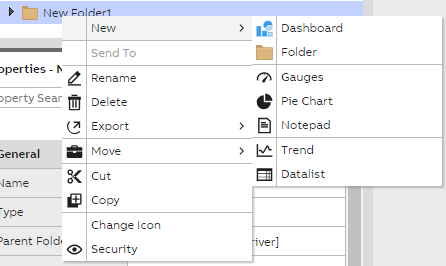
Creating new dashboard or other displays
Creating and modifying dashboard can be done in the edit mode and our widget library may be found by pressing the two square symbol in the toolbar menu. Widget menu shows all available widgets we can use and combine to build custom made monitors. More information on standard widgets may be found here.
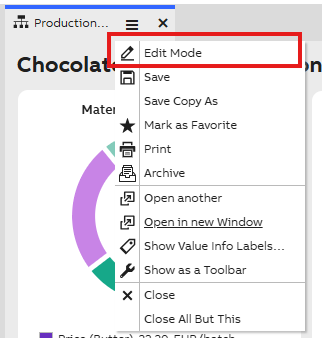
Dashboard settings menu
We highly recommend spending time testing the pinning and anchoring of widgets for best scaling results. This is especially important when building a dashboard with multiple widgets that might overlap when screen size changes.
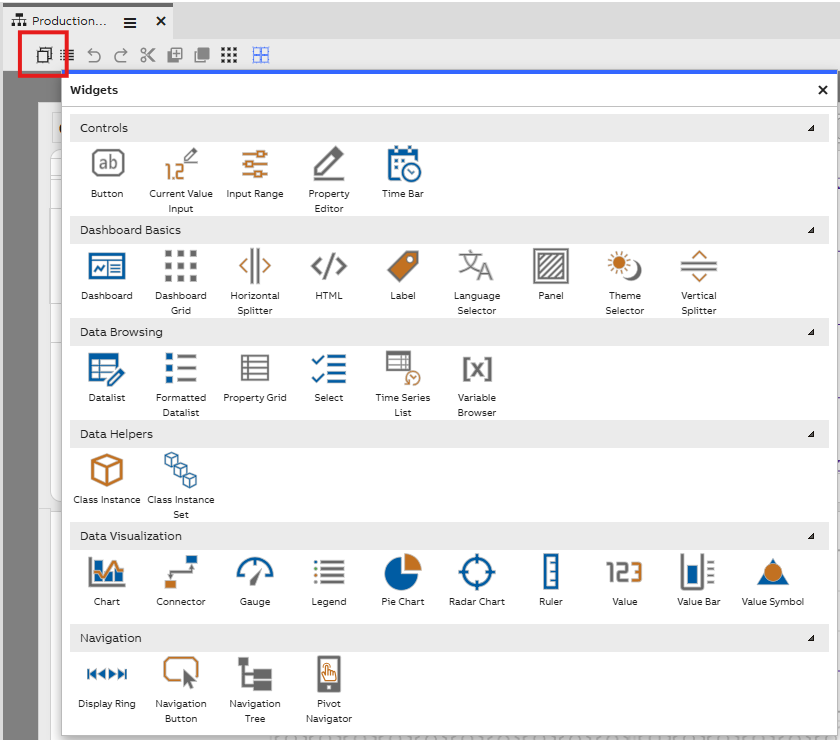
Widget library
Cookie Production Line Example
For our Cookie Production Line we created four monitors:
- **Production monitor: **Allows us to monitor key factors in our production line.
- Daily production report: Allows us to monitor production line batches within 1 day.
- Production tracking monitor: Allows us to trace key values of our production line based on batch id.
Production monitor
The picture below shows our chocolate cookie line monitor that gives us an overview of main production line features.
The main values we follow on this monitor are;
- Production time (runs from 0 to 36 minutes).
- Material amounts per ingredient.
- Material prices per ingredient and overall price per one batch.
- Batch ID and Pallet ID.
- Temperature charts (Mixer, Oven, Packager).
- Number of bags and cookies in bag (counters).
- Cooking time (seconds).
We have also included a navigation button from which we can navigate to our single batch monitor.
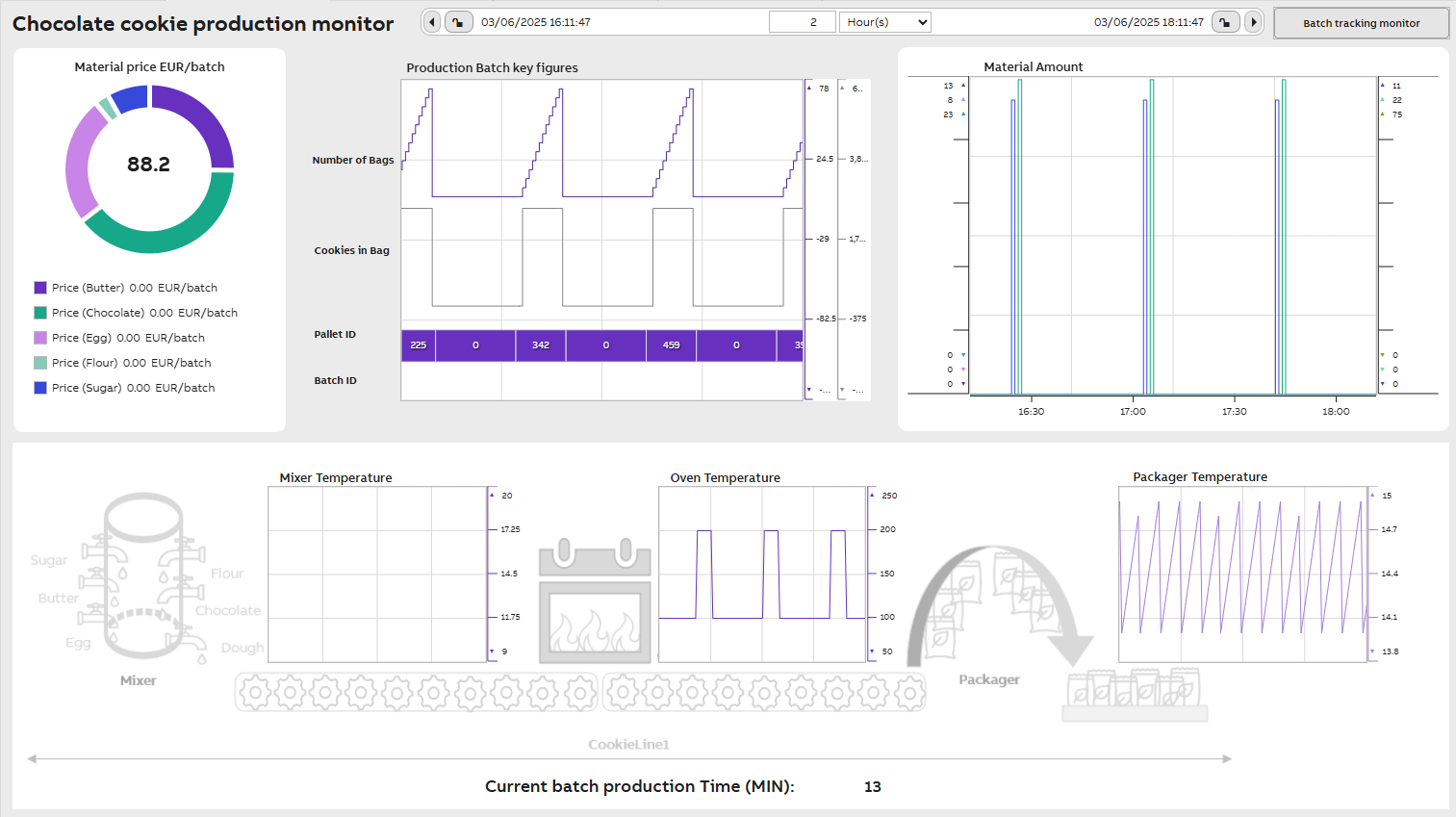
Chocolate cookie production monitor example
Widgets used in dashboard
The widgets we used here are;
- Charts: Chart widgets we use to show; material amount changes for mixer, temperature changes for mixer, oven and packager, id changes for batch and pallets as well as cookie counts for packaging. There are several options for the type of how chart data is presented. In our charts we have used; grouped columns (material amount chart), trend (temperature charts) and gantt (batch id and pallet id charts).
- Rulers: Rulers are used with charts to show the value scale on charts. Rulers may be auto-scaled or then scale can be modified manually.
- Legend: Shows the data added to the charts. Legend has fifty column settings to choose from. In our example the legend shows material names and colors used in charts.
- Pie chart and value widget: Price values are shown in pie chart and the total price is shown on separate value widget in the middle of the chart.
- Timebar: Timebar is placed on top of the display and shows given time span. The time span may be easily changed from the timebar dropdown menus shown on the bar. Timebar is attached to all our charts to show values within same time period.
- Labels: Labels include the headlines of our widgets. Fonts, backgrounds and sizes may be changed according to wishes.
*We also recommend using splitters if widget sizes need to be resizable. See further information on how to use splitters.
Daily production report
The picture below shows our daily production report monitor. With this we can audit and monitor our batch production within 1 day and detect possible abnormalities within production line.
Our daily report shows;
- Number of cookie bags produced.
- Number of pallets produced.
- Material prices and total price per day.
- Cookie batches produced with start and end time, batch id, pallet amount, total material amount, energy consumption and production quality message.
- Production alerts with event time. These include reports related to production, personnel, maintenance and quality control. Note: We are currently developing a new reporting tool and will publish it in near future. Tutorial and further information for users will be provided.
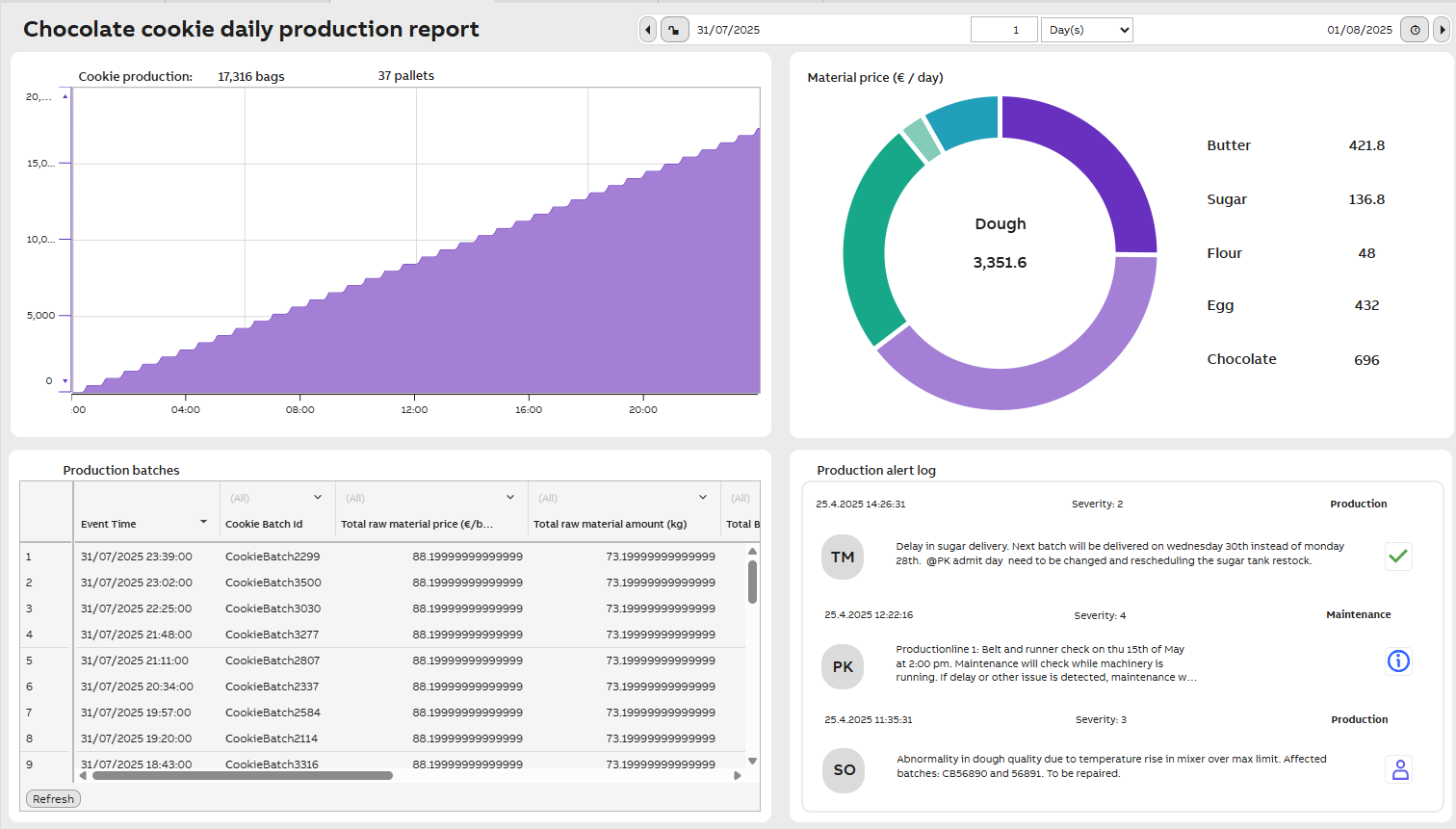
Daily production report example
Widgets used in dashboard
The widgets we used here are;
- Trend chart to show cookies produced.
- Pie chart to show material prices.
- Datalist to show production log. This allows us to get a quick overview of batch production.
- Formatted Data List to show production alerts of devices. The visible data has been modified to fit our example needs. Formatted data list visualizes data from chosen data source and appearance may be modified as wished.
- Labels to show titles and property names for charts.
- Value widgets are used to show single values for e.g. material prices. Current Values update according to our simulator calculation.
Batch tracking monitor
Most important dashboard is our batch tracking monitor that allows us to track single property value changes in our production batches.
Tutorial: We have done a separate tutorial for creating a similar tracking dashboard. Read it here.
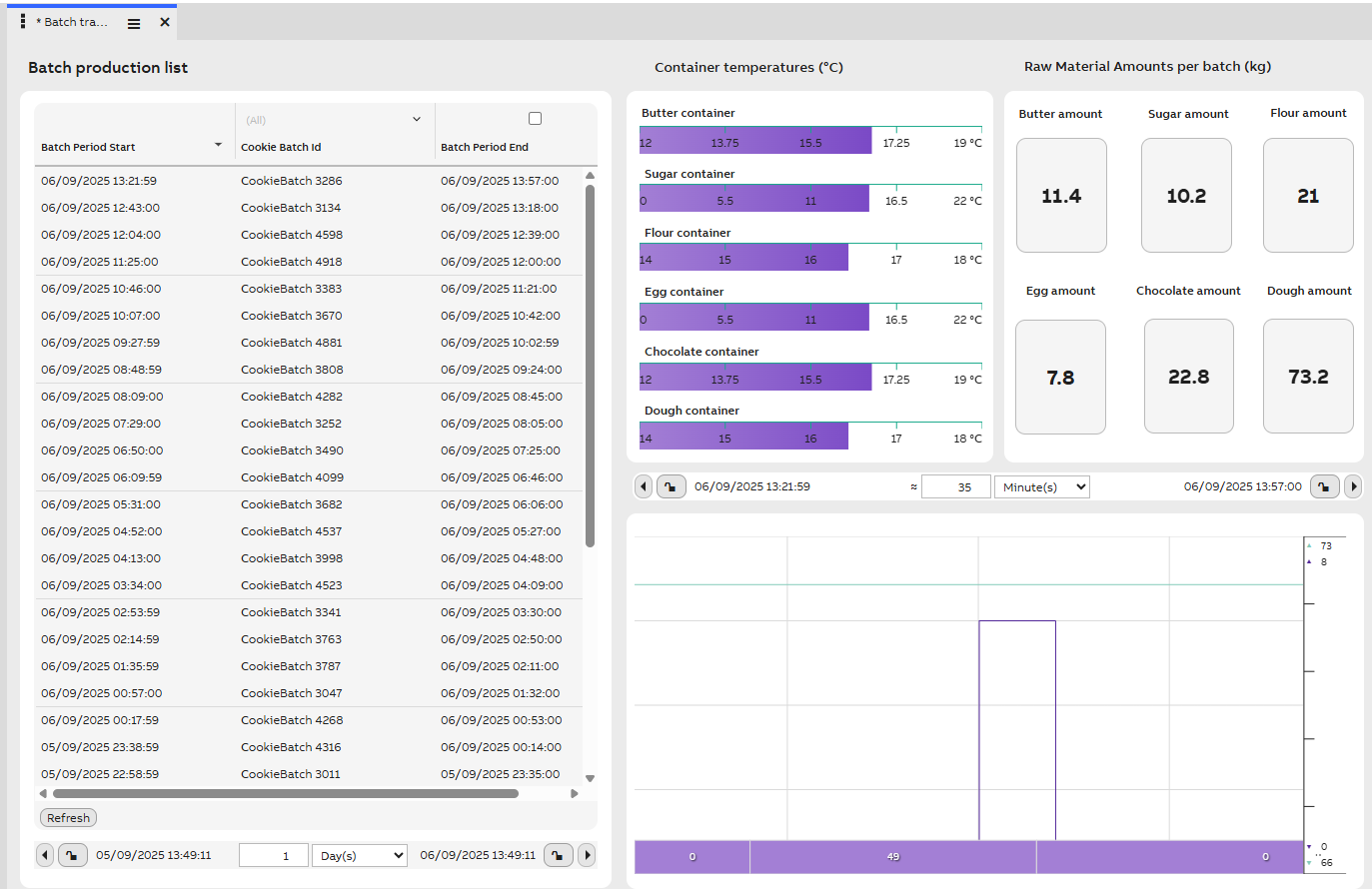
Cookie Batch monitor example
Widgets used in monitor
In this monitor we used the following widgets:
- Chart: We use two charts that shows selected data from our Equipment models.
- Ruler: We use rulers with our charts to show the number scales and time range.
- Label: Labels we use for headlines of our monitor and widgets
- Time bar: We have two time bars on the monitor. One that shows the overall time period of our monitor (placed below our datalist) and one that shows time period of each batch production. The second one is placed on top of our chart and when choosing batch id from the datalist, this time bar will show start and end times of that batch production as well as the overall production time in minutes.
- Datalist: On datalist we show batch id with start and end times.
Further information on user interface?Find user interface documentation about dashboard editor and step-by-step guide under Concept.
Find Trend display tutorial here.
Further information on most commonly used widgets you may find under Standard Widgets.
Documentation on dashboard features you may find under Dashboard features .
Updated about 7 hours ago