
Connecting To SQL DB from ABB Ability™ History
The document provides a step-by-step guide for configuring SQL Server settings to enable data access from ABB Ability™ History, including enabling authentication, creating databases and users, setting permissions, using the Praox utility, creating DSNs, and setting up UI tables and data sources for integration with ABB Ability™ History.
SQL Server side settings
Note the screen shots used in following steps are taken from SQL Server 2022 Enterprise version make corresponding changes based on the SQL Server used
Enable Windows and SQL Server Authentication

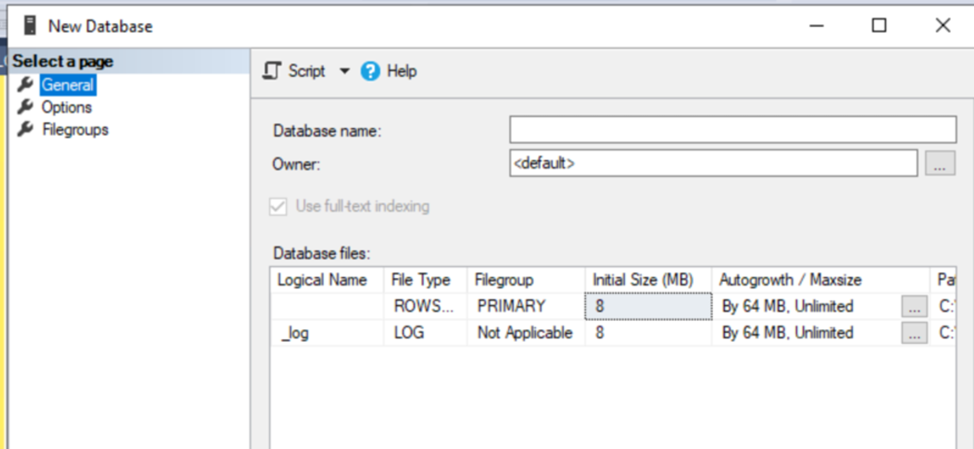
Create a new Database (if not already present)
Skip this step if you are configuring on existing database in SQL and use the same database in following steps.
Enable 'Anonymous Logon'
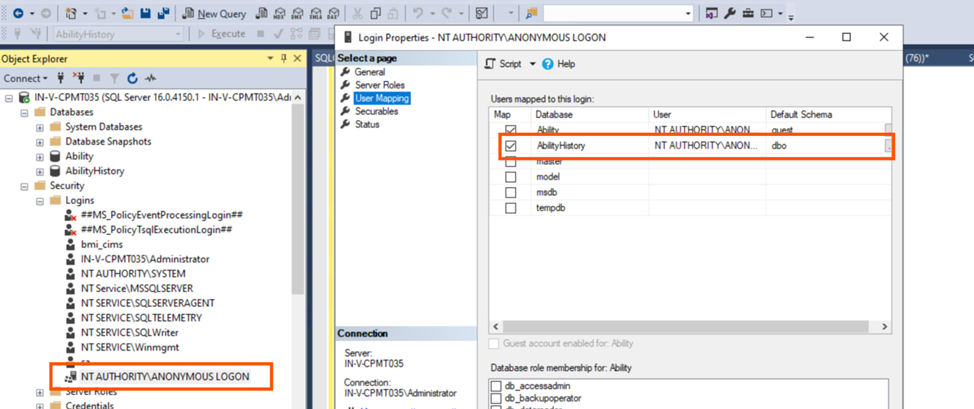
Enable 'Anonymous Logon' to Databases->Security-> Logins in Object explorer.
in properties, under user mapping select the new database and select the role [dbo]
Create SQL User
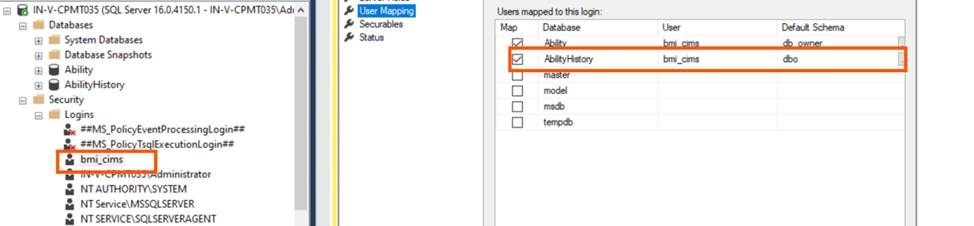
Create a dedicated user for SQL and add that also to logins
in properties, under user mapping select the new database and select the role [dbo]
Provide CRUD Permission if not already present
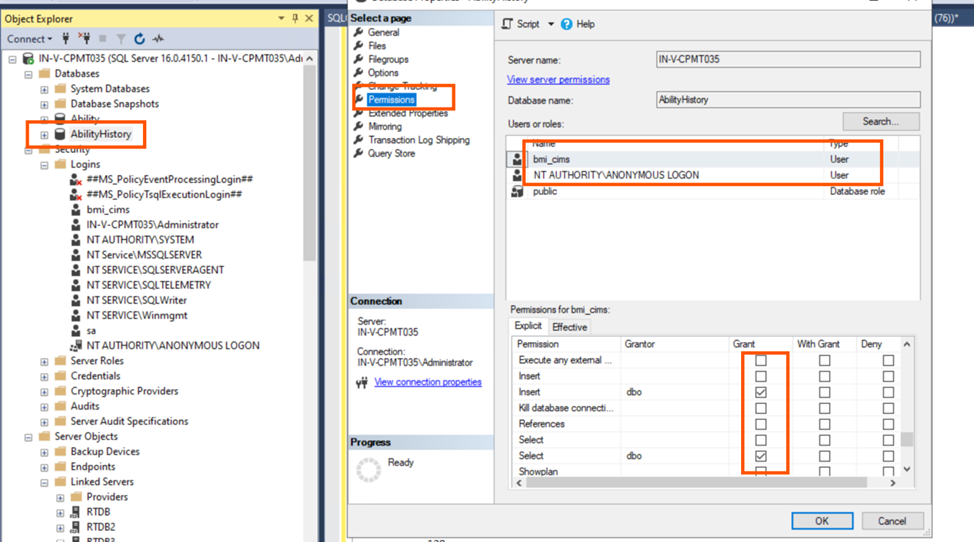
Right Click on Database open properties, Under permission provide select, update, & insert for both AnonymousLogon and the new User created in above step
Praox Utility
If SQL Server machine also have RTDB Installed, then ‘praox.exe’ is part of the installation and can use the SQLServerInit.SQL with praox utility else copy praox.exe from the RTDB machine where you are going to fetch the data from SQL Server under path C:\Program Files\ABB Oy\RTDB\Bin
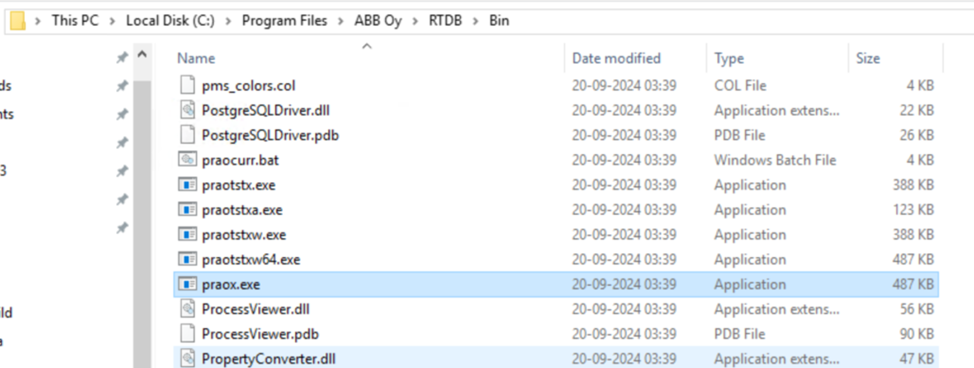
DSN Creation in SQL Server
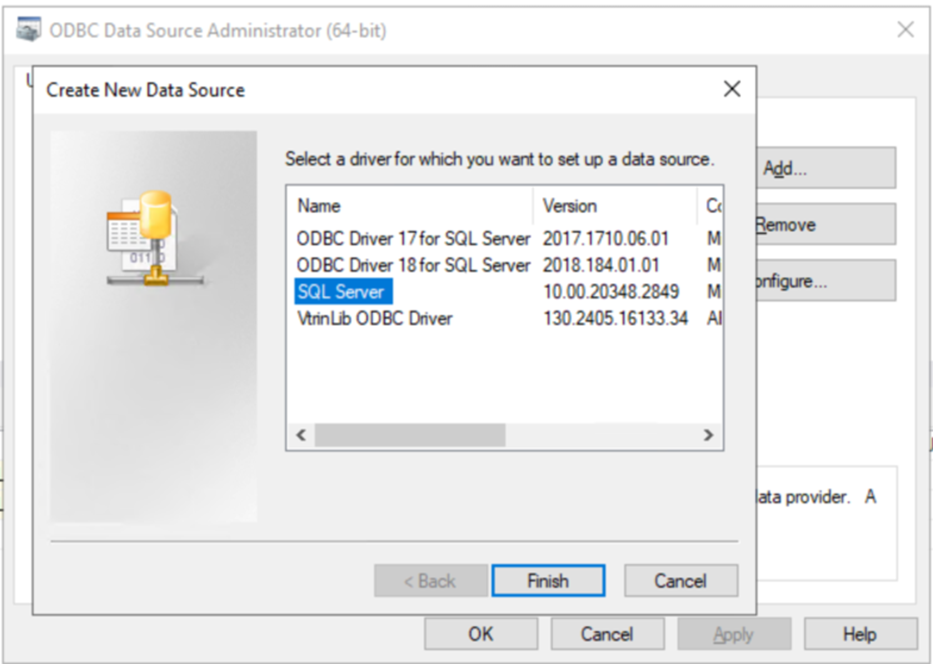
Create a new DSN using ODBC Data Source administrator tool in SQL Server which can be used to con-nect to with praox command
Select SQL Server Driver
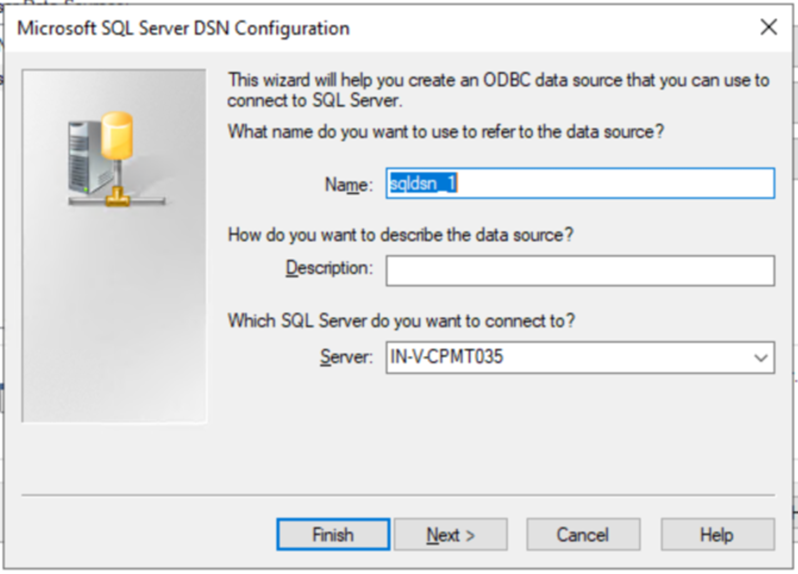
Provide a DSN Name (note this name will be used in following segment where praox is used) and click Next
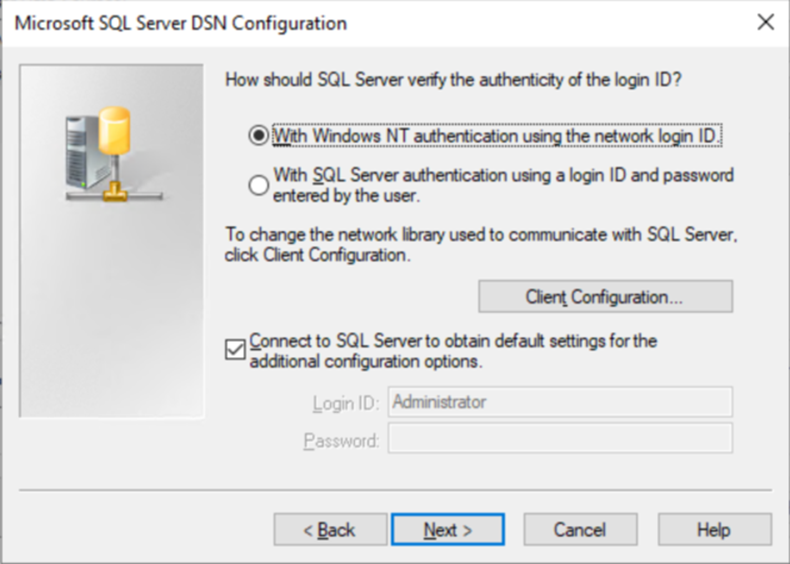
Keep default selection
Set the default database to the one which will be used to access with ABB Ability™ History Machine.
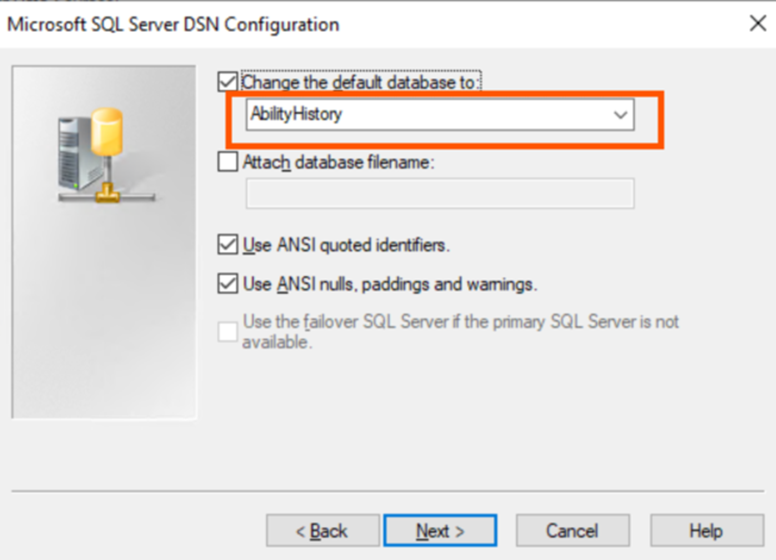
Click Finish with defaults
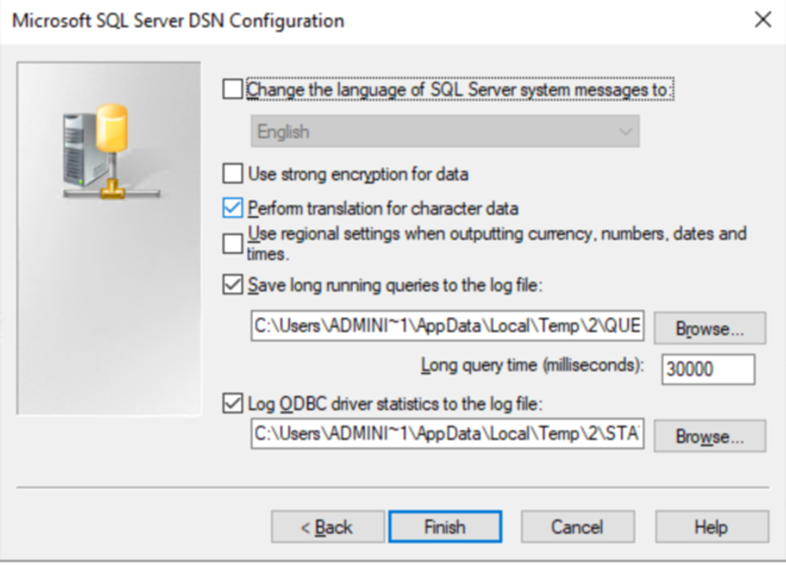
Create UI Tables
Open an Admin command window and navigate to the folder where praox.exe has been copied. Run the below command to insert the UI Tables which are required for accessing the tables from ABB Ability™ History
praox.exe <SQLDSN> -ss "%VtrinBin%\SQLServerInit.sql"
where <SQLDSN> is the name of the dsn created in previous section of this document
e.g.,
praox sqldsn_1 -ss "%VtrinBin%\SQLServerInit.sql"Note: "%VtrinBin%\SQLServerInit.sql" was not present in cpmPlus history installation before version 2025-03-19. You may be able to use a copy from here. SqlServerInit.zip instead. You can also get a copy from the separate installation package cpmPlusVtrinSQLServerDriver)
Note: if the praox command ends up to error related to parameter binding, try to append the qualifier "-opt use 8" to the praox command (for some SQL server versions that works, for some versions it works only if omitted).
After successful execution of command you can see some additional tables created in the SQL Server Database instance
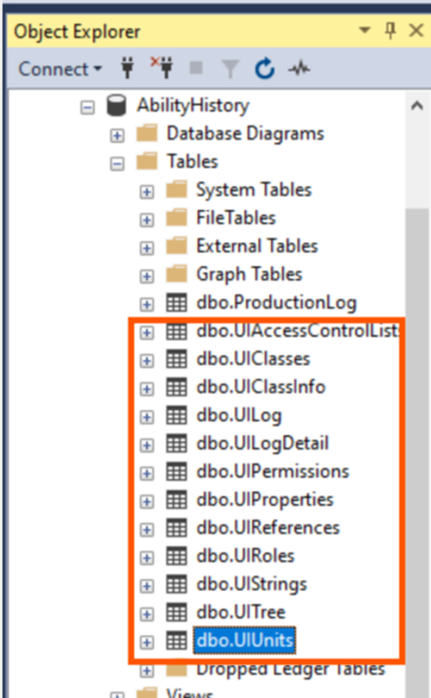
In this list UIClasses and UIClassInfo are the important tables which is required for ABB Ability™ History SQL Driver to connect to SQL Server.
UI Classes will have the table names in sql server which needs to be accessed by ABB Ability™ History
UIClassInfo will have the column details of each table.
UI Classes Entry for SQL Tables
Make corresponding entries in UI Classes and UICLassInfo of all the tables present in SQL which you want to access from ABB Ability™ History
For Example:
A table called ProductionLog is present in SQL Server with following columns
- Id (UniqueIdentifier),
- ManufacturingStation (varchar)
- ProductionDay (date),
- shiftNo (int),
- productCode (varchar),
- timeCreated (date)
and we need to access it via ABB Ability™ History then run below set of commands
Notice that for updating the SQL table from ABB Ability™ History then an Unique ID property should be present in that SQL Table
UI Class table entry for table name
INSERT INTO [UIClasses]
           ([ProductId]
           ,[ClassName]
           ,[ClassType]
           ,[MaskValue]
           ,[NonCacheable]
           ,[LogChanges]
           ,[EnableACLSecurity]
           ,[PrefetchLevel]
           ,[BaseTables]
           ,[Events]
           ,[TypeProperty]
           ,[DefaultDisplay]
           ,[Editor]
           ,[Owner]
           ,[Group]
           ,[OwnerPermissions]
           ,[GroupPermissions]
           ,[OtherPermissions]
            ,[Interfaces]
           ,[RequiredSecurityFlags]
           ,[RowModificationTime])
     VALUES
           ('VTRN'
           ,'ProductionLog'
           ,0
           ,0
           ,1
           ,1
           ,0
           ,0
           ,'ProductionLog'
           ,1
           ,NULL
           ,NULL
           ,NULL
           ,NULL
           ,NULL
           ,128
           ,128
           ,128
            ,''
           ,0
           ,GETDATE())
GO
UIClassInfo Entry for columns of the table
--ID
INSERT INTO [dbo].[UIClassInfo] ([ClassName],[PropertyIndex],[PropertyName],[TypeName],[Size],[MinValue],[MaxValue],[DefaultValue],[NullValue],[NullBehavior]
,[NoDefaultValue],[MaskRequired],[IsNullable],[IsReadOnly],[IsUnique],[IsVisibleToUserByDefault],[ReferenceTarget],[ReferenceListNonExclusive]
,[BaseTableName],[BaseColumnName],[VisibilityRequirement],[EditMasking],[Owner],[Group],[OwnerPermissions],[GroupPermissions],[OtherPermissions],[RequiredSecurityFlags])
     VALUES
('ProductionLog', 0, 'Id', '', 0, NULL, NULL, NULL, NULL, 0, 0, 0, 0, 1, 1, 0, NULL, 0, 'ProductionLog', 'Id', NULL, NULL, NULL, NULL, 127, 127, 127, 0)
GO

-- ManufacturingStation
INSERT INTO [dbo].[UIClassInfo] ([ClassName],[PropertyIndex],[PropertyName],[TypeName],[Size],[MinValue],[MaxValue],[DefaultValue],[NullValue],[NullBehavior]
,[NoDefaultValue],[MaskRequired],[IsNullable],[IsReadOnly],[IsUnique],[IsVisibleToUserByDefault],[ReferenceTarget],[ReferenceListNonExclusive]
,[BaseTableName],[BaseColumnName],[VisibilityRequirement],[EditMasking],[Owner],[Group],[OwnerPermissions],[GroupPermissions],[OtherPermissions],[RequiredSecurityFlags]
,[RowModificationTime])
     VALUES
('ProductionLog',1,'ManufacturingStation','System.String',0,NULL,NULL,NULL,NULL,0,0,0,0,0,0,1,NULL,0,'ProductionLog','ManufacturingStation',NULL,NULL,NULL,NULL,127,127,127,0,'1901-01-01 00:00:00.0000000')
GO

-- ProductionDay
INSERT INTO [dbo].[UIClassInfo] ([ClassName],[PropertyIndex],[PropertyName],[TypeName],[Size],[MinValue],[MaxValue],[DefaultValue],[NullValue],[NullBehavior]
,[NoDefaultValue],[MaskRequired],[IsNullable],[IsReadOnly],[IsUnique],[IsVisibleToUserByDefault],[ReferenceTarget],[ReferenceListNonExclusive]
,[BaseTableName],[BaseColumnName],[VisibilityRequirement],[EditMasking],[Owner],[Group],[OwnerPermissions],[GroupPermissions],[OtherPermissions],[RequiredSecurityFlags]
,[RowModificationTime])
     VALUES
('ProductionLog',2,'ProductionDay','System.DateTime',0,NULL,NULL,NULL,NULL,0,0,0,0,0,0,1,NULL,0,'ProductionLog','productionDay',NULL,NULL,NULL,NULL,127,127,127,0,'1901-01-01 00:00:00.0000000')
GO

-- shiftNo
INSERT INTO [dbo].[UIClassInfo] ([ClassName],[PropertyIndex],[PropertyName],[TypeName],[Size],[MinValue],[MaxValue],[DefaultValue],[NullValue],[NullBehavior]
,[NoDefaultValue],[MaskRequired],[IsNullable],[IsReadOnly],[IsUnique],[IsVisibleToUserByDefault],[ReferenceTarget],[ReferenceListNonExclusive]
,[BaseTableName],[BaseColumnName],[VisibilityRequirement],[EditMasking],[Owner],[Group],[OwnerPermissions],[GroupPermissions],[OtherPermissions],[RequiredSecurityFlags]
,[RowModificationTime])
     VALUES
('ProductionLog',3,'shiftNo','System.Int32',0,NULL,NULL,NULL,NULL,0,0,0,0,0,0,1,NULL,0,'ProductionLog','shiftNo',NULL,NULL,NULL,NULL,127,127,127,0,'1901-01-01 00:00:00.0000000')
GO

-- productCode
INSERT INTO [dbo].[UIClassInfo] ([ClassName],[PropertyIndex],[PropertyName],[TypeName],[Size],[MinValue],[MaxValue],[DefaultValue],[NullValue],[NullBehavior]
,[NoDefaultValue],[MaskRequired],[IsNullable],[IsReadOnly],[IsUnique],[IsVisibleToUserByDefault],[ReferenceTarget],[ReferenceListNonExclusive]
,[BaseTableName],[BaseColumnName],[VisibilityRequirement],[EditMasking],[Owner],[Group],[OwnerPermissions],[GroupPermissions],[OtherPermissions],[RequiredSecurityFlags]
,[RowModificationTime])
     VALUES
('ProductionLog',6,'productCode','System.String',0,NULL,NULL,NULL,NULL,0,0,0,0,0,0,1,NULL,0,'ProductionLog','productCode',NULL,NULL,NULL,NULL,127,127,127,0,'1901-01-01 00:00:00.0000000')
GO

-- timeCreated
INSERT INTO [dbo].[UIClassInfo] ([ClassName],[PropertyIndex],[PropertyName],[TypeName],[Size],[MinValue],[MaxValue],[DefaultValue],[NullValue],[NullBehavior]
,[NoDefaultValue],[MaskRequired],[IsNullable],[IsReadOnly],[IsUnique],[IsVisibleToUserByDefault],[ReferenceTarget],[ReferenceListNonExclusive]
,[BaseTableName],[BaseColumnName],[VisibilityRequirement],[EditMasking],[Owner],[Group],[OwnerPermissions],[GroupPermissions],[OtherPermissions],[RequiredSecurityFlags]
,[RowModificationTime])
     VALUES
('ProductionLog',9,'timeCreated','System.DateTime',0,NULL,NULL,NULL,NULL,0,0,0,0,0,0,1,NULL,0,'ProductionLog','timeCreated',NULL,NULL,NULL,NULL,127,127,127,0,'1901-01-01 00:00:00.0000000')
GO
Make sure to run above set of SQL commands for each table and its column that needed to be accessed via ABB Ability™ History
With these steps completed the data in SQL Server is ready to be accessed from ABB Ability™ History
Creating a data source in ABB Ability™ History machine.
-
Add new data source in the ABB Ability™ History View Server Config tool
-
Provide the data source name in the Uri (Uniform resource identifier) field:
Specify connection string to the SQL database. The connection string has to be supplied in the fol-lowing convention: DatabaseName@SQLServerName. The server name can be in the form of name or IP address. Care should be taken to ensure that this address is reachable from the View server. -
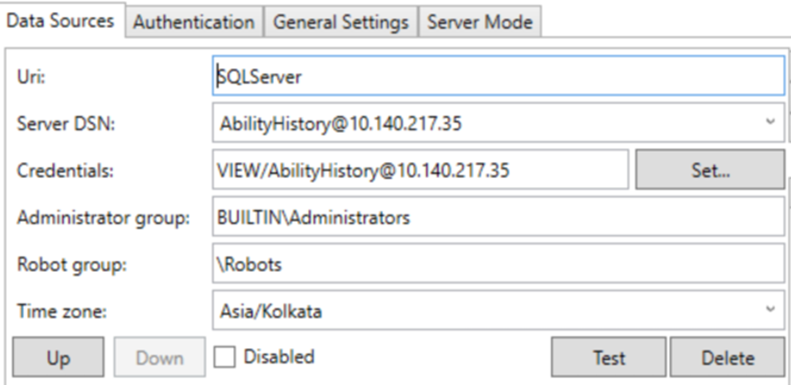
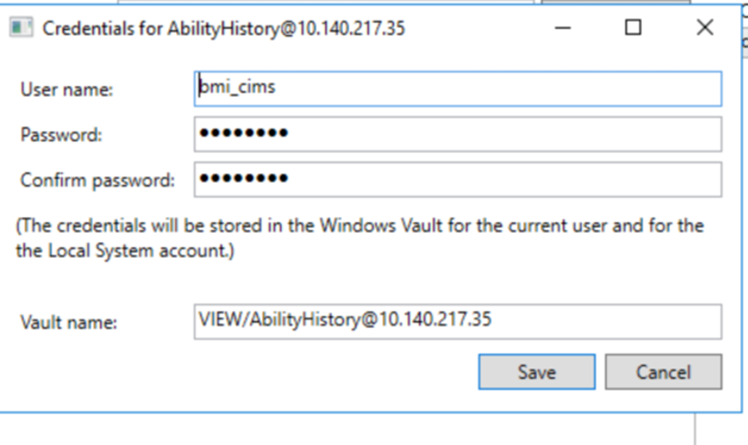
Provide SQL user credentials (with permission to read data from the database):
Accessing the tables from SQL Server in View
In a browser Launch ABB Ability™ History View from History machine connecting to local
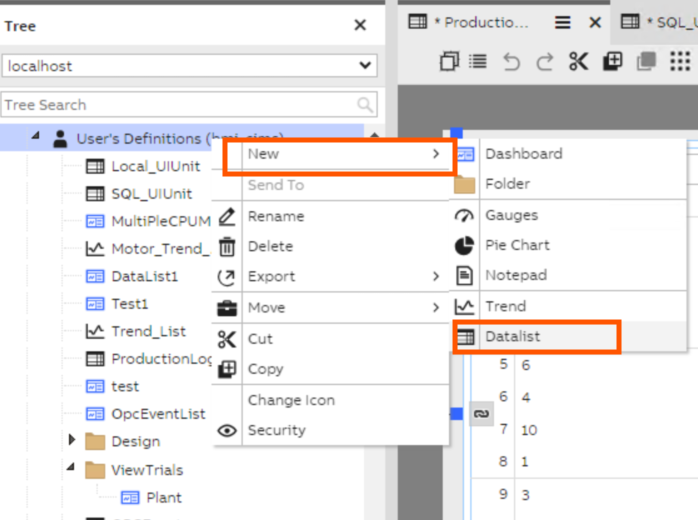
Create a new 'Datalist' Dashboard
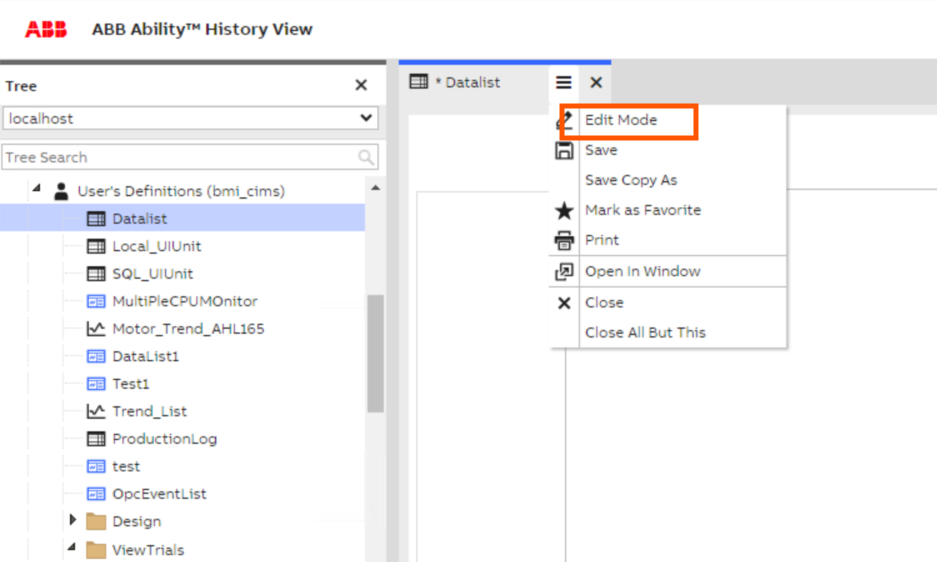
Open the newly created dashboard and enter ‘Edit Mode’
Select the Datalist widget.
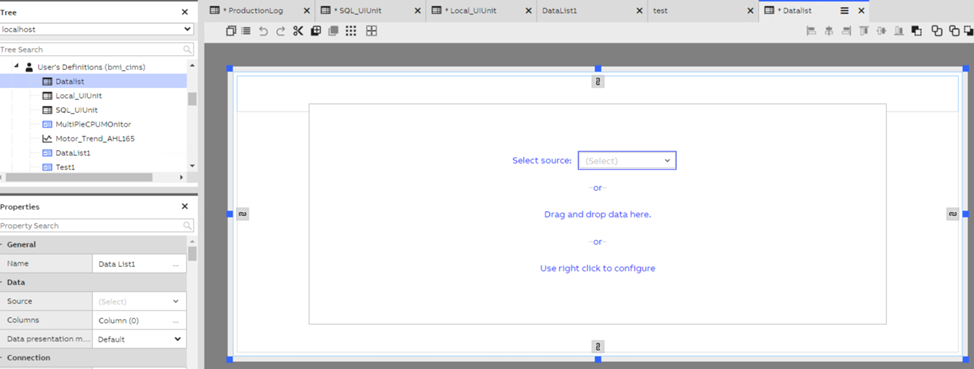
In left hand side property pane do the following changes in following order as the source list will get loaded only after the Data Source is selected
Data source – The Uri of SQL Server you created in previous Step (in this example SQLServer)
Source – The table name which is listed based on the entry in UICLasses table in SQLServer (in this ex-ample production log)
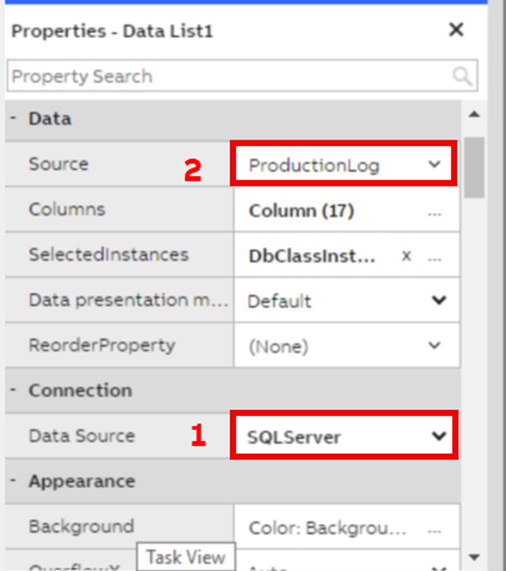
Note:- "Source" field in above screen will get populated with the table names based on the tables added to UIClasses and UIClassInfo table of SQL Server (refer above section). Any of the listed table can be selected based on the requirement
Save changes to datalist and exit edit mode by clicking "Edit Mode"
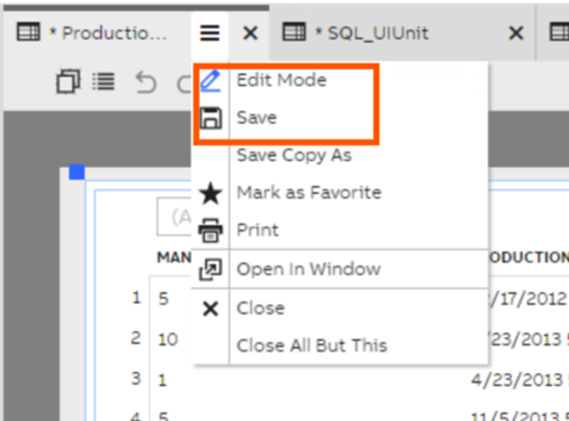
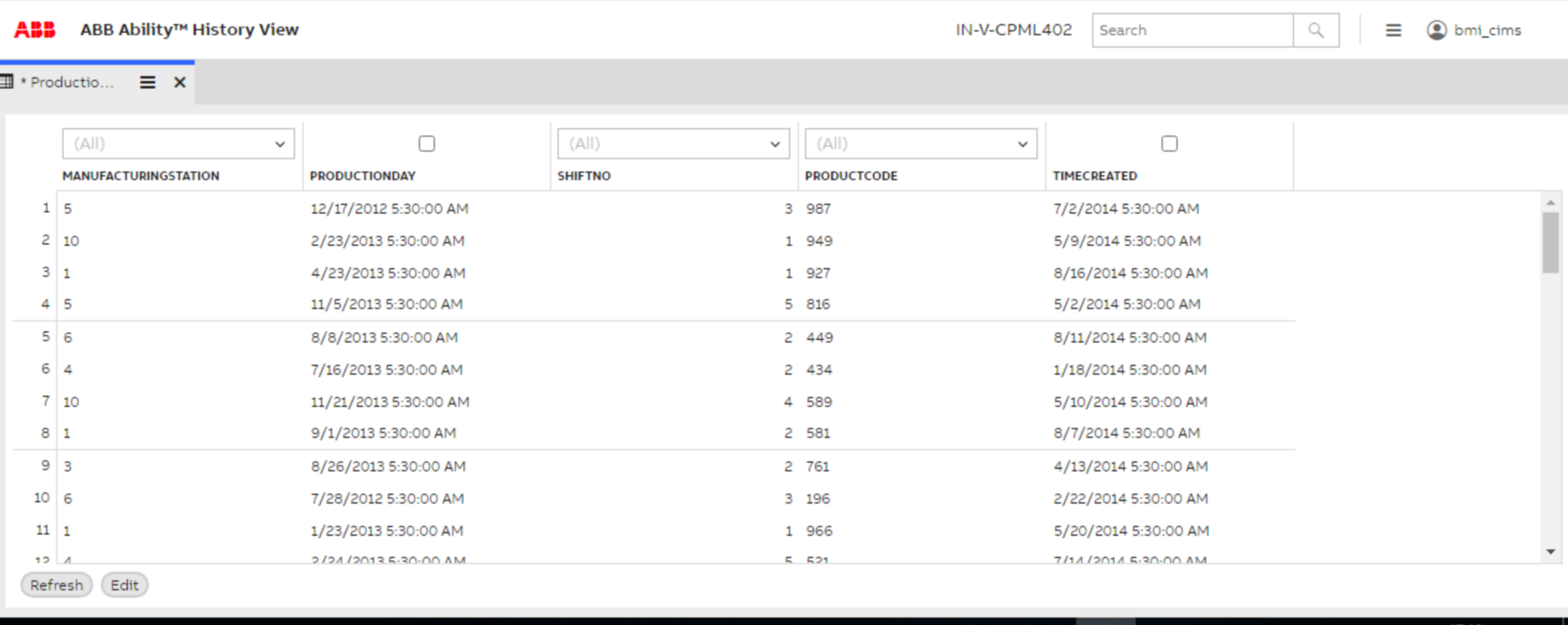
The newly saved Datalist can be launched with data from sql server. Similarly other widgets present in ABB Ability™ History View can be configured to show data from SQL Server
Updated 8 months ago