
Modbus connections - Getting started
After installing ABB Ability™ History, the Modbus master can be started by executing RTDB_EcModbusMaster using the command prompt. RTDB_EcModbusMaster cannot act as a Modbus server, but there is a small server simulator implemented for testing purposes. When RTDB_EcModbusMaster is started, it will get configuration data from the configration tables DataAccessSources, DataAccessRealTime, Tags, and SimpleConfig. Data retrieved from the Modbus servers are stored in CurrentValue and CurrentHistory tables.
To set up connections, the following requirements must be met. You must have ABB Ability™ History installed (this guide will use database path /var/lib/rtdbdata), and a running CVMC server.
Write retrieved data to tags
Step 1: Database configuration
Update below sql-script to your database manually or with command praox -constr "driver=VtrinLib ODBC Driver;Location=wss://127.0.0.1/history" -ss my_sql_script.sql.
INSERT INTO SimpleConfig(Section, "Key", Value) VALUES('RTDB-EcModbusMaster', 'DataSources', '*');
INSERT INTO SimpleConfig(Section, "Key", Value) VALUES('RTDB-EcModbusMaster', 'AppTrace', '7');
INSERT INTO Tag(ProposedName, DaFrequency, Activity, DaType, DaPath) VALUES('MODBUS_TAG1', 1000, 1, 3, 'modbus://127.0.0.1/10001/0/30022');

-- DESCRIPTIONS:

-- AppTrace:
-- Log level 7 = The trace messages contain also additional data

-- DataSources:
-- If defined, will direct the MODBUS server to get its configuration from the Tags table instead of EcCrossRefs.
-- The asterisk (‘*’) means all connections. A list of MODBUS slaves separated with ';' can also be defined. The slave notation is Node/port, for example “127.0.0.1/502”.

-- DaPath:
-- modbus:// = indicating Modbus definition.
-- 127.0.0.1 = slave location.
-- 10001     = Connect to port 10001.
-- 0         = Slave id
-- 30022     = Read the input register 30022 as a 16-bit signed integer.
Step 2: Run Modbus test server
To experiment the Modbus client, you need some Modbus server to connect to. A test server is embedded in the RTDB_EcModbusMaster executable program itself. Run the Modbus test server with the following command. This will simulate a Modbus server (slave) which listens port 10001. Flag -v stands for "verbose".
RTDB_EcModbusMaster -slavesimulator 10001 -vBy default, the simulator responds to reads by returning growing numbers in each register and alternating 0/1 values to coil values. If the Modbus client has used write function to store date, that data will be returned instead. The simulator accepts only one client connection at a time.
Step 3: Run Modbus client
Modbus client (master) can be started with the following command. The first argument is your RTDB database path.
RTDB_EcModbusMaster /var/lib/rtdbdata/Example outputs
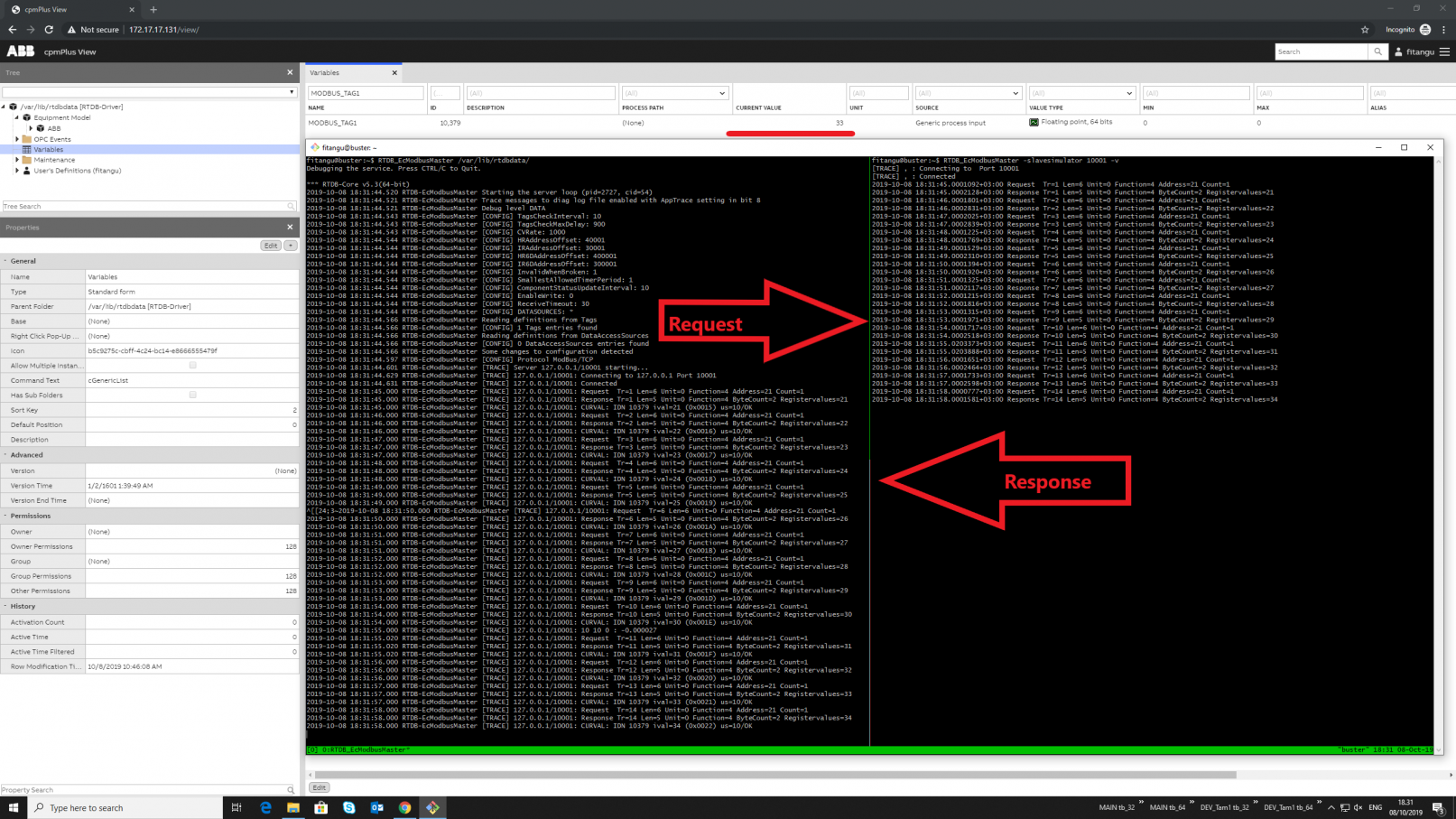
Write retrieved data to equipment model instance
RTDB database needs to be configured so that Modbus master can write data to equipment instance. After the settings are done, we can run both Modbus master and simulator. Next subsection guides how to set up the database, and sample outputs. After the configuration, running Modbus master and slave simulator can be done using a single line command. As before, there is also sample output at the end.
Step 1: Database configuration
Database configuration can be done manually using Engineering UI, or using the following script.
-- 1. Create an Equipment model
insert into Equipment(Id,Name) values('358bef76-1f2f-4c2e-8bf8-c548f9e8bead', 'modbusEModel')

-- 2. Add a property info to previous Equipment model
insert into EquipmentPropertyInfo(Equipment,Id,DisplayName,Historized,Type) values ('358bef76-1f2f-4c2e-8bf8-c548f9e8bead','15a58801-6db0-4c56-a98a-f82a4a9a1f40', 'modbus_slave_output',1,7)

-- 3. Create an instance of Equipment model.
insert into Path_modbusEModel(name) values('modbus_slave_instance')

-- 4. Specify the data access source. e.g. slave ip-address and port number
insert into DataAccessSource(TargetReference,OwnerComponent,AccessType,AccessPath) values('/Path_modbusEModel[modbus_slave_output]/modbus_slave_instance',2,0,'modbus://127.0.0.1/10001/0/30022')

-- 5. Set sampling interval in DataAccessRealTime-table.
insert into DataAccessRealTime(TargetReference, name, SamplingInterval, PublishingInterval, OwnerComponent) values('/Path_modbusEModel[modbus_slave_output]/modbus_slave_instance','Modbus Data Access Real Time','0 00:00:01', '0 00:00:01',2)
If you prefer the manual approach, here are the steps.
1. Create an equipment model

2. Add a property info to the previous model

3. Create an instance of the model
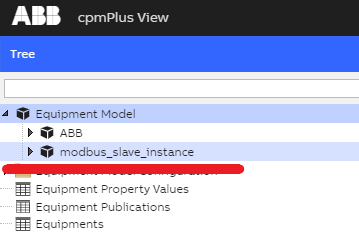
4. Specify the data access source

5. Set sampling interval in DataAccessRealTime-table

Step 2: Run Modbus server
Run Modbus server with the following command. This will summon a Modbus server (slave) which listens port 10001. Flag -v stands for "verbose".
RTDB_EcModbusMaster -slavesimulator 10001 -vStep 3: Run Modbus client
Modbus client (master) can be started with the following command. The first argument is your RTDB database path.
RTDB_EcModbusMaster /var/lib/rtdbdata/Example outputs
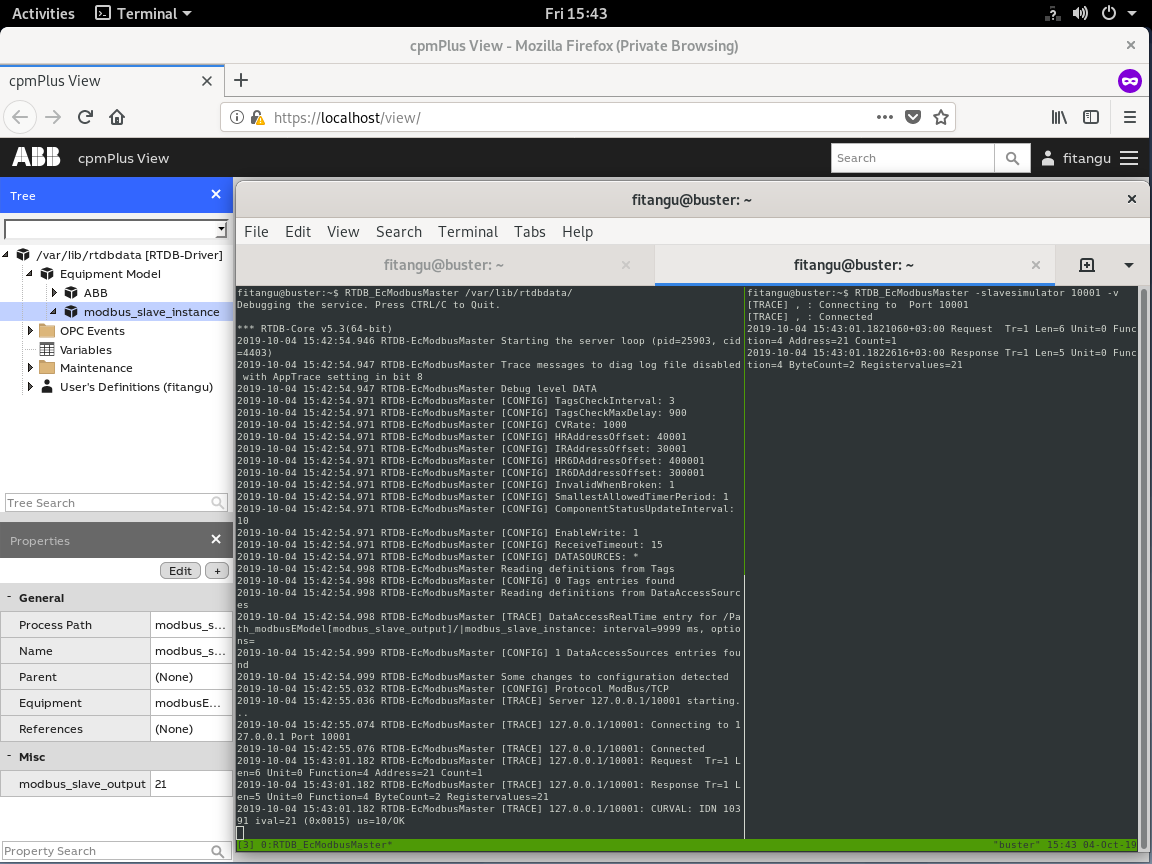
Updated 9 months ago