
How to subscribe data from an OPC UA server using EcOpcClient
Introduction
OPC Unified Architecture (UA) – a set specifications defined by the OPC Foundation. UA is the most recent version from the popular OPC industry-standard interoperability specifications. UA combines all the previous specifications under one coherent information model, and it does this by using the best cyber-security practices and cross-platform capabilities. More information about the specifications is available on the OPC Foundation’s website: http://www.opcfoundation.org.
This article will guide you through basic steps to configure a tag\EquipmentProperty to subscribe data from an OPC UA server using RTDB-EcOpcClient in ABB Ability™ History. The details of the RTDB-EcOpcClient UA capabilities is available here.
There are two ways to collect data from OPC UA Server:
- Using TagConfiguration (For variable based data collection)
- Using DataAccessSource (For Equipment based data collection)
SimpleConfig Setting for UA server connections
The general configuration settings for the RTDB OPC Client reside in the database table SimpleConfig, where SectionName is the service application name, which is RTDB-EcOpcClient. There are several keynames for RTDB-EcOpcClient and its details are described here.
In this document we will focus on value of keyname DefaultBehaviorMask.
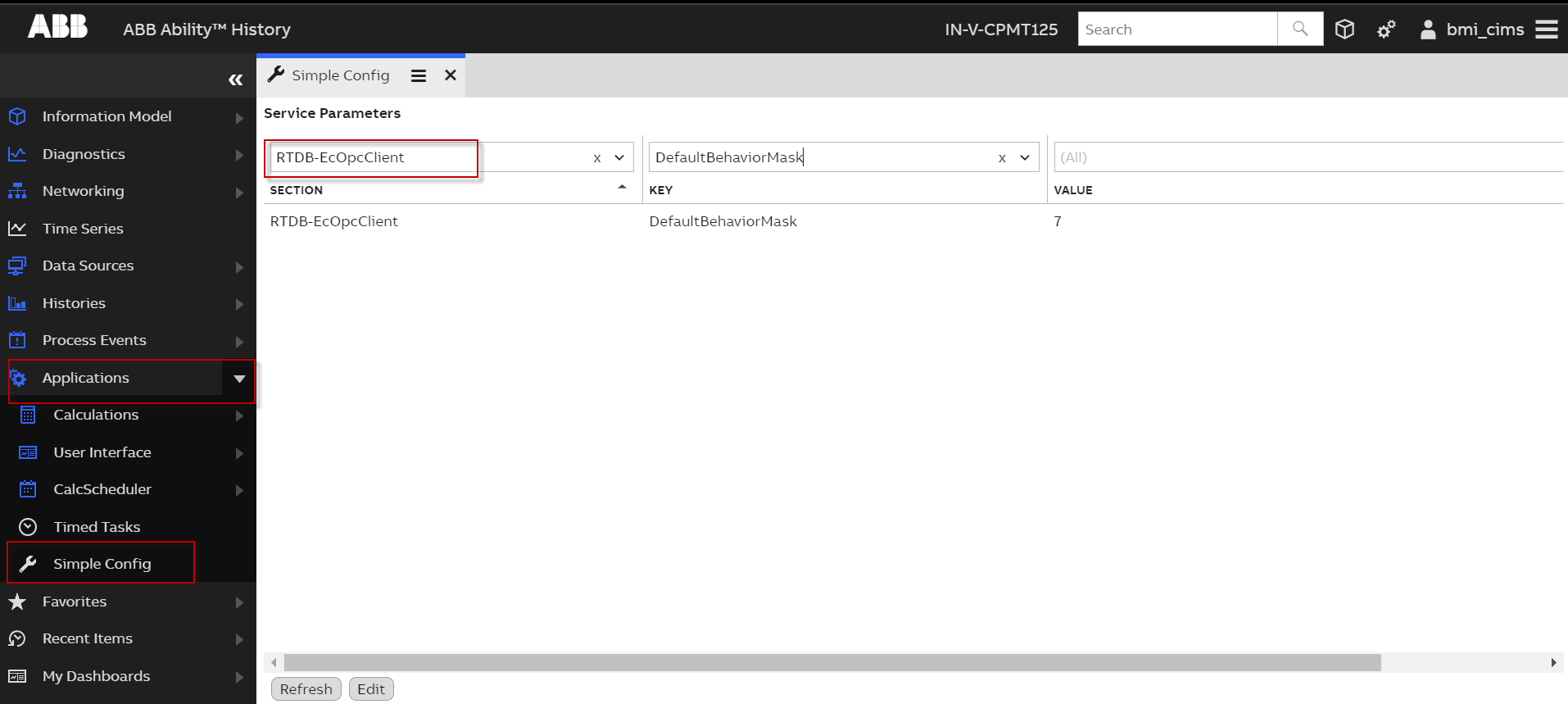
fig (1) - By default the value for DefaultBehaviorMask is '7' which will use 'None' Security of the UA server
The behavior of EcOpcClient can changed to use 'Auto' instead of 'None' or to make the UaCertificate to download by providing corresponding values for the key 'DefaultBehaviorMask'.
| Value | Description |
|---|---|
| 7 | (Default Value) This setting uses the 'None' Security to connect to the UA server. (if UA server supports 'None' security) |
| 15 | The default UaMessageSecurityMode is 'Auto' instead of None. This setting will auto approve the UA server certificate and Add corresponding UA server based entries to simple config table once the communication to the UA server is triggered |
| 31 | Makes the UaServerCertificateToDownloadFolder=1 setting. Which means that the UA server certificate will be stored to 'RTDBOpcUaClient_downloads' store in windows certificate manager, the user can then accept the certificate by moving the certificate to 'RTDBOpcUaClient' store in windows certificate manager. |
After making the above simple config entry, you are good to go and create a tag for variable based data collection or you can configure Data access source for equipment based configuration which are described in below sections
Configuring User Credential to Access UA Server with User Based Authentication
In some cases the UA Server doesn't support Anonymous authentication and require to use user based authentication. To access those servers via RTDB-EcOpcClient some simple config entries needs to be made, below is the steps to add the credential details of the UA server in simple config.
-
As a first step encrypt the password used in sever using the below command in the machine where the simple config entry needs to be configured.
rtdb_ecgentest -p1 <mypassword> 15

Where,
<mypassword> is the actual password of the user used in UA server

e.g.,
rtdb_ecgentest -p1 MyPa55w0rd 15
This command will encrypt the password with hex-string and will display, copy and keep it safe as its needed in the second step.

Password Encryption.
-
Create the credential vault entry with following command. When prompted for password make sure to paste the hex-string created in previous step.
CmdKey /generic:RTDB_EcOpcClient/SID_port /user:<username> /pass

Where,
RTDB_EcOpcClient/SID_port is the credential vault name which EcOpcClient can access & SID_port is the SID string of the connection and its port.
<username>  is the username used to access the UA Server.

e.g.,
CmdKey /generic:RTDB_EcOpcClient/IN-V-CPMT001_4841 /user:Administrator /pass
Vault Entry
-
Now run below command to make simple config entry.
praox %APP_Core_DSN% -sql "insert into SimpleConfig(SectionName, KeyName, StrValue) values('RTDB-EcOpcClient', 'SID_<RemoteServerName_Port>', 'CredMode=1')"

/* Make sure to replace the 'SID_<RemoteServerName_port>' with the SID string of the connection and port. Note that this should match with the SID_port of Vault entry created in previous step. (Refer below example).*/

praox %APP_Core_DSN% -sql "insert into SimpleConfig(SectionName, KeyName, StrValue) values('RTDB-EcOpcClient', 'SID_IN-V-CPMT001_4841', 'CredMode=1')"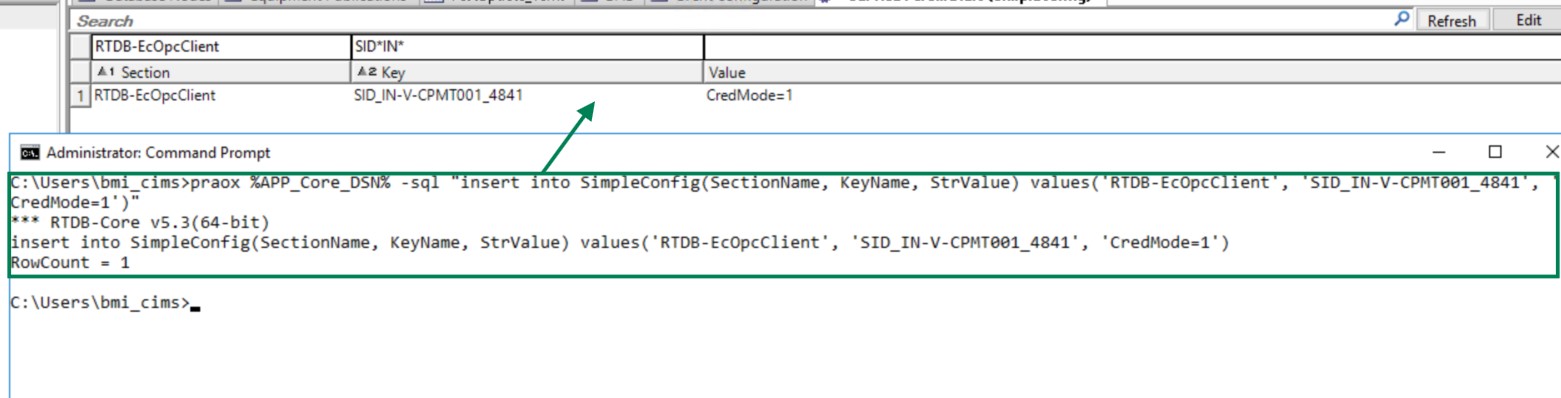
Simpleconfig Entry
Variable based data collection
- Create a tag from Tag Configurations list under Data sources from start page of EngUI , which will open tag configurations list
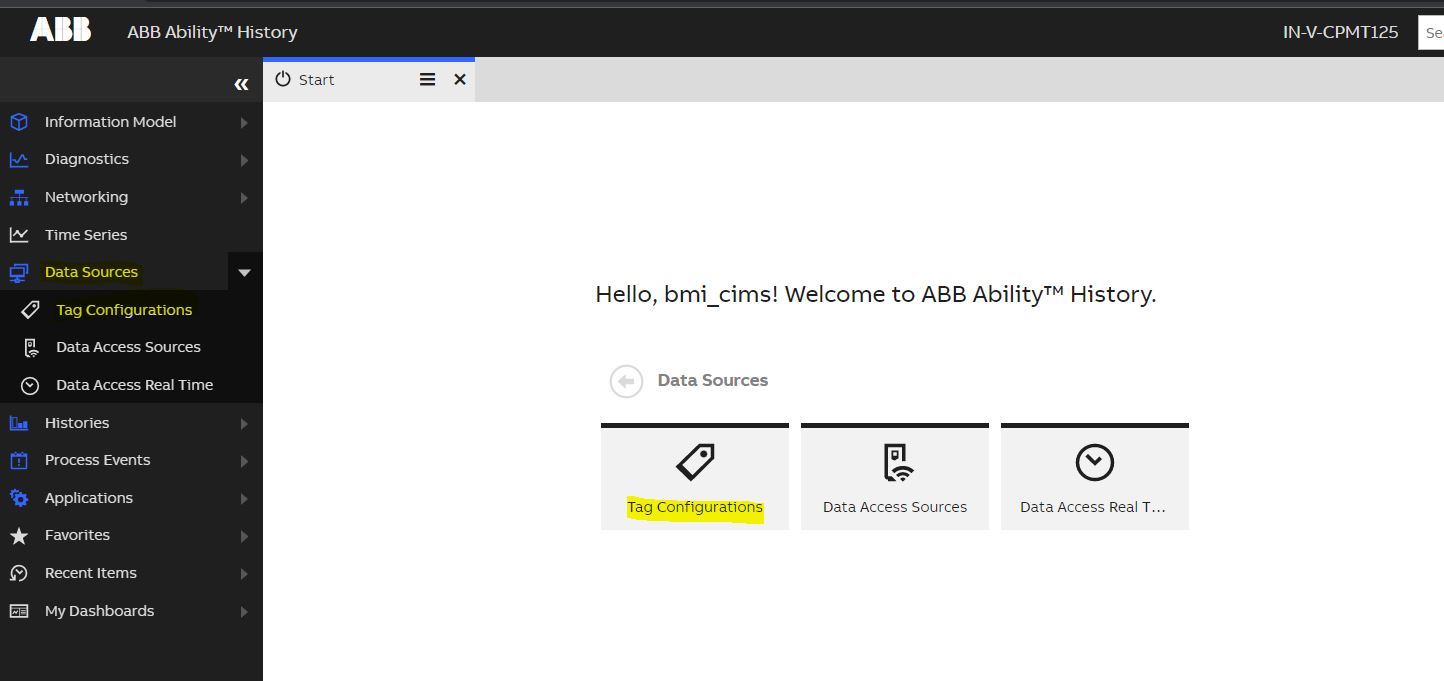
fig (2) - Tag configurations
- In Tag configuration list, click on edit button and click on new which will create a new entry in tag list
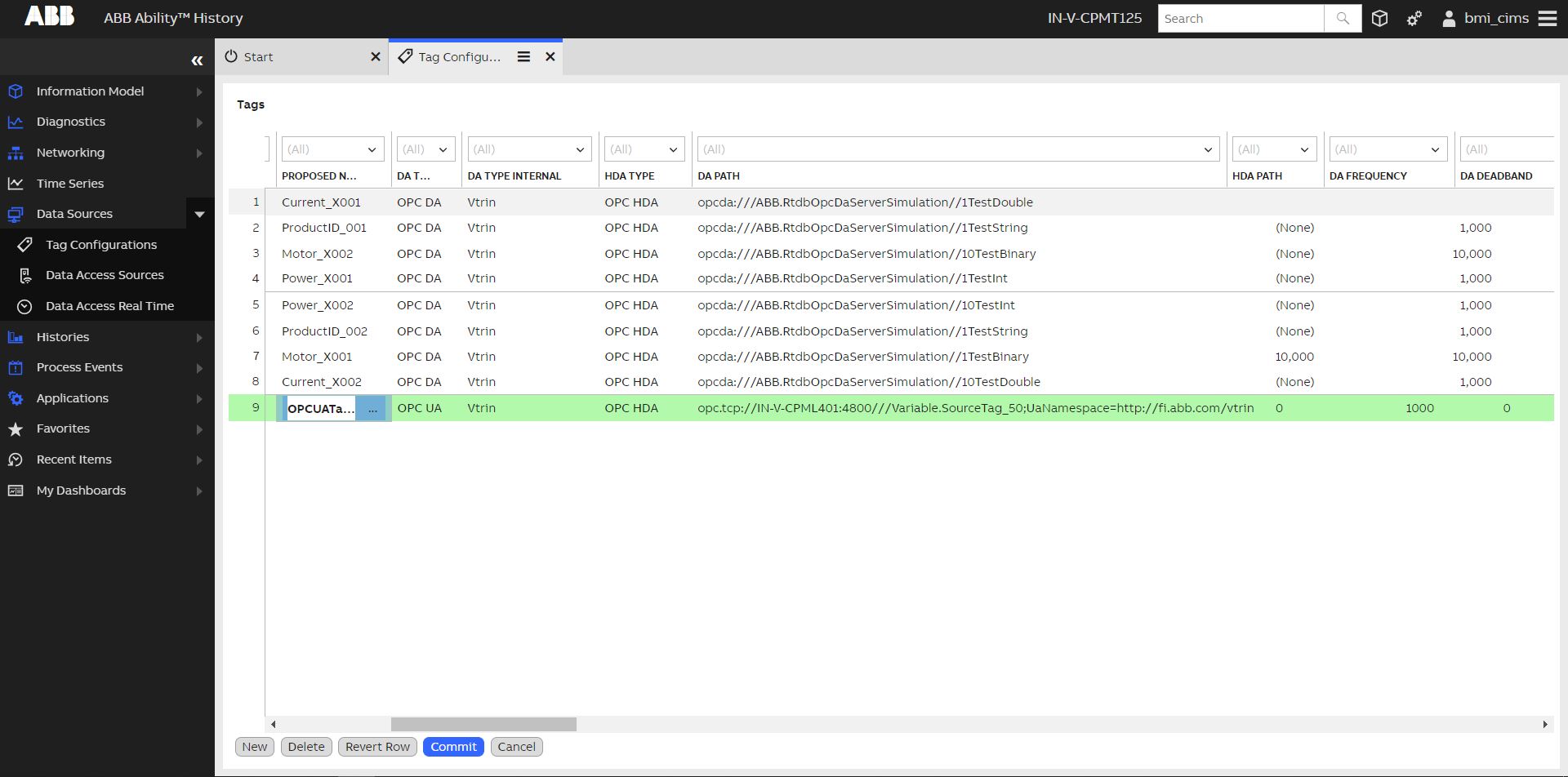
fig (3) - Create New Tag
- To create a tag and collect data it requires a bare minimal fields to have a valid value in tag configuration list. Below are the minimum required fields which needs to have a valid value to collect data.
Field Name | Details |
|---|---|
Proposed Name (mandatory field) | This is a mandatory field to create an entry in to the list |
DA Type | This specifies Protocol & Client which will be used to collect data. In this case the user needs to select "OPC UA" which will use UA protocol and RTDB-EcOpcClient |
DA Path | A valid path from which the data is subscribed. for OPC UA based the syntax should be opc.tcp://ip:port///value;UaIdType=;UaNamespace=url |
DA Frequency | Data collection frequency in millisecond (default is 1000ms) |
Activity | Active (Default is Inactive) |
DataFlowDirection | Option [in] means RTDB-EcOPCClient reads data from OPC UA Server, then write them to RTDB; Option [out] means RTDB-EcOPCClient reads data from RTDB, then write them to OPC UA Server. (default is '[In]') |
- On successful entry of above values you can press on 'commit' and press OK in confirmation commit pop up window.
NoteIf the server supports 'None' Security and the DefaultBehaviourMask=7 in SimpleConfig, then the variable should start collect data using 'None' Security. If you are using DefaultBehaviourMask value other than 7, there is high probability that the security mode is not 'None' anymore in that case you need to trust the EcOpcClient's certificate in server side pkistore.
Equipment based data collection
- Create an equipment and its properties from Equipment Classes list under Information Model in start page
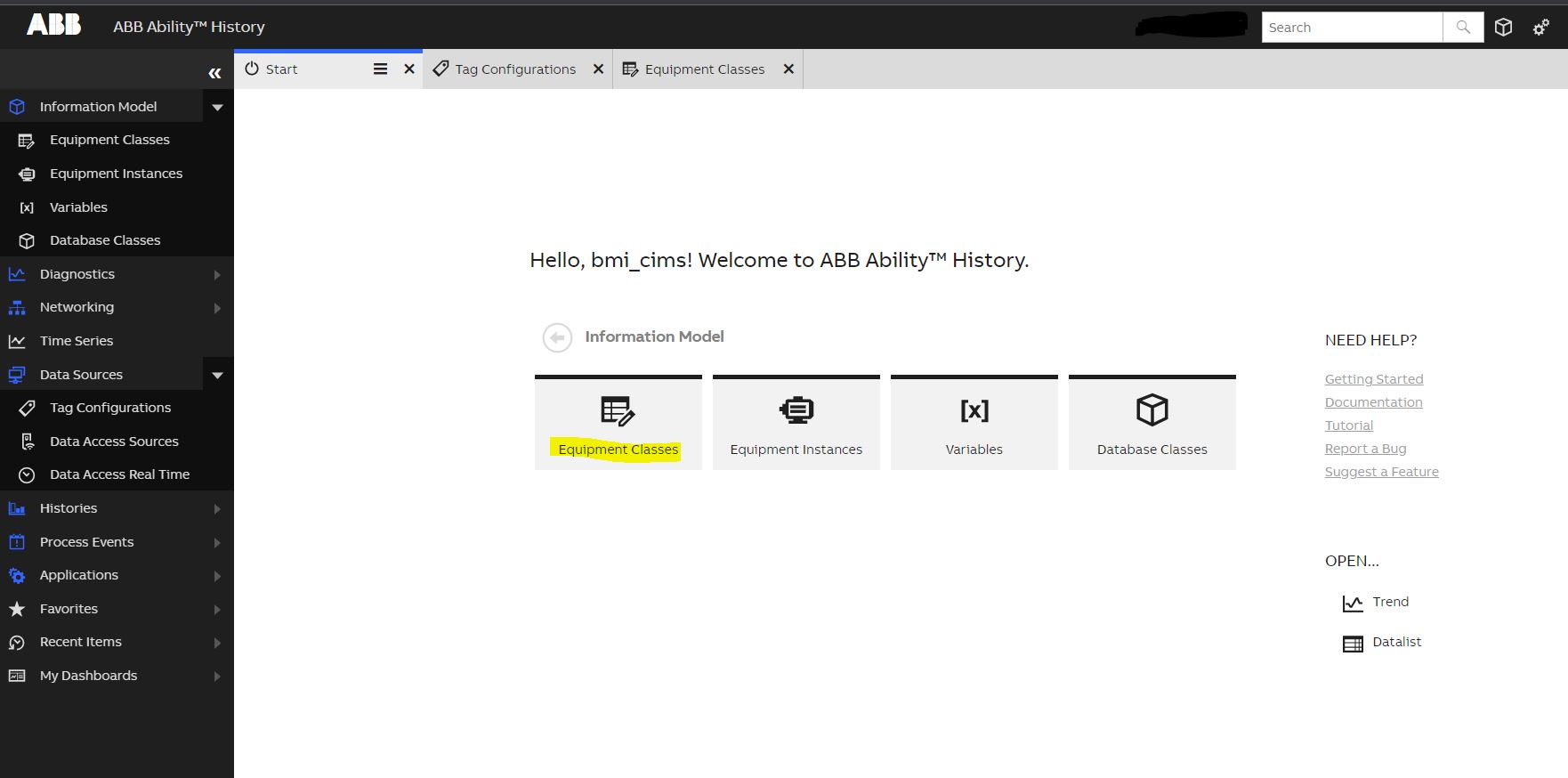
fig (4) - Equipment Classes
- In Equipment Classes List Click on edit and create an equipment and commit
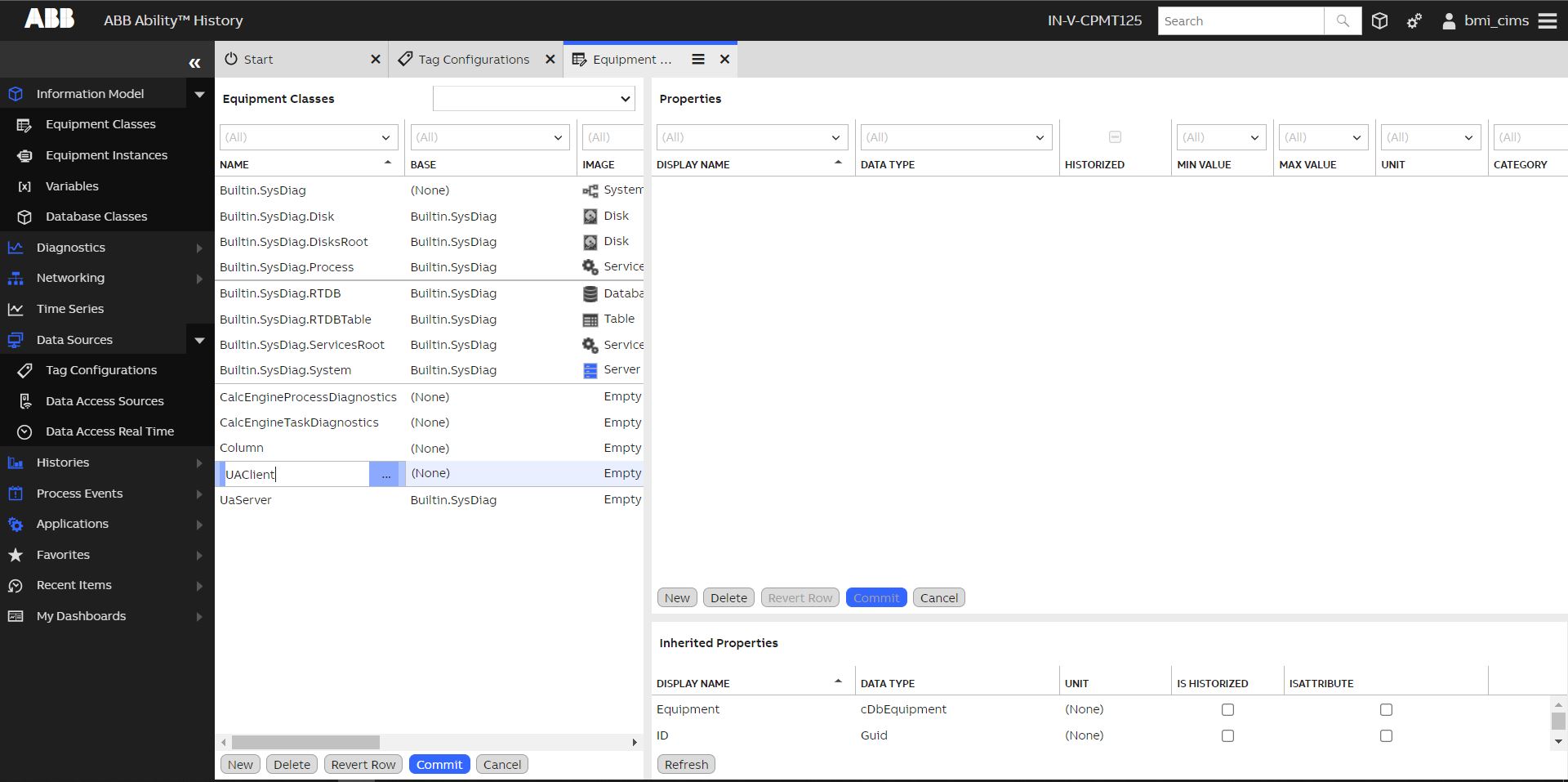
fig (5) - Equipment Creation
NoteProperties can be created only after the equipment is created and committed. Parallel creation of equipment and properties is not possible at this moment
- After the equipment is created, select the newly created equipment in 'equipment classes' first and create properties by clicking edit in 'properties' section. Enter the PropertyName and make sure to select 'Historized' check box and click on 'Commit' to save changes.
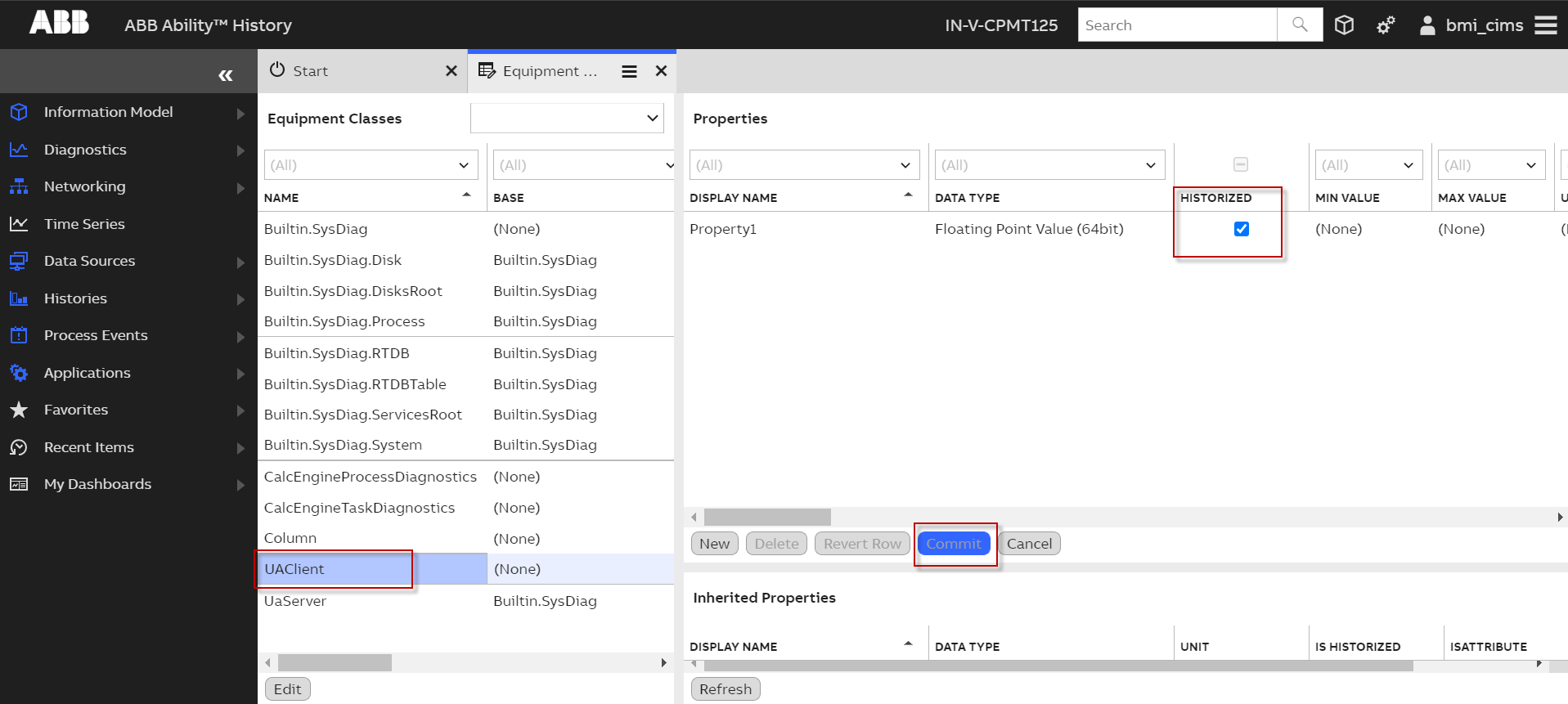
fig (6) - Equipment Property Creation
- Create Equipment instances by clicking 'Equipment Instances' in start window, in the resulting window, create new item under 'instances' section. Select corresponding equipment from drop down for which you want to create the instance
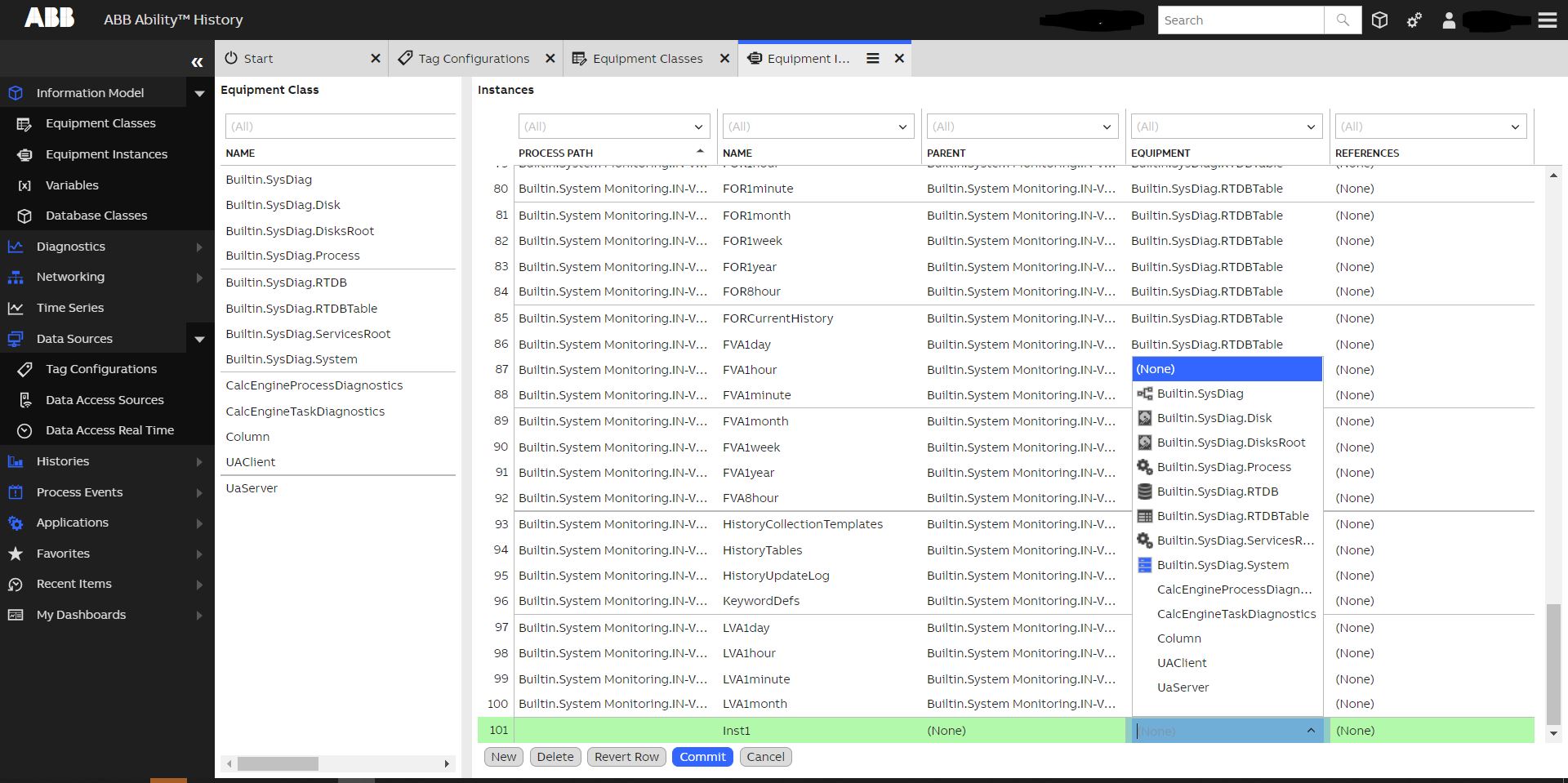
fig (7) - Equipment Instance Creation
- Specify the data access source
- The value of attribute Target Reference should match the below pattern
path__equipmentName_[propertyName]/|instance.Path e.g. /Path_UAClient[Property1]/|Inst1 - RTDB-EcOPCClient ONLY loads the records, whose attribute 'Owner Component' value is selected to 'OPC'.
- The value of attribute 'Access Type' should be selected to 'Realtime'.
- The value of attribute 'Access Path' should match the pattern: opc.tcp://ip:port///value;UaIdType=_;UaNamespace=_url* . For an example, please see the figure below.
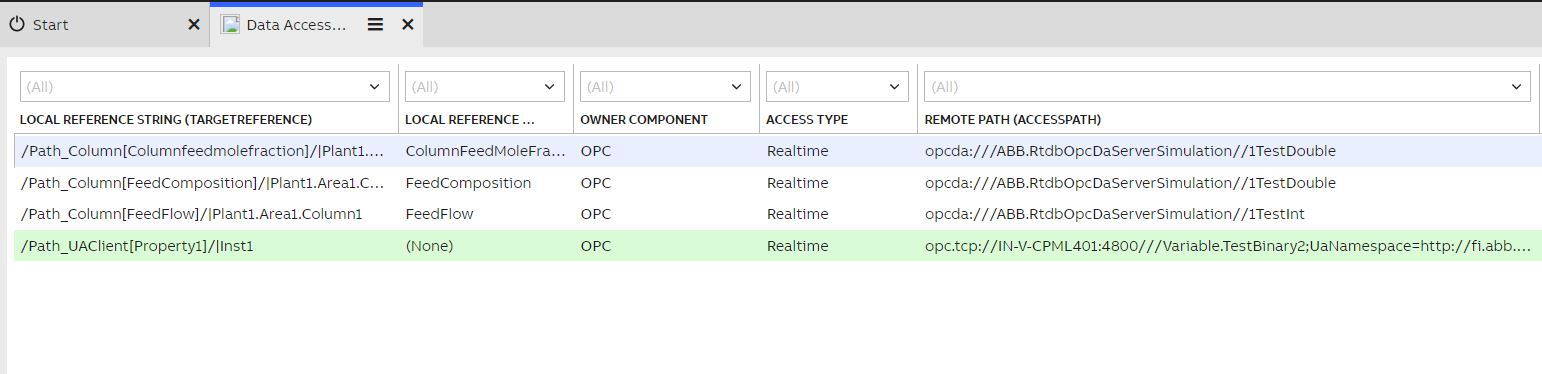
fig (8) - Data Access Source Configuration
- Set sampling interval in DataAccessRealTime-table
- Similar to the DataAccessSources table, the value of attribute 'Owner Component' should be selected as 'OPC'
- The value of attribute Target Reference should match the below pattern
path__equipmentName_[propertyName]
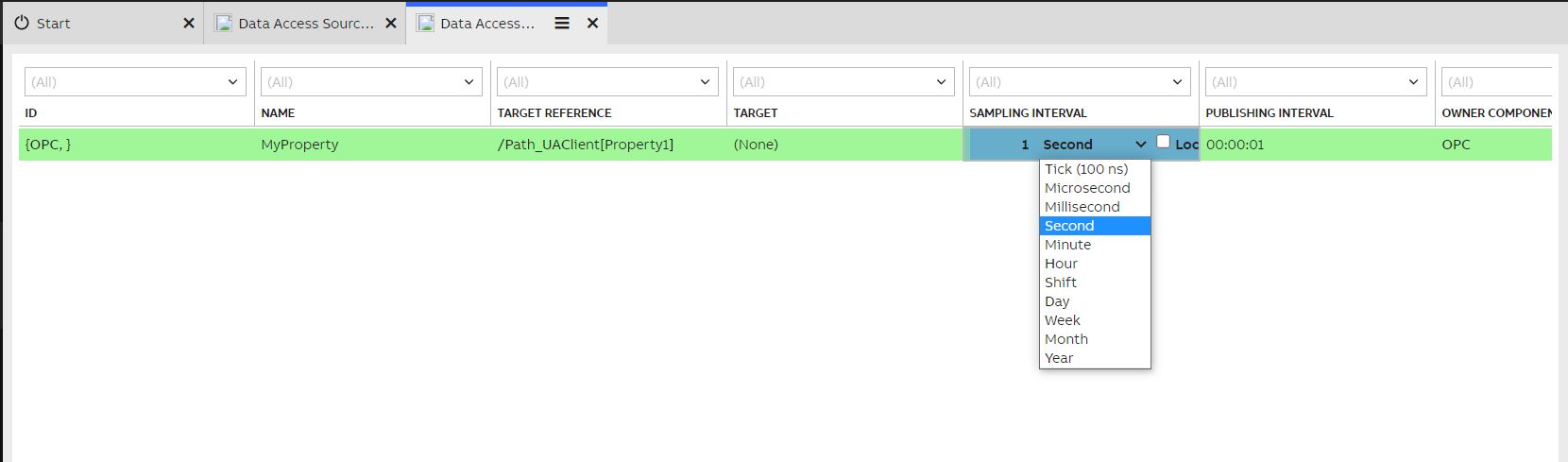
fig (9) - Data Access RealTime Configuration
NoteIf the server supports 'None' Security and the DefaultBehaviourMask=7 then the property of the instance should start collect data using 'None' Security. If the DefaultBehaviourMask is other than 7 then you need to trust the client certificate in server's pkistore.
Updated 7 months ago